
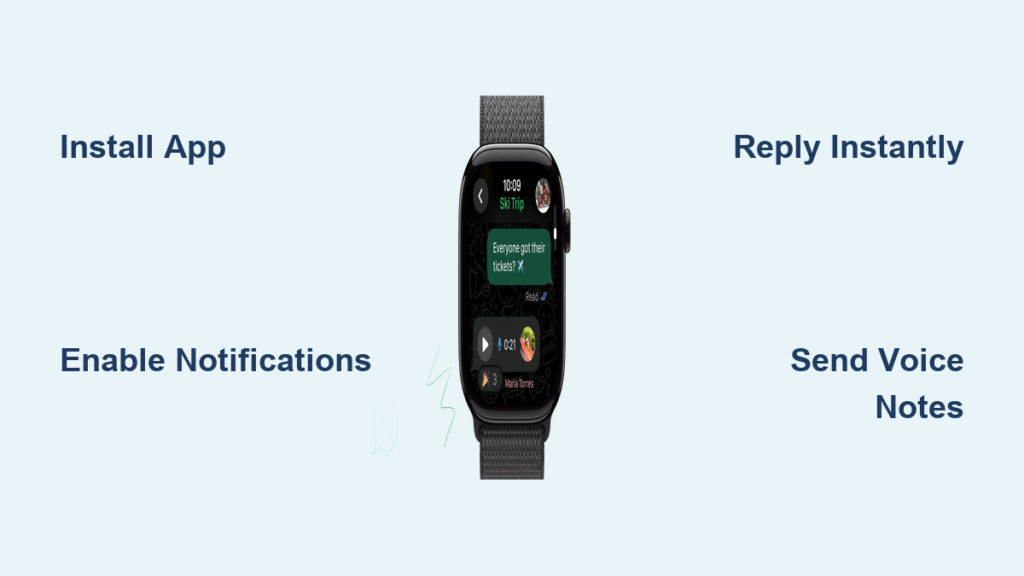
You’re out for a run, hands full with groceries, or deep in a meeting—when a message pings on your wrist. It’s WhatsApp, and for the first time ever, you can do more than just glance at the preview. With the official WhatsApp app for Apple Watch now live, you can read full messages, reply with text or voice, react with emojis, and even view photo previews—all without pulling out your iPhone.
This isn’t a beta. No QR code. No workarounds. Just a native, seamless experience straight from Meta. After years of limited notifications, WhatsApp has finally arrived on Apple Watch with real functionality. If you’ve been waiting for this moment, here’s exactly how to add WhatsApp to Apple Watch, what it can (and can’t) do, and how to troubleshoot common issues.
Let’s get your wrist messaging-ready.
✅ Check Compatibility Before Installing

Before you download anything, confirm your devices are supported. Not every Apple Watch can run the app—some hard requirements apply.
Apple Watch Series 4 or Newer Only
The app supports Apple Watch Series 4 (2018) and all newer models, including:
– Series 5, 6, 7, 8, 9
– Ultra and Ultra 2
– Apple Watch SE (1st and 2nd generation)
Series 3 and older models are not supported and will not display the app in the App Store.
iPhone and Software Requirements
Your iPhone must meet these software conditions:
– iOS 15.1 or later (iOS 16.4+ recommended for best performance)
– watchOS 9.4 or higher on your Apple Watch
– WhatsApp installed and updated on your iPhone
– Bluetooth or Wi-Fi connection between devices
🔋 Cellular Note: If you have a cellular Apple Watch, you can use WhatsApp when your iPhone is out of range—as long as your phone is powered on and connected to the internet.
📲 Install WhatsApp on Apple Watch (3 Ways)
You have three reliable methods to install WhatsApp. Choose the one that fits your setup.
Install Automatically (Fastest)
If automatic app syncing is enabled, WhatsApp installs itself once updated on your iPhone.
To check:
1. Open the Watch app on your iPhone.
2. Tap My Watch.
3. Scroll to Installed Apps or Available Apps.
4. Look for WhatsApp.
If it’s listed under Installed, open it on your watch—done.
If under Available, tap Install.
⚙️ Enable auto-install:
Go to Settings > App Store > Automatic Downloads → Turn on Apps.
Manual Install via iPhone Watch App
If auto-install is off, install it manually:
Steps:
1. Open the Watch app on iPhone.
2. Tap My Watch.
3. Scroll to Available Apps.
4. Find WhatsApp.
5. Tap Install.
💡 Fix if missing: Update WhatsApp on your iPhone. Restart both devices if the app doesn’t appear.
Direct Install from Apple Watch
Skip your phone entirely and download from your wrist:
Steps:
1. Press the Digital Crown to open the app grid.
2. Tap App Store.
3. Tap the Search icon (magnifying glass).
4. Say “WhatsApp” using the microphone.
5. Find the official app—green icon, developer: “WhatsApp”.
6. Tap Get to install.
⚠️ Avoid fake apps. Only install from the official developer.
🔐 Set Up: No QR Code, No Login
Unlike WhatsApp Web, you don’t need to scan a QR code. The app syncs instantly.
How It Works:
- Open WhatsApp on your Apple Watch.
- It connects directly to your iPhone.
- Your existing account loads automatically—no password, no verification.
✅ Secure and simple: Uses your iPhone’s encrypted WhatsApp connection.
Within seconds, your chat list, recent messages, and contacts appear—ready to use.
🛠️ Full Messaging from Your Wrist

Once installed, you can do more than just read notifications. Here’s what’s possible.
Read and Reply to Messages
View full conversations and respond instantly.
Reply options:
– Keyboard: Type with your finger (autocorrect enabled)
– Scribble: Handwrite letters; watch converts to text
– Dictation: Tap the mic and speak
– Quick Replies: Use shortcuts like “Yes,” “No,” or “On my way”
⚠️ On Series 7 and newer, long messages may require finishing on your iPhone due to system limits.
Send Voice Messages (Up to 10 Seconds)
Perfect for quick replies during workouts or calls.
How to send:
1. Open a chat.
2. Tap the microphone icon.
3. Hold to record (max 10 seconds).
4. Release to send.
🎤 Great for “I’ll be there in 5” or “Call you later”—but not for long updates.
React with Emojis Instantly
Respond without typing a word.
Steps:
1. Tap and hold any message.
2. Choose from:
– 👍 Like
– ❤️ Love
– 😂 Laugh
– 😮 Wow
– 😢 Sad
– 😠 Angry
3. Your reaction appears in the chat across all devices.
✅ A small but powerful way to stay engaged.
View Photos and Media
See images right on your wrist—no more guessing from text.
- Photos: Full-resolution previews, scroll smoothly
- Videos: Only thumbnail shown—tap to open on iPhone
- GIFs/Stickers: Display as static images
- Unsupported files: Labeled “View on phone”
✅ Image previews are now supported—a major upgrade over old notification-only access.
Manage WhatsApp Calls
You can’t answer video calls, but you can handle alerts.
Incoming call features:
– See caller name and number
– View call type (audio or video)
– Decline with one tap
– Answer audio calls? ✅ On some models (inconsistent)
– Answer video calls? ❌ Not supported
⚠️ Despite watchOS 9+ supporting call answering, most users can only decline. This is a top user complaint.
🔔 Enable and Customize Notifications
Get alerts and reply instantly—without unlocking your phone.
To enable:
1. On iPhone: Settings > Notifications > WhatsApp
– Turn on: Allow Notifications, Banners, Lock Screen, Notification Center
2. In Watch app:
– Go to Notifications > Mirror iPhone alerts from
– Ensure WhatsApp is toggled on
✅ You can reply directly from the notification—no need to open the app.
⚙️ Customize Your WhatsApp Experience
Make the app work better for your habits.
Adjust Chat Font Size
Easier reading on the small screen:
1. Open any chat on Apple Watch.
2. Use the Digital Crown to zoom text in or out.
Add Custom Quick Replies
Save time with personalized shortcuts:
1. On iPhone: WhatsApp > Settings > Chats > Quick Replies
2. Tap + to add replies like “In a meeting” or “Driving now”
3. Use them on watch via suggestions
Use Multiple Languages
Switch keyboards easily:
– Supports Spanish, Italian, German, French, and more
– Add via iPhone: Settings > General > Keyboard > Keyboards
⚠️ Known Limitations and Bugs
The app works—but it’s not perfect. Here’s what’s missing.
❌ Missing Features
- No Siri support: Can’t say “Hey Siri, send a WhatsApp message”
- No watch face complication: No unread count or quick launch
- Can’t start new chats: Only reply to existing ones
- No video/GIF sending: Only receive as static previews
- No standalone mode: iPhone must be on and online
🛠️ Crashing and Performance Issues
Some models struggle with stability:
| Device | Issue |
|---|---|
| Series 4 | Crashes on launch |
| SE (1st gen) | Won’t open or freezes |
| Series 5 | Slow loading, frequent crashes |
| Series 7+ | Most stable experience |
🔁 Fix: Restart both devices, update software, reinstall app.
🔁 Syncing Problems
- Deleted chats on iPhone may still show on watch
- Media and group messages sometimes sync slowly
🔄 Force sync by reopening the app or waiting a few minutes.
❓ FAQs: Quick Answers
Can I use WhatsApp on Apple Watch without iPhone?
No. Your iPhone must be powered on and online, even with a cellular Apple Watch.
Do I need to scan a QR code?
No. The official app does not require QR pairing. Older guides suggesting this are outdated.
Why doesn’t WhatsApp appear on my watch?
Common causes:
– iPhone not updated to iOS 15.1+
– Apple Watch older than Series 4
– WhatsApp not installed on iPhone
– App not installed via Watch app
✅ Fix: Update, restart, reinstall.
Can I answer WhatsApp calls?
Partially. You can decline calls. Answering audio calls works inconsistently. Video calls cannot be answered.
Is there a WhatsApp complication?
No. No widget to show unread messages or launch the app from your watch face.
Does Siri work with WhatsApp?
No. Siri cannot send, read, or reply to WhatsApp messages.
How does it compare to Wear OS?
| Feature | Apple Watch | Wear OS |
|---|---|---|
| Answer Calls | ❌ (Only decline) | ✅ |
| View Images | ✅ | ✅ |
| Send Voice Messages | ✅ (10s) | ✅ |
| React to Messages | ✅ | ✅ |
| Complication | ❌ | ✅ |
| Voice Assistant | ❌ (Siri) | ✅ (Google Assistant) |
🧰 Troubleshoot Common Issues
App Crashes on Launch
Solutions:
– Restart Apple Watch and iPhone
– Update to latest iOS and watchOS
– Delete and reinstall WhatsApp
Notifications Not Showing
Check:
– iPhone: Settings > Notifications > WhatsApp → All ON
– Watch app: Notifications > Mirror iPhone alerts from > WhatsApp → ON
– Disable Do Not Disturb or Theater Mode
Can’t Reply to Messages
Ensure:
– Microphone access is allowed
– Dictation or Scribble is enabled
– Watch isn’t in Silent or Theater Mode
Voice Messages Won’t Play
You must download them first:
– Tap to download
– Ensure Wi-Fi or cellular connection
– Wait for full download before playback
💰 Free, Global, and Ready to Use
- No cost to download or use
- No in-app purchases
- Available in all regions via Apple Watch App Store
- No subscription required
📅 What’s Coming Next?
Meta has confirmed future updates are in development:
– Answer WhatsApp calls on Apple Watch
– Siri integration for voice messaging
– Watch face complication
– Video message support
– Send GIFs and videos
– Improved stability on older models
🚀 The app is evolving—today’s limitations may be gone tomorrow.
✅ Final Checklist: Add WhatsApp to Apple Watch
- ✅ Confirm: Apple Watch Series 4 or newer
- ✅ Update: iPhone to iOS 15.1+, watch to watchOS 9.4+
- ✅ Install latest WhatsApp on iPhone
- ✅ Install on watch via:
– Automatic install
– Manual install (Watch app)
– Direct download (Apple Watch App Store) - ✅ Open app—no QR code, no login
- ✅ Sync happens instantly
- ✅ Start using: read, reply, react, send voice notes
🎯 Pro Tip: Enable cellular, customize quick replies, and keep software updated for best experience.
🧩 The Bottom Line
Adding WhatsApp to your Apple Watch is simple, fast, and free. After years of limited notifications, you now have a full-featured messaging experience on your wrist—complete with typing, voice, reactions, and media previews.
Yes, it’s missing key features like Siri, complications, and call answering. Yes, it crashes on older models. But for most users on Series 7 or newer, it works smoothly and delivers real convenience.
Install it today. Use it tomorrow. And get ready—because the next update could bring the features you’ve been waiting for.





