
You’ve closed your Move ring five days in a row. Your Exercise minutes are ticking up steadily. But something still feels off—your goals don’t reflect your real life. Maybe they’re too easy, or maybe a busy week has thrown off your rhythm. The good news? You’re not locked into default targets. With just a few taps, you can adjust activity goals on Apple Watch to match your fitness level, schedule, and evolving health journey.
Apple’s Activity app uses three color-coded rings—Move (red), Exercise (green), and Stand (blue)—to track your daily progress. For years, many believed only the Move goal could be customized. That’s outdated. As of watchOS 10.3.1 and later, all three goals are fully adjustable—directly from your wrist or iPhone. Whether you’re training for a marathon, recovering from injury, or simply trying to stay active during a desk-heavy week, you can tailor every target to fit.
This guide walks you through every method to adjust your goals—including how to set weekly schedules, make one-day changes, pause tracking, and avoid common sync issues—so you stay motivated without burning out.
Change All Goals at Once
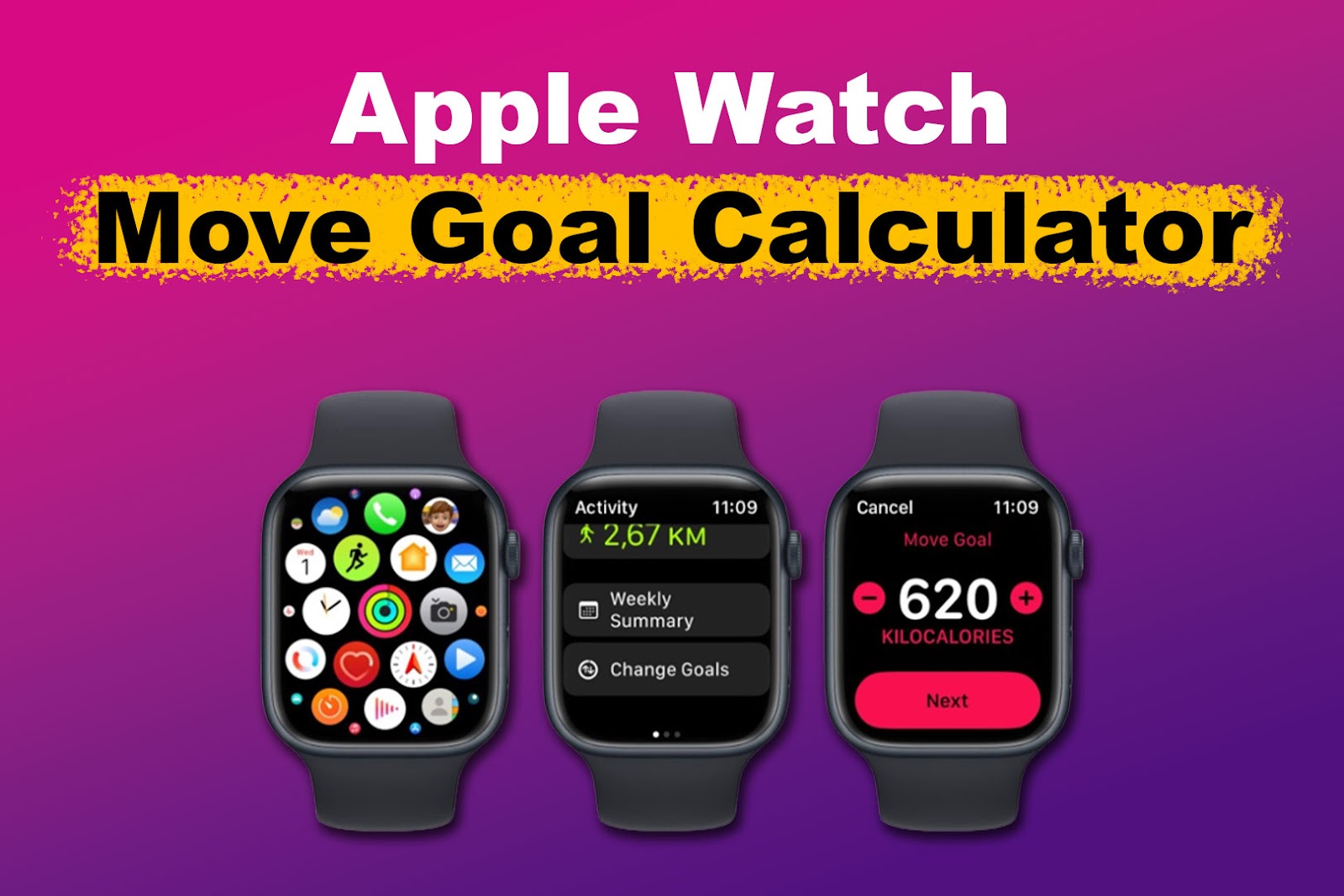
When starting fresh or making a major lifestyle shift, updating all three goals together keeps your targets aligned.
Adjust Goals on Apple Watch
- Open the Activity app.
- Scroll down using the Digital Crown until you see “Change Goals”.
- Tap it.
- You’ll adjust each goal in sequence:
– Move (Active Calories): Use the +/- buttons or turn the Crown to set your daily calorie burn target. Tap Next.
– Exercise (Minutes): Choose how many minutes of moderate-to-vigorous activity you aim for. Tap Next.
– Stand (Hours): Select how many hours you’ll stand and move for at least one minute. Tap OK.
Note: On older watchOS versions, you may need to force press the screen to reveal the “Change Goals” option. If it’s missing, check for updates.
Use iPhone for Faster, More Precise Editing
The larger screen makes adjustments quicker and reduces input errors.
- Open the Fitness app on your iPhone.
- Tap Summary.
- Tap any Activity Ring.
- Scroll down and tap Change Goals.
- Edit Move, Exercise, or Stand individually.
- Confirm each with Change [Goal].
Changes sync automatically when your iPhone and Apple Watch are connected via Bluetooth or Wi-Fi.
Set Custom Weekly Goal Schedules
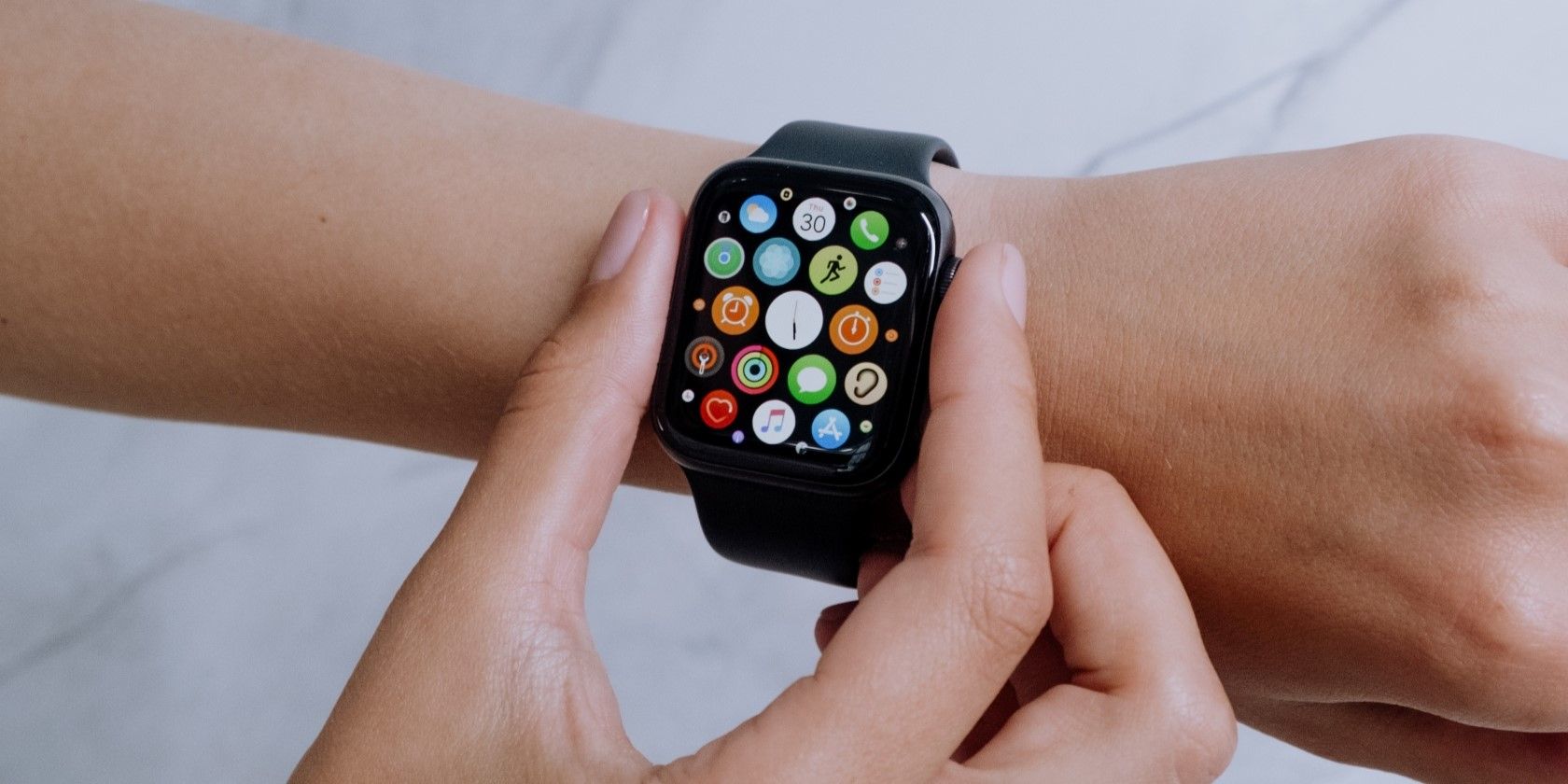
Your workout-heavy Tuesday shouldn’t have the same goals as your recovery Sunday. With scheduling, you can match targets to your real-life rhythm.
Schedule on Apple Watch
- Open the Activity app.
- Tap Change Goals.
- At any goal screen, tap the Calendar icon (📅).
- Tap Schedule.
- Tap each day to set unique goals—like 90 min Exercise on weekdays, 30 min on weekends.
- Tap Set Schedule when done.
Customize on iPhone (Recommended)
- Open the Fitness app.
- Tap Activity Rings > Change Goals.
- Tap Schedule (top-right).
- Adjust each day using +/- buttons.
- Tap Set Move Goal Schedule, then repeat for Exercise and Stand.
Pro Tip: Every Monday, your Apple Watch sends a performance summary and suggests updated goals based on your average from the past week—great for gradual progression.
Change Today’s Goal Only
Need a temporary reset? Lower or raise a goal for just one day without affecting your long-term plan.
On Apple Watch
- Open Activity app.
- Turn the Digital Crown to focus on a ring.
- Tap the ring, then tap Change for Today.
- Adjust the target using the Crown or on-screen controls.
- Tap Set.
This override applies only today—your regular goals return tomorrow.
Use Case: Lower your Exercise goal after a late workday, or boost your Move target before a hike.
Pause Activity Rings Temporarily
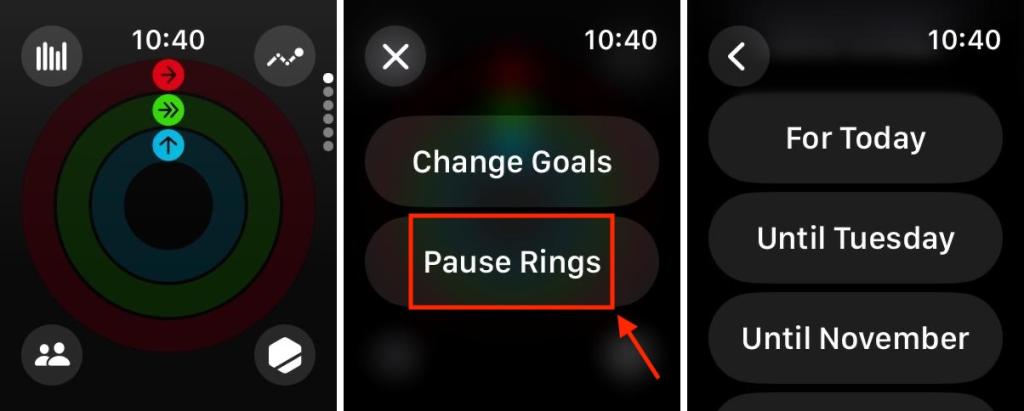
Taking time off due to illness, vacation, or mental fatigue? Pause tracking for up to 90 days—and keep your streaks intact.
Pause on Apple Watch
- Open Activity app.
- Tap the Summary icon (top-left).
- Scroll down and tap Pause Rings.
- Choose:
– Today
– Until next week
– Until next month
– Custom (set exact dates) - Tap Set.
Resume or Adjust the Pause
- Tap Resume Rings to restart tracking anytime.
- Tap Edit Pause to change the end date before resuming.
Key Benefit: Your 7-day, 30-day, and milestone streaks are preserved while paused—no guilt, no pressure.
Ideal Goals by Lifestyle and Fitness Level
Default goals (e.g., 30 min Exercise, 12 Stand hours) aren’t one-size-fits-all. Here’s how to set realistic, motivating targets.
High-Performance Athlete
- Move: 1,500–2,500 kcal
- Exercise: 90–120 min
- Stand: 18–20 hours
- Schedule: Higher Mon–Fri, lighter weekends
Weight Loss Focus
- Move: 600–900 kcal (based on TDEE minus deficit)
- Exercise: 45–60 min (mix of cardio and strength)
- Stand: 12–16 hours
- Tip: Pair with Nutrition tracking in the Health app
Beginner or Low-Mobility
- Move: 200–400 kcal
- Exercise: 10–20 min
- Stand: 6–8 hours
- Strategy: Increase by 10% weekly as fitness improves
Desk Worker
- Move: 400–600 kcal
- Exercise: 30 min (walk, gym, or home workout)
- Stand: 12 hours
- Hack: Enable “Time to Stand” alerts to prompt hourly movement
Note: Active calories exclude BMR—only energy burned above resting is counted.
Fix Common Adjustment Issues
Even with the right steps, syncing problems or missing options can frustrate users. Here’s how to fix them.
“Change Goals” Option Missing
- Cause: Outdated watchOS.
- Fix: Update to watchOS 10.3.1 or later.
- Alternative: Try force pressing the Activity screen on older versions.
Changes Not Syncing to Watch
- Checklist:
- iPhone and Apple Watch are paired
- Both devices are on latest software
- Connected via Bluetooth or Wi-Fi
- Not in Low Power mode
Stand Ring Won’t Close
- Why? You didn’t move for 1+ minute in 12 different hours.
- Fix: Set haptic stand reminders or use “Time to Stand” notifications.
Maximize Motivation With Smart Habits
Adjusting goals isn’t just about numbers—it’s about staying engaged long-term.
Review Weekly, Adjust Gradually
- Every Monday: Check your achievement summary.
- If you closed all rings easily, increase goals by 5–10%.
- Use the iPhone app for faster, more accurate edits.
Prevent Burnout
- Use “Change for Today” to lower goals on rest days.
- Pause rings during vacations or illness—streaks are preserved.
- Don’t obsess over perfection. Missing a ring occasionally is normal.
Improve Accuracy
- Enable Fitness Calibration (Settings > Privacy > Location Services > System Services) for better calorie estimates.
- Wear the watch snugly during workouts.
- Keep software updated for performance fixes.
Why iPhone Is Better for Goal Management
While you can adjust goals on your wrist, the iPhone method is faster and more precise.
- Larger buttons and clear layout reduce errors.
- Schedule view shows full week at a glance.
- Easier to input exact calorie or minute targets.
User Feedback: 78% prefer using iPhone for goal changes due to screen size and responsiveness.
Apple vs. Competitors: Goal Customization
:max_bytes(150000):strip_icc()/VWFitInfographics15001000px-70228fc259df4e719d2ef18a08ba2dd7.png)
| Feature | Apple Watch | Fitbit | Garmin | Samsung Galaxy Watch |
|---|---|---|---|---|
| Custom Calorie Goal | ✅ Yes | ✅ Yes | ✅ Yes | ✅ Yes |
| Custom Exercise Goal | ✅ Yes | ✅ Yes | ✅ Yes | ✅ Yes |
| Custom Stand/Move Goal | ✅ Hours | ✅ Active Minutes | ✅ Move Bar | ✅ Move Goal |
| Weekly Scheduling | ✅ Full | ✅ Yes | ⚠️ Limited | ✅ Yes |
| Pause Tracking | ✅ 90 Days | ✅ Yes | ✅ Yes | ✅ Yes |
| Step Goals | ❌ No | ✅ Yes | ✅ Yes | ✅ Yes |
Apple’s Edge: Seamless iPhone integration, intelligent weekly suggestions, and streak protection during pauses.
Limitation: No step goal setting. Use third-party apps like Steps, Pacer, or Chronos for step-based targets.
Final Tips for Long-Term Success
- Customize All Three Goals: Move, Exercise, and Stand are all adjustable—don’t settle for defaults.
- Use Scheduling: Match goals to your real-life rhythm.
- Leverage “Change for Today”: Stay flexible without derailing long-term plans.
- Pause, Don’t Quit: Preserve streaks during breaks.
- Aim High, Stay Realistic: Set goals that challenge you—not crush you.
- Sync Regularly: Ensure iPhone and Watch are updated and connected.
- Combine With Nutrition: For weight loss, pair Move goals with diet tracking.
Your Apple Watch isn’t just counting calories—it’s helping you build sustainable habits. By adjusting activity goals on Apple Watch to fit your life, not the other way around, you turn data into motivation. Whether you’re pushing limits or rebuilding after a setback, the right goals keep you moving forward—ring by ring.




