
You’re out for a morning jog, deep in a gym session, or enjoying a coffee run—no iPhone in sight—but someone important needs to reach you. Good news: if you have an Apple Watch, you can make and receive calls directly from your wrist, even when your phone isn’t nearby. Whether you’re using Wi-Fi or a cellular connection, calling from your Apple Watch is simple, fast, and designed for real-life moments. In this guide, you’ll learn exactly how to call from Apple Watch, which models support standalone calling, and how to fix common issues. You’ll also discover when your iPhone must be on—and when it’s completely optional.
Let’s get you connected—hands-free and hassle-free.
Cellular vs. Wi-Fi Calling Support
Your ability to call from Apple Watch without your iPhone depends entirely on your model and network setup. Not all watches offer the same freedom.
Check Your Apple Watch Model
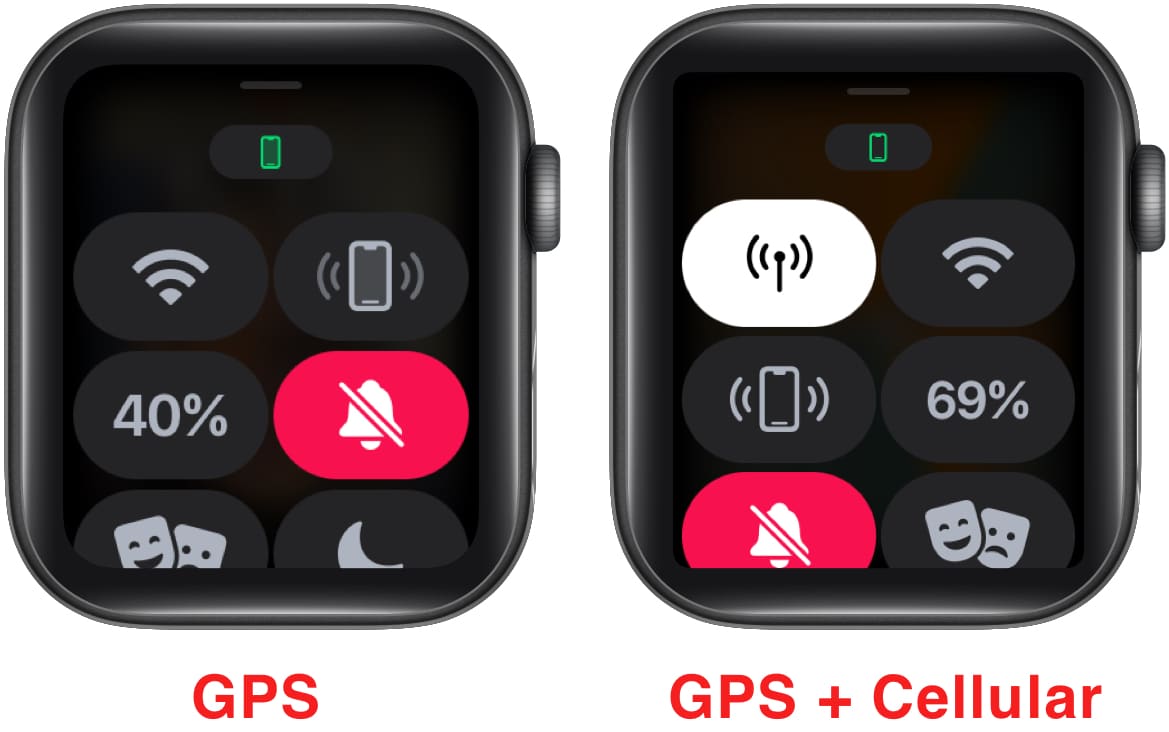
Only Apple Watch models with GPS + Cellular or Wi-Fi support can make calls independently. Here’s how they differ:
- Apple Watch GPS model: Can only make or receive calls when your iPhone is nearby and connected via Bluetooth or Wi-Fi.
- Apple Watch GPS + Cellular model: Can call over cellular networks, even if your iPhone is off or at home.
To confirm your model, open the Watch app on your iPhone, go to My Watch > General > About, and check the Model number. If it lists “Cellular” or an “A2xxx” series, your watch supports standalone calling.
Confirm Wi-Fi and Cellular Connections
For calls to work, your watch must be online.
- Wi-Fi connected? Swipe up from the watch face to open Control Center. Look for the Wi-Fi icon (radiating arcs).
- Cellular connected? Check the top-right corner for signal bars or the cellular icon (a dot pattern with a line).
If neither appears, your watch is offline. Calls will fail unless you’re using an offline feature like Favorites (for GPS-only models).
Enable Calling Features on Your Watch
Before making your first call, ensure key services are activated.
Turn On Wi-Fi Calling
Even if you’re on Wi-Fi, Wi-Fi Calling must be enabled for your Apple Watch to place calls:
- Open the Watch app on your iPhone.
- Tap Phone.
- Toggle on Wi-Fi Calling.
Without this, your watch may not connect to calls over Wi-Fi—even with a strong signal.
Pair Your iPhone Correctly
Your Apple Watch must be properly paired with your iPhone. During setup, calling features are enabled by default, but if you skipped them:
- Open the Watch app.
- Go to Phone.
- Ensure Calls is set to “On.”
Also, verify you’re signed in to iMessage and FaceTime on your iPhone—this is required for Messages and audio calls via your watch.
How to Make a Call from Apple Watch
Once set up, placing a call is quick and intuitive.
Use the Phone App
- Press the Digital Crown to return to the Home screen.
- Tap the Phone app (green icon).
-
Choose:
– Favorites: Call a saved contact.
– Recents: Redial someone recent.
– Keypad: Manually enter a number. -
Tap the green call button to start.
The call will use cellular first, then fall back to Wi-Fi if needed.
Use Siri to Call Hands-Free
Keep your hands free with voice commands:
- Raise your wrist and say, “Hey Siri.”
- Say, “Call Mom” or “Call 555-1234.”
Siri confirms and dials instantly. Works without your iPhone—as long as your watch has Wi-Fi or cellular.
Call from Messages or Contacts
You can also initiate calls from other apps:
- Messages: Open a conversation and tap the audio icon at the top.
- Contacts: Open the Contacts app, select a person, and tap the phone icon.
Both route calls the same way as the Phone app.
Answer Incoming Calls on Apple Watch
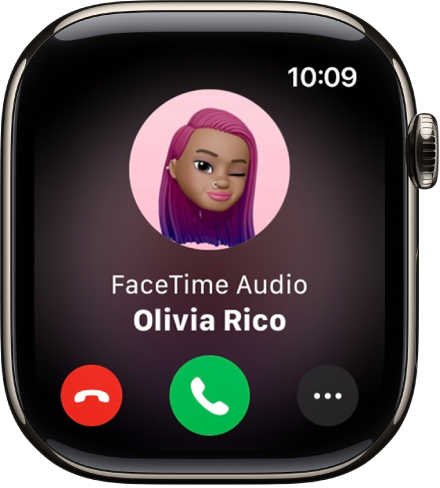
When someone calls, your Apple Watch vibrates and displays the caller ID.
Accept a Call
- Tap Answer to use the watch’s built-in speaker and mic.
- Tap Decline to send to voicemail.
- Tap Mute to silence the ringer.
If your iPhone is nearby, picking it up and tapping Answer there will automatically transfer the call from your watch.
Use Bluetooth Headphones
For privacy or better sound quality:
- Pair AirPods or any Bluetooth headset to your Apple Watch.
- When a call comes in, tap Answer, then tap the audio output icon.
- Select your headphones.
You can also set your watch to always route calls to headphones by going to Settings > Phone > Audio Routing.
Troubleshoot Call Connection Issues
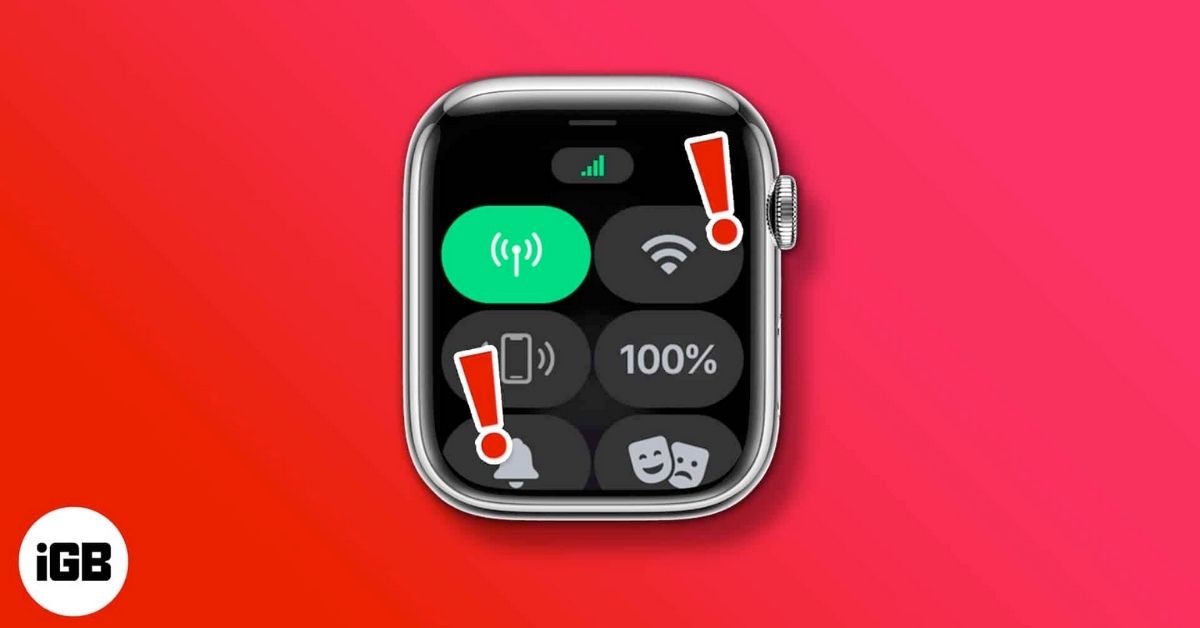
Even with a cellular model, calls sometimes fail. Here’s how to fix common problems.
No Cellular or Wi-Fi Signal
If your watch shows no signal:
- Swipe up to open Control Center.
- Tap the Airplane Mode icon to disable it (if active).
- For Wi-Fi: Tap the Wi-Fi icon and choose a known network.
- For cellular: Go to Settings > Cellular and ensure it’s enabled.
Still no connection? Restart your Apple Watch: Press and hold the side button until the power slider appears, then swipe to turn off.
Wi-Fi Calling Not Working
Even on Wi-Fi, calls may fail if Wi-Fi Calling is disabled.
- On iPhone: Open Watch app > Phone > Wi-Fi Calling.
- Ensure the toggle is green.
Note: Some carriers require Wi-Fi Calling to be enabled on your iPhone plan. Contact your provider if calls still fail.
Can’t Call Non-Favorites Without iPhone (GPS-Only Users)
If you have a GPS-only Apple Watch, you can only call Favorites when your iPhone is out of range.
To fix this:
- On iPhone, open the Phone app.
- Tap Favorites.
- Add contacts you frequently call.
After syncing, these appear in the Apple Watch Phone app—allowing quick dialing even without your phone.
Optimize Calling with Low Power Mode
Low Power Mode saves battery but limits connectivity.
What Changes in Low Power Mode
When enabled:
- Wi-Fi and cellular turn off when your iPhone is away.
- Network access only resumes when you open an app that needs it, like Phone.
So if a call comes in while your watch is idle, it may not ring unless the network was already active.
Best Practices for Reliable Calls
- Turn off Low Power Mode if you expect calls without your iPhone.
- Or, open the Phone app manually before calling—it triggers network connection.
- Disable Low Power Mode in Settings > Battery on your watch.
Tips for Better Call Quality
Even with a strong signal, call clarity matters.
Use Headphones for Clarity
The Apple Watch speaker and mic are small. In noisy areas:
- Use AirPods or Bluetooth earbuds.
- During a call, tap the mic icon to switch to your headphones’ microphone.
Your voice will sound clearer to the other person.
Find Strong Signal Areas
Cellular signal strength varies.
- Move near a window or open space.
- Check signal bars in the top-right corner.
If you see only one bar, calls may drop or fail.
Sync Contacts for Quick Access
Ensure your contacts are synced to your watch:
- On iPhone: Open Watch app > My Watch > Contacts.
- Choose All Contacts or Selected Contacts.
- Wait a few minutes for sync.
Now you can call anyone from your list—no typing required.
When Your iPhone Must Be On
Even with a cellular Apple Watch, your iPhone plays a behind-the-scenes role.
iPhone Requirements for Key Features
- SMS/MMS messages: iPhone must be powered on and connected to Wi-Fi or cellular (doesn’t need to be nearby).
- Third-party app notifications: Same—iPhone must be on.
- iMessage setup: You must be signed in to iMessage on your iPhone to use Messages on your watch.
So while you can still make and receive calls without your iPhone, some texts may not sync if it’s off.
Maximize Standalone Calling Performance
Want your Apple Watch to work like a true phone replacement? Optimize it for independence.
Keep Software Updated
Outdated software can break calling:
- On iPhone: Open Watch app > General > Software Update.
- Install any available updates.
These often include carrier settings and bug fixes for cellular connectivity.
Reset Network Settings (If Needed)
If calls keep failing:
- On Apple Watch: Go to Settings > General > Reset.
- Tap Reset Network Settings.
- Reconnect to Wi-Fi and re-enable cellular.
This clears misconfigured networks and forces a fresh connection.
Use Emergency SOS Without Service
Even with no signal, your Apple Watch can call emergency services:
- Hold the side button until the Emergency slider appears.
- Slide to call.
In some regions, your watch may connect to any available network, even without a carrier plan.
Final Tips for Seamless Calling
Calling from Apple Watch is powerful—but works best with the right setup.
- Cellular model users: You’re free to leave your iPhone behind.
- GPS-only users: Keep your iPhone nearby, or stick to calling Favorites.
- All users: Enable Wi-Fi Calling, use headphones, and manage Low Power Mode wisely.
Now that you know how to call from Apple Watch, you’re ready to stay connected—anytime, anywhere.
Final Note: This guide covers calling functionality as of February 2026. Features may vary by Apple Watch model, carrier, and region. Always ensure your devices are updated and properly paired for best results.




