
If your Apple Watch says you’ve run 6 miles when the treadmill shows 4.5—or your daily Move ring fills up after a casual stroll—you’re not imagining things. The culprit? Out-of-date or missing calibration data. Without proper calibration, your Apple Watch guesses your stride length and pace, leading to inaccurate distance, calorie, and exercise tracking. But the fix is simple: calibrate your Apple Watch using real-world motion.
Calibration trains your device to understand your unique walking and running patterns by combining GPS data, motion sensors, and personal health metrics. Once calibrated, your Apple Watch delivers far more accurate results—especially during indoor workouts, treadmill runs, and in areas with weak GPS signals like city streets or forest trails. This isn’t just about numbers; it’s about trust. When you know your data is reliable, you can make better fitness decisions, set realistic goals, and track real progress.
In this guide, you’ll learn exactly how to calibrate Apple Watch step by step, reset corrupted data, improve indoor accuracy, and maintain precision over time. Whether you’re a daily walker, weekend runner, or treadmill regular, these proven methods will ensure your Apple Watch works for you—not against you.
Enable Motion Calibration & Location Services on iPhone

Before you start calibrating, your iPhone must allow system-level access to motion and location data. Without these permissions, your Apple Watch can’t collect or process the sensor information needed for accurate stride learning.
Turn On Motion Calibration & Distance
- Open the Settings app on your iPhone.
- Tap Privacy & Security, then select Location Services.
- Scroll down and tap System Services at the bottom.
- Toggle on Motion Calibration & Distance.
🔴 Critical: If this setting is off, calibration will fail. Your Apple Watch relies on motion data from your iPhone—even when using built-in GPS—to refine its understanding of your gait and movement dynamics.
Confirm Your Health Profile Is Up to Date
Your Apple Watch uses your age, gender, height, and weight to calculate calorie burn and activity intensity. If your profile still lists an old weight or incorrect height, those calculations will be off—no matter how well-calibrated your stride is.
To verify and update:
1. Open the Apple Watch app on your iPhone.
2. Go to My Watch > Health > Body Measurements > Health Details.
3. Review and edit any outdated information.
✅ Pro Tip: A 10–15 pound weight change can alter calorie estimates by 10–20%. Update your profile after major fitness milestones or body composition shifts.
Perform Outdoor Calibration Walk or Run
The core of Apple Watch calibration happens during a 20-minute outdoor walk or run in optimal conditions. This session teaches your watch how far you travel with each step under real-world GPS tracking.
Conditions for Successful Calibration
- Activity Type: Outdoor Walk or Outdoor Run (via Workout app)
- Duration: 20 minutes total (can be cumulative across multiple sessions)
- Location: Open, flat area with unobstructed sky
- Wear: Apple Watch snug on wrist (not loose)
- Pace: Steady, natural rhythm—don’t sprint or shuffle
Avoid downtown areas with tall buildings, dense tree cover, tunnels, or hills. These environments cause GPS signal bounce or dropouts, which corrupt the calibration data.
Step-by-Step Calibration Process
- Head to a large open space—like a park, sports field, or quiet parking lot.
- Launch the Workout app on your Apple Watch.
- Choose Outdoor Walk (for walkers) or Outdoor Run (for runners).
- Start the workout and maintain a consistent pace for 20 minutes.
- End and save the session when finished.
🔄 Good News: You don’t need to complete all 20 minutes at once. Apple accumulates time across multiple outdoor workouts until the total reaches 20 minutes. However, consistency in pace and environment improves accuracy faster.
GPS Requirements by Apple Watch Model
| Model | GPS Needs for Calibration |
|---|---|
| Series 2 and later | Uses built-in GPS; no iPhone required |
| Series 1 and earlier | Requires iPhone nearby for GPS data |
| Ultra, Series 8+, SE (2nd gen) | Prioritizes built-in GPS even with iPhone present |
Carry your iPhone only if using an older model. Newer watches use their own GPS to preserve battery and maintain accuracy.
Calibrate for Multiple Speeds to Improve Mixed-Intensity Accuracy
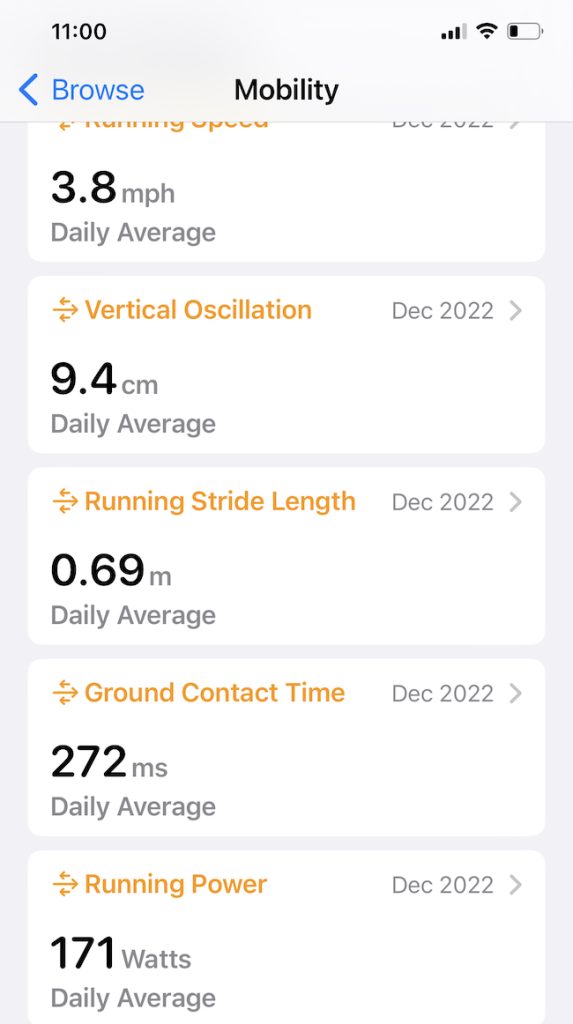
If you walk briskly one day and run casually the next—or do interval training—your stride changes. To get accurate tracking across speeds, calibrate at different paces.
Train Your Watch for Walking and Running Strides
- Complete a dedicated 20-minute Outdoor Walk at your normal pace.
- Do a separate 20-minute Outdoor Run at your average running speed.
This dual calibration teaches your Apple Watch how your stride length varies with intensity, improving accuracy for:
- HIIT workouts
- Walk-run intervals
- Hiking with elevation changes
- Mixed-terrain runs
📈 Result: More precise pace, distance, and calorie data when switching between speeds—especially helpful for treadmill intervals or outdoor trail runs.
Keep Calibration Active with Regular Outdoor Use
Apple Watch doesn’t stop learning after 20 minutes. According to Apple, “Your Apple Watch continues to calibrate by learning your stride length at different speeds” every time you do an Outdoor Walk or Outdoor Run.
🌳 Tip: Even short daily walks in open areas help maintain accuracy. Think of it as ongoing tune-ups for your fitness tracking.
Optimize Treadmill Workout Accuracy After Calibration
Treadmills don’t sync with Apple Watch, so the watch estimates distance based on your learned stride. Proper calibration bridges the gap—but only if you follow best practices.
Best Practices for Indoor Treadmill Workouts
- ✅ Use Treadmill mode in the Workout app (if available) or Outdoor Run/Walk
- ✅ Let arms swing naturally—no handrails
- ✅ Wear the watch snugly on your wrist
- ❌ Don’t hold onto treadmill rails—this suppresses motion detection
⚠️ Holding handrails can reduce step count and distance by up to 30%. Your arms aren’t moving, so the watch assumes you’re barely walking.
Why Apple Watch and Treadmill Distance May Differ
Even with calibration, small discrepancies are normal because:
– Treadmills measure belt rotation; Apple Watch estimates via stride length.
– Your natural stride may shorten or lengthen on a moving surface.
– No GPS indoors means the watch relies solely on motion sensors.
📏 Example: A 5 km treadmill walk might show 4.8 km on Apple Watch. That’s acceptable. Calibration brings it close—but not perfectly aligned.
Ankle Mounting Hack (Use Sparingly)
Some users wear the Apple Watch on the ankle during treadmill runs using a sports band for better step detection.
⚠️ Trade-off: This improves motion tracking but disables heart rate monitoring, which requires contact with the radial artery on the wrist.
Only use this method if heart rate isn’t essential for your workout.
Reset Fitness Calibration Data to Fix Inaccurate Tracking

If your Apple Watch consistently overestimates distance, undercounts steps, or shows wild discrepancies, corrupted calibration data may be the cause.
When to Reset Calibration
- Persistent over- or underestimation of distance
- Sudden drop in step count despite normal activity
- After major weight loss or recovery from injury
- Following long periods of indoor-only workouts in GPS-poor areas
🧩 Real User Case: One person recorded 9 km for a 5 km treadmill walk. After resetting and recalibrating outdoors, readings matched closely.
How to Reset Calibration Data
- Open the Apple Watch app on your iPhone.
- Tap My Watch > Privacy > Reset Fitness Calibration Data.
- Confirm the reset.
After resetting, repeat the 20-minute outdoor walk or run to rebuild accurate stride data.
🔄 Note: Resetting only clears motion learning—not health data, workouts, or activity history. It’s safe to do anytime.
Maintain Long-Term Accuracy with Smart Habits
Small, consistent habits make a big difference in keeping your Apple Watch calibrated and trustworthy.
Walk in Open Areas Regularly
Urban environments with skyscrapers cause GPS “bounce,” leading to inaccurate tracking. Instead, choose large parking lots, open parks, or flat trails.
🗽 Community Tip (DingBatUs): “Go to a large parking lot and walk the perimeter. It’s flat, open, and perfect for calibration.”
These spaces offer ideal conditions: no signal blockage, consistent pacing, and flat terrain.
Check GPS Signal Strength Before Calibrating
Verify strong GPS lock before starting:
1. Open Google Maps on iPhone.
2. Tap the blue dot (Your Location).
3. Look for a small, solid blue circle—smaller = stronger signal.
If the circle is large or fuzzy, wait or move to a clearer area.
Keep iOS and watchOS Updated
Apple regularly improves motion algorithms and GPS performance through software updates.
Ensure:
– iPhone runs latest iOS
– Apple Watch has latest watchOS
Updates often fix bugs affecting step counting, distance estimation, and sensor fusion.
Key Benefits of Calibrating Your Apple Watch
| Benefit | Real-World Impact |
|---|---|
| Accurate Distance | Trust your km/mile tracking even without GPS |
| Reliable Pace Data | Reflects real speed during treadmill runs |
| Better Calorie Counts | Combines stride + personal data for realistic burn estimates |
| Improved Indoor Tracking | Makes treadmill workouts count accurately |
| Personalized Metrics | Adapts to your body and movement style |
Without calibration, your Apple Watch guesses. With it, your watch knows.
Final Tips for Best Calibration Results
- Calibrate Monthly: Even after initial setup, periodic outdoor walks keep data sharp.
- Reset When Inconsistent: Don’t ignore drifting metrics—reset and retrain.
- Use Open Spaces: Avoid GPS-jammed zones like downtown cores or forest trails for calibration.
- Update Health Info: Weight, height, and age directly impact accuracy.
- Avoid Handrails: Let arms swing freely for true motion detection.
- Combine Outdoor + Indoor: Use calibrated data to maximize treadmill tracking.
🎯 Bottom Line: Calibration turns your Apple Watch from a general fitness tracker into a personalized coaching tool. It takes one 20-minute walk—but the payoff lasts forever.
By following these steps, you’ll eliminate frustrating inaccuracies and trust every metric your Apple Watch records. Whether you’re training for a race or tracking daily movement, calibrated data means better decisions, clearer progress, and real results.




