
Is your Apple Watch showing the same face every day? You’re not stuck with it. Changing the clock face on your Apple Watch is one of the easiest and most rewarding ways to personalize your device—boosting both style and functionality. Whether you want a bold digital display, an elegant analog design, or a rotating photo face that brings your memories to life, Apple gives you full control. The best part? You can do it right from your wrist or through the Apple Watch app on your iPhone—no technical skills required.
In this guide, you’ll learn exactly how to change, customize, and manage watch faces on your Apple Watch. We’ll walk through step-by-step methods for adding new faces, switching between them, and organizing your collection. You’ll also discover how your choice of face affects system-wide displays like widgets and Live Activities, and how to use advanced features like setting the time ahead for better punctuality. Let’s unlock your watch’s full potential.
Add a New Watch Face from iPhone
The Apple Watch app on your iPhone is the most powerful way to browse, customize, and add new faces—offering a larger screen and real-time previews.
Browse the Face Gallery
Open the Apple Watch app on your iPhone and tap Face Gallery. Here, you’ll find curated collections like Health & Fitness, Photos, Time Travel, and X-Large. Scroll down and tap See All Watch Faces to explore every available option—from Infograph and Astronomy to California, Toy Story, and Snoopy.
Each face serves a different purpose. Want large, easy-to-read numbers? Try X-Large. Love space? Astronomy shows real-time views of the Earth and Moon. Prefer timeless elegance? California blends classic analog hands with a digital minute display. There’s even a Modular face that lets you pack in multiple complications for maximum utility.
Customize Before Adding

Tap any face to preview it, then personalize it before adding it to your watch:
- Change colors or styles: Adjust dials, fonts, and motion effects.
- Set a photo background: For Photo or Reflection faces, choose an image from your library.
- Edit complications: Tap a position (e.g., Top Left) and swipe up or down to select data like weather, heart rate, or battery level.
- To remove a complication, scroll to Off at the top of the list.
When you’re satisfied, tap Add to Watch. The face instantly syncs to your Apple Watch and becomes active.
Pro Tip: Use the iPhone app for deep customization. It’s easier to navigate than the small watch screen, and you can preview changes in real time.
Change Face Directly on Apple Watch
No iPhone nearby? No problem. You can add and customize a new face right from your wrist.
Start Face Editing Mode
With your current watch face showing, touch and hold the screen. Swipe left until you reach the “+” button, then tap it. A scrollable menu of face categories appears.
Spin the Digital Crown to move quickly through options. Tap a face to select it—like Modular, Solar, or Emoji.
Customize On the Go
After selecting a face:
- Rotate the Digital Crown to change colors, styles, or background images.
- Tap a complication area (e.g., center or bottom), then turn the Crown to choose what data appears.
- Press the Digital Crown to exit customization.
Tap Add, and the new face joins your collection. Swipe left or right to switch to it immediately.
Quick Access: Long-press any face to jump straight to the “+” button—no need to swipe through your collection first.
Switch Between Saved Watch Faces
Once you’ve added multiple faces, switching between them takes just a swipe.
Swipe to Change Face
Touch and hold the current face, then swipe left or right to scroll through your saved faces. Tap one to activate it.
For even faster access:
Enable Swipe to Switch
- Open the Settings app on your Apple Watch.
- Tap Clock.
- Turn on Swipe to Switch Watch Face.
Now, skip the long press—just swipe left or right on the watch face to cycle through your collection instantly.
Use Case: Switch to a workout face with activity rings before the gym, then swipe to a minimalist face for meetings.
Organize Your Watch Face Collection
Keep your collection tidy and easy to navigate by managing order and removing unused faces.
Reorder Faces on iPhone
- Open the Apple Watch app.
- Go to My Watch > My Faces.
- Tap Edit, then drag the three-line handle next to each face to rearrange.
The order here matches the swipe order on your watch—put your most-used faces up front.
Reorder on Apple Watch
Touch and hold the current face, then touch and hold again to enter edit mode. Drag a face left or right to change its position.
Delete Unwanted Faces
On Apple Watch:
– Touch and hold the screen.
– Swipe to the face you want to remove.
– Swipe up, then tap Remove.
On iPhone:
– Go to My Watch > My Faces.
– Tap Edit, tap the red minus icon, then Remove.
Note: You can re-add deleted faces anytime from the Face Gallery.
Digital vs Analog: What’s the Difference?
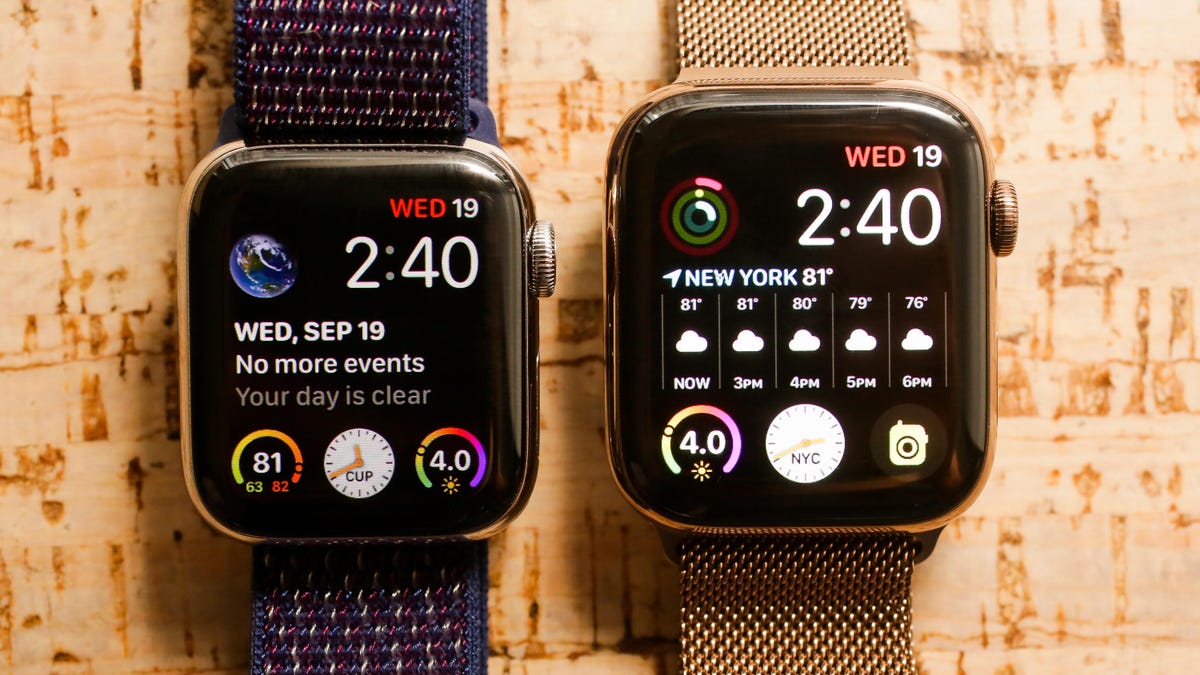
Your choice of face does more than change how time looks—it affects your entire Apple Watch experience.
System-Wide Clock Syncing
The active watch face controls the clock style across system screens:
- Widgets screen: Shows digital time if your face is digital (e.g., X-Large), analog if your face is analog (e.g., Infograph).
- Live Activities and double-tap wake screen: Follow the same rule.
- No independent setting: You can’t use an analog face with a digital system clock—Apple links them automatically.
User Feedback: Some wish they could decouple these displays, but currently, no built-in option exists.
Functional Trade-Offs
| Face Type | Pros | Cons |
|---|---|---|
| Digital (X-Large, Numerals) | Large, easy-to-read numbers; great for accessibility | Often lacks seconds display |
| Analog (Chronograph, Infograph) | Classic look; usually shows seconds | Minute markers may be sparse or hard to read |
Workaround: On supported models, double-tap the screen when waking the watch to briefly show a digital clock in the top-right corner—even on analog faces.
Customize for Specific Needs

Smart users create purpose-driven faces to match their daily routines.
Build a Workout Face
Use the Infograph or Modular face:
- Add complications for Heart Rate, Activity Rings, Workout, and Weather.
- Set a motivational color scheme (e.g., red or green for energy).
- Save it as “Gym Mode” for quick access.
Create a Travel-Friendly Face
Try the GMT face:
- Shows home and destination time zones simultaneously.
- Add Calendar and Weather complications for your location.
- Ideal for frequent flyers.
Design a Minimalist Look
Want clean lines and less clutter?
- Use the Snoopy face with Newspaper White color.
- Or pick Stripes and set all bands to white (appears light gray due to transparency).
- Pair with simple complications like Battery and Date.
Style Tip: This minimalist look pairs well with the Mindful app icon’s teal accent—popular among users of the 42mm Apple Watch Series 10 in Natural Titanium.
Set Time Ahead to Stay Punctual
Need a nudge to leave on time? Apple Watch lets you display the time ahead—up to +59 minutes—as a psychological trick to beat tardiness.
Adjust Displayed Time
- On your Apple Watch, open Settings.
- Tap Clock.
- Tap +0 min.
- Turn the Digital Crown to set the offset (e.g., +10 or +15 minutes).
Important: This only changes what you see. Alarms, calendar alerts, timers, and World Clock still run on real time. Your watch stays synced—only the display lies.
Maximize Customization with Pro Tips
Go beyond basics with these expert-level tweaks.
Use Smart Stack for Dynamic Info
On compatible faces like Modular, Infograph, or Motion, add the Smart Stack complication. It automatically cycles through:
- Calendar next event
- Weather forecast
- Reminders
- Fitness updates
No need to open apps—just tap the complication to take action.
Test Readability in Real Conditions
Before finalizing a face:
- Check visibility in sunlight and low light.
- Ensure complications don’t overlap or crowd the dial.
- Wear it during a workout to confirm legibility while moving.
Limit Face Count for Speed
While you can save dozens of faces, keeping 5–7 makes swiping faster and more intuitive. Delete rarely used ones to reduce clutter.
Final Note: Changing the clock face on your Apple Watch is more than a style update—it’s a way to tailor your device to your life. With full customization on iPhone or quick edits on your wrist, you can switch from fitness tracking to fashion-forward designs in seconds. Remember: the face you pick shapes your entire interface, from widgets to wake screens. Use purpose-built faces, leverage swipe navigation, and don’t forget the time-ahead trick for better punctuality. Your Apple Watch, your rules.




