
You tap the Digital Crown and scan your app screen—only to find your most-used app buried under a dozen others. You just want to move it to the front. That’s the daily struggle for many Apple Watch users trying to streamline their digital wrist experience. Knowing how to change apps on Apple Watch isn’t just about aesthetics—it’s about efficiency, speed, and making your wearable work for you, not against you.
The good news? Apple gives you multiple ways to customize your app setup—right from your wrist or through your iPhone. But here’s the catch: not all methods offer the same control. In Grid View, you can drag and drop apps exactly where you want them. In List View, everything is locked in alphabetical order—no exceptions. If you’re looking to truly personalize your layout, this limitation matters.
Beyond rearranging icons, you can also remove unused apps, restore deleted ones, and use smarter shortcuts like the Dock, Siri, and watch face complications to access your favorites in seconds. This guide walks you through every proven method to change, organize, and launch apps on your Apple Watch—based on official specs, verified user workflows, and real-world testing.
Whether you’re switching views, reordering icons, or building a custom launch system, you’ll learn how to take full control of your app experience—starting today.
Switch Between Grid and List View
Your chosen view determines how much freedom you have to customize your app layout. The two options—Grid View and List View—serve different needs, but only one lets you rearrange apps manually.
On Apple Watch: Change View Instantly
- Press the Digital Crown to return to the Home Screen.
- Scroll all the way to the bottom of your app list using the Digital Crown.
- Tap:
– Grid View – for a customizable honeycomb layout
– List View – for a clean, scrollable list with full app names
The change applies immediately. No syncing delay—you’ll see the new layout the moment you tap.
On iPhone: Set View from the Watch App
- Open the Watch app on your iPhone.
- Tap the My Watch tab.
- Navigate to App View.
- Select:
– Grid View
– List View
This setting syncs automatically with your Apple Watch. Any changes made here will update your watch within seconds.
💡 Pro Tip: If you want to move apps around, Grid View is your only option. List View is great for readability, but it doesn’t support manual reordering—ever.
Rearrange Apps in Grid View
Only available in Grid View, this is where you gain full control over your app layout.
On Apple Watch: Drag Apps on Your Wrist
- Press the Digital Crown to open the Home Screen.
- Touch and hold any app icon.
- Wait for all icons to start wiggling and shrink slightly—this means you’re in edit mode.
- Drag the app to any empty spot.
- Once placed, press the Digital Crown to exit and save.
You’ll feel a subtle haptic tap when icons snap into place—great for real-time feedback.
On iPhone: Rearrange with Better Visibility
- Open the Watch app on your iPhone.
- Tap My Watch.
- Go to App View > Arrangement.
- Touch and hold an app, then drag it to your preferred position.
- The change syncs instantly to your watch.
The iPhone’s larger screen makes it easier to plan your layout, especially if you have dozens of apps.
✅ Best Practice: Place your top 5 most-used apps—like Workout, Messages, Wallet, Timer, and Maps—in the top-left corner. It’s the most thumb-friendly zone when wearing the watch on your left wrist.
Why You Can’t Reorder Apps in List View
If you’re using List View, you’ve traded customization for clarity—and Apple won’t let you reorder apps, no matter what you try.
Key Limitation: Alphabetical Only
- Apps appear in strict alphabetical order.
- No drag-and-drop, no long-press tricks, no hidden gestures unlock reordering.
- Even swiping, tapping the side button, or force-touching won’t change the sequence.
Confirmed by Apple’s official documentation and widespread user testing: manual reordering is not supported in List View.
💬 User Feedback:
“It’s alphabetical, you can’t.” – unorfodox
“Seems a bit dumb to only sort it automatically.” – mouseno4
While List View improves readability—especially for users with vision challenges—it sacrifices personalization. If you launch apps by memory or muscle, Grid View is the smarter choice.
Remove Apps from Apple Watch
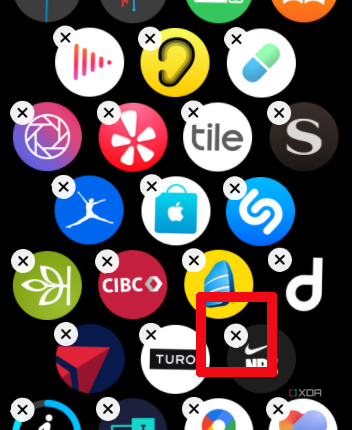
Free up space and reduce clutter by deleting apps you rarely use.
In Grid View: Delete with One Tap
- Press the Digital Crown to open the Home Screen.
- Touch and hold the app you want to remove.
- Tap the (X) that appears in the top-left corner of the icon.
- Press the Digital Crown to confirm.
In List View: Swipe to Delete
- Press the Digital Crown.
- Swipe left on the app name.
- Tap the (X).
- Press the Digital Crown to exit.
Both methods do the same thing—just different gestures based on your view.
⚠️ Important Notes:
– Some built-in apps (e.g., Activity, Heart Rate, Weather) cannot be deleted.
– If you delete an app from your iPhone, it will also be removed from your Apple Watch—unless it’s reinstalled directly on the watch.
Restore or Reinstall Deleted Apps
Accidentally deleted an app? No problem. You can reinstall it in seconds.
From Apple Watch:
- Open the App Store on your watch.
- Search for the app.
- Tap the cloud download icon to reinstall.
From iPhone:
- Open the Watch app.
- Tap App Store.
- Find the app and tap Install.
The app will appear on your watch shortly. If it doesn’t show up, try restarting your watch or toggling Bluetooth off and on.
📌 Tip: If you use a lot of third-party apps, consider pinning your essentials in the Dock or on your watch face to avoid accidental deletions.
Use the Dock to Access Favorite Apps Fast
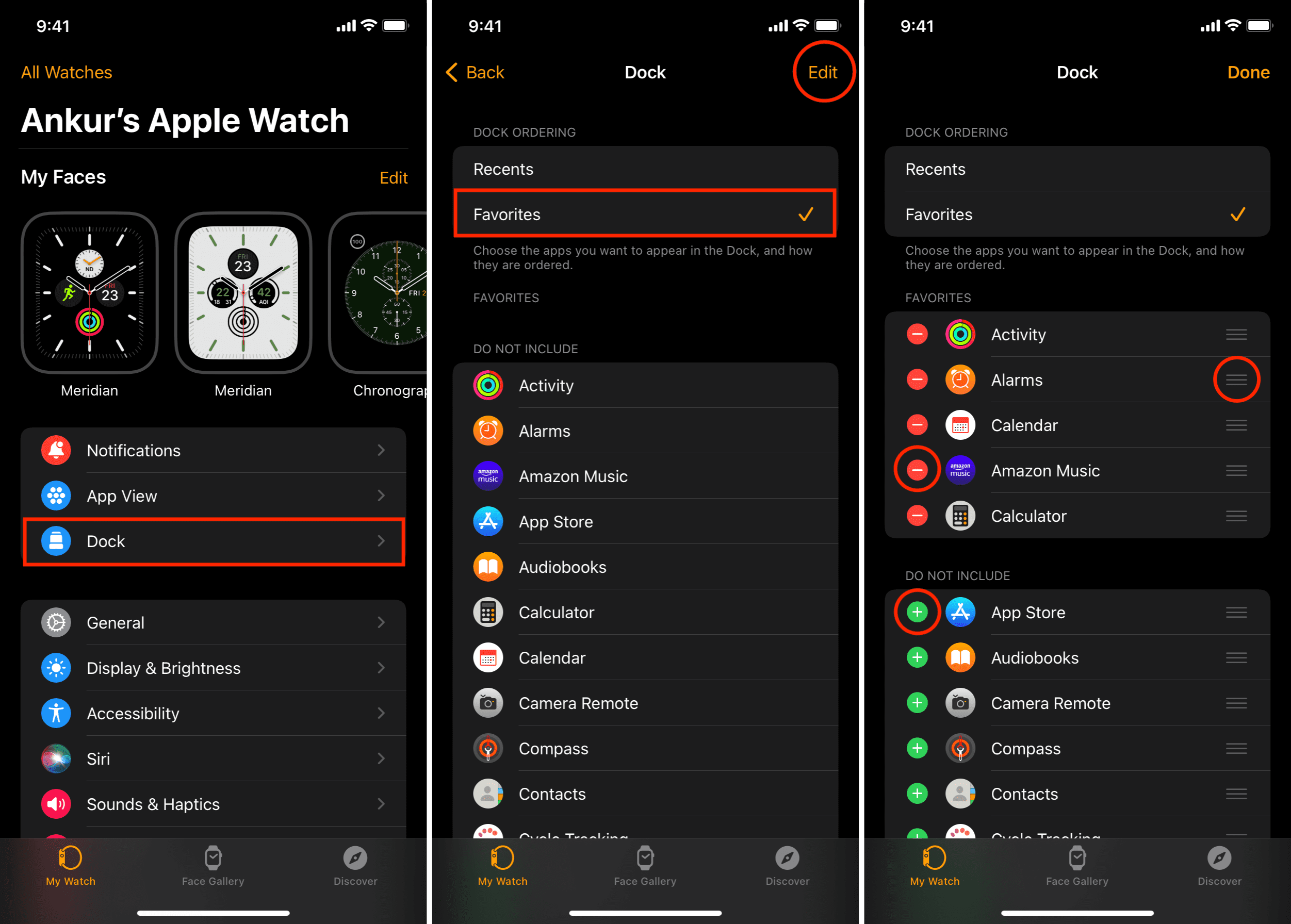
Skip the Home Screen entirely with the Dock—a built-in shortcut launcher.
Set Up Favorite Apps in Dock
- Open the Watch app on iPhone.
- Tap My Watch.
- Scroll to Dock.
-
Choose:
– Frequently Used (auto-updated)
– Favorite Apps (manual selection) -
If using Favorite Apps, tap Edit and drag your top 5–10 apps into order.
Open the Dock on Apple Watch
- Press and hold the side button (below the Digital Crown).
- Swipe up/down to scroll.
- Tap any app to launch.
✅ Pro Tip: Use Favorite Apps mode and keep essentials like Timer, Wallet, ECG, and Maps in the first few slots. The Dock stays synced across devices—edit it on your iPhone, and changes appear instantly on your watch.
Launch Apps with Siri Voice Commands
No tapping, no scrolling—just speak.
Say:
– “Open Weather”
– “Start a workout”
– “Launch Strava”
– “Show my heart rate”
Siri works even when the screen is off—just raise your wrist and speak.
Boost Siri with Shortcuts
Use the Shortcuts app on iPhone to create custom voice commands:
– “Hey Siri, start morning routine” → Opens Calendar, News, and Weather
– “Hey Siri, begin run” → Launches Workout and starts GPS
These multi-step actions save time and reduce screen interaction.
Add App Shortcuts with Watch Face Complications
Access key app data without opening the app.
Customize Your Watch Face
- Long press the watch face.
- Tap Edit.
- Tap a complication (small dial).
- Choose a function tied to an app:
– Activity rings
– Timer
– Heart rate
– Weather
– Calendar
Now you see real-time info at a glance—no app launch needed.
💡 Example: Add a Timer complication to avoid opening the Clock app every time you cook.
Use Spotlight Search to Find Apps Quickly
Perfect for apps you rarely use—or can’t find.
Open Spotlight
- From the Home Screen, swipe down from the top.
- Type or say the app name.
- Tap to open.
Works in both Grid and List View.
🔍 This is the fastest way to jump to an app buried on the last screen.
Sync & Storage Tips
Keep your app setup smooth and stable.
Check App Storage
- Open Watch app on iPhone.
- Go to General > Usage > Manage Storage.
- See how much space each app uses.
Large apps like Spotify or Strava can take up significant space.
Fix Sync Issues
If changes don’t appear:
– Restart both iPhone and Apple Watch.
– Toggle Bluetooth off and on.
– Ensure both devices are on the same Wi-Fi or within range.
📱 All app arrangements sync automatically—no manual refresh needed under normal conditions.
Best Practices for App Management
Maximize speed, access, and usability.
Optimize Your Grid Layout
- Place top 5 apps in the top-left quadrant.
- Group related apps:
- Fitness: Workout, Heart Rate, Activity
- Travel: Maps, Wallet, Translate
- Communication: Messages, Phone, Mail
- Remove apps you haven’t used in 30+ days.
Combine List View with Dock
- Use List View for browsing.
- Rely on Dock (Favorite Apps) for daily tasks.
- Update your Dock monthly based on changing routines.
Reset App Layout (If Disorganized)
If apps get scrambled:
1. Switch to Grid View.
2. Rearrange key apps.
3. Or switch to List View, then back to Grid to reset default order.
Final Tips for Power Users
- Stick with Grid View if you want full control.
- Set up Favorite Apps in Dock—it’s the closest thing to a custom list.
- Train Siri with Shortcuts for hands-free automation.
- Update watchOS regularly—Apple occasionally adds new management features.
- Avoid overcrowding—limit to 30–40 apps for best performance.
You don’t have to live with the default setup. With the right mix of Grid View, Dock shortcuts, Siri, and complications, you can create a personalized, lightning-fast app experience—even if List View won’t let you reorder.
Start today: press the Digital Crown, touch and hold, and move your most-used app to the front. That one change could save you hours over the year.




