If your Apple Watch is displaying text in a language you don’t understand and you don’t have access to the paired iPhone, it can feel like you’re locked out of your own device. The good news? You can change the language on an Apple Watch without an iPhone—but only under specific conditions. Whether you’ve bought a secondhand watch set to Japanese, are helping a family member who can’t navigate French menus, or lost your phone while traveling, knowing how to regain control directly from the watch is crucial.
Apple builds in limited but powerful tools that let you switch languages during setup or when the watch is unpaired. This guide breaks down every method, step-by-step, so you can restore your Apple Watch to a readable language—fast—without needing an iPhone nearby.
Use Setup Screen to Change Language
The easiest way to change the language on an Apple Watch without an iPhone is during initial setup. This applies to brand-new devices or any watch that has been erased and restarted.
Select Language on First Launch
When starting fresh, follow these steps:
- Press and hold the side button until the Apple logo appears.
- Wait for the welcome screen to load.
- Tap the screen repeatedly—this cycles through available languages.
- Look for English (or your preferred language) and tap it.
- Continue setup using the newly selected interface.
The language selector typically appears within the first two screens. No iPhone, tools, or technical knowledge required.
This method works 100% of the time on clean, unpaired Apple Watches. It’s designed for accessibility, ensuring users worldwide can begin setup in their native language.
Navigate Without Understanding Text
Even if the interface is already in a foreign language, don’t panic. Use visual cues:
- Tap the screen constantly—some versions auto-scroll the language list.
- Look for familiar symbols: a globe icon or text resembling “English” like Inglés (Spanish), Anglais (French), or Englisch (German).
- Use the Digital Crown to scroll slowly and tap any word that looks promising.
You don’t need to read the language—just recognize patterns or test options until the interface switches to something understandable.
Use the “i” Icon Method (Unpaired Only)
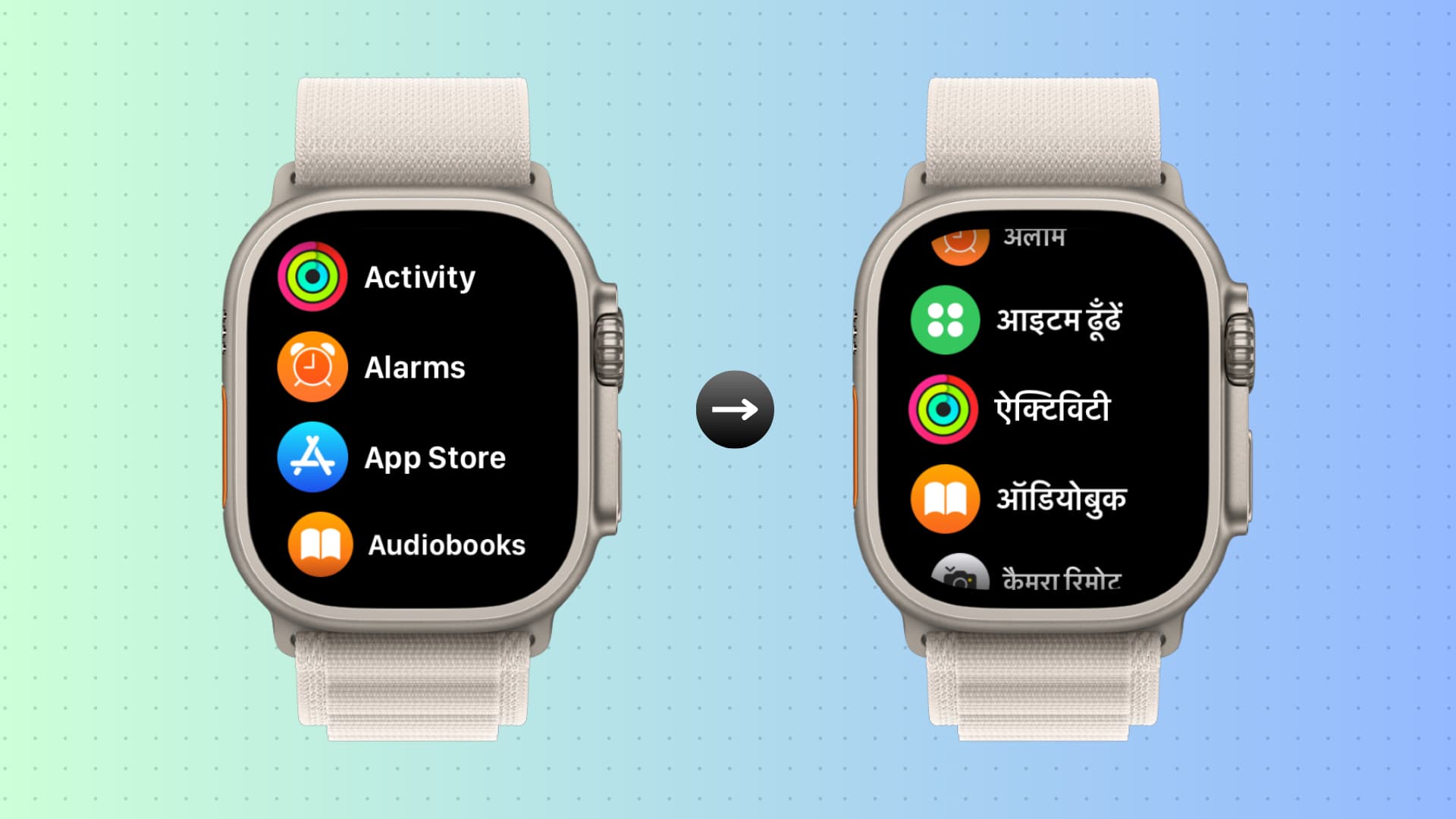
If the Apple Watch has been previously set up but is not currently paired, you can still change the language directly from the watch face using the “i” icon.
Access Language Menu via “i” Button
- Wake the watch by raising your wrist or pressing the side button.
- Press the Digital Crown to reach the home screen.
- Swipe left or right across the watch face until you see a small “i” icon at the bottom.
- Tap the “i”.
- Scroll with the Digital Crown to find your preferred language.
- Tap to select—your watch will instantly switch languages.
This shortcut bypasses all complex menus and works even if you can’t read the current language.
It’s the fastest recovery method for unpaired devices and ideal for rescuing a secondhand watch stuck in an unfamiliar language.
Why the “i” Icon Might Not Appear
If you don’t see the “i” icon, one of these issues may be preventing access:
- The watch is still paired to an iPhone (even if the phone is off or out of range).
- Activation Lock is active, meaning the device is tied to another Apple ID.
- The watch is frozen in a paired state from a previous owner.
To confirm, go to Settings > General > About and check:
– Paired: If “Yes”, the watch is linked.
– Activation Lock: If enabled, you’ll need the original owner’s credentials.
Until these are resolved, the “i” icon won’t appear, and language changes remain blocked.
Check for Pairing or Activation Lock
Before attempting any fix, verify the watch’s status.
Find Pairing Status in Settings
- Open Settings (gear icon) on the Apple Watch.
- Scroll to General > About.
- Look for:
– Paired: “Yes” means it’s connected to an iPhone.
– Activation Lock: If on, the device is protected by another Apple ID.
If either is active, you cannot change the language without the original iPhone or Apple ID.
Apple uses this security to prevent theft—but it also blocks well-intentioned users trying to fix language issues on secondhand devices.
Resolve Activation Lock Issues
To remove Activation Lock:
- Ask the previous owner to go to iCloud.com, sign in, and unpair the watch under Find My.
- Or, visit an Apple Store with proof of purchase (receipt, box, etc.) and request assistance.
Without this step, the watch remains locked, and language settings stay inaccessible.
Erase Watch to Reset Language (Emergency Fix)
When stuck in an unreadable language and unable to navigate, erasing the device is the most reliable solution.
Factory Reset the Apple Watch
- Open Settings > General > Reset.
- Tap Erase All Content and Settings.
- Enter your passcode if prompted.
- Confirm the erase.
The watch restarts and enters setup mode.
Reconfigure in Your Language
After reset:
– Use the language wheel during startup to select English or another familiar language.
– You can skip pairing if no iPhone is available—core features like SOS, fall detection, timekeeping, and alarms still work.
This is ideal for emergency-only devices or elderly users who don’t need full smartwatch functionality.
Pro Tip: After setup, increase text size for better readability (see below).
Why You Can’t Change Language When Paired
Once paired with an iPhone, the Apple Watch mirrors the phone’s system language. There is no way to override this from the watch alone.
Language Sync Rules
- The Language option disappears from the watch’s Settings app.
- Changing the iPhone’s language automatically updates the watch.
- No workaround exists—Apple does not allow independent language changes on paired devices.
Standard Method Requires iPhone
To change language the official way:
1. Open the Apple Watch app on iPhone.
2. Go to My Watch > General > Language & Region.
3. Select new language and wait for download.
This requires Bluetooth connection and iPhone access—making it useless if your phone is lost, broken, or unavailable.
Workarounds for Common Scenarios
Secondhand Apple Watch in Foreign Language
Problem: You bought a used watch set to Arabic or Korean and can’t read a thing.
Solution:
– Try the “i” icon on the watch face.
– If that fails, erase the watch and restart setup.
– Confirm Activation Lock is off before purchase in the future.
Always ask sellers to unpair and erase the device before handing it over.
Helping Elderly Family Members
Problem: A parent received an Apple Watch but can’t understand the language.
Solution:
– If they have the iPhone, change language via the Watch app.
– If not, reset the watch and reconfigure in English.
– Increase text size and enable Larger Text mode.
Keep the interface simple for seniors—avoid complex scripts or small fonts.
Traveler Needs Temporary Language Switch
Problem: You’re abroad and want to use your Apple Watch in French—but forgot your iPhone.
Reality: Not possible unless the watch is unpaired or erased.
Alternative:
– Try asking Siri: “Change language to German.”
– If unpaired, this may trigger setup mode.
– Otherwise, wait until you regain iPhone access.
Apple does not support temporary on-demand language switching for paired watches.
Adjust Text Size After Language Change
After switching languages, especially to complex scripts like Chinese or Arabic, readability matters.
Increase Text Size On Watch
- Open Settings on the Apple Watch.
- Go to Display & Brightness > Text Size.
- Turn the Digital Crown to enlarge the text.
- Exit—changes apply instantly.
Larger text improves usability, especially for older users or those with visual impairments.
Supported Languages and Interface Tips
Apple Watch supports over 30 languages, including:
- English
- Spanish (Español)
- French (Français)
- German (Deutsch)
- Chinese (中文)
- Japanese (日本語)
- Arabic (العربية)
- Russian (Русский)
- Hindi (हिंदी)
During language selection, names appear in native scripts. Use phonetic clues:
– Deutsch = German
– Italiano = Italian
– Português = Portuguese
Tap and test—there’s no penalty for choosing wrong.
Summary: What Works Without iPhone
| Scenario | Can Change Language? | Method |
|---|---|---|
| New or erased watch | ✅ Yes | Use setup screen language wheel |
| Unpaired but set up | ✅ Yes | Tap “i” icon on watch face |
| Paired with iPhone | ❌ No | Must use iPhone Watch app |
| Activation Lock active | ❌ No | Requires Apple ID removal |
| No iPhone access | ✅ Only if unpaired or reset | Erase and reconfigure |
Final Recommendations
- For immediate access: Try the “i” icon or setup screen—your best chance at regaining control.
- For secondhand devices: Always erase and verify Activation Lock is off before setup.
- For emergency use: Keep the watch in English with large text for maximum clarity.
- When stuck: Erase all content—it’s the most effective reset for language and pairing issues.
While Apple doesn’t allow language changes on paired watches without the iPhone, the ability to switch languages before pairing ensures accessibility for everyone—even without a phone.
If you’re still locked out, contact Apple Support or visit an Apple Store with proof of ownership. They can help remove Activation Lock and guide you through setup in your preferred language.