
You just turned on your Apple Watch, but the screen is in a language you don’t understand. Or maybe you’re helping a parent or friend set up their device, and the settings seem impossible to navigate. Don’t worry—changing the language on Apple Watch is straightforward once you know the right steps. Whether your watch is already paired, stuck in French or German, or being set up for the first time, this guide covers every scenario. You’ll learn how to change the language using your iPhone, directly on the watch, or during setup—even if you can’t read the screen at first.
The key thing to know is that your Apple Watch usually mirrors your iPhone’s language. That means the fastest fix is often changing the language on your phone. But if the watch is unpaired, secondhand, or locked due to Activation Lock, you’ll need alternative methods. This guide walks you through every step clearly and simply—no tech expertise required.
Change Language via iPhone (Paired Watch)
If your Apple Watch is connected to your iPhone, the easiest and most reliable way to change the language is through the Watch app on your phone.
Switch to Custom Language Mode
By default, your Apple Watch follows your iPhone’s language. To change it independently:
- Open the Watch app on your iPhone.
- Tap the My Watch tab.
- Go to General > Language & Region.
- Tap Custom instead of “Mirror my iPhone.”
- Select Watch Language.
- Choose your preferred language from the list.
- Confirm the change when prompted.
Your Apple Watch will reload and switch to the new language. This may take a minute—don’t panic if the screen flickers or appears to freeze.
⚠️ Wait it out – The system is downloading language assets. Avoid restarting the watch during this time.
Set Multiple Languages for Easy Switching
Want to toggle between English and Spanish, or use different languages for travel? You can set a Preferred Language Order:
- Tap Add Language to include a second or third option.
- Use Edit to drag your main language to the top.
- The watch uses the top language first, falling back to others only if needed.
This is perfect for bilingual households or frequent travelers.
Choose Grammatical Gender (If Supported)
In languages like Spanish, French, or German, the system adjusts how Siri and alerts speak to you based on grammatical gender. After selecting a language, look for:
- Grammatical Gender setting
- Options: Feminine, Masculine, or Neutral
Example: In German, “Ihr Wecker ist eingestellt” changes verb form depending on your selection.
This personalization affects voice prompts, notifications, and system messages—making the experience feel more natural.
Change Language on Unpaired Apple Watch
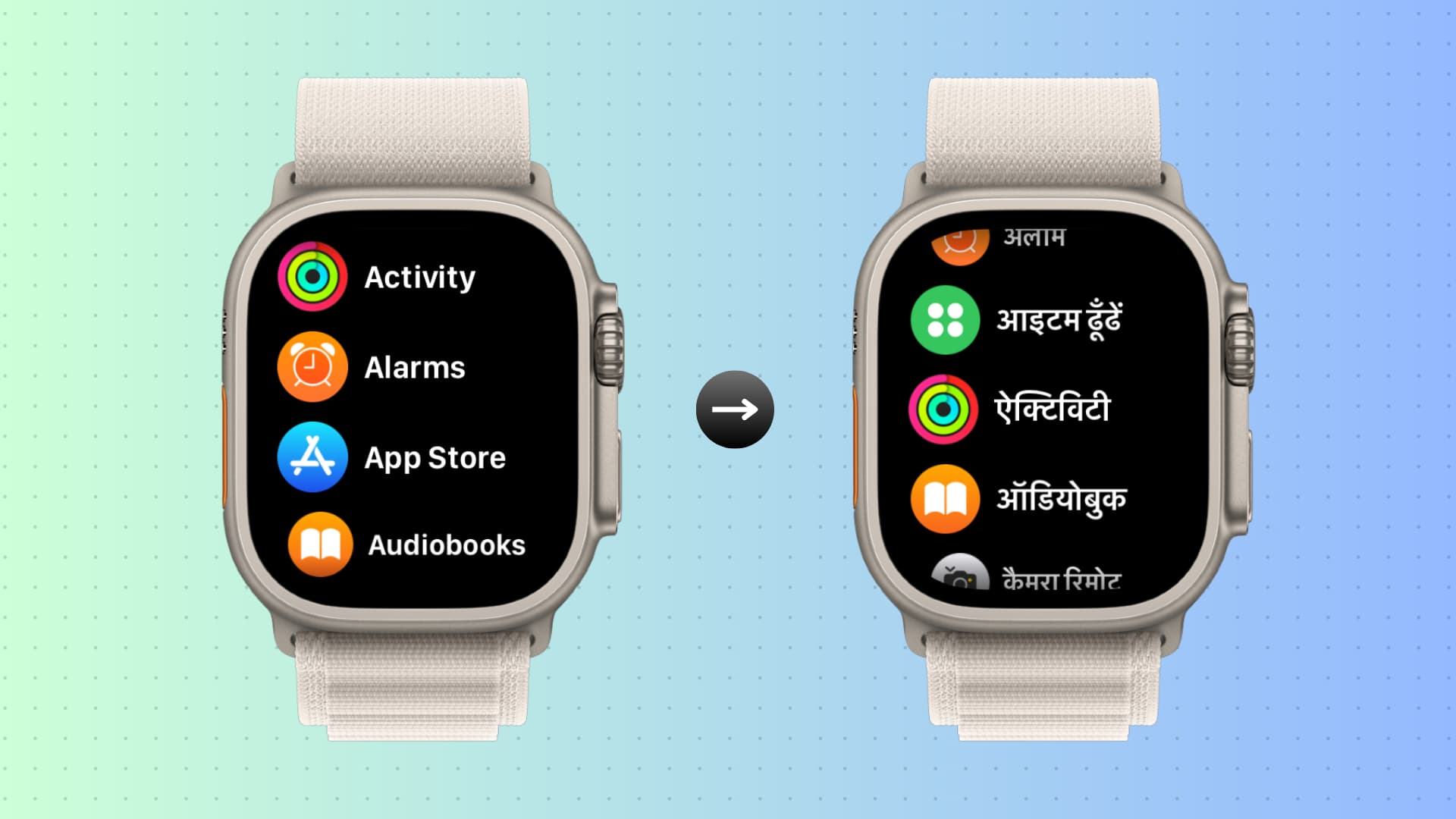
If the watch isn’t paired—maybe it’s new, reset, or you bought it secondhand—you can still change the language directly on the device during setup.
Use the “i” Icon on the Setup Screen
When the Apple Watch shows the welcome screen:
- Look for the small “i” (information) icon in the bottom-right corner.
- Tap it.
- Scroll to Language.
- Select your preferred language using the touchscreen or Digital Crown.
The interface instantly switches, making the rest of setup much easier.
✅ Pro tip: Even if you can’t read the current language, the “i” icon is always in the same place—a lowercase “i” inside a circle at the bottom right.
No “i” Icon? Check for Activation Lock
If the “i” icon is missing, your Apple Watch might be paired to another iPhone or locked via Activation Lock.
Signs It’s Locked:
- Screen says: “This Apple Watch is linked to an Apple ID.”
- Pairing animation appears when near an iPhone, but setup won’t continue.
- “i” icon is grayed out or invisible.
What to Do:
- Ask the original owner to unpair it via their Watch app.
- Or, they can remove it at iCloud.com > Find My > Devices.
- If you can’t contact them, contact Apple Support with proof of purchase.
❌ Never buy a secondhand Apple Watch without confirming it’s Activation Lock-free.
Factory Reset to Regain Access
If your Apple Watch is stuck in a foreign language or unresponsive, a factory reset brings it back to the setup screen—where you can change the language.
How to Erase All Content
If you can navigate the watch:
1. Open Settings.
2. Tap General > Reset.
3. Choose Erase All Content and Settings.
4. Enter your passcode if prompted.
If the watch is frozen or unpaired:
– Press and hold the side button and Digital Crown for 10 seconds until the Apple logo appears.
– It restarts to the setup screen, where you can tap the “i” icon and change the language.
⏱️ Reset takes 2–5 minutes. Keep the watch on the charger.
Change Language Directly on Apple Watch (After Setup)
Once your Apple Watch is set up, you can adjust the language without opening your iPhone.
On-Watch Settings Path
- Open the Settings app on your Apple Watch.
- Tap General.
- Tap Language & Region.
- Select a new language.
Note: Some watchOS versions require you to confirm the change on your iPhone. If the language doesn’t switch, finish the process in the Watch app.
What Syncs Automatically?
Changing the language on the watch syncs with your iPhone unless you’re in “Custom” mode. Built-in apps like Messages, Phone, and Fitness update immediately. Third-party apps follow if they support the new language.
Fix Common Language Issues
Even after changing the language, things might not look right. Here’s how to fix frequent problems.
Language Won’t Apply?
Try these steps:
– Make sure your Apple Watch is connected to Wi-Fi.
– Ensure the battery is above 30%.
– Restart both devices.
– Reopen the Watch app and reselect the language.
✅ Quick test: Open the Messages app. If it says “Messages” instead of “Nachrichten” or “Messages,” the change worked.
Can’t See “Custom” Option?
This usually means your iPhone only has one language enabled.
Fix it on iPhone:
1. Go to Settings > General > Language & Region.
2. Tap Preferred Language Order.
3. Add a second language (e.g., Spanish).
4. Return to the Watch app—“Custom” should now appear.
Interface Still in Wrong Language?
Wait 2–3 minutes for the full reload. If it’s still wrong:
– Force restart: Hold the side button + Digital Crown until the Apple logo appears.
– Recheck Language & Region settings.
Adjust Watch Orientation (Left or Right Wrist)
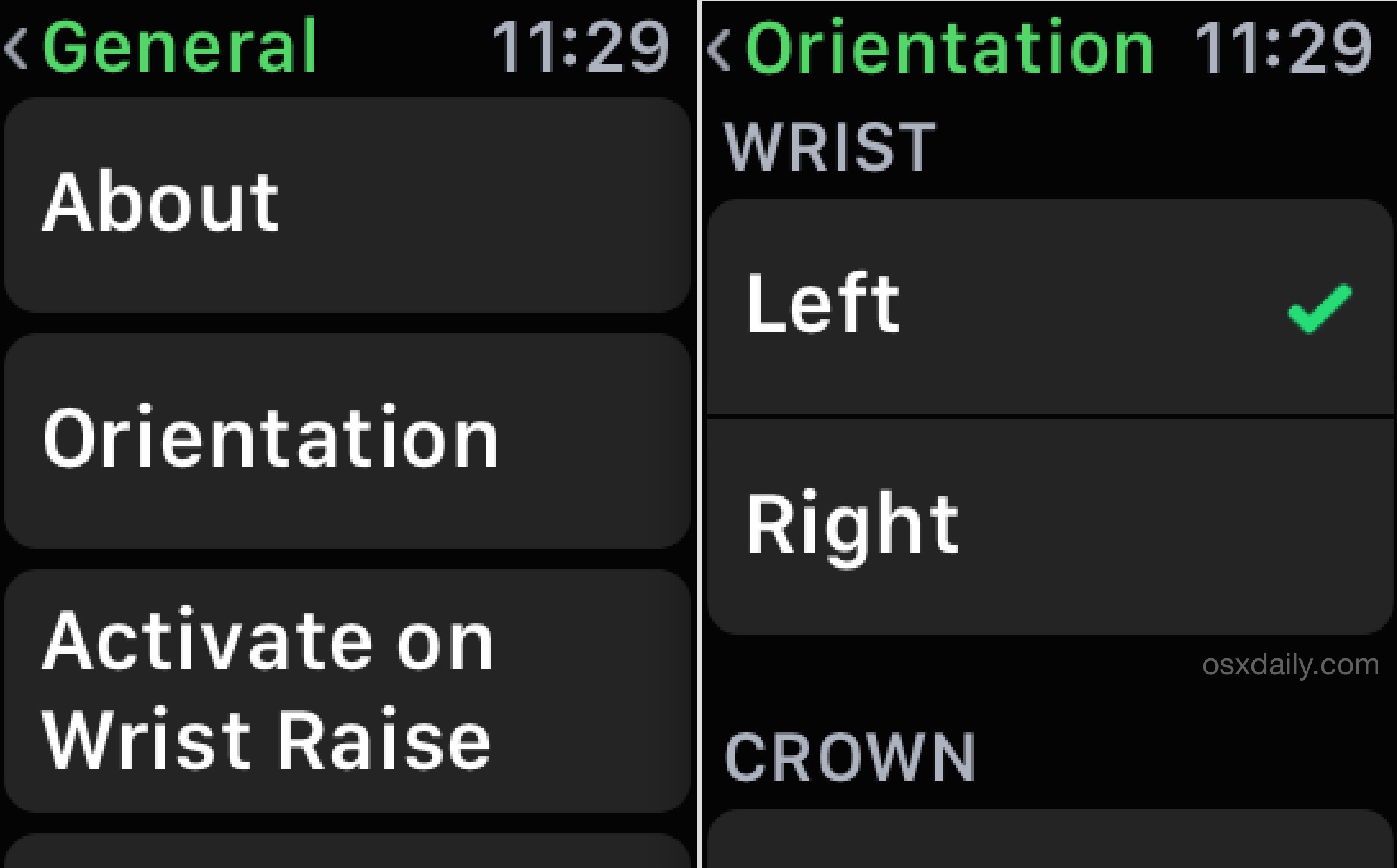
After changing the language, you might also want to adjust how the watch behaves based on which wrist you wear it on.
Set Wrist Orientation
On Apple Watch:
1. Open Settings > General > Orientation.
2. Choose Left or Right.
Or via iPhone:
– Open Watch app > My Watch > General > Watch Orientation.
This changes:
– Where the Digital Crown appears on screen.
– How the display wakes when you raise your wrist.
Example: If you wear it on your left wrist, set it to Left so raising your hand triggers the screen correctly.
Summary: Best Method by Situation
| Your Situation | Best Method | iPhone Needed? |
|---|---|---|
| Watch paired normally | Use Watch app > Language & Region | Yes |
| Watch in foreign language | Change via iPhone or reset | Yes (or reset) |
| Watch unpaired, setup screen visible | Tap “i” icon > Language | No |
| Secondhand or locked watch | Remove Activation Lock first | Yes (original owner) |
| Want bilingual setup | Set Preferred Language Order | Yes |
Final Tips for Success
- Always start with the iPhone—it’s the fastest way to change language.
- Use the “i” icon only when unpaired—it’s your lifeline for foreign-language devices.
- Reset as a last resort—erasing content removes apps and settings, but it’s safe and effective.
- Check Activation Lock before buying used—you can’t change language or pair a locked watch.
- Enable Accessibility features after switching—turn on Larger Text or VoiceOver in Settings > Accessibility if needed.
Changing the language on your Apple Watch doesn’t have to be frustrating. Whether you’re setting it up in Spanish for a relative, fixing a mix-up, or troubleshooting a secondhand device, the right method depends on your watch’s current state. Now that you know all the options—mirroring your iPhone, using the setup screen, or resetting the device—you can take control, no matter the scenario.





