
You’re glancing at your Apple Watch when a security alert pops up—time to update your Apple ID password. Whether you’re tightening your digital defenses or responding to a potential breach, knowing how to change your password on Apple Watch can save you time and keep your data secure. The good news? You can update your Apple ID password directly from your wrist—no iPhone or Mac required—but only if certain security conditions are met.
If Stolen Device Protection is enabled on your paired iPhone, for example, Apple disables this feature on the watch to prevent unauthorized access in case your device is lost or stolen. When that setting is active, you’ll need to use another trusted device instead. But if you’re cleared for access, the entire process takes less than two minutes. In this guide, you’ll learn step-by-step how to change your Apple ID password on Apple Watch, what to do if the option doesn’t appear, and how to maintain strong account security across your Apple ecosystem.
Access Apple ID Settings on Your Watch
Before changing your password, you need to navigate to your Apple Account settings directly on the watch. Unlike older versions of watchOS, modern updates allow deep integration with your Apple ID—so long as your account is properly configured.
Open the Settings App
Start by tapping the Settings app (gear icon) on your Apple Watch home screen. This is where all device preferences—from connectivity to privacy—are managed. Scroll down through the list until you see your Apple ID name displayed near the top. It appears just below system-level options like Wi-Fi and Bluetooth, indicating you’re signed in and recognized.
Pro Tip: If your name isn’t visible, open the Watch app on your iPhone, go to My Watch > General > Apple ID, and confirm you’re signed in with the correct account.
Tap Your Name to Enter Account Dashboard
Tap your Apple ID name to enter the Apple Account dashboard. Here, you’ll find key sections including:
– Personal Information
– Sign-In & Security
– Subscriptions
– Devices
This interface mirrors the layout found on your iPhone under Settings > [Your Name], but optimized for the smaller display. Everything syncs in real time via iCloud, so changes made here affect all your Apple devices instantly.
Change Apple ID Password Directly from Apple Watch
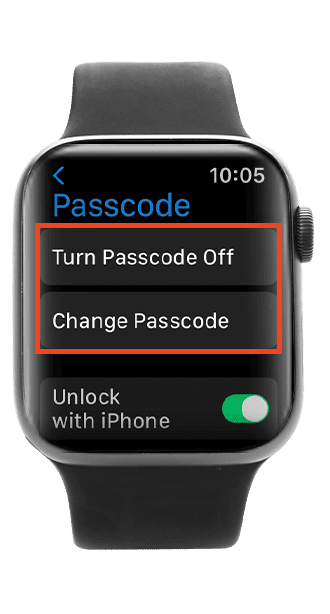
Once inside your Apple Account, updating your password is simple—provided your security settings allow it.
Navigate to Sign-In & Security
From the Apple Account screen, tap Sign-In & Security. This section controls your authentication methods and includes:
– Two-factor authentication status
– Trusted phone numbers
– Recovery key status
– Password settings
This is also where Apple enforces restrictions. If Stolen Device Protection is turned on your iPhone, the Change Password option will be missing or grayed out. That’s intentional: Apple blocks sensitive account changes on the watch when this high-security mode is active.
⚠️ Critical Note: To change your password on Apple Watch, Stolen Device Protection must be turned off on your iPhone. You can re-enable it later for continued protection.
Select Change Password and Enter Credentials
If the option is available, tap Change Password. You’ll be prompted to enter your current Apple ID password using one of three input methods:
– Scribble: Write letters with your finger
– Keyboard: Type character by character
– Emoji: Use emoji suggestions (not applicable here)
After verifying your current password, you’ll create a new one. Apple requires strong passwords with:
– Minimum 8 characters
– At least one uppercase letter
– At least one lowercase letter
– At least one number
– No spaces or repeating characters (e.g., “1111”)
Once confirmed, your new password takes effect immediately across all Apple services: iCloud, App Store, iMessage, FaceTime, and more.
❌ Common Mistake: Entering an incorrect current password. If you’ve forgotten it, you can’t reset it from the watch. Visit iforgot.apple.com on a computer or iPhone to regain access.
Troubleshoot When “Change Password” Option Is Missing

It’s frustrating when the Change Password option doesn’t appear. Here’s how to fix the most common causes.
Confirm Stolen Device Protection Is Off
Go to your iPhone Settings > [Your Name] > Sign-In & Security > Stolen Device Protection. If it’s enabled, that’s why you can’t change your password on the watch.
While you can’t disable this setting from the watch itself, turning it off temporarily on your iPhone restores access. After updating your password, consider re-enabling it for enhanced security—especially if you frequently travel or leave your phone unattended.
Verify Two-Factor Authentication Is Active
Two-factor authentication (2FA) is required for on-watch password changes. Without it, your account uses outdated security protocols incompatible with Apple Watch management.
To check:
1. On iPhone: Settings > [Your Name] > Password & Security
2. Ensure Two-Factor Authentication is turned on
If disabled, enable it to unlock full account control on your wearable.
Ensure Your Watch Is a Trusted Device
Your Apple Watch must be recognized as a trusted device to manage Apple ID settings. If you recently unpaired, reset, or updated your watch, it may need to re-establish trust.
Re-pairing via the Watch app on your iPhone usually resolves this automatically. Once paired and signed in, wait a few moments for sync completion before retrying.
Monitor and Manage Additional Security Settings
Changing your password is just one step. Use your Apple Watch to review other critical account protections.
Check Your Recovery Key Status
Under Sign-In & Security, tap Recovery Key to see if one is set up. A recovery key is a 28-character code used to regain account access if you lose all trusted devices.
🔐 Expert Note: You can’t generate a recovery key on Apple Watch—but you can check its status. To create one, go to Settings > [Your Name] > Password & Security on iPhone, iPad, or Mac.
Keep your recovery key in a secure place—like a password manager or safe—and never share it.
Review Trusted Phone Numbers
Tap Trusted Phone Number to view which numbers can receive verification codes. These are essential for logging in and resetting passwords.
While you can’t add or remove numbers from the watch, you can:
– Confirm the number is current
– Note when last used
– Plan to update it later on iPhone
Outdated numbers could delay account recovery, so keep them accurate.
Update Personal Info and Privacy Settings
While managing your account, take a moment to update contact details and privacy features.
Edit Name, Email, and Birthday
Tap Personal Information to update:
– First and last name
– Primary email address
– Rescue email
– Birthday (used for account recovery)
All changes sync instantly to iCloud. However, changing your actual Apple ID email (the one you sign in with) must be done on iPhone or Mac.
Use Hide My Email for Enhanced Privacy
Under Sign-In & Security, tap Hide My Email to manage random email aliases created during app sign-ups. These forward messages to your real inbox without exposing your identity.
From the watch, you can:
– View active aliases
– Turn off forwarding
– Delete old ones
Creating new aliases requires an iPhone, but monitoring them from your wrist helps reduce spam and protect your privacy on the go.
Manage Subscriptions and Connected Devices
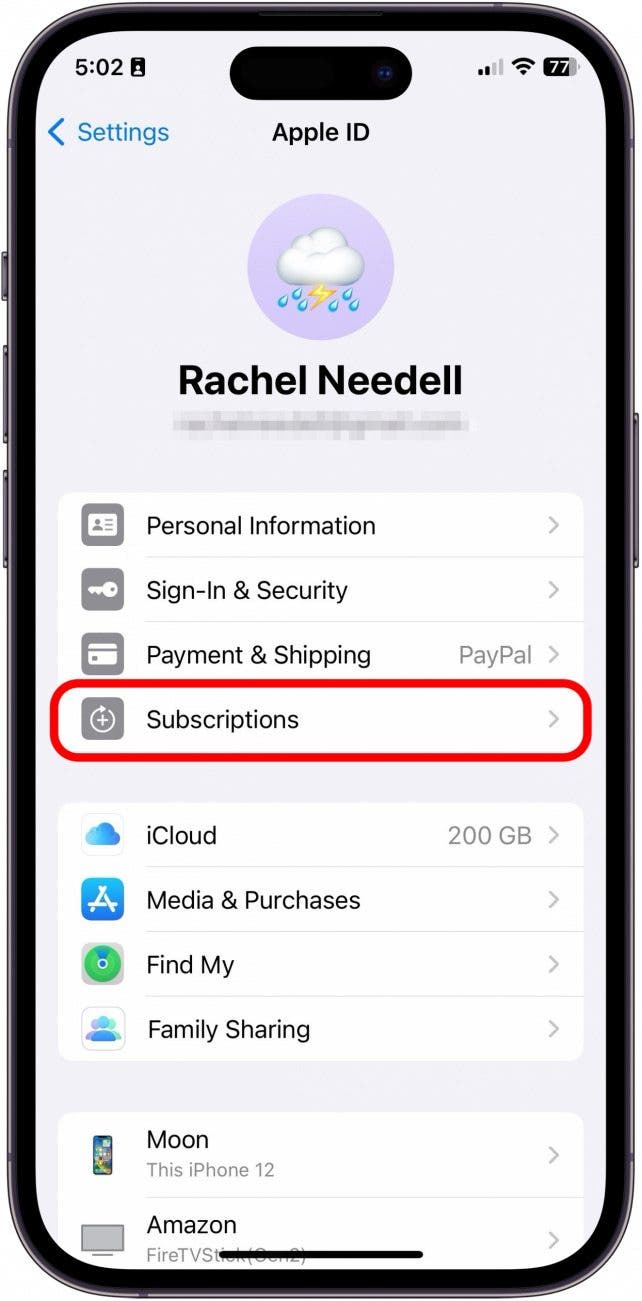
Your Apple Watch also lets you audit subscriptions and linked devices—key for maintaining account health.
View and Cancel Active Subscriptions
Tap Subscriptions to see all active and expired plans:
– Apple Music
– iCloud+
– Apple Fitness+
– Third-party apps
Tap any subscription to:
– See renewal date and cost
– Upgrade/downgrade
– Cancel (tap Cancel Subscription)
⚠️ Limitation: Some third-party subscriptions must be canceled on iPhone.
You can also resubscribe to expired services directly from the watch by selecting the plan and choosing a billing cycle.
Audit Linked Apple Devices
Scroll down to Devices to see every Apple product signed into your account:
– iPhone
– iPad
– Mac
– Apple Watch
– Apple TV
Tap any device to view:
– Model and serial number
– Operating system version
– Last backup time
If you spot an unfamiliar device, tap Remove from Account to sign it out remotely. This revokes access to iCloud, iMessage, and Find My—critical if you’ve sold or lost a device.
✅ Security Best Practice: Audit this list every few months to ensure no unauthorized access exists.
Best Practices for Apple ID Security
Changing your password is powerful, but long-term security depends on consistent habits.
- Use strong, unique passwords and store them in Apple’s built-in Passwords app (synced via iCloud Keychain).
- Enable Stolen Device Protection when possible—it adds extra verification layers for sensitive actions.
- Regularly review trusted devices and subscriptions to catch anomalies early.
- Keep watchOS updated—go to Settings > General > Software Update to install the latest security patches.
Final Note: Yes, you can change your Apple ID password on Apple Watch—but only if Stolen Device Protection is off and two-factor authentication is enabled. The process is fast, secure, and keeps your account protected without reaching for another device. Use the Sign-In & Security menu to update credentials, monitor recovery options, and manage privacy settings. For maximum protection, combine regular password updates with device audits, software updates, and strong recovery methods. Your wrist isn’t just for telling time—it’s a powerful tool for securing your digital life.




