
Your Apple Watch Series 3 is more than just a timepiece—it tracks your workouts, monitors your heart rate, and keeps you connected throughout the day. But none of that works if the battery dies. Knowing how to charge Apple Watch Series 3 correctly ensures not only a reliable power-up but also long-term battery health and device safety. Whether you’re setting it up for the first time or troubleshooting a charging issue, this guide covers every detail—from proper connection and expected charge time to avoiding damage and extending battery life.
Unlike newer models, the Apple Watch Series 3 doesn’t support fast charging, but it still delivers a full charge in about 2.5 hours using the included magnetic cable and a standard 5W USB power adapter. Apple designed the charging system to be intuitive: magnets align automatically, a chime confirms connection, and a lightning bolt appears on-screen. But even simple processes can go wrong—especially if the cable is damaged, the contacts are dirty, or the power source is weak.
You’ll learn how to connect your watch properly, interpret charging symbols, fix common issues, and adopt habits that protect your battery. Whether you’re charging nightly, storing the watch long-term, or trying to revive a dead device, these steps will keep your Apple Watch running smoothly for years.
Use the Correct Magnetic Charging Cable
What’s Included in the Box
Apple includes a magnetic charging cable with every Apple Watch Series 3. One end features a white magnetic disc that snaps onto the back of the watch, while the other has a USB-A connector. This cable is essential for safe and efficient charging.
⚠️ Regional Note: In China and Indonesia, Apple provides WPT-compliant (Wireless Power Transfer) versions of the charger to meet local regulations. These function the same but may have slightly different labeling.
Compatible Power Sources for Reliable Charging
To ensure consistent performance, plug the USB end into one of these reliable sources:
- Apple 5W USB power adapter – Recommended for optimal charging speed
- Computer USB port – Works, but may be slow on older or low-power ports
- Powered USB hub – Only if it supplies consistent power
- MagSafe Duo Charger – Compatible when used with a USB-C power adapter
Avoid unpowered hubs, car chargers without proper output, or damaged outlets. The watch draws minimal power, so unstable sources may fail to initiate charging.
No Fast Charging on Series 3
Even if you use a high-wattage 18W or 20W USB-C adapter, the Apple Watch Series 3 cannot fast charge. Fast charging was introduced starting with Apple Watch Series 7. Using stronger adapters won’t harm the device, but they won’t speed up charging either.
Stick with standard charging setups to avoid confusion and ensure compatibility.
Connect Your Watch Properly in 4 Steps
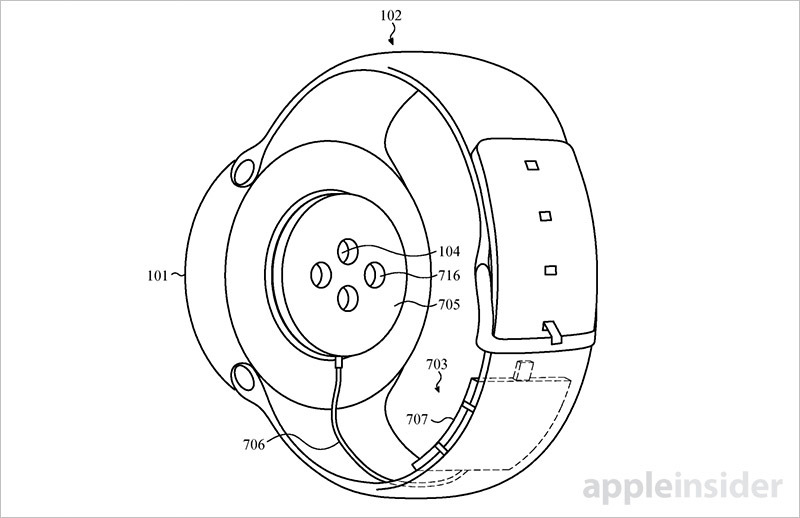
Step-by-Step Charging Setup
-
Place the charger on a hard, flat surface
Soft surfaces like beds or couches can block airflow and misalign the magnetic connection. -
Plug into a working power source
Use a wall adapter whenever possible. If using a computer, make sure it’s powered on—not in sleep mode. -
Attach the watch to the magnetic disc
Hold the back of the Apple Watch against the white charger. The magnets will automatically align and snap into place with a soft click. -
Confirm charging has started
– You’ll hear a chime (unless Silent Mode is on)
– A battery icon with a lightning bolt appears on the screen- Red means normal charging
- Yellow means Low Power Mode is active (turns off at 80%)
If nothing happens, reposition the watch or check the power source.
Know How Long Charging Takes and What to Expect

Realistic Charging Timeline
- 0% to 100%: Approximately 2.5 hours
Verified by real-world users using a 5W adapter - 30% in 30 minutes: Achievable under normal conditions
- Overnight charging is safe
The watch stops drawing power once full—no risk of overcharging
Check battery level by:
– Raising your wrist
– Viewing the Battery complication on your watch face
– Opening the Battery app on the watch
Is It Normal for the Watch to Get Warm?
Yes—mild warmth during charging is normal due to inductive power transfer. However, excessive heat (too hot to touch) is not.
❌ If the watch or charger becomes very hot:
– Disconnect immediately
– Let both cool down
– Inspect for debris, damage, or moisture
– Try a different cable or adapter
Persistent overheating could indicate a failing battery or faulty charger.
Extend Battery Life With Optimized Charging
Enable Optimized Battery Charging
This smart feature learns when you typically charge your watch (like overnight) and holds the charge at 80% until just before you usually unplug it. This reduces time spent at 100%, slowing battery aging.
How to Turn It On:
- On your Apple Watch, open Settings
- Tap Battery > Battery Health
- Toggle on Optimized Battery Charging (or Optimized Charge Limit on newer watchOS versions)
🟢 Best for users who charge while sleeping or during long breaks
Even without fast charging, this feature significantly improves long-term battery performance.
Fix Common Charging Problems Fast
Watch Won’t Charge? Try These Solutions
1. Reposition the Magnetic Connection
Ensure the back of the watch fully contacts the charger. Listen for the magnetic “snap” and chime.
2. Clean the Charging Contacts
Dirt, sweat, or moisture can block the connection.
- Use a soft, dry, lint-free cloth
- Gently wipe the back of the watch and magnetic charger
- Never use liquids, compressed air, or abrasive materials
3. Test a Different Power Source
Try another USB adapter, wall outlet, or computer. Avoid low-power ports on older machines.
4. Inspect the Cable for Damage
Look for:
– Frayed wires
– Bent USB connector
– Discoloration or corrosion
Replace if damaged. Apple sells replacements, or choose MFi-certified third-party cables.
5. Restart the Apple Watch
A frozen system may not show the charge symbol.
Restart steps:
– Press and hold the side button
– Swipe to power off
– Wait 10 seconds, then press the side button to turn back on
Charging Symbol Shows But Battery Isn’t Increasing
Even with a lightning bolt, the battery may not gain charge if:
- The watch is deeply drained – Leave it connected for 15–30 minutes before expecting progress
- The power source is too weak – Use a wall adapter instead of a computer
- A software bug is interfering – Check for updates via the Watch app on your iPhone
If the screen stays black after 30+ minutes, contact Apple Support.
Protect Your Watch With Best Charging Habits
Use Only Certified Chargers
Stick with:
– Original Apple magnetic charger
– MFi-certified third-party cables
Avoid cheap knockoffs—they lack safety protections and can permanently damage your watch.
Avoid Extreme Temperatures
Never charge in environments:
– Below 0°C (32°F) – Cold slows charging and may trigger shutdown
– Above 35°C (95°F) – Heat damages lithium-ion batteries
🌡 Ideal range: 16°C to 22°C (60°F to 72°F)
Don’t leave it charging in direct sunlight, in a hot car, or near heaters.
Never Charge a Wet Watch
Even though the Apple Watch Series 3 is water-resistant, charging while wet can cause short circuits.
Always:
– Dry the back of the watch and charger
– Wipe off sweat or water after swimming or showering
– Wait until completely dry before connecting
Store Your Apple Watch Safely for Long Periods
If storing for weeks or months:
- Charge to about 50%
- Power it down: Hold side button > swipe to power off
- Store in a cool, dry place away from sunlight
- Recharge every 3 months to prevent deep discharge
❌ Never store fully drained or fully charged—this accelerates battery wear.
Recognize Charging Components and Symbols

Magnetic Charger Design
- White circular pad with embedded magnets
- Aligns with the inductive coil on the watch back
- Secures firmly to prevent disconnection
- Cable length: 1 meter (3.3 feet)
The USB-A connector works with most standard adapters.
Charging Indicators Explained
| Display | Meaning |
|---|---|
| Red battery + lightning bolt | Charging normally |
| Yellow battery + lightning bolt | Low Power Mode active |
| Green fill animation | Charging in progress |
| Full white battery icon | 100% charged |
No chime? Check if Silent Mode is on (look for an orange dot at the top of the screen).
Pro Tips From Long-Term Users
- “I leave mine on the charger every night—no issues after 5 years.”
- “The original cable frayed after 2 years—I switched to an MFi-certified one.”
- “Charges much slower on my old MacBook than on the wall.”
Keep a second charger at work or in the car to stay powered up.
Safety First: Avoid Charging Hazards
Never:
– Use damaged or modified cables
– Charge near flammable materials
– Place the watch under pillows or blankets
– Continue if the device smokes, swells, or smells strange
Stop use immediately and contact Apple if you notice warning signs.
Only use MFi-certified accessories. Check packaging for certification.
Quick Reference: Key Charging Facts
| Feature | Detail |
|---|---|
| Battery Type | Internal lithium-ion |
| Charging Method | Magnetic inductive |
| Included Cable | Magnetic Charging Cable (USB-A) |
| Fast Charging? | No |
| Full Charge Time | ~2.5 hours |
| Overnight Charging Safe? | Yes |
| Optimized Charging? | Yes |
| MagSafe Duo Compatible? | Yes (with USB-C adapter) |
| Third-Party Charger Support? | MFi-certified only |
Final Thoughts: Charge Smart, Last Longer
Knowing how to charge Apple Watch Series 3 properly isn’t just about plugging it in—it’s about protecting your investment. Use the right equipment, avoid extreme conditions, enable optimized charging, and clean contacts regularly. These habits can double your battery’s lifespan and prevent avoidable failures.
Even without fast charging, the Series 3 remains a reliable companion when maintained well. If problems persist—like no response after cleaning and rebooting—contact Apple Support or visit an Apple Store for diagnostics.
Now that you know every step, tip, and fix, you can charge with confidence and get the most from your Apple Watch every single day.




