
You’re halfway through the day, mid-workout, or about to head into a long meeting—when it hits you: How much battery does my Apple Watch have left? Unlike your iPhone, the Apple Watch doesn’t always show a percentage by default, leaving many users guessing. But knowing how to check Apple Watch battery percentage is simple once you know where to look. With just a tap or swipe, you can see exactly how much power remains and avoid the dreaded shutdown at the worst possible moment.
Whether you own an Apple Watch Series 3 or the latest Series 10, Apple provides multiple fast, reliable ways to monitor your battery—from your wrist, your iPhone, or even through smart charging features. This guide walks you through every method, plus tips to extend battery life, troubleshoot fast drain, and use Low Power Mode effectively. No guesswork, no outdated tricks—just clear, actionable steps based on Apple’s official guidance.
Open Control Center to See Battery
The fastest and most reliable way to see your Apple Watch battery percentage is through Control Center. This method works on all models and takes less than a second—perfect when you’re on the go.
Press Side Button for Control Center
To access Control Center, press and hold the side button (the crown-adjacent button) on your Apple Watch. Don’t turn it off—just press until the screen changes. At the top of the display, you’ll see a battery icon with a percentage next to it. That’s your current charge level.
For a clearer view, tap the percentage number. This expands into a full-screen battery ring that shows your exact charge in a circular gauge. From here, you can also tap Low Power Mode to activate it instantly—ideal when your battery is below 30% and you need to stretch the remaining charge.
Pro Tip: Control Center is accessible even when your watch is locked. No passcode required. This makes it perfect for quick checks during workouts, meetings, or when your hands are wet or gloved.
What to Look For
- A green ring means your watch is charging.
- A gray ring indicates remaining battery when not charging.
- A red battery icon means charge is below 10%—time to plug in soon.
Make this your go-to habit: press the side button anytime you need a fast battery readout.
View Battery in Settings App

For more detailed insights, including how your battery drains over time, check the Settings app directly on your Apple Watch.
Access Battery Settings
- Tap the Settings app (gear icon) on your watch face.
- Scroll down and select Battery.
- You’ll see:
– Your current battery percentage at the top
– A detailed charging graph below
This graph updates in real time and shows your battery usage in blue bars (drain) and charging periods in green bars. It reflects activity throughout the day—like workouts, notifications, or background app refresh.
Expert Note: If your battery drops from 80% to 20% in just two hours, this graph can help pinpoint when and why. Was it GPS tracking? A third-party app running wild? Review the timeline to spot patterns.
Use Charging Graph to Track Patterns
The graph displays data for the last 24 hours, helping you understand:
– When your battery drains fastest
– How long charging sessions last
– Whether overnight charging is completing fully
Use this data to adjust habits: enable Low Power Mode before a long flight, reduce background app activity, or dim the screen during extended use.
Check Battery from iPhone (Watch App)
Can’t find your watch? You can still check its battery level from your iPhone—handy when it’s charging across the room or tucked in a bag.
Open Watch App on iPhone
- On your iPhone, open the Watch app.
- Tap My Watch, then go to Battery.
- You’ll see:
– Your Apple Watch’s current battery percentage
– Battery levels of any connected Apple accessories (like AirPods or Apple Pencil)
This screen refreshes every few minutes, so it’s not real-time—but close enough for a quick status check.
Time-Saving Shortcut: Add the Battery widget to your iPhone home screen. Swipe right from the home screen, tap Edit Widgets, and add the Battery widget. Now you can see your Apple Watch, iPhone, and AirPods battery levels at a glance.
Use Low Power Mode to Extend Life
When your battery is running low, Low Power Mode helps conserve energy without sacrificing core functionality.
Turn On Low Power Mode
From the expanded battery screen in Control Center:
1. Tap the battery percentage.
2. Tap Low Power Mode to enable it.
Alternatively:
– Go to Settings > Battery > Low Power Mode and toggle it on.
When active:
– Background app refresh pauses
– Raise to Wake may turn off
– Some watch face complications stop updating
– Auto-Brightness adjusts more aggressively
Despite these changes, essential features remain:
– Timekeeping
– Notifications
– Heart rate monitoring
– Workout tracking
– Emergency SOS
Warning: Low Power Mode may disable certain health alerts, like irregular rhythm notifications. Avoid using it during active medical monitoring.
You can leave it on until your next charge or disable it manually anytime.
Charge Your Apple Watch Properly

Checking battery is one thing—keeping it charged is what matters most. Follow Apple’s recommended steps for safe, efficient charging.
Use Correct Charger and Adapter
Apple recommends:
– Apple Watch Magnetic Charging Cable
– Apple Watch Magnetic Fast Charging USB-C Cable (Series 7 and later)
– Apple Watch Magnetic Charging Dock
Plug into:
– A 5W or higher USB power adapter
– A wall outlet, powered USB port, or certified car charger
Avoid third-party chargers unless they’re MFi-certified (Made for iPhone/iPad/Watch). Cheap cables can cause slow charging, overheating, or battery damage.
Align Watch with Charger Magnetically
- Remove your Apple Watch.
- Place the back of the watch against the charger.
- Magnets will snap it into place automatically.
- You should immediately see:
– A lightning bolt inside a battery icon
– A chime sound (if not in silent mode)
If no charge appears:
– Flip the charger to ensure correct orientation
– Clean the metal contacts on the back of the watch with a dry, lint-free cloth
– Try a different power source or cable
Visual Cue: A green lightning bolt means fast charging (on supported models). A red or faint bolt means poor connection or slow charging.
Let It Charge Fully
While charging, your Apple Watch enters Nightstand mode, showing time, date, and alarm status.
- Standard charge time: 1.5 to 2 hours (0% to 100%)
- Fast charging (Series 7+): ~80% in 45 minutes
Let it charge fully to ensure maximum runtime and accurate battery calibration.
Understand Optimized Battery Charging
Your Apple Watch learns your routine to reduce battery wear over time.
How It Works
Optimized Battery Charging delays charging past 80% when it predicts your watch will be plugged in for a long time—like overnight. It waits until shortly before you typically unplug it, then completes the charge.
This reduces chemical aging and helps maintain battery health for years.
Note: This feature is on by default and syncs with your iPhone’s battery settings. You can’t disable it directly on the watch.
Benefits of Optimization
- Slows long-term battery degradation
- Prevents stress from prolonged 100% charge
- Ensures full charge when you need it
You still wake up to a full battery—just a smarter, healthier one.
Troubleshoot Low Battery Issues
If your Apple Watch dies by lunchtime, something’s wrong. Here’s how to fix it.
Why Is My Battery Draining Fast?
Common causes:
– Too many background apps
– Frequent GPS or heart rate monitoring
– Poor cellular/Wi-Fi signal (causes constant searching)
– Outdated watchOS
– Misbehaving third-party apps
Fix Rapid Drain
Try these steps:
1. Restart your watch: Hold side button > slide to power off > wait 30 seconds > turn back on.
2. Update watchOS: Go to Settings > General > Software Update.
3. Uninstall unused apps: Especially fitness or notification-heavy ones.
4. Reset all settings: Settings > General > Reset > Erase All Content and Settings (backup first).
Warning: Only erase as a last resort. Always back up via iPhone or iCloud before resetting.
If battery health remains poor, contact Apple Support—you may qualify for battery service.
Fast Charging: What You Need to Know
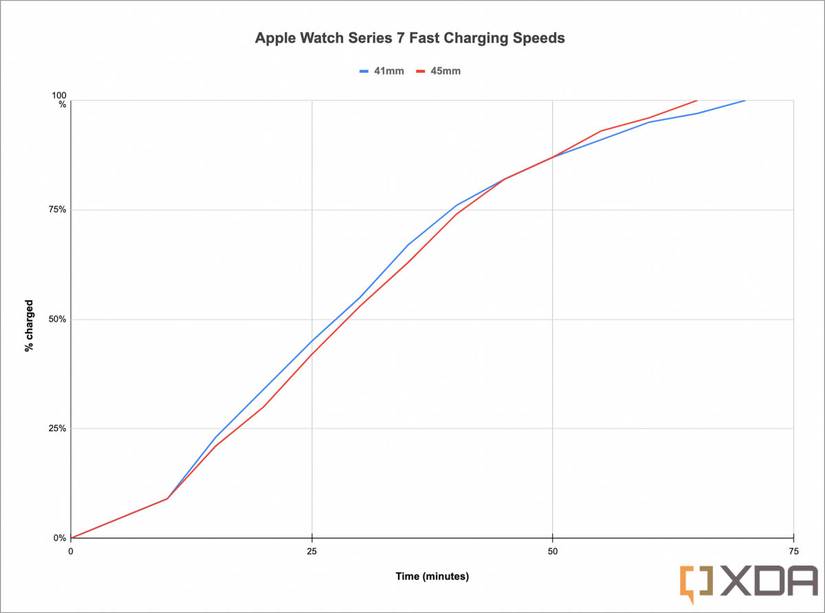
Available on Apple Watch Series 7 and later, fast charging gives you hours of power in minutes.
Enable Fast Charging
To fast charge:
– Use the Apple Watch Magnetic Fast Charging USB-C Cable
– Plug into a 20W or higher USB-C adapter
– Connect to a wall outlet
You’ll reach 80% in about 45 minutes—ideal for morning top-ups.
Pro Tip: Use fast charging while getting ready. You’ll gain 6+ hours of battery in under an hour.
Limitations
- Older models don’t support fast charging
- USB-A ports or low-power adapters result in normal-speed charging
- Fast charging generates more heat—don’t cover the watch while charging
Maximize Battery Life Daily
Small tweaks make a big difference.
Daily Tips to Save Power
- Lower brightness: Settings > Display & Brightness
- Turn off Always On: Settings > Display & Brightness > Always On
- Reduce haptics: Fewer taps and alerts
- Limit background app refresh
- Use Power Saving mode during workouts
Expert Note: Disable Wake on Wrist Raise and use Cover to Mute during travel to save extra juice.
Final Note: Keep Your Watch Charged and Calibrated
Now you know how to check Apple Watch battery percentage—quickly and reliably—using Control Center, Settings, or your iPhone. Combine this with Low Power Mode, Optimized Charging, and proper charging habits to maximize daily use and long-term battery health.
Remember:
– Press the side button for instant battery view
– Tap the percentage to enable Low Power Mode
– Review the charging graph to spot drain issues
– Use Apple-certified chargers
– Let Optimized Charging protect battery lifespan
With these tools, your Apple Watch stays powered when you need it most. If problems persist, visit support.apple.com for battery service options. Now go ahead—press that side button and take control of your charge.





