
You’ve just unboxed your new Apple Watch or need to power it down for travel, troubleshooting, or long-term storage — but you’re not sure how to turn it off. Unlike iPhones, Apple Watches don’t have a physical power switch, and the shutdown process isn’t immediately obvious. The screen stays on, the apps keep running, and the idea of fully powering it down might feel like a mystery.
Good news: turning off your Apple Watch is simple once you know the correct steps. Whether you own an Apple Watch Series 3, Series 9, Ultra, or Ultra 2, every model uses the same shutdown method. This guide will walk you through the standard way to power down, what to do if your watch freezes, and how to avoid confusing features like Theater Mode with an actual shutdown. You’ll also learn when it’s truly necessary to turn off your device — and when it’s better to just leave it running.
Let’s dive into every method, troubleshooting tip, and pro insight so you can confidently power off your Apple Watch whenever needed.
Hold Side Button to Power Off
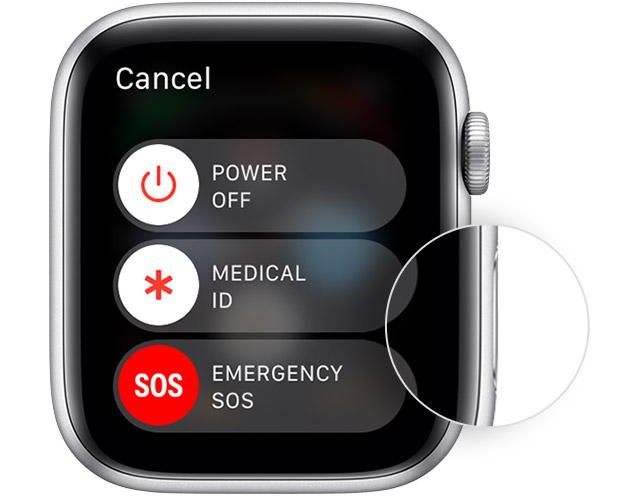
The most reliable way to turn off any Apple Watch is using the side button — a universal method across all models.
Access Power Off Slider
Press and hold the side button on the right edge of your watch. Keep holding for 3–5 seconds. After a moment, the Power Off slider will appear on-screen with a red power icon labeled “Slide to Power Off.”
Make sure you’re pressing only the side button. If you accidentally press the Digital Crown at the same time, your watch may take a screenshot (if enabled) or attempt a force restart instead.
Visual Cue: When the slider appears, look for the red power symbol on the left and a dimmed screen preview. This confirms you’ve entered shutdown mode successfully.
Swipe to Confirm Shutdown
Tap the power icon, then drag the slider from left to right. Once you do, the screen will go completely black within a few seconds — your Apple Watch is now off.
Pro Tip: After swiping, wait at least 10 seconds before assuming the process failed. Some models, especially older ones with background apps, may take a few extra moments to fully shut down.
Note: This method works on all Apple Watch models, including Series 3 through Ultra 2, and does not require your iPhone to be nearby.
Use Settings App to Power Down
If the side button is stiff, damaged, or difficult to press, you can turn off your Apple Watch using the built-in Settings app — no physical buttons required.
Navigate to Power Off Option
- On your Apple Watch, open the Settings app (gear icon).
- Scroll down and tap General.
- Keep scrolling until you see Power Off at the bottom.
- Tap it, then swipe the Power Off slider to the right.
This triggers the same full shutdown as the side button method — just through software navigation.
When to Use This: Ideal for users with wrist discomfort, accessibility needs, or a malfunctioning side button.
Limitation: If the screen is frozen or unresponsive, this method won’t work. In that case, a force restart is your next step.
Force Restart When Unresponsive
If your Apple Watch is frozen, stuck on the watch face, or won’t respond to touch, you can’t use the standard shutdown method. Instead, perform a force restart — Apple’s official fix for unresponsive devices.
Press Side Button + Digital Crown
- Press and hold both the side button and the Digital Crown simultaneously.
- Hold them for 10–15 seconds — don’t let go until the Apple logo appears.
- Once the logo shows up, release both buttons. Your watch will reboot.
Important: A force restart does not turn off your Apple Watch — it reboots it. Think of it like a hard reset on a computer.
Warning: Apple advises against restarting while the watch is charging. Disconnect the charger first to avoid instability or software glitches.
Success Indicator: You’ll see the Apple logo on a black background. No prompts or sliders — just the logo, followed by a normal startup sequence.
Fix Power Off Slider Not Working

Sometimes, the Power Off slider appears but won’t respond when you try to swipe it — a frustrating but fixable issue.
Clean Screen and Retest
Dirt, sweat, moisture, or a thick screen protector can interfere with touch sensitivity. Gently wipe the display with a soft, lint-free cloth. Then, try swiping slowly and deliberately from left to right.
Avoid tapping the power icon repeatedly — this can confuse the system. One tap is enough to activate the slider.
Check for Software Glitches
A frozen interface or pending update might block shutdown. Try these steps:
- Close open apps by pressing the side button and swiping up on active apps.
- Check your iPhone: Open the Watch app > General > Software Update. If an update is installing, let it finish — it may require a reboot anyway.
Perform Force Restart First
If the slider still won’t work, do a force restart (side button + Digital Crown for 10+ seconds). After the Apple logo appears, try the normal shutdown method again — the system should now be responsive.
User Insight: Some report that even with partial functionality (like heart rate tracking), the Power Off feature may fail due to a software hang, not hardware damage.
Stop Watch from Turning Back On
After powering off, some users find their Apple Watch turns back on by itself — a confusing but preventable issue.
Disable iPhone Bluetooth
The most common cause: your paired iPhone’s Bluetooth is still active. When the powered-off watch detects your iPhone nearby, it may reboot automatically.
To prevent this:
- On your iPhone, go to Settings > Bluetooth.
- Toggle Bluetooth off.
- Or enable Airplane Mode to disable all wireless signals.
Pro Tip: Store your powered-off Apple Watch away from your iPhone until you’re ready to use it again.
Ensure Full Shutdown
Make sure the screen goes completely black. If it shows a faint time or complications, Always On Display is likely enabled — meaning the watch isn’t fully off.
Disable Always On Display
On Apple Watch Series 5 and later, the screen never fully turns off — it dims when your wrist is down. This can make it seem like the watch isn’t shutting down.
Turn Off AOD Before Shutdown
To avoid confusion:
- Open Settings on your Apple Watch.
- Tap Display & Brightness.
- Toggle off Always On Display.
Now, when you power down, the screen will go fully black — making it easier to confirm the device is off.
Bonus Benefit: Disabling Always On saves battery, especially if storing the watch for weeks.
Don’t Confuse Theater Mode with Power Off
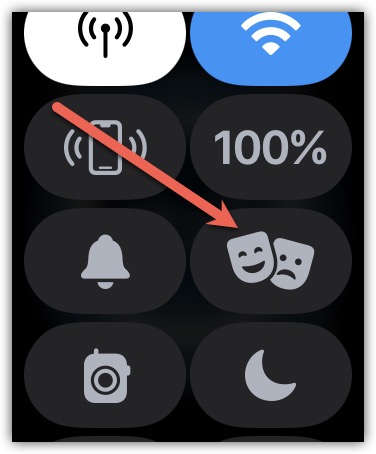
Many users think they’ve turned off their Apple Watch when they’ve only enabled Theater Mode.
What Theater Mode Actually Does
- Turns off display wake when you raise your wrist.
- Mutes sounds and alerts.
- Keeps heart rate, sleep tracking, alarms, and apps running.
It does not shut down the device.
How to Enable Theater Mode
- Swipe up from the watch face to open Control Center.
- Tap the two theater masks icon.
- The screen won’t wake — but the watch is still on.
How to Disable It
Swipe up again and tap the Theater Mode icon. Or go to Settings > Theater Mode and toggle it off.
Pro Tip: Use Theater Mode during meetings or bedtime — but don’t rely on it for full shutdown.
When to Actually Turn Off Apple Watch
You don’t need to turn off your Apple Watch every day. Apple designs it for continuous operation.
Recommended Scenarios
- Long-term storage (weeks or months): Power down to preserve battery health.
- Troubleshooting issues: Pairing problems or app crashes often resolve after a clean restart.
- Air travel: Some airlines require devices to be powered off — follow regulations.
- After major updates: A manual reboot ensures smooth performance.
Fact: Many users leave their Series 3 or Series 7 watches on for years without shutting them down — and they work fine.
Charging and Power-On Behavior
Watch Doesn’t Auto-Start When Charging
If your Apple Watch is powered off and you place it on the charger, it will not turn on automatically. Press the side button to boot it.
Expected Behavior: The screen remains black even while charging. Look for a charging symbol once you press the side button.
Cannot Restart While Charging
Apple states you cannot restart or force restart while actively charging. Disconnect the charger first.
Workaround: For troubleshooting, remove the charger, force restart, then reconnect.
Model-Specific Notes
Apple Watch Series 3 and Older
- Same shutdown steps as newer models.
- No Always On Display — screen fully blanks.
- Users report no issues after years of continuous use.
Apple Watch Ultra and Ultra 2
- Identical power-down process.
- Larger battery means less frequent shutdowns.
- Ideal for off-grid adventures — power off to conserve battery.
Field Insight: Despite rugged design, power management remains unchanged.
Maintenance Tips After Shutdown
Store Properly
For long-term storage:
- Power down completely.
- Charge to 50% before storage — ideal for battery health.
- Keep in a cool, dry place, away from sunlight.
Update watchOS First
Before powering off for troubleshooting, ensure your watch is updated:
Watch app > General > Software Update
Note: Updates often install overnight while charging — no shutdown needed.
Summary: Best Practices
| Action | Recommended Method |
|---|---|
| Normal shutdown | Hold side button → Slide to power off |
| No side button access | Settings > General > Power Off |
| Frozen screen | Force restart: Side + Crown (10+ sec) |
| Save battery without shutdown | Enable Theater Mode |
| Prevent auto-reboot | Turn off iPhone Bluetooth |
| Confirm full shutdown | Disable Always On Display first |
| Restart after storage | Manually press side button — won’t auto-start |
Final Thoughts
Turning off your new Apple Watch is simple: press and hold the side button, tap the power icon, then slide to power off. That’s the golden rule across all models.
But remember — you rarely need to turn it off. Apple Watches are built to stay on, updating and tracking 24/7. Use shutdown only for storage, travel, or troubleshooting.
Avoid common pitfalls: don’t confuse Theater Mode with a full shutdown, and disable Always On Display if you want a truly black screen. And if your watch won’t turn off? Try a force restart first — it’s Apple’s official fix for unresponsive devices.
Now that you know the right way to power down, you can manage your Apple Watch with confidence — whether you’re packing for a trip or just giving it a fresh start.





