
You’ve upgraded to a new iPhone, but your Apple Watch still won’t pair with it. Or maybe you’re selling your old watch and want to make sure your data is gone for good. Either way, knowing how to disconnect an Apple Watch from an old iPhone is critical—especially if you no longer have that phone. The wrong method can leave your device locked, unusable, or tied to your Apple ID forever.
The good news? You can unpair your Apple Watch—even without the original iPhone. But not all methods are equal. Some erase data but leave Activation Lock active. Others back up your Activity rings and settings so you can restore them later. This guide breaks down three reliable ways to disconnect your Apple Watch from an old iPhone, explains how to permanently remove Activation Lock, and shows you how to avoid common mistakes that could lock out future users.
Whether you’re upgrading, reselling, or troubleshooting, follow these steps to ensure your Apple Watch is fully unlinked, secure, and ready for its next use.
Unpair Using Original iPhone (Best Method)
If you still have access to your old iPhone, this is the only method that safely backs up your data and disables Activation Lock automatically.
Why This Method Works Best
Unpairing through the Watch app on the original iPhone does more than just break the connection—it:
– Creates a full backup of your watch (including Activity history, Health data, apps, and custom watch faces)
– Automatically disables Activation Lock
– Remotely erases the watch to factory settings
– Ensures a clean setup for reuse or resale
⚠️ Never skip this step if you plan to sell or reset the device. Simply erasing the watch or resetting the old iPhone won’t unpair it.
Steps to Unpair via iPhone
- Keep both devices nearby – Ensure Bluetooth and Wi-Fi are enabled.
- Open the Watch app on your old iPhone.
- Tap All Watches (top-left corner) > Select your Apple Watch.
- Tap the “i” (info) icon next to the watch name.
- Scroll down and tap Unpair Apple Watch.
- Confirm by tapping Unpair again.
- Enter your Apple ID password when prompted.
- Wait while the process completes—this may take several minutes.
📶 For GPS + Cellular models, you’ll be asked whether to keep or remove your cellular plan. Choose based on whether you plan to reuse the same line.
What Happens After Unpairing
- The Apple Watch erases itself remotely and restarts with the Apple logo.
- A backup is saved to your iPhone (and iCloud, if enabled).
- Activation Lock is turned off—no Apple ID password will be needed during future setup.
- The Watch app on your iPhone shows no connected watches.
🔁 Pro Tip: When setting up a new iPhone, use the same Apple ID. During Watch setup, you’ll be offered the option to restore from backup—preserving all your settings and data.
Reset Apple Watch Without iPhone (No Backup)
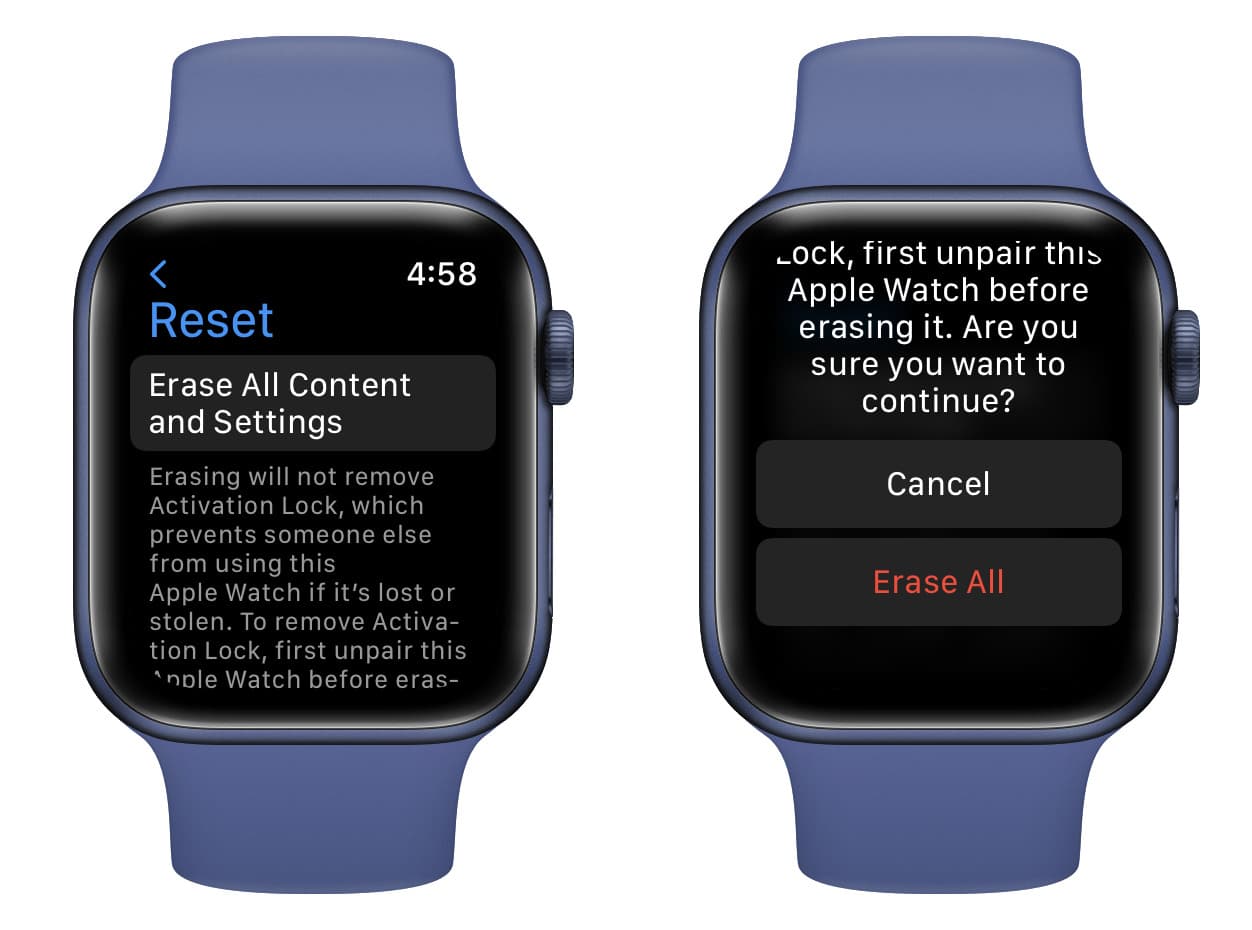
If you’ve lost or sold the old iPhone, you can still erase the Apple Watch directly—but this does not remove Activation Lock.
When to Use This Method
Use this if:
– You no longer have the original iPhone
– You’re reusing the watch with a new iPhone (same Apple ID)
– You have access to your Apple ID but not the paired phone
❌ Do not use this to sell or gift the watch—Activation Lock remains active, making it unusable to others.
Steps to Erase Apple Watch Directly
- On the Apple Watch, go to Settings.
- Tap General > Reset.
- Tap Erase All Content and Settings.
- Enter your passcode if required.
- For cellular models, choose to keep or remove your plan.
- Tap Erase All to confirm.
What Happens After Erase
- The watch restarts with factory settings.
- All apps, data, and configurations are deleted.
- Activation Lock stays on—your Apple ID is still linked.
🔐 Important: To fully unpair and remove Activation Lock, you must sign in to iCloud.com/find and remove the device from your account.
Remove Apple Watch via iCloud.com (Remote Unpair)
This is the only way to fully unpair and remove Activation Lock without the old iPhone.
Prerequisites
To use this method, you need:
– Access to your Apple ID and password
– A web browser (computer, tablet, or another phone)
– Find My Apple Watch must have been enabled (it is by default)
✅ Check now: If your watch appears in Find My, you can unpair it remotely.
Steps to Unpair via iCloud
- Go to iCloud.com/find.
- Sign in with your Apple ID.
- Click All Devices at the top.
- Select your Apple Watch from the list.
- Click Erase Apple Watch.
- Confirm the erasure.
- Once erased, click Remove from Account.
🔄 Note: You can only remove from account after the device is erased. Skipping this step leaves Activation Lock active.
Why Remove from Account?
- Permanently disables Activation Lock
- Unlinks the watch from your Apple ID
- Allows the watch to be paired with any new iPhone
- Essential for selling or gifting
🛑 Warning: If you only erase the watch but don’t remove it from your account, it remains locked to your Apple ID—even if it shows the Apple logo.
Fix Apple ID Login Issues (Can’t Sign In?)
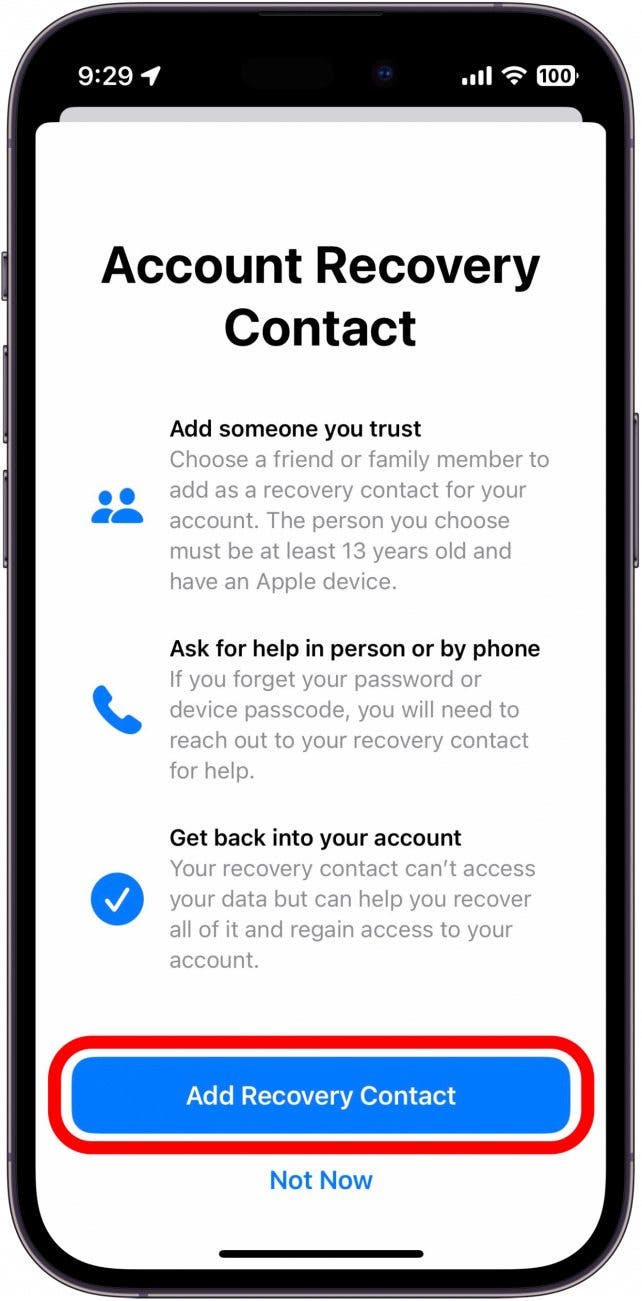
If you can’t sign in to your Apple ID, you cannot remove Activation Lock.
Recover Apple ID Access
Option 1: Reset Password (Fastest)
- Visit iforgot.apple.com.
- Enter your Apple ID email.
- Choose to receive a verification code via:
– Trusted phone number
– Trusted email address - Reset your password.
✅ Works if you still have access to recovery methods.
Option 2: Account Recovery (No Trusted Devices)
- Go to iforgot.apple.com.
- Start Account Recovery.
- Apple will verify your identity—this can take 24–72 hours.
- Once approved, reset your password.
🕒 Tip: This process can take days. Start it immediately if you’re locked out.
❌ No workaround: Without Apple ID access, Activation Lock cannot be removed.
Common Scenarios & Solutions
Sold iPhone Without Unpairing? Fix It Now
Problem: Your Apple Watch is still linked to your Apple ID, even though the old iPhone is gone.
Solution:
1. Use iCloud.com/find to erase and remove the watch.
2. If locked out of Apple ID, start Account Recovery.
3. Once removed, the watch is clean and usable.
🚫 Avoid: Signing in to your Apple ID on someone else’s iPhone—this can sync data across devices.
Want to Sell Your Apple Watch?
Follow this checklist:
1. Erase the watch via iCloud or original iPhone.
2. Remove it from your account in Find My.
3. Confirm Activation Lock is off.
4. Hand over a clean, reset device.
🚨 Warning: A watch with active Activation Lock is unusable to buyers and may be flagged as stolen.
Upgrading to a New iPhone?
For a seamless transfer:
1. Unpair via old iPhone (to back up data).
2. Set up new iPhone with same Apple ID.
3. During setup, choose to restore from backup.
💡 Time-Saver: If no backup exists, you can still pair the watch—but you’ll lose Activity history and custom layouts.
Key Facts: Activation Lock & iCloud Backup

What Is Activation Lock?
- A security feature that binds your Apple Watch to your Apple ID.
- Prevents unauthorized use if lost or stolen.
- Requires Apple ID and password to unpair, erase, or reactivate.
✅ Enabled by default when Find My is turned on.
How to Confirm It’s Off
After unpairing:
– Watch shows Apple logo, not activation screen.
– Device is not listed in iCloud.com/find.
– No prompt for Apple ID password during setup.
🛑 Never sell a watch with Activation Lock on.
iCloud Backup: What’s Saved?
When unpaired via iPhone:
– Health and Activity data
– App layouts and preferences
– Watch face configurations
– Wi-Fi networks and passwords
☁️ Backups sync to iCloud if enabled on your iPhone.
Best Practices & Pro Tips
- Unpair before selling or resetting your iPhone—don’t wait until it’s too late.
- Use iCloud.com instead of logging into shared devices—safer and avoids data leaks.
- Keep Apple ID secure: Use a strong password and enable two-factor authentication.
- Verify Find My is on—this allows remote management if you lose access.
Final Checklist: Did You Fully Disconnect?
✅ With old iPhone:
– Unpaired via Watch app > Confirmed with Apple ID > Backup created
✅ Without old iPhone:
– Signed in to iCloud.com/find > Erased > Removed from account
✅ Before selling:
– Activation Lock is off
– Watch not in Find My list
– Shows Apple logo on startup
✅ For new setup:
– Bring iPhone close to watch
– Follow prompts
– Restore from backup if available
Disconnecting your Apple Watch from an old iPhone isn’t just about breaking a connection—it’s about securing your data, enabling reuse, and preventing activation issues. Whether you’re upgrading, selling, or starting fresh, following the right steps ensures your Apple Watch works when you need it, and doesn’t become a locked-up paperweight. Use this guide to unpair confidently, securely, and completely—every time.




