
If you’re upgrading your Apple Watch, selling it, or switching iPhones, knowing how to unpair Apple Watch from phone is essential. Simply disconnecting the devices isn’t enough—Apple’s security features mean that if you don’t unpair properly, your watch may remain locked to your Apple ID, rendering it unusable for the next owner. Worse, skipping the correct process can mean losing your data and settings permanently.
Unpairing your Apple Watch isn’t just about breaking the Bluetooth connection. It triggers a full backup, erases all personal data, disables Activation Lock, and prepares the device for a fresh start. Whether you still have your iPhone or not, this guide covers every method, explains what happens behind the scenes, and helps you avoid common mistakes that could lock you—or someone else—out of the device.
Unpair Apple Watch Using Your iPhone (The Right Way)

This is the only method that fully unpairs the watch, creates a backup, and removes Activation Lock. Always use this method when selling, gifting, or switching devices.
Open the Apple Watch App
- On your iPhone, open the Apple Watch app.
- Tap the My Watch tab.
- At the top, tap All Watches.
- Find your Apple Watch and tap the (i) information icon next to it.
This screen shows your watch’s name, model, and serial number. It’s also where you initiate the unpairing process.
Confirm and Start Unpairing
- Scroll down and tap Unpair Apple Watch.
- Confirm by tapping Unpair [Watch Name].
- Enter your Apple ID password to disable Activation Lock.
- For GPS + Cellular models, choose:
- Keep Plan: To transfer your cellular plan to a new Apple Watch.
- Remove Plan: To cancel service before selling.
Your iPhone will now create a full backup of your Apple Watch, including apps, health data, watch faces, and settings. Meanwhile, the watch will display a spinning wheel, restart, and eventually show the “Hello” or “Start Pairing” screen—indicating it’s been wiped and is ready for a new user.
✅ Pro Tip: This backup can be used later to restore all your preferences when setting up a new Apple Watch—no need to rebuild everything from scratch.
Verify the Watch Is No Longer Linked
After unpairing:
– Open the Find My app on your iPhone.
– Tap Devices.
– Confirm your Apple Watch is no longer listed.
If it still appears, wait a few minutes or check your internet connection. A sync delay can sometimes cause temporary visibility. If it persists, remove it manually via iCloud (details below).
Erase Apple Watch Without iPhone (Emergency Reset Only)
Use this method only if you no longer have access to the original paired iPhone—such as if it’s lost, broken, or wiped.
How to Wipe the Watch Directly
- On the Apple Watch, open Settings.
- Tap General > Reset.
- Tap Erase All Content and Settings.
- Enter your passcode if prompted.
- For cellular models, choose:
– Keep Plan (if you plan to reuse it).
– Remove Plan (if discontinuing service). - Tap Erase All to confirm.
The watch will restart, display the Apple logo, and show the setup screen.
⚠️ Critical Warning: This method does not remove Activation Lock. Anyone trying to set up the watch afterward will need your Apple ID and password to proceed.
When This Method Is Acceptable
- You’re resetting due to performance issues and plan to re-pair with the same iPhone.
- Your iPhone is lost or damaged, but you still control the Apple ID.
- You’re preparing to use iCloud to remove the device remotely.
Never sell or gift a watch erased this way unless you’ve also removed it from your iCloud account.
Remove Apple Watch Remotely via iCloud (No Device Access)
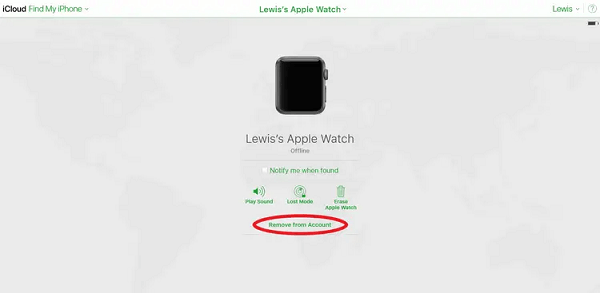
If you’ve lost your Apple Watch or no longer have the paired iPhone, you can still unpair and erase it using iCloud.
Steps to Remote Unpair
- Go to iCloud.com on any browser.
- Sign in with your Apple ID.
- Click the Find My app (bottom-left corner).
- Select Devices and locate your Apple Watch.
- Click the device name.
- Click Erase [Device Name].
- Confirm and enter your Apple ID password.
- Optionally, leave a message and phone number that will appear if someone powers on the watch.
After erasure:
– Click Remove from Account to fully disconnect it from your Apple ID.
✅ Note: If the watch was previously unpaired via iPhone, Activation Lock is already gone. If it was only erased directly, this step removes the lock.
Alternative: Use Find My on Another Apple Device
You can also use the Find My app on another iPhone, iPad, or Mac:
– Open Find My.
– Tap Devices.
– Select your Apple Watch.
– Tap Erase This Device, then Remove from Account.
Fix Activation Lock After Erasing the Watch
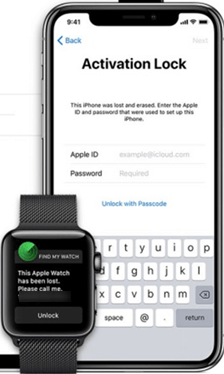
Activation Lock is Apple’s anti-theft feature. It prevents unauthorized setup after erasure—but it can also block legitimate users if unpaired incorrectly.
Why Activation Lock Persists
- You erased the watch directly (Method 2).
- You didn’t unpair via the iPhone.
- The device wasn’t removed from your iCloud account.
How to Remove Activation Lock
If You Have Apple ID Access
- Go to iCloud.com > Find My.
- Select your Apple Watch.
- Click Erase, then Remove from Account.
This permanently disables Activation Lock.
If You Forgot Your Apple ID
- Visit iforgot.apple.com.
- Recover your Apple ID or reset your password.
- Once signed in, remove the device via Find My.
If You’re the Buyer of a Locked Watch
- Ask the seller to unpair it via their iPhone.
- If unreachable, visit an Apple Store with proof of purchase.
- Apple may assist in unlocking if ownership is verified.
❌ Never buy a used Apple Watch without confirming Activation Lock is off.
Switching to a New iPhone? Unpair First
Upgrading your iPhone? You must unpair the Apple Watch from the old phone before pairing it with the new one.
Steps to Transfer Successfully
- On your old iPhone, unpair the watch using Method 1.
- Set up your new iPhone and sign in with the same Apple ID.
- Open the Apple Watch app.
- Bring the watch close to the iPhone.
- Follow the prompts to pair and restore from backup.
✅ All apps, health data, watch faces, and settings will restore automatically.
Risks of Skipping Unpairing
- No backup is created.
- You’ll need to set up the watch from scratch.
- Activation Lock may still apply if not removed.
Always unpair first—even if you’re about to wipe the old iPhone.
Troubleshoot Common Unpairing Problems
Even with the right steps, issues can occur. Here’s how to fix them.
“Unpair” Option Missing
Cause: Bluetooth off, devices out of range, or not connected.
Fix:
– Keep both devices within 6 inches.
– Ensure both are powered on.
– Restart both.
– Open Control Center and confirm Bluetooth is enabled.
Forgot Apple Watch Passcode
Problem: Can’t erase without the passcode.
Solution: Use Method 1 (iPhone unpairing)—it doesn’t require the watch passcode.
✅ This is the easiest way to bypass a forgotten passcode.
Watch Won’t Reconnect After Unpairing
Cause: Residual data or network glitch.
Fix:
– Restart both devices.
– Reset network settings on iPhone:
Settings > General > Transfer or Reset iPhone > Reset > Reset Network Settings.
– Try pairing again.
Cellular Plan Not Transferring
Cause: Plan not properly removed or reassigned.
Fix:
– On the new iPhone, open Apple Watch app.
– Go to Cellular.
– Tap Remove Cellular Plan on the old watch (if listed).
– During setup, choose to transfer or add a new plan.
Contact your carrier if issues persist.
Prepare for Resale or Gifting: Final Checklist
Before handing over your Apple Watch, ensure it’s truly ready.
What to Do Before Selling
- ✅ Unpair using iPhone method.
- ✅ Remove cellular plan (if applicable).
- ✅ Confirm device is gone from Find My.
- ✅ Charge the watch to 50% or more.
- ✅ Clean the band with a soft, damp cloth.
✅ A properly unpaired watch increases resale value and builds buyer trust.
What the New User Will Experience
- Powers on → “Hello” screen.
- Brought near iPhone → automatic pairing prompt.
- No password or Apple ID required.
- Full setup like a new device.
If they see Activation Lock, unpairing failed. You must remove it via iCloud.
Set Up a New Apple Watch After Unpairing
Ready to pair a new Apple Watch? Here’s how.
Quick Setup Process
- Press and hold the side button to turn on the watch.
- Bring it close to your iPhone.
- Tap Continue on your iPhone.
- Align the camera with the spinning pattern on the watch.
- Tap Set Up Apple Watch.
Restore or Start Fresh?
During setup, choose:
– Restore from Backup → Use the backup made during unpairing.
– Set Up as New → Begin with a clean slate.
🔁 Restoring brings back all your apps, health data, and watch faces.
Manual Pairing (If Camera Fails)
- On the watch, tap the Info (i) icon.
- A 6-digit code appears.
- Enter it on your iPhone when prompted.
Activate Cellular
For GPS + Cellular models:
– Follow prompts to set up cellular.
– Choose to transfer your plan or add a new one.
– Carrier approval may be required.
Expert Tips for a Smooth Transition
Always Unpair—Never Just Erase
- Unpairing creates a backup and removes Activation Lock.
- Erasing alone leaves the device locked to your account.
Secure Your Apple ID
- Use two-factor authentication.
- Regularly review devices at appleid.apple.com.
Double-Check Find My
Before selling:
– Open Find My.
– Tap Devices.
– Confirm the Apple Watch is not listed.
If it is, remove it via iCloud.
Summary: Choose the Right Method
| Method | iPhone Needed? | Backup? | Activation Lock Removed? | Best Use Case |
|---|---|---|---|---|
| Unpair via iPhone | ✅ Yes | ✅ Yes | ✅ Yes | Selling, gifting, upgrading |
| Erase on Watch | ❌ No | ❌ No | ❌ No | Lost iPhone, emergency reset |
| Remote via iCloud | ❌ No | ❌ No | ⚠️ Only if unpaired first | Lost/stolen watch, forgotten unpairing |
Final Note: Unpairing your Apple Watch properly protects your data and ensures the next user can activate it without issues. Always use the iPhone method when possible—it’s the only way to fully release the device. If you no longer have the phone or watch, iCloud is your safety net. When in doubt, contact Apple Support or visit an Apple Store with proof of purchase. Following these steps guarantees a secure, smooth transition every time.




