
You’ve lost your iPhone. You’ve switched to Android. Or you’re selling your Apple Watch—but the original phone is nowhere to be found. What now? Many assume that resetting the Apple Watch erases everything, including the link to their Apple ID. This is dangerously wrong. Without the paired iPhone, simply resetting the watch leaves Activation Lock active—rendering it nearly useless to anyone else.
The truth: you can disconnect your Apple Watch without the phone, but only if you follow the correct two-step process. This guide reveals how to fully erase the device and, crucially, remove it from your Apple ID via iCloud—the only way to disable Activation Lock. Whether you’re selling, switching platforms, or securing a lost device, this step-by-step method ensures your Apple Watch is truly free of your account.
Erase Apple Watch Directly (No iPhone Needed)

When the paired iPhone is gone, your first action should be wiping the Apple Watch itself. This clears personal data, apps, and settings, returning the device to factory condition.
Perform Factory Reset on Watch
- Open Settings (gear icon) on your Apple Watch.
- Tap General > Reset.
- Choose Erase All Content and Settings.
- Enter your passcode if prompted.
- For GPS + Cellular models, select Remove Plan if giving it away.
- Confirm with Erase All.
What happens: The watch restarts, shows the Apple logo, and boots to the welcome screen—just like a brand-new device.
Important: This does not remove Activation Lock. The original Apple ID and password are still required during setup.
Works on all models: From Apple Watch Series 1 to Series 10, SE (1st and 2nd gen), and Ultra 1 and 2.
This reset is essential, but incomplete on its own. Without removing the device from your Apple ID, the watch remains locked to your account—no matter how many times it’s reset.
Cellular Plan: Remove vs. Cancel
During reset, choosing Remove Plan deletes the eSIM profile from the watch. This prevents the new user from accessing your cellular service. However, this does not cancel your subscription.
- You must contact your carrier (AT&T, Verizon, T-Mobile) directly to stop billing.
- Failure to do so could result in ongoing charges, even after the eSIM is gone.
Pro tip: Before erasing, note your carrier account number and plan details. You’ll need them to deactivate the line.
Remove Apple Watch from Apple ID (Via iCloud)
Erasing the watch clears local data—but only removing it from your Apple ID disables Activation Lock. This step is non-negotiable and must be done online.
Use Find My on iCloud.com
- On any device, go to iCloud.com.
- Sign in with your Apple ID and password.
- Click Find iPhone (or Find).
- In the Devices menu, select your Apple Watch.
- Click Remove from Account.
- Confirm removal.
Result: Activation Lock is disabled. The watch can now be set up by anyone, even without your credentials.
Prerequisite: Find My must have been enabled on the watch before erasure. If not, this method won’t work.
This is the only official way to remove Activation Lock without the iPhone. Skipping it leaves the device locked, even after a full reset.
Alternative: iCloud Settings Method
If the Find My interface doesn’t show your watch:
- Visit iCloud.com and sign in.
- Click the Settings (gear) icon in the bottom-left.
- Under My Devices, find your Apple Watch.
- Click the X next to it.
- Confirm with Remove.
Troubleshooting: If 2FA blocks access, look for a “Find My iPhone” link at the bottom of the sign-in screen. Use that path to bypass standard login and remove the device.
Fix: Can’t Access Apple ID or 2FA
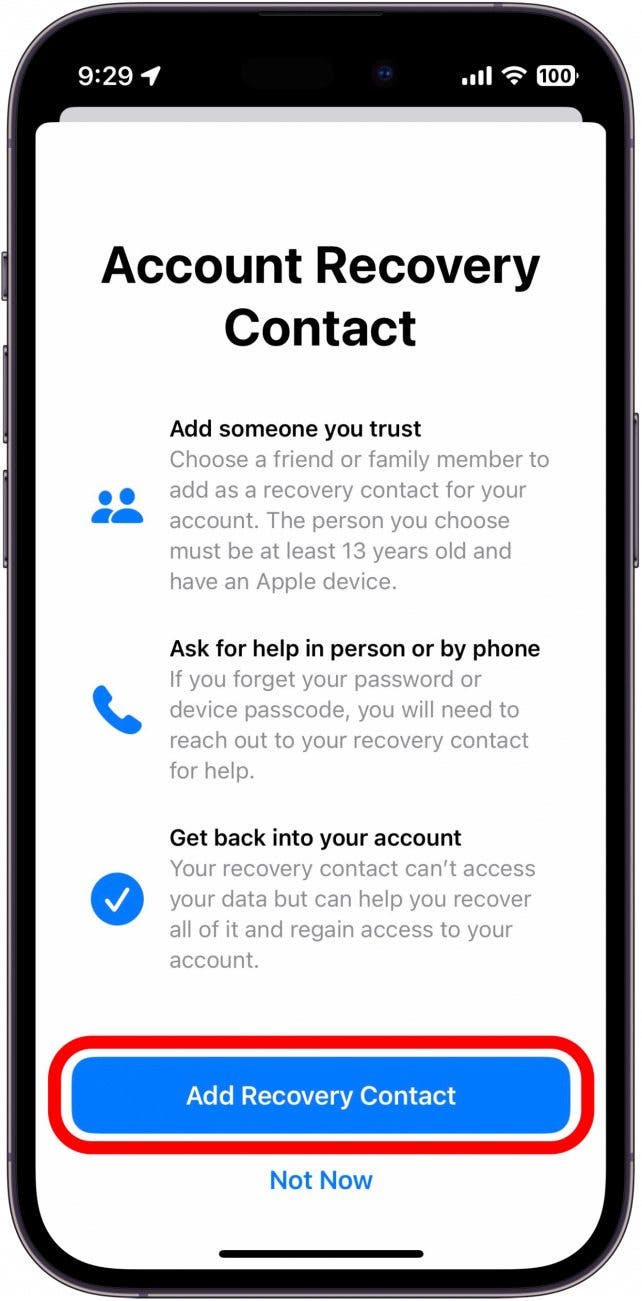
No trusted phone? Lost recovery keys? You’re not permanently locked out—but regaining control takes time.
Regain Access with Trusted Phone
If your Apple ID’s trusted number is still active:
- During sign-in, choose Get a verification code via text message.
- Enter the code to proceed.
Only works if you still control the phone number linked to your Apple ID.
Start Apple ID Account Recovery
If you can’t receive 2FA codes:
- Go to iforgot.apple.com.
- Enter your Apple ID.
- Follow prompts to verify identity.
- Wait for Apple’s automated recovery process—this can take 2–3 days.
This is the only official path if you’ve lost all trusted devices and recovery methods.
Visit Apple Store (Last Resort)
If all else fails:
- Bring proof of purchase (receipt, invoice, or box with serial number).
- Request assistance at the Genius Bar.
- Apple may verify ownership and help remove Activation Lock.
Critical rule: Only the original owner can request this. New buyers cannot bypass the lock.
Real-world case: A user tried to sell their Apple Watch at CEX. The store refused because Activation Lock was active—even though the watch was erased. The employee confirmed: remove from iCloud first, then erase.
Sell or Transfer Apple Watch (No iPhone)
To avoid rejection from resale stores or frustrated buyers, follow this checklist.
Complete Disconnection Checklist
- Remove from Apple ID via iCloud (Find My > Remove from Account).
- Erase the watch (Settings > General > Reset > Erase All).
- Cancel your cellular plan with your carrier.
- Provide proof of purchase to the new owner.
Best practice: Remove the device from your Apple ID before erasing. That way, Activation Lock is disabled before the reset.
Why Order Matters
- If you erase first, the watch goes offline. You can’t remove it from iCloud unless it was recently online.
- If you remove first, Activation Lock is disabled immediately—even if the watch is offline.
Pro tip: Do both steps while the watch still has battery and connectivity, if possible.
Switched to Android? Reset Your Apple Watch
You’re on a Samsung or Google Pixel now—but your Apple Watch is still tied to your old Apple ID.
Steps to Free Your Watch
- Use a friend’s iPad, Mac, or any web browser.
- Go to iCloud.com.
- Log in with your Apple ID (use SMS or account recovery if needed).
- Remove the Apple Watch via Find My.
- On the watch, go to Settings > General > Reset > Erase All Content and Settings.
Outcome: The watch is now clean and usable. You can keep it as a fitness tracker or sell it.
Warning: Without iCloud access, Activation Lock stays active. The watch is essentially unusable to others.
Lost iPhone? Secure Your Apple Watch
Your iPhone is gone—but your Apple Watch still holds health data, messages, and payment info.
Secure and Reset Steps
- Use another Apple device or computer to go to iCloud.com.
- Sign in and open Find My.
- Select your Apple Watch and click Remove from Account.
- On the watch, erase all content and settings.
Benefit: This prevents unauthorized access and disables Activation Lock so the watch can’t be misused.
Peace of mind: Even without the iPhone, you retain control over your Apple ID devices.
What the New Owner Should Do
Even after proper disconnection, pairing can fail due to Bluetooth glitches.
Fix Pairing Issues
- Close the Watch app on the iPhone:
– Swipe up from App Switcher (Face ID models) or double-press Home (older models).
– Swipe away the Watch app preview. - Restart both devices:
– Power off iPhone and Apple Watch.
– Turn on iPhone first, then Apple Watch. - Bring devices close together.
- Follow setup prompts in the Watch app.
This clears residual connections and refreshes the pairing process.
Debunking Common Myths
“Erasing the Watch Removes Activation Lock”
❌ False. Erasure only clears local data. Activation Lock remains tied to your Apple ID.
The lock is disabled only when the device is removed from your Apple ID via iCloud.
“You Can Unpair from Any Device”
❌ False. True unpairing (with Activation Lock removal) requires:
– The paired iPhone, or
– Access to iCloud with Find My enabled.
No exceptions. No third-party tools. Only Apple’s official methods work.
“Buyers Can Ask Apple to Bypass the Lock”
❌ False. Only the original Apple ID holder can contact Apple for assistance.
No proof of purchase, no recovery options, no support for new owners.
Key Technical Facts
What Is Activation Lock?
- A security feature that links your Apple Watch to your Apple ID.
- Enabled automatically when Find My is turned on.
- Persists through factory resets.
- Requires original Apple ID and password for setup.
Purpose: Prevent theft and unauthorized use.
No Physical Reset Button
- Apple Watch has no SIM tray or reset pinhole.
- Small holes are for speakers, mic, and sensors (Ultra models).
- Never insert pins or tools—you risk damaging internal components.
Official guidance: Reset only through software (Settings > Reset).
Comparison: Disconnection Methods

| Method | iPhone Needed? | Data Erased? | Activation Lock Removed? | Best For |
|---|---|---|---|---|
| Erase on Watch Only | ❌ No | ✅ Yes | ❌ No | Emergency reset |
| Remove via iCloud + Erase | ❌ No | ✅ Yes | ✅ Yes | Selling, transferring |
| Unpair via iPhone | ✅ Yes | ✅ Yes | ✅ Yes | Full disconnection (ideal) |
| Apple Store Help | ❌ No | ✅ Yes | ✅ Yes (if verified) | Lost credentials |
Bottom line: Without the iPhone, iCloud removal + on-watch erase is the only complete solution.
Final Note: To fully disconnect your Apple Watch without the phone, always remove it from your Apple ID first, then erase the device. Skipping either step leaves Activation Lock active, rendering the watch unusable. Whether you’re selling, switching platforms, or securing a lost device, this two-step process ensures a clean, secure, and functional handoff. Keep your proof of purchase, cancel your cellular plan, and you’re done.





