
You’ve lost your iPhone, it’s broken, or you’ve switched to Android—but you still want to sell, gift, or reset your Apple Watch. The good news? You can unpair an Apple Watch without the iPhone, as long as you have access to your Apple ID and password. The catch? A factory reset alone won’t cut it. If you skip one critical step, Activation Lock will block the next user from ever activating the device.
This guide walks you through every official, safe, and effective method to fully unpair your Apple Watch when your iPhone is gone. Whether your phone is lost, sold, or no longer in service, you’ll learn how to remotely remove your watch from your account, erase all data, disable Activation Lock, and prepare it for a new owner—all from a web browser, another device, or directly on the watch itself.
Remove Apple Watch from iCloud Remotely (No iPhone Required)
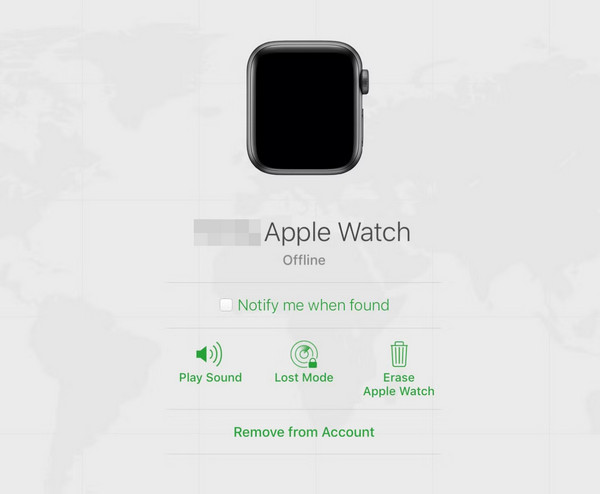
If you know your Apple ID and password, this is the only way to completely unpair your Apple Watch and disable Activation Lock without the paired iPhone.
Access iCloud.com on Any Device
You don’t need an iPhone or Mac—just a working internet connection.
- Open a browser on any device (Windows PC, Android phone, iPad, etc.).
- Go to iCloud.com.
- Sign in with the Apple ID used to set up the Apple Watch.
🔐 If two-factor authentication is enabled, use your trusted phone number to receive the verification code—even if it’s now on an Android device.
Delete the Apple Watch from Your Account
- Click Find My (or “Find iPhone” on older versions).
- Select All Devices at the top.
- Find your Apple Watch in the list.
- Click its name.
- Choose Remove from Account (or tap the X next to the device and confirm with Remove).
- Enter your Apple ID password to finalize.
✅ Result:
– Activation Lock is disabled.
– The watch is fully unpaired and no longer linked to your iCloud.
– A new user can activate it freely.
Verify the Removal Was Successful
- Return to Find My > Devices.
- Confirm your Apple Watch no longer appears.
- If it does, repeat the process or check that you’re signed in with the correct Apple ID.
🔄 Pro Tip: This works even if the watch is offline. Once it reconnects to Wi-Fi or cellular, it syncs the removal status automatically.
Factory Reset Apple Watch Locally (Without iPhone)
After removing the watch from iCloud—or if you’re just wiping data—erase the device directly from the watch.
Steps to Erase All Content and Settings
- On the Apple Watch, open Settings.
- Tap General > Reset.
- Select Erase All Content and Settings.
- Enter your passcode.
- For GPS + Cellular models:
– Tap Remove Plan (recommended for resale).
– Or Keep Plan if you plan to reuse it later. - Confirm with Erase All.
⏱️ Time Required: 5–10 minutes.
📶 Keep the watch near Wi-Fi or in cellular range during the process.
What This Reset Actually Does
| Action | Outcome |
|---|---|
| Wipes apps, messages, health data | ✅ Yes |
| Resets all settings to default | ✅ Yes |
| Removes from iCloud | ❌ Only if already removed via iCloud |
| Disables Activation Lock | ❌ No, unless previously unlinked |
⚠️ Critical Warning: If the watch is still linked to your Apple ID, the next user will see “This Apple Watch is linked to an Apple ID” and be blocked from setup—no matter how many times it’s erased.
Remotely Erase a Lost or Stolen Apple Watch
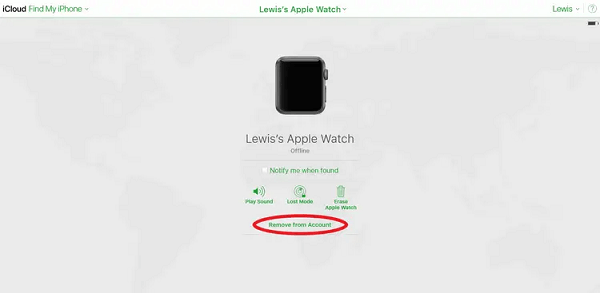
Use this method if you no longer have physical access to the watch but want to protect your data.
How to Erase Remotely via Find My
- Visit iCloud.com or use the Find My app on another Apple device.
- Sign in with your Apple ID.
- Open Find My > Devices.
- Select your Apple Watch.
- Tap Erase [Device Name].
- Confirm and optionally leave a message and phone number for the finder.
🛑 Once erased, the watch can no longer be tracked via Find My.
✅ Outcome:
– All personal data is wiped.
– The device is removed from your account.
– Activation Lock is disabled.🔄 Best For: Lost, stolen, or accidentally sold watches.
Why Activation Lock Blocks Unpaired Watches

What Is Activation Lock?
Activation Lock is Apple’s built-in anti-theft protection. It activates automatically when Find My is turned on and ties your Apple Watch to your Apple ID. This means:
- You cannot pair the watch with a new iPhone without your credentials.
- After an erase, the setup screen will require your Apple ID and password.
- Even a clean wipe won’t allow a new user to activate it.
🔒 It’s on by default—no action needed to enable it.
Can You Bypass Activation Lock Without iPhone?
❌ No. There is no legitimate way to bypass Activation Lock without:
– Your Apple ID and password, or
– Remote removal via iCloud.com⚠️ Avoid third-party tools claiming to “unlock” your watch. These are scams, often designed to steal your Apple ID or install malware.
Fix: Apple Watch Still Shows Activation Lock After Reset
Common Symptoms
| Symptom | Cause |
|---|---|
| “This Apple Watch is linked to an Apple ID” | Not removed from iCloud |
| Prompts for old Apple ID during setup | Activation Lock still active |
| Setup animation doesn’t appear | Device blocked by lock |
How to Fix It
- Go to iCloud.com.
- Sign in with the original Apple ID.
- Open Find My > All Devices.
- Select your Apple Watch and choose Remove from Account.
- Once removed, go back to the watch and erase it again.
✅ Success Test: During setup, if the watch skips Apple ID login and goes straight to language selection, Activation Lock is off.
Manage Cellular Plan Before Unpairing
For GPS + Cellular models, removing the eSIM doesn’t stop billing—so act early.
Remove Plan During Erase
When erasing on the watch:
– Choose Remove Plan if selling or giving it away.
– Choose Keep Plan only if re-pairing later with the same carrier.
Remove Plan via iPhone (If Accessible)
- Open Watch app > My Watch > Cellular.
- Tap i next to the plan.
- Select Remove [Carrier] Plan.
⚠️ Important: Removing the plan does not cancel your subscription. You must contact your carrier to stop billing.
Get Help from Apple Store (No iPhone or Apple ID Access?)
If you’ve lost your Apple ID or trusted device, Apple may still assist.
What You’ll Need
- The Apple Watch.
- Proof of purchase (receipt, box with serial, credit card statement).
- Government-issued photo ID.
What Apple Can Do
- Verify ownership.
- Help remove the device from your iCloud account.
- Disable Activation Lock manually in rare cases.
📍 Visit a Genius Bar—not all retail stores can perform this.
✉️ Apple Support online cannot remove Activation Lock without account access.
Prepare Apple Watch for Resale or Gifting
Follow this checklist to ensure a smooth handoff.
Step-by-Step Preparation
- ✅ Remove from iCloud via iCloud.com.
- ✅ Erase on the watch via Settings > General > Reset.
- ✅ Remove cellular plan (if applicable).
- ✅ Confirm Activation Lock is off by testing setup with another iPhone.
- ✅ Include original charger and band if possible.
💡 Pro Tip: Note the serial number (Settings > General > About) before erasing—buyers may need it.
Switched to Android? Here’s How to Unpair
You don’t need an iPhone—just a browser.
Steps for Android Users
- Open Chrome or any browser.
- Go to iCloud.com.
- Sign in with your Apple ID.
- Go to Find My > All Devices.
- Remove the Apple Watch.
- Erase it using Settings > General > Reset on the watch.
📱 Two-factor codes can be received via SMS—even on Android.
✅ Result: Watch is clean, Activation Lock off, ready for resale.
Common Mistakes to Avoid
❌ Erasing Without Removing from iCloud
- Leaves Activation Lock active.
- Renders the watch unusable.
❌ Forgetting the Passcode
- You must enter the passcode to erase the watch.
- If forgotten, use iCloud removal only if already signed out.
❌ Assuming Carrier Cancels Plan Automatically
- You must call your carrier to cancel service.
- Removing the eSIM ≠ stopping billing.
❌ Using Third-Party Unlock Tools
- These are scams.
- Risk data theft or bricking the device.
✅ Only Apple’s official methods work.
Best Method by Situation
| Scenario | Recommended Action |
|---|---|
| iPhone lost or broken | Remove via iCloud.com → Erase on watch |
| Selling or gifting | Remove from iCloud → Erase → Remove plan |
| Watch lost or stolen | Use Find My to erase remotely |
| Switched to Android | Use iCloud.com on browser |
| Forgot Apple ID | Visit Apple Store with proof of purchase |
✅ Only one method fully unpairs: Remove from iCloud, then erase.
Final Checklist Before Handing Over
- [ ] Apple Watch removed from iCloud account
- [ ] All content erased on device
- [ ] Cellular plan removed (if applicable)
- [ ] Carrier subscription canceled
- [ ] Activation Lock confirmed off
- [ ] Original accessories included
Final Note: You can unpair an Apple Watch without the iPhone—but only if you have your Apple ID and password. Without them, Activation Lock will permanently block the device. Always remove the watch from iCloud first, then erase it locally. Never rely on a factory reset alone. By following these steps, you ensure your Apple Watch is securely unpaired, data-free, and ready for its next owner.




