
Your Apple Watch face is more than just a way to tell time—it’s a canvas for self-expression. Whether you’re drawn to sleek minimalism, nostalgic retro gaming designs, or luxurious Rolex-inspired dials, customizing your watch face lets you reflect your mood, style, and daily routine. The good news? You don’t need technical skills or jailbreaking to transform your screen. With Apple’s built-in tools and powerful third-party apps like Facer and Clockology, getting different Apple Watch faces is fast, safe, and completely customizable.
In this guide, you’ll learn how to access Apple’s native face gallery, install premium third-party designs, personalize photo-based dials, share custom looks with friends, and manage your collection like a pro—all using official, secure methods. Whether you want a Star Trek–themed animation, a 3D portrait of a loved one, or a workout-ready face with real-time fitness stats, the steps are simple and take just minutes.
Browse and Add Faces from Apple’s Face Gallery
The Face Gallery in the Apple Watch app is your starting point for all built-in watch faces. It’s packed with dozens of stylish, fully customizable options.
Explore Watch Face Categories on iPhone
Open the Watch app on your iPhone and tap Face Gallery at the bottom. Scroll through curated categories:
- New Watch Faces: Discover recent additions like Flow (fluid motion design) and Exactograph (precision data display), available on watchOS 26+.
- Health & Fitness: Track activity rings, heart rate, and workout progress with dedicated dials.
- Data Rich: Maximize functionality with faces like Infograph and Chronograph Pro, which support up to eight complications.
- Minimalist: Clean, elegant designs such as Solar Analog and California offer timeless appeal.
- Portraits: Use Portrait mode photos for a 3D effect that shifts as you tilt your wrist (requires watchOS 8+).
Tap See All Watch Faces to view every available option in one scrollable list.
Customize and Install a Native Face
- Tap a face you like and select Get.
- Personalize it:
– Change dial color, hand style, and background.
– Adjust style variants (e.g., digital vs. analog).
– Add complications—tap any position (top, bottom, corner) and choose from:- Weather
- Calendar
- Heart Rate
- Activity Rings
- Battery
- World Clock
- Music
- Stopwatch
- Tap Add to Watch.
The face appears instantly on your Apple Watch and syncs to your My Faces collection.
Add Watch Faces Directly on Your Apple Watch
No iPhone nearby? You can still add new faces from your wrist.
Use the “+” Menu on Apple Watch
- Press and hold your current watch face.
- Swipe left to the “+” icon.
- Tap Browse and explore categories like New, Health & Fitness, or All Watch Faces.
- Tap Get on a face, then Add.
- Customize colors, layout, and complications right on the watch.
Changes sync automatically. You can fine-tune the design later using the Watch app on your iPhone.
Edit and Duplicate Existing Watch Faces
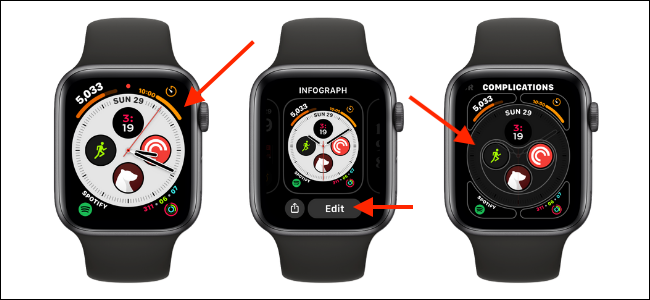
Already have a favorite? Make it even better—or create variations for different times of day.
Customize from the Watch App
- Open Watch app > My Watch > My Faces.
- Tap the face you want to edit.
- Adjust:
– Dial tint and hand color
– Layout and style
– Complication types and positions
Edits apply in real time—no need to re-add the face.
Pro Tip: Duplicate a face by adding it again from the Face Gallery and customizing it differently. For example, create a bright version for daytime and a dark one for night.
Turn Photos into Custom Watch Faces

Your memories can become stunning watch dials—perfect for motivation, nostalgia, or style.
Choose from Photo Albums
In the Face Gallery, select Photos and pick how images are displayed:
- Favorites: Syncs photos marked as favorites on your iPhone.
- Album: Pulls from a specific album (e.g., “Beach Trip 2023”).
- Dynamic: Rotates through recent photos automatically.
- Portraits (watchOS 8+): Uses Portrait mode photos with depth effects.
Set Up a Portraits Face
- Go to Face Gallery > Portraits.
- Tap Choose Photos.
- Select up to 24 portrait images taken with iPhone’s Portrait mode.
- Tap Add.
3D Effect: Tilt your wrist or turn the Digital Crown to zoom in and see the parallax effect. It’s like the photo comes alive.
You can also create a custom synced album and limit photo count (25, 100, 250, or 500) to manage storage.
Share Custom Faces with Friends
Send your personalized design to someone else with one tap.
Share via iMessage
- On Apple Watch, press and hold the current face.
- Tap the Share icon (square with arrow).
- Choose a contact and send via iMessage.
The recipient taps the message and selects Add to Watch to install the exact face—including colors, layout, and complications.
Use Case: Share a travel-ready face with world clocks and weather with a friend going overseas.
Install Thousands of Custom Faces with Facer
Want a Fallout, Tetris, or Ghostbusters face? Facer delivers over 500,000+ free and premium designs—all officially licensed and safe.
Install the Facer App
Requirements:
– iPhone with iOS 16.0+
– Apple Watch with watchOS 9.0+
Steps:
1. Download Facer from the App Store on iPhone.
2. Ensure it’s installed on Apple Watch (check in My Watch > Installed Apps).
3. Open Facer on iPhone.
Send a Face to Your Watch
- Browse or search for a design (e.g., “anime,” “luxury,” “minimalist”).
- Tap a face > Send to Watch.
- Confirm in the Apple Watch app.
- Wait 10–30 seconds for sync.
If the face doesn’t appear, relaunch the Watch app. The preview may lag, but the face will load on your watch.
Refresh Complications Instantly
Facer faces support real-time data like steps and heart rate—but Apple only updates complications every 15 minutes by default.
- Tap the face on your Apple Watch to force an immediate refresh.
Use Clockology for Luxury-Inspired Watch Faces
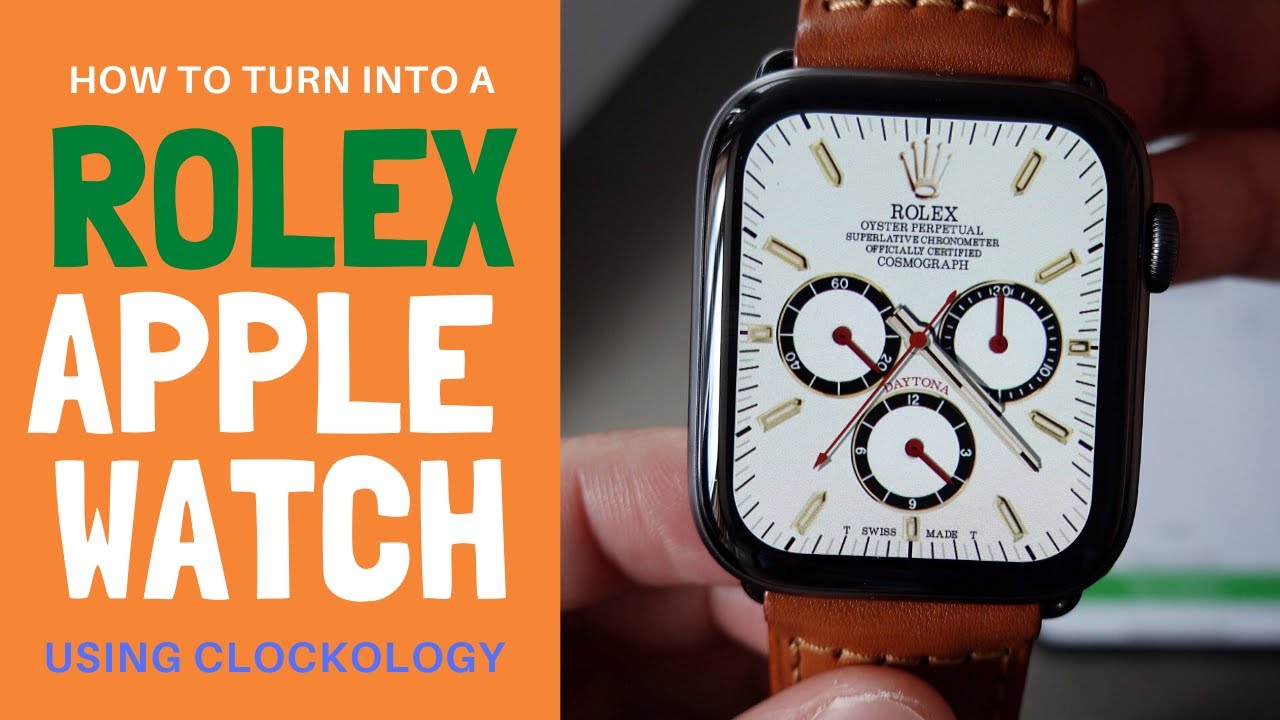
Love the look of a Rolex, Gucci, or G-Shock? Clockology offers fan-made recreations that mimic high-end timepieces.
Install Clockology
- Download Clockology from the App Store on iPhone and Apple Watch.
- Confirm installation in My Watch > Installed Apps.
Download a Custom Face
- Open Clockology on Apple Watch.
- Tap the first link to join the official Telegram channel.
- Search for styles like “Rolex Daytona” or “Casio G-Shock.”
- Tap a preview > Download > Open.
- From the share sheet, select Clockology (enable in “More” if hidden).
- Back in Clockology, tap Sync.
Wait 10–20 seconds—the face will appear on your watch.
Note: These are fan-made, not official branded products, and comply with Apple’s guidelines.
Keep Face Active in Standby Mode
To prevent dimming to a plain clock:
- On Apple Watch: Settings > General > Return to Clock.
- Set to After 1 hour.
This keeps your custom design visible when you raise your wrist.
Switch Between Faces Without Pressing
Speed up access with swipe navigation.
Enable Swipe to Switch
- Open Watch app > My Watch > Clock.
- Turn on Swipe to Switch Watch Face.
Now, simply swipe left or right on the watch face to cycle through your collection—no need to press and hold.
Ideal for workouts, cold weather, or when wearing gloves.
Organize and Manage Your Watch Faces
Keep your lineup clean and efficient.
Reorder Faces on iPhone
- Open Watch app > My Watch > My Faces.
- Tap Edit.
- Drag faces using the ≡ icon to rearrange.
- Tap Done.
Place your most-used faces at the front for quick access.
Remove Unused Faces
On iPhone:
1. Tap Edit in My Faces.
2. Tap – next to a face > Remove.
On Apple Watch:
1. Press and hold the face.
2. Swipe up > Remove.
You can re-add any face anytime—removing doesn’t uninstall the app.
Update iOS and watchOS for New Faces
New designs are added with system updates.
Check for Updates
On iPhone:
– Settings > General > Software Update
On Apple Watch:
– Settings > General > Software Update
Updating unlocks new Apple faces like Flow and Exactograph, plus ensures smooth performance with third-party apps.
Optimize Performance and Storage
Keep your watch responsive and efficient.
Limit Photo Sync Size
Large albums (e.g., 500 photos) use more storage.
- Set synced albums to 25–100 photos in the Watch app.
Watch Third-Party Face Behavior
- Facer and Clockology faces may have slightly delayed complications unless tapped.
- Animated faces use more battery—use sparingly.
No Jailbreaking Required: All methods work within Apple’s secure ecosystem.
Explore New Faces Regularly
Fresh designs are added all the time.
Apple Adds New Faces with Updates
- Check Face Gallery after each watchOS update.
- Recent additions: Flow (fluid animation), Exactograph (precision data display).
Third-Party Apps Add Weekly
- Facer adds new licensed and community designs weekly.
- Clockology updates its Telegram feed with new fan recreations.
Set a monthly reminder to browse for new styles.
Final Tips for Best Results
- Tailor Complications: Create faces for specific needs—gym (heart rate + workout), travel (weather + world clock).
- Create Multiple Versions: Same face, different colors or layouts for morning, work, and night.
- Enable Swipe to Switch: Faster than pressing and holding.
- Review Privacy Settings: Apps like Facer collect email, device ID, usage data—check privacy.facer.io before installing.
- Restart if Stuck: If a face won’t sync, restart both iPhone and Apple Watch.
With Apple’s powerful customization tools and third-party apps like Facer and Clockology, your Apple Watch can look completely different every day—no tech skills required. Whether you want a retro Tetris dial, a 3D portrait of a loved one, or a sleek California face, the process takes just minutes. Start exploring today and make your watch truly yours.





