
Is your Apple Watch showing the same face every day? You’re not stuck with it. One of the most powerful—and underused—features of the Apple Watch is its fully customizable watch face. Whether you want a sleek minimalist design, a workout-ready dashboard, or a fun animated face from your favorite movie, you can set and switch watch faces in seconds. Learning how to set a watch face on Apple Watch opens up a world of personalization, productivity, and style—all from your wrist.
You can customize and set new faces directly on your Apple Watch or use the Apple Watch app on your iPhone for more precise control. With built-in designs like Infograph, Photo, and GMT, plus thousands of downloadable options from third-party apps like Facer and Clockology, the possibilities are nearly endless. In this guide, you’ll learn exactly how to add, customize, switch, and manage watch faces—plus discover pro tips, troubleshooting fixes, and how to use hidden features like time offsets to boost productivity.
Access the Watch Face Gallery
Use the iPhone App to Browse and Install Faces
The easiest and most detailed way to set a new watch face is through the Apple Watch app on your iPhone. The larger screen makes it easier to preview designs, tweak colors, and arrange complications before syncing to your wrist.
- Open the Apple Watch app on your iPhone.
- Tap Face Gallery at the bottom.
- Scroll through categories like Photos, Time, Activity, or tap See All Watch Faces for a full list.
- Tap any face to preview it in real time.
- Tap Get to add it to your collection.
After adding, you can fully customize the face—change colors, layout, and complications—then tap Add to Watch when done. The new face will sync instantly and become active on your Apple Watch.
💡 Pro Tip: Use the iPhone method when setting up complex faces with multiple complications. The interface is more intuitive and gives you better control over fine details.
Add a Face Directly on Your Apple Watch
No phone nearby? No problem. You can set a new watch face right from your wrist—fast and without syncing delays.
- Touch and hold the current watch face.
- Swipe left until you see the + button, then tap it.
- Browse categories: New, Time, Activity, Photos, etc.
- Tap Get on any face, then Add.
- Customize colors, style, and complications on the spot.
- Press the Digital Crown to save.
Your new face is now active and saved to your collection.
⚠️ Note: On newer watchOS versions, force touch is replaced with a long press. Just touch and hold the screen until the edit menu appears.
Customize Your Watch Face Appearance

Change Colors, Fonts, and Backgrounds
Once you’ve added a face, you can personalize its look to match your mood, outfit, or purpose. Most built-in faces support color changes, style variants, and background adjustments.
- On iPhone: While editing in the Watch app, tap the preview to cycle through color themes or select Style to switch layouts.
- On Apple Watch: Tap the face in edit mode, then turn the Digital Crown to adjust colors or switch visual modes.
For example:
– Modular lets you change accent colors and module shapes.
– Infograph offers different dial styles and font weights.
– Solar shifts colors based on daylight and your location.
✅ Best Practice: Match your face color to your band for a polished, coordinated look.
Add and Edit Complications
Choose What Data Appears on Your Face
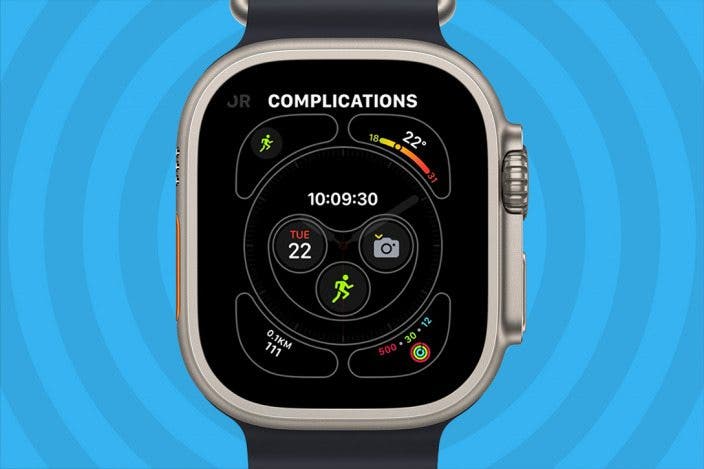
Complications are mini-widgets that display real-time information—like weather, heart rate, battery level, calendar events, or activity rings. You decide what shows up and where.
To edit a complication:
1. In edit mode (after touching and holding the face), tap the complication slot (e.g., top, center, bottom).
2. Turn the Digital Crown to scroll through available apps.
3. Select the one you want.
To remove a complication:
– Scroll to the top of the list and choose Off.
📌 Complication Limits by Face Type:
– Modular: Up to 8+ complications
– Infograph: 6–8 data points
– Simple: Minimal or no complications
Top Complication Picks:
– Battery percentage
– Next calendar event
– Heart rate
– Weather
– Stopwatch
– Timer
💡 Pro Tip: Create a workout face with heart rate, timer, and activity rings for quick fitness tracking during runs or gym sessions.
Switch Between Watch Faces Instantly
Swipe to Cycle Through Saved Faces
Once you’ve built a collection, switching faces takes just a swipe.
- From the watch face, touch and hold the screen.
- Swipe left or right to browse your saved faces.
- Tap the one you want to use.
For even faster access:
Enable Swipe-to-Switch Without Holding
Turn on a gesture that lets you switch faces without pressing:
- On Apple Watch, open Settings.
- Tap Clock.
- Toggle on Swipe to Switch Watch Face.
Now, just swipe left or right across the screen to change faces instantly.
⏱️ Time Saver: Perfect for toggling between a work face, workout face, and sleep face without breaking stride.
Manage Your Watch Face Collection
Reorder Faces for Faster Access
Keep your most-used faces at the front.
- Open the Apple Watch app on iPhone.
- Tap My Watch > My Faces.
- Tap Edit.
- Drag the three-line handle next to a face to reorder.
The order on your iPhone matches what you see when swiping on your watch.
Delete Unused Faces
Free up space by removing faces you no longer use.
On iPhone:
1. In My Watch > My Faces, tap Edit.
2. Tap the red minus icon, then Remove.
On Apple Watch:
1. Touch and hold the screen → enter edit mode.
2. Swipe up on the face → tap Remove.
🔄 Good to Know: Deleted faces can always be re-added from the Face Gallery.
Use Third-Party Watch Faces
Install Custom Designs from Facer, Clockology, StepDog
Apple’s built-in options are great—but third-party apps take customization further with animated, branded, and gamified designs.
Facer
- Thousands of community-made faces
- Themes: Star Wars, Marvel, Anime, Luxury
- Animated backgrounds (e.g., meteor showers, ocean waves)
- Install via Facer app → sync to watch
Clockology
- Deep customization for analog/digital designs
- Adjust hand shapes, dials, fonts, colors
- Ideal for watch enthusiasts
- Works on iPhone and Apple Watch
StepDog
- Gamified fitness motivator
- Virtual dog grows healthier as you hit step goals
- Face updates based on your activity
- Great for kids or fitness beginners
📲 How to Install:
1. Download the app from the App Store.
2. Open it and pick a face.
3. Tap Install or Add to Watch.
4. Access it via the + menu on your watch.⚠️ Note: Some premium faces require a subscription.
Set Your Watch Ahead for Better Time Management
Use the +0 Min Offset Trick
Want to trick yourself into being on time? Set your watch to display time ahead—without affecting alarms or notifications.
- On Apple Watch, open Settings.
- Tap Clock.
- Tap +0 min.
- Turn the Digital Crown to set an offset (e.g., +15 or +30 minutes).
Now your watch shows 8:15 when it’s actually 8:00—but your calendar alerts still fire on time.
🧠 Why It Works: A classic productivity hack. Helps you beat procrastination and arrive early.
Build Purpose-Specific Watch Faces

Match Your Face to Your Activity
Maximize utility by creating dedicated faces for different situations.
| Use Case | Recommended Face | Key Complications |
|---|---|---|
| Work | Infograph Modular | Calendar, Email, Weather, Battery |
| Workout | Activity Analog | Heart Rate, Timer, Activity Rings |
| Travel | GMT | Dual Time Zone, Weather, Flight Time |
| Casual | Photo | Minimal complications, personal image |
| Sleep | Simple or Time | Large time display, moon phase |
💡 Pro Tip: Use a dark photo face at night to reduce screen brightness and eye strain.
Troubleshoot Common Watch Face Issues
Face Not Showing After Sync?
- Ensure Bluetooth connection between watch and iPhone.
- Check Wi-Fi or cellular signal.
- Restart both devices and retry.
Complication Not Updating?
- Open Apple Watch app → My Watch → [App Name] → Ensure Show App on Apple Watch is on.
- Update third-party apps if needed.
Custom Face Resets After Update?
- Software updates may reset faces.
- Fix: Re-add from Face Gallery.
- Use Clockology or Facer to sync backups to the cloud.
Third-Party Face Won’t Load?
- Open the app (e.g., Facer) and check if the face is active.
- Update the app.
- Confirm subscription status for premium content.
Pro Tips for Better Watch Face Management
- Name your faces: In the Watch app, label faces as “Workout” or “Travel” for easy identification.
- Use high-contrast photos: Avoid busy backgrounds. Add a dark tint for better readability.
- Limit to 5–7 faces: Too many can slow down switching.
- Update regularly: New faces arrive with watchOS updates—check Face Gallery often.
- Backup favorites: Take screenshots of your ideal setups in case you need to rebuild.
Summary: How to Set Any Watch Face on Apple Watch
| Action | How to Do It |
|---|---|
| Add a new face | Use + on watch or Face Gallery on iPhone |
| Customize look | Change color, style, background |
| Add complications | Tap slot → choose app → set function |
| Switch faces | Touch and hold → swipe → tap |
| Enable quick swipe | Settings > Clock > Swipe to Switch |
| Delete a face | Swipe up → Remove (watch) or Edit → Remove (iPhone) |
| Use third-party faces | Install Facer, Clockology, or StepDog |
| Set time ahead | Settings > Clock > +0 min > adjust offset |
Your Apple Watch face is more than just a clock—it’s your personal dashboard. By mastering how to set and customize it, you transform your wrist into a powerful tool for fitness, productivity, and self-expression. Whether you’re tracking steps, managing your schedule, or just showing off a favorite photo, the right face makes all the difference. Start experimenting today and make your Apple Watch truly yours.




