
You’re not alone if the constant pings, glowing rings, and daily reminders from your Apple Watch have started to feel more like pressure than motivation. While the Activity app is designed to encourage movement and consistency, many users now want to get rid of activity on Apple Watch—whether to reduce anxiety, protect personal data, or simply reclaim a sense of digital calm. The reality, however, is that Apple doesn’t offer a single “off switch” for all tracking. But with the right combination of settings, you can significantly limit or even halt most aspects of activity monitoring.
This guide breaks down every official method to disable, hide, or delete activity data—based strictly on Apple’s current system and verified user workflows. From silencing notifications to stopping sensor collection and removing shared data, you’ll learn exactly what works, what doesn’t, and how to take full control over your fitness tracking experience across both iPhone and Apple Watch.
Hide Activity Rings on Your Watch Face
If the visual pressure of the red, green, and blue rings is overwhelming, you can remove them from sight in seconds—without affecting any underlying tracking.
Replace the Activity Complication
- Press and hold your current watch face until it enters edit mode.
- Tap Edit.
- Scroll through the complications (the small widgets around the clock) and find the one showing your activity rings.
- Tap it and choose a different function—options include time, date, battery level, heart rate, or a blank space.
- Press the Digital Crown to save your changes.
✅ What changes: The rings disappear from your watch face.
❌ What doesn’t change: All movement data continues to be collected and synced to your iPhone.
🎯 Best for: Users who want a minimalist look but don’t mind passive tracking.💡 Pro Tip: Combine this with a clean watch face like Simple or Numerals to reduce visual distractions even further.
Remove the Fitness App from Apple Watch
Want to stop seeing your stats altogether? You can delete the Fitness (or Activity) app directly from your wrist.
Delete the App Interface
- On your Apple Watch, press and hold any app icon until they start to jiggle.
- Look for Fitness (in watchOS 9+) or Activity (older versions).
- Tap the X in the corner and confirm deletion.
⚠️ Important: This only removes the app interface, not the tracking system.
🔄 Reinstall anytime: Open the Watch App Store, search “Fitness,” and download it instantly. All your historical data will reappear thanks to iCloud sync.✅ Tracking status: Sensors still collect steps, calories, and stand hours—they just won’t be viewable unless you reinstall the app.
🎯 Best for: Avoiding temptation to check progress while maintaining background health monitoring.💡 Expert Note: Deleting the app doesn’t stop data collection—it only hides access. For true tracking control, go deeper into privacy settings.
Turn Off All Activity Notifications
Even if you keep the app, you can silence every alert—from stand reminders to celebration messages.
Disable Alerts via iPhone
- Open the Watch app on your iPhone.
- Tap My Watch > Activity.
- Toggle off:
– Notifications
– Daily Reminders
– Coaching Tips
– Monthly Challenges
– Trending Notifications
✅ Result: No more buzzes, chimes, or pop-ups related to goals.
❌ Note: Your Apple Watch still tracks everything silently.
🕒 Time needed: Less than a minute.💡 Pro Tip: Pair this with app deletion so even if you open Fitness manually, there are no alerts to distract you.
Stop Background Activity and Sensor Tracking
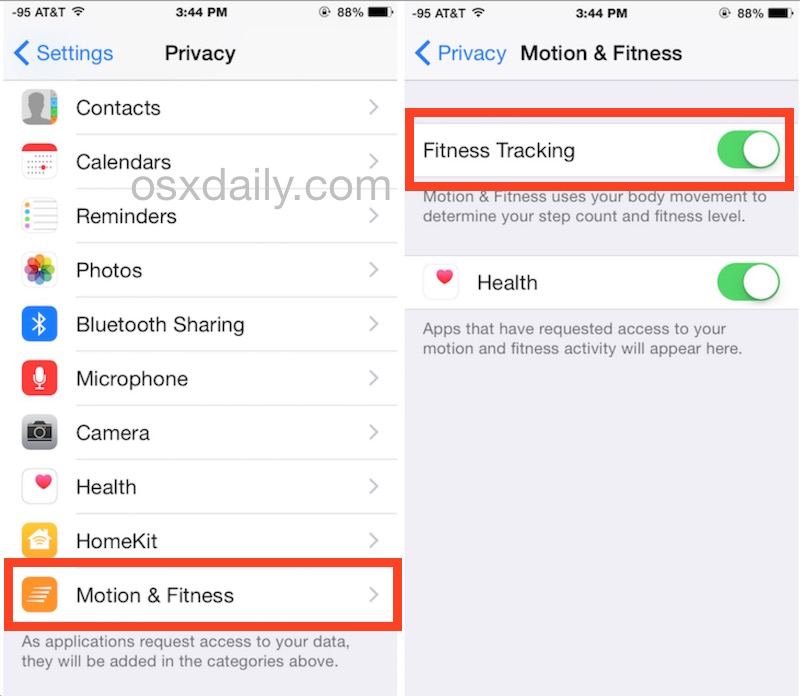
To truly get rid of activity on Apple Watch, you must disable the sensors that gather the data.
Disable Motion & Fitness Permissions
- On your iPhone, open the Watch app.
- Go to Privacy > Motion & Fitness.
- Turn off:
– Fitness Tracking
– Heart Rate
– Motion Calibration & Distance
– Fall Detection (optional, but affects safety features)
✅ What stops:
– Step counting
– Active calorie estimates
– Exercise minute logging
– Stand hour tracking
– Automatic workout detection⚠️ Limitation: If you open the Workout app, some sensors may reactivate temporarily.
🔄 Reversible: You can toggle these back on at any time.🎯 Best for: Privacy-conscious users who want to stop all passive data collection.
💡 Expert Note: This is the only way to fully halt tracking—not just hide it.
Delete Individual Workouts (But Not Daily Summaries)
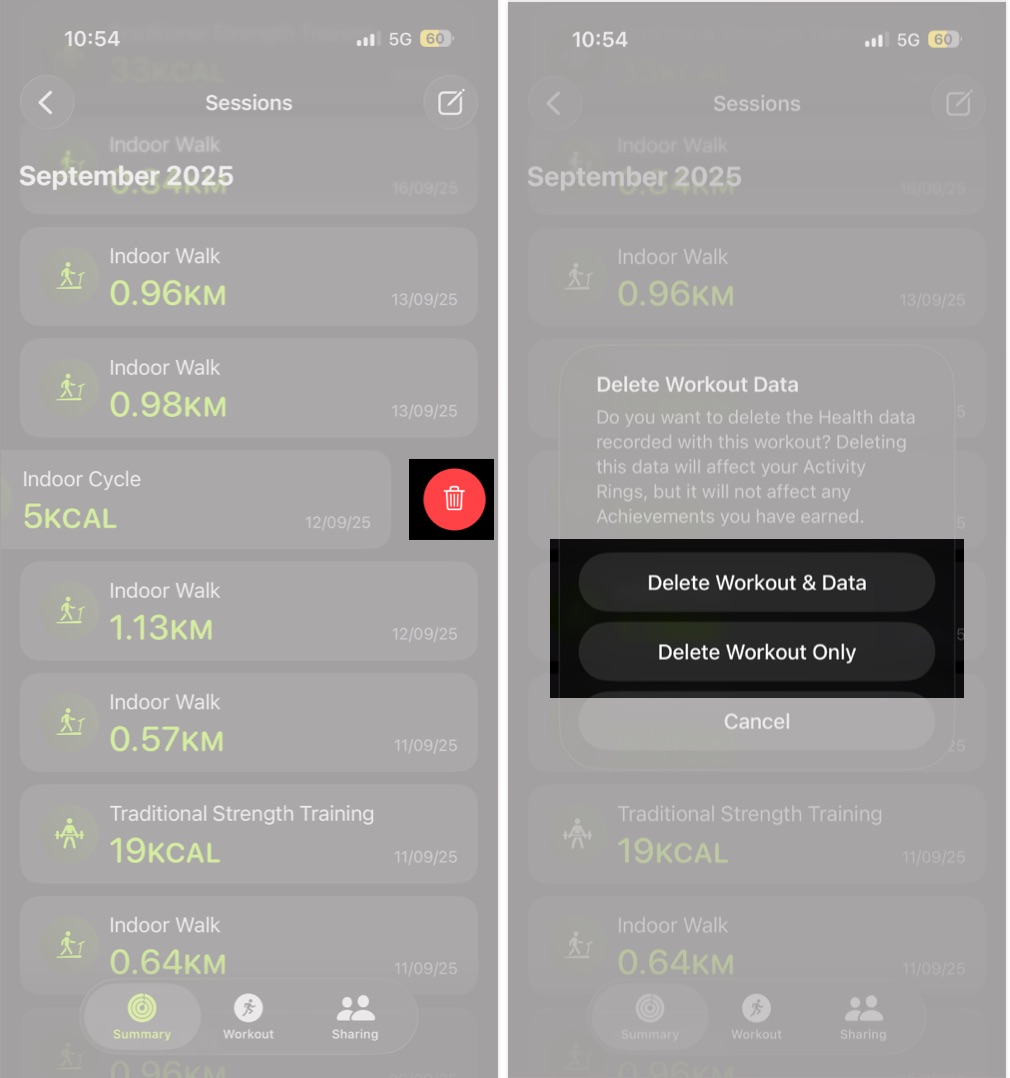
You can’t erase a full day’s activity, but you can remove specific workouts.
Remove a Session via iPhone
- Open the Health app.
- Tap Search and type “Workouts.”
- Tap Workouts under Health Data.
- Find the session you want gone (e.g., an accidental 2-hour walk).
- Tap it > Delete > Confirm.
✅ What’s removed: Only that specific workout entry.
❌ What stays: Daily Move, Exercise, and Stand data; trends; achievements.🎯 Best for: Fixing incorrect recordings or removing unwanted sessions.
💡 Pro Tip: Use Siri: Say “Show my workouts from yesterday,” then tap and delete.
Stop Sharing Activity with Friends
Social sharing can be motivating—but also stressful. If you’re tired of comparisons, you can hide your activity instantly.
Hide or Remove Friends
From iPhone:
- Open Watch app > Fitness > Activity Sharing.
- Select a contact > Choose Hide My Activity (temporary) or Remove Friend (permanent).
From Apple Watch:
- Open Fitness app.
- Tap the person icon.
- Select a friend > Tap Hide Activity or Remove Friend.
✅ Result: They’ll no longer see your rings or messages.
🔁 Reversible: “Hide” can be undone. “Remove” requires a new invitation.🎯 Best for: Taking a mental health break or protecting privacy.
💡 Warning: If they don’t hide you too, you’ll still see their activity.
Can You Delete All Activity History?
No. Apple does not allow bulk deletion of historical activity data.
Why It’s Impossible
- Data is stored in HealthKit, Apple’s secure health database.
- The Health app on iPhone is the central hub—deletions must happen here.
- Daily summaries, trends, and achievements cannot be erased through settings.
Workaround: Factory Reset (Last Resort)
- On Apple Watch: Settings > General > Transfer or Reset Apple Watch.
- Tap Erase All Content and Settings.
- Re-pair the watch.
⚠️ What it does: Wipes the watch—but not your iPhone or iCloud data.
🔁 After reset: All historical data reappears once synced.❌ Bottom line: There is no official way to delete long-term Apple Watch activity history.
💡 Alternative: Third-party apps claim to edit HealthKit data, but they risk corruption and aren’t safe.
Recommended Approaches by Use Case

Want a Cleaner Watch Face?
- ✅ Action: Replace activity complication
- ❌ Avoid: Disabling sensors
- ✅ Result: Minimalist look, full tracking intact
Need a Mental Health Break?
- ✅ Actions:
- Delete Fitness app
- Turn off notifications
- Hide activity from friends
- ⏳ Duration: Use for days or weeks as needed
- 🔁 Reversible: Restore anytime
Concerned About Privacy?
- ✅ Actions:
- Disable Motion & Fitness in iPhone Watch app
- Optionally delete Fitness app
- Avoid using Workout app
- 🔐 Result: Near-total halt in data collection
Accidentally Started a Workout?
- ✅ Action: Delete it via Health app > Workouts
- ❌ Can’t do: Delete an entire day’s Move or Stand data
Ending Social Accountability?
- ✅ Action: Use Hide My Activity or Remove Friend
- 🔁 Can reverse: “Hide” is temporary; “Remove” is permanent
Key Limitations to Know
| Feature | Can You Remove It? | Notes |
|---|---|---|
| Activity rings (display) | ✅ Yes | Only visual—tracking continues |
| Fitness app icon | ✅ Yes | Interface gone, data still collected |
| Daily reminders | ✅ Yes | Disable in Watch app on iPhone |
| Sensor tracking | ✅ Partially | Disable in Privacy > Motion & Fitness |
| Full activity history | ❌ No | Stored in Health app; no bulk delete |
| Shared activity | ✅ Yes | Hide or remove friends anytime |
| Reinstall Fitness app | ✅ Yes | All data returns instantly |
🔍 Critical Insight: Your iPhone, not the watch, controls data management. Always make changes there for lasting effect.
Final Tips for Full Control
-
Combine methods for best results:
Delete the app + disable sensors + hide from friends = maximum disengagement. -
Use Theater Mode or Do Not Disturb for quick breaks:
Prevents alerts without changing settings. -
Avoid automatic workouts:
Go to Watch app > Workout > Start Workout Reminder > Off. -
Check iCloud sync settings:
Go to iPhone Settings > [Your Name] > iCloud > Health. Turn off if you want to limit cross-device sync (note: affects all health data). -
Accept the limits:
Apple designed this system to encourage consistency. Full deletion isn’t supported—by design.
While you can’t fully erase your Apple Watch activity history, you can stop tracking, hide data, and silence notifications with the right steps. The most effective path to getting rid of activity on Apple Watch is disabling Motion & Fitness permissions on your iPhone—combined with app removal and notification control. Whether you’re seeking digital minimalism, mental relief, or privacy, these methods give you the closest thing Apple offers to a “reset” button for fitness tracking.




