

Your Apple Watch Series 6 won’t turn on. The screen is black, unresponsive, and no amount of charging seems to help. Or maybe it’s stuck in a boot loop, failing to update, or not syncing with your iPhone. You’re not alone—thousands of users face similar Apple Watch 6 troubleshooting challenges, from charging failures to frozen displays and LTE connectivity issues.
This guide delivers step-by-step fixes for the most common Apple Watch Series 6 problems, using verified methods from Apple’s official support, user-tested recovery techniques, and real-world repair insights. Whether you’re dealing with a dead battery, software glitches, or the notorious blank screen defect, you’ll find clear, actionable solutions—starting with simple resets and escalating only when necessary. You’ll also learn how to check eligibility for free repairs under Apple’s Blank Screen Service Program, optimize battery life, and avoid costly out-of-warranty replacements.
Restart or Force Restart Your Apple Watch
If your Apple Watch 6 freezes, won’t wake, or gets stuck on the Apple logo, a restart is often the fastest fix.
Perform a Normal Restart
Use this for minor issues like app crashes or sluggish performance:
- Press and hold the side button until the Power Off slider appears.
- Drag the slider to power off.
- Wait 10 seconds, then press and hold the side button again until the Apple logo appears.
This clears temporary software hiccups without affecting your data.
Force Restart When the Watch Is Unresponsive
If the screen is completely black or frozen:
- Press and hold both the side button and Digital Crown.
- Keep holding for 10 to 15 seconds—up to 60 seconds if the device is fully unresponsive.
- Release when the Apple logo appears.
Pro Tip: A force restart doesn’t erase your data. It resets the system memory and stops frozen processes, making it ideal for boot loops or failed updates.
Update or Restore watchOS Successfully
Outdated or corrupted software causes many Apple Watch 6 issues, including update failures, sync problems, and unresponsive apps.
Check for Software Updates
- On your iPhone: Open the Watch app > General > Software Update.
- On your Apple Watch: Go to Settings > General > Software Update.
Ensure your watch:
– Is charged to at least 50%.
– Is connected to its charger.
– Is within Bluetooth range of your iPhone.
Note: Apple Watch Series 6 supports up to watchOS 10. Devices on older versions may fail to pair with iPhones running iOS 18 or later.
Fix a Stuck or Failed Update
If the update won’t install:
- Restart both your Apple Watch and iPhone.
- On iPhone, go to Watch app > General > Storage.
- Find and delete the pending watchOS update file.
- Retry the update.
This clears corrupted download files that block installation.
Force Update Using a Mac
When the iPhone method fails:
- Connect your iPhone to a Mac via USB.
- Open Finder and select your Apple Watch in the sidebar.
- Click Update or Restore.
This bypasses iPhone-side bugs and connects directly to Apple’s servers for a clean install.
Last Resort: Visit Apple Support
If the watch won’t boot or restore, visit an Apple Store or Apple Authorized Service Provider. Technicians use internal tools to force a system restore—even on non-responsive devices.
Fix Apple Watch 6 That Won’t Turn On
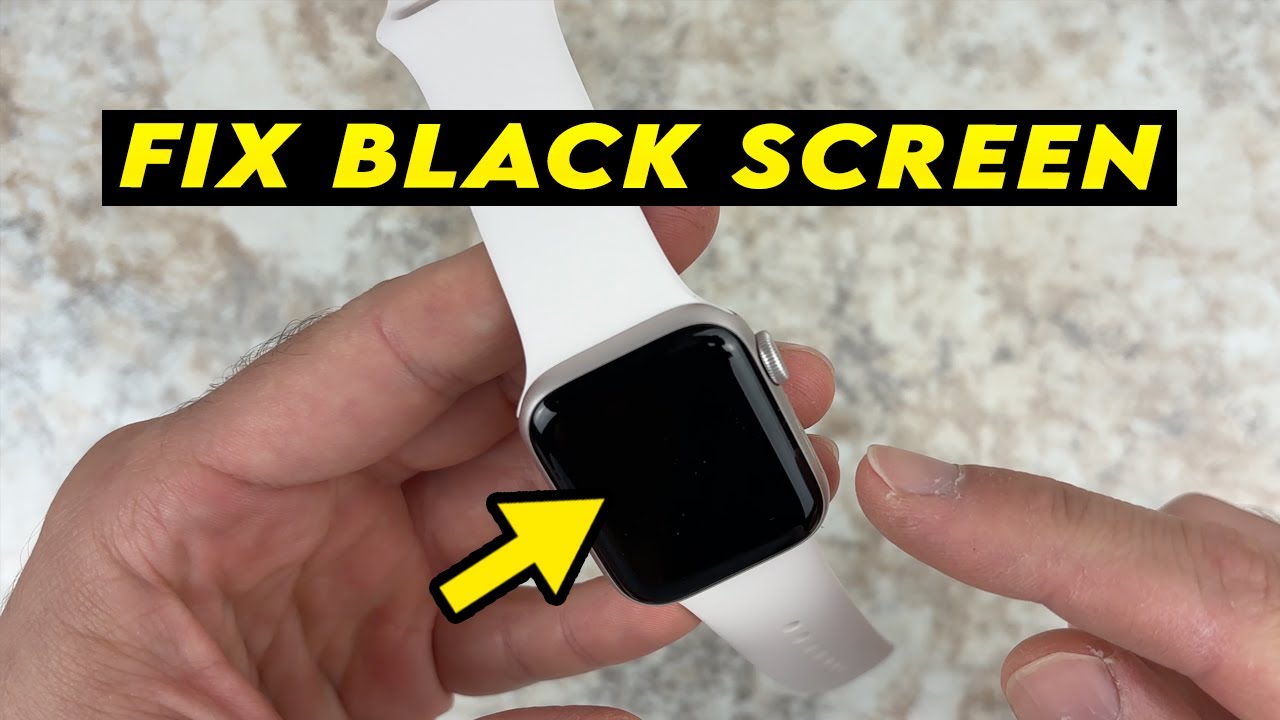
A black screen doesn’t always mean permanent failure. Many users revive their Apple Watch 6 with the right steps.
Step-by-Step Recovery Process
| Step | Action | What to Look For |
|---|---|---|
| 1 | Charge for 60 minutes | Use the original Apple Magnetic Charger. A deeply drained battery may take time to respond. |
| 2 | Force restart while charging | Hold side button + Digital Crown for 15 seconds. If the Apple logo appears, the issue is likely software-related. |
| 3 | Check for red lightning bolt | This indicates charging is detected. Keep charging—some users revived watches after 48 hours. |
| 4 | Test with another Apple charger | Third-party cables often deliver incorrect voltage. Try a known working cable. |
| 5 | Wiggle the charger connection | If the screen flickers, the cable may have internal damage. Replace it. |
Pro Tip: Avoid letting your battery drop below 20% regularly. Deep discharges can trigger Power Reserve mode or prevent startup.
Solve Charging Problems

No charging icon? Red lightning bolt won’t go away? Here’s how to fix it.
Use Only Apple-Certified Chargers
- Must use Apple Magnetic Charging Cable or USB-C Fast Charging Cable.
- Avoid third-party chargers unless WPT-compliant (required in China/Indonesia).
- Using a country-specific WPT charger on an incompatible model shows:
“Unable to charge. This is a country-specific charger. It is incompatible with this Apple Watch.”
Clean the Charging Contacts
Dirt, sweat, or plastic wrap can block the connection.
- Wipe the back of the watch and charger surface with a soft, lint-free cloth.
- Remove debris from the magnetic pins.
- Reconnect and charge.
Check for Hardware Damage
- Inspect the cable for fraying or bent pins.
- Try a different cable.
- If charging starts but stops intermittently, the charging module may be failing.
User Report: One Apple Watch Series 6 stopped charging after a beach swim. Apple denied repair, but a local technician replaced the charging module successfully.
Resolve the Blank Screen Issue
Apple acknowledged a known hardware defect causing permanent black screens on some Apple Watch Series 6 units.
Apple’s Free Service Program
- Eligibility:
- Serial number must be in the affected range.
- Device must be within 2 years of purchase.
- Covered repairs:
- Free screen replacement at Apple Stores or authorized providers.
Warning: Many users report being denied despite identical symptoms—especially if just outside the 2-year window. Repair quotes can exceed €400.
User-Tested Revival Methods
Even if excluded from the program, try these:
Multi-Step Revival Process
- Force restart (side button + crown for 15 seconds).
- On iPhone, change the watch face via the Watch app.
- Place on charger and force restart again.
- Tap the side button 15 times rapidly, then press the Digital Crown.
- Rub the front and back firmly with thumbs for 10–12 seconds.
- Tap face-down and face-up repeatedly on a soft surface.
Freezer Method (Last Resort)
- Place the watch in a sealed plastic bag.
- Put it in the freezer for 15–20 minutes.
- Remove, wipe dry, and immediately place on charger.
Warning: Risk of condensation damage. Use only after all other methods fail.
Success Story: One user revived a watch after 7 days of inactivity using this method.
Fix Connectivity & Pairing Problems
Red iPhone icon? No notifications? Here’s how to reconnect.
Restore Bluetooth Connection
- Bring Apple Watch and iPhone within 3 feet.
- On iPhone:
– Turn off Airplane Mode.
– Ensure Bluetooth and Wi-Fi are on. - On Apple Watch:
– Swipe up for Control Center and disable Airplane Mode. - Restart both devices.
Unpair and Re-pair Watch
Resets communication and clears corrupted data.
- On iPhone: Open Watch app > All Watches > tap “i” > Unpair Apple Watch.
- Confirm—your data is backed up automatically.
- Set up as new or restore from backup.
Benefit: Often triggers a forced watchOS update that wasn’t available before.
Fix LTE and Wi-Fi Issues
LTE Not Connecting?
Likely a carrier provisioning error.
- On iPhone: Open Watch app > Cellular > tap “i” > Remove Plan.
- Tap Add New Plan to re-provision.
- Contact your carrier (e.g., AT&T, Verizon) if it still fails—backend reset may be needed.
Wi-Fi Not Working?
- On Apple Watch: Settings > Wi-Fi > toggle off/on.
- On iPhone: Ensure Wi-Fi settings allow Apple Watch access.
- Restart both devices.
Extend Battery Life & Fix Drain
Apple claims 18 hours, but real-world use varies—especially after 2+ years.
Optimize Settings for Longer Life
| Action | Power Saved |
|---|---|
| Disable LTE when iPhone is nearby | High |
| Turn off Always-On Display | High |
| Lower screen brightness | Medium |
| Disable Wake on Wrist Raise | Medium |
| Reduce notifications | Medium |
| Enable Low Power Mode (watchOS 10+) | High |
Low Power Mode disables heart rate, blood oxygen, Always-On Display, and background connectivity.
Use Power Reserve Mode
When battery is critically low:
– Press and hold the side button until Power Reserve appears.
– Watch shows only the time.
– Press side button to wake.
Pro Tip: Manually enter Power Reserve to extend survival during long trips.
Fix Activity & GPS Tracking Errors
Inaccurate Workout Data?
- Ensure proper fit: Snug but not tight.
- Clean sensors: Wipe the back regularly.
- Recalibrate:
– iPhone: Watch app > Privacy > Reset Calibration Data. - Update Health details:
– Health app > Health Details > confirm height, weight, medications.
GPS Not Tracking?
- Use Outdoor Walk/Run—indoor workouts don’t use GPS.
- On iPhone: Settings > Privacy & Security > Location Services > Apple Watch Workout > While Using + Precise Location.
Fix Missing Notifications
Why Notifications Don’t Appear
- Apple Watch is locked.
- Do Not Disturb or Focus Mode is active.
- App-specific alerts are disabled.
Fixes
- Ensure Wrist Detection and Unlock with iPhone are on (Watch app > Passcode).
- Swipe up for Control Center—look for moon (Do Not Disturb) or Focus icon.
- In Watch app > Notifications, confirm apps are allowed to notify.
Fix “Notify When Left Behind” Grayed Out
This useful Find My feature sometimes doesn’t activate.
How to Enable It
- Update iOS and watchOS to latest versions.
- Restart both devices.
- In Find My app, toggle Notify Left Behind off/on.
- Confirm both devices use the same Apple ID.
- On iPhone: Settings > Privacy & Security > Location Services > enable Apple Watch Find… services with Precise Location.
Handle Overheating & Skin Irritation

Overheating?
- Symptoms: Watch shuts down, feels hot to touch.
- Action:
- Remove immediately.
- Do not charge—it may worsen the issue.
- Let battery drain naturally.
- Likely hardware fault—visit Apple Store.
Skin Irritation?
Caused by sweat, tight bands, or material sensitivity.
Solutions
- Loosen the band slightly.
- Take breaks—remove watch daily.
- Switch to breathable band (nylon, leather, metal).
- Avoid wearing during intense workouts or sleep.
Clean Gunked-Up Buttons
Digital Crown or side button unresponsive? Clean it.
Step-by-Step Cleaning
- Power off the Apple Watch.
- Remove the band.
- Dip a Q-tip in isopropyl alcohol.
- Gently clean around the Digital Crown and side button.
- Use dry end to wipe residue.
- Let dry before turning on.
Why alcohol? More effective than water for sticky buildup or salt residue.
When to Seek Repair or Replacement
If nothing works, it’s time to escalate.
Contact Apple Support
Prepare:
– Serial number (found in Watch app > General > About).
– Purchase date and proof of purchase.
– Backup via iPhone (automatic during unpairing).
Possible Outcomes:
– Remote diagnostics.
– Eligibility check for Blank Screen Service Program.
– In-store repair appointment.
Repair Costs
- Out-of-warranty repairs: €400–€500 or £400+.
- Users report frustration paying high fees for known hardware defects.
Third-Party Repair Options
Some local shops offer:
– Battery replacement
– Charging module repair
– Button fixes
Risks:
– Loss of water resistance.
– No Apple warranty.
– Activation Lock may persist if not removed.
Final Checklist: Apple Watch 6 Troubleshooting Flow
“`text
1. Watch won’t turn on?
→ Charge 60+ minutes with Apple charger.
→ Force restart (10–15 sec side + crown).
→ Try extended charge (up to 48 hours).
→ Attempt freezer method (last resort).
-
Still dead?
→ Check Blank Screen Service Program eligibility.
→ If denied, consider third-party repair. -
Software or sync issues?
→ Update via iPhone or Mac.
→ Unpair and re-pair.
→ Reset or restore. -
Battery or performance problems?
→ Optimize settings.
→ Enable Low Power Mode.
→ Seek service if overheating or swelling.
“`
Final Note: Many Apple Watch Series 6 issues are software-related and fixable with a restart or update. For hardware failures like blank screens, act fast—check Apple’s service program before your warranty expires. Keep your watch updated, clean, and charged above 20%, and you’ll avoid most common problems. When in doubt, unpair and re-pair—it’s often the key to unlocking a stubborn device.





