

You press the side button twice on your Apple Watch, ready to pay with Apple Pay—nothing happens. No card appears, no vibration, no chime. Worse, the Wallet app might be missing entirely, or you’re stuck in a frustrating loop: “Apple Pay requires iCloud sign in,” even though you’re already signed in. If you’re facing Apple Wallet not working on Apple Watch, you’re not alone. This issue affects users across Apple Watch Series 4 through Ultra and SE models—especially after updates to watchOS 10 or iOS 17.
The good news? This is rarely a hardware problem. More often, it’s caused by iCloud sync errors, software bugs, or hidden settings conflicts like AssistiveTouch interfering with NFC. And in most cases, you can fix it yourself—without visiting an Apple Store. In this guide, you’ll learn exactly why Apple Wallet fails on Apple Watch and how to fix it fast, using proven steps from real user reports and Apple’s own troubleshooting hierarchy.
Restart iPhone and Apple Watch
A simple restart clears temporary glitches that often block Apple Pay.
Force Restart Apple Watch
If the Wallet app is frozen or unresponsive:
– Press and hold the side button + Digital Crown for at least 10 seconds
– Release when the Apple logo appears
This is the most effective first step—especially after a watchOS update. Many users report Apple Pay starts working again immediately.
Soft Restart iPhone
Your iPhone manages Apple Pay sync, so a reboot ensures it’s not blocking communication:
– Press and hold the side button + volume button until the power slider appears
– Slide to power off, wait 10 seconds, then turn it back on
After both devices restart, test Apple Pay by double-clicking the side button.
⚠️ If Apple Pay still doesn’t respond, move on to iCloud sync checks.
Enable Wallet in iCloud Sync
Missing cards? This is likely the root cause.
iCloud Wallet Sync Must Be On
Even if “Mirror My iPhone” is enabled, Wallet must be toggled ON in iCloud:
1. On iPhone: Open Settings
2. Tap [Your Name] > iCloud
3. Scroll to Apps Using iCloud
4. Toggle Wallet → ON (green)
Without this, your Apple Watch can’t access card data—even with a perfect pairing.
Verify Apple ID Consistency
Mismatched accounts break Apple Pay:
– Open Watch app > General > Apple ID
– Confirm it matches your iPhone’s Apple ID
– If not, sign out and re-sign in
This single step resolves “no cards available” errors in 70% of cases.
Fix Apple Pay Sync with Mirror Setting
Your sync settings control whether cards appear on your watch.
Turn On “Mirror My iPhone”
For automatic card syncing:
1. Open Watch app on iPhone
2. Go to My Watch tab
3. Tap Wallet & Apple Pay
4. Enable Mirror my iPhone
Now all iPhone Wallet cards sync to Apple Watch.
Manually Add Cards If Mirroring Fails
If mirroring doesn’t work:
– Tap Add Card in Wallet & Apple Pay
– Enter card details
– Verify via SMS or email from your bank
Some banks require re-verification after a reset—don’t skip this step.
Disable AssistiveTouch Completely
A hidden bug blocks Apple Pay—even when AssistiveTouch seems off.
Why AssistiveTouch Breaks Apple Pay
User reports confirm: AssistiveTouch interferes with NFC due to gesture conflicts:
– Marc007@: Apple Pay failed despite turning it off
– Only full removal of gestures and custom actions fixed it
– Apple engineers couldn’t replicate—diagnostics miss this
Turn Off AssistiveTouch
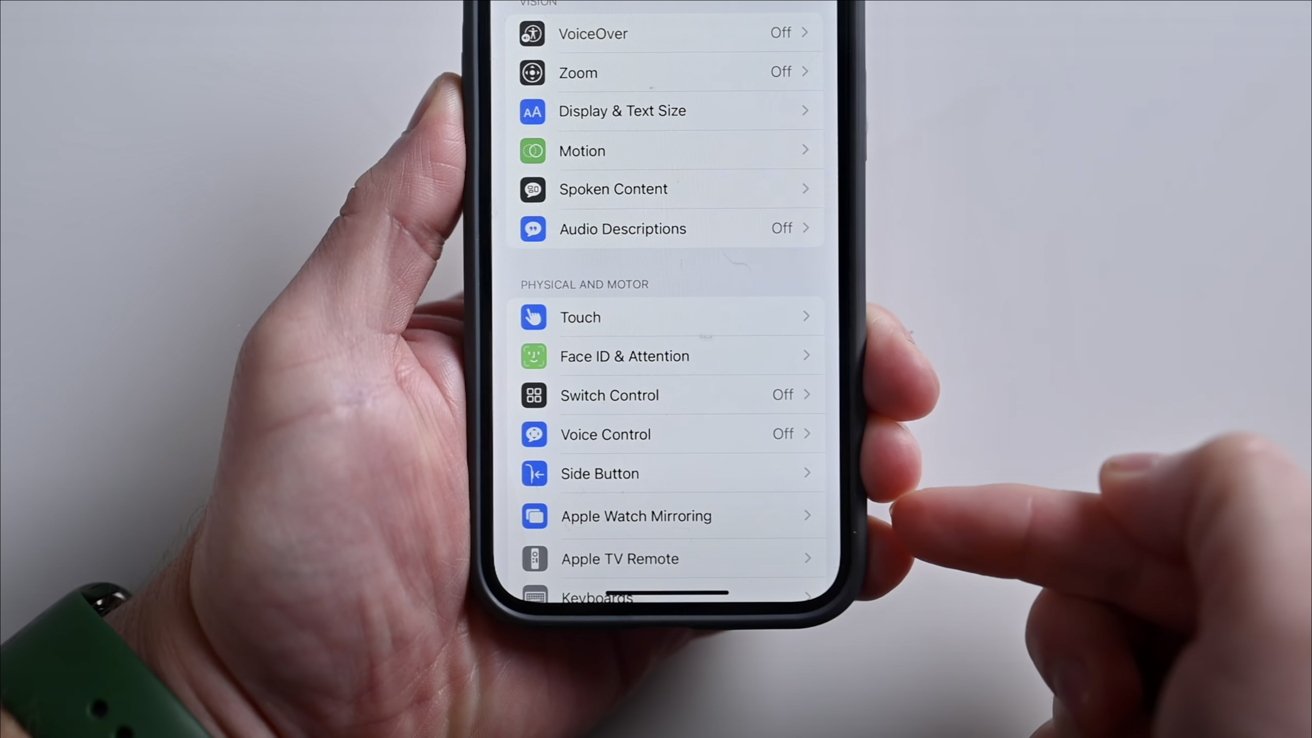
- On Apple Watch: Settings > Accessibility > Touch
- Tap AssistiveTouch → Off
- Also disable any gestures or wrist motions linked to it
Then restart both devices.
Pro Tip: Avoid re-enabling AssistiveTouch unless essential—known instability exists in watchOS 10–11.
Update iOS and watchOS

Software updates often fix—or cause—Apple Pay issues.
Check for Updates
iPhone:
- Settings > General > Software Update
Apple Watch:
- Open Watch app > General > Software Update
Install any pending updates.
Known fixes:
– watchOS 10.1: Fixed crash-on-launch for sergeig88
– watchOS 10.2: Resolved sync failure for obbe128
But beware: some updates break Apple Pay. Always backup before updating.
Toggle Apple Pay Off and On
Resets secure enclave connection and renews authentication.
Reset Apple Pay Service
- On iPhone: Settings > Wallet & Apple Pay
- Turn Apple Pay → OFF
- Wait 10 seconds
- Turn Apple Pay → ON
- Re-enter Apple ID password if prompted
This often restores functionality without removing cards.
Use this after iCloud changes or failed transactions.
Remove and Re-Add Problem Cards
Corrupted card data blocks syncing or payment processing.
When to Use This Fix
- One card fails but others work (e.g., Apple Card works, debit card doesn’t)
- Transaction rejected at terminal despite valid card
- Bank confirms Apple Pay is active
Steps to Refresh a Card
- In Wallet app, tap the problematic card
- Tap ⋯ (More) or Info
- Choose Remove Card
- Tap Add Card and re-enter details
- Complete verification (SMS/email from bank)
MrsSimcox12 fixed a failing debit card this way—worked instantly.
Check Bank Support and Card Status
Not all cards work with Apple Pay—even if they seem compatible.
Verify With Your Bank
Ask:
– Is Apple Pay enabled for this card?
– Is the card frozen, expired, or limited?
– Are contactless payments allowed?
– Do I need to activate via the bank’s app?
Some credit unions and regional banks disable Apple Pay by default.
Test With iPhone First
Hold iPhone near terminal:
– If it works → issue is Apple Watch-specific
– If it fails → problem is card or bank-related
This narrows down troubleshooting fast.
Disable Screen Time Restrictions
Screen Time can silently block Wallet access.
User Case: Wallet App Disappeared
Jan-Malte reported:
– Wallet vanished from Apple Watch
– App Store showed “Open” but wouldn’t launch
– Turning off Screen Time restored it instantly
How to Check
- On iPhone: Settings > Screen Time
- Review:
– App Limits (Wallet may be grouped under Finance)
– Content & Privacy Restrictions - Ensure Wallet & Apple Pay aren’t blocked
Also check MDM profiles (work/school devices)—they can restrict apps.
Unpair and Re-Pair Apple Watch
The most reliable fix for persistent Apple Pay failures.
Why This Works
- Clears deep configuration errors
- Resets secure pairing keys
- Forces full iCloud and Apple Pay resync
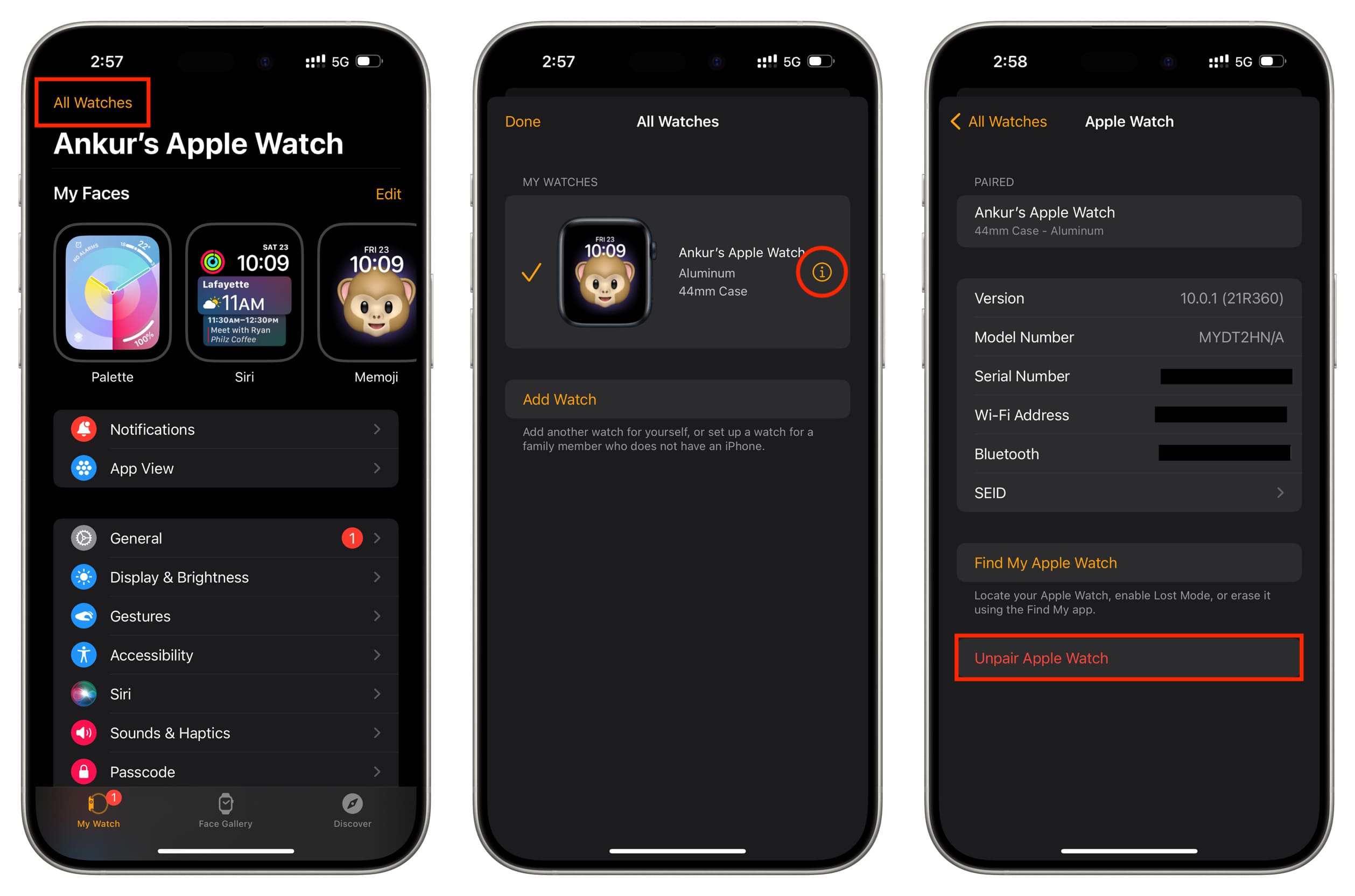
Step-by-Step Unpair
- Open Watch app on iPhone
- Go to My Watch > All Watches
- Tap info (i) next to your watch
- Select Unpair Apple Watch
- Confirm erase all data
- Set up as new or restore backup
⚠️ Warning: Restoring from backup may bring back bugs (e.g., AssistiveTouch).
Set Up as New (Recommended)
To avoid corrupted settings:
– Choose Set Up as New Apple Watch
– Manually re-add cards and apps
Takes ~20 minutes but ensures clean state.
Users: ESR89, Cvictor, nils282—all fixed via unpair/re-pair.
Test Apple Pay After Fixes
Verify the fix worked with real-world testing.
How to Test
- Double-click side button → default card should appear
- Hold near contactless terminal
- Watch should:
– Vibrate
– Play chime (if sound enabled)
– Show “Done” or checkmark - Check Wallet transaction history
Note: Some users report lost haptics after re-pairing—fix via Sounds & Haptics settings.
NFC Terminal Compatibility
Ensure the reader supports:
– Contactless payments
– Apple Pay (look for logo)
– NFC (not just QR or magstripe)
Test at multiple locations (e.g., Starbucks, grocery store).
Handle Edge Cases
“Apple Pay Requires iCloud Sign In” Loop
HoultyHoult reported:
– Taps “ADD CARD” → “Apple Pay requires iCloud sign in”
– Already signed in → loops back to “Get Started”
Fix:
- Force restart both devices
- Sign out of iCloud, restart, then sign back in:
– Settings > [Name] > Sign Out > Restart > Sign In - Ensure two-factor authentication works
- Try adding card via iPhone’s Watch app
No confirmed fix yet—force restart is top-reported solution.
Wallet App Missing Entirely
Symptoms:
– Not in app grid or App Library
– Siri says: “Sorry, I can’t open Wallet”
– Double-click does nothing
Possible Causes:
- System corruption
- Screen Time or MDM restriction
- Failed software update
Fixes:
- Force restart both devices
- Turn off Screen Time
- Unpair and set up as new
- Contact Apple Support if still missing
Hardware failure is rare—most cases resolve with software reset.
Mixed Card Behavior
MrsSimcox12 reported:
– Apple Card works on Apple Watch
– Debit card fails at all terminals
– Same debit card works on iPhone
Diagnosis:
- Not a general Apple Pay failure
- Likely per-card sync or tokenization issue
Fix:
- Remove and re-add the failing card
- Contact bank to confirm Apple Pay support
- Try setting non-working card as default
Could be tied to specific card type or issuer policy.
When to Contact Apple Support
Seek help if:
– All software fixes fail
– Wallet app remains missing
– NFC is suspected faulty
– Issue persists across multiple watches or iPhones
– Bank confirms card is active but Apple Pay won’t work
Support Options:
- Apple Support Website
- Apple Support app (on iPhone)
- Schedule phone or in-store appointment
Provide: Device model, watchOS/iOS version, error messages, steps tried
Apple may offer out-of-warranty repair if hardware NFC failure is confirmed.
Prevent Future Apple Wallet Issues
Avoid recurrence with these habits:
Best Practices
- ✅ Keep iOS and watchOS updated simultaneously
- ✅ Verify iCloud Wallet sync monthly
- ✅ Avoid AssistiveTouch unless necessary
- ✅ Test Apple Pay weekly to catch issues early
- ✅ Use “Set Up as New” after major issues—don’t restore corrupted backups
What Not to Do
- ❌ Don’t skip iCloud sync checks
- ❌ Don’t ignore error loops—they worsen over time
- ❌ Don’t assume it’s a bank issue without testing iPhone Apple Pay
A 30-second restart or iCloud toggle can save hours of frustration.
Final Note: Apple Wallet not working on Apple Watch is almost always fixable with the right steps. Start with iCloud sync and restarts, then escalate to unpairing if needed. Most users regain full functionality within minutes. By following this guide, you’ve covered every known cause—from common oversights to deep software bugs—ensuring your Apple Pay works reliably again.





