

Your Apple Watch Series 3 won’t charge. No light, no logo, no response—just a blank screen. You place it on the charger, wait 30 minutes, and still nothing. Or maybe a red lightning bolt flashes, but the watch never powers on. You’re not alone. Thousands of users face this issue, especially as the Series 3—released in 2017—ages past its prime. But most charging problems aren’t terminal. Whether it’s dirty contacts, a software glitch, or a failing battery, your Apple Watch 3 can likely be revived with the right steps.
This guide walks you through every proven fix, from simple troubleshooting to advanced resets. You’ll learn how to diagnose the real cause, revive a dead battery, bypass software bugs, and know when it’s time for professional help. Let’s get your Apple Watch charging again.
Check Charging Indicator Lights
Red Lightning Bolt Meaning
A red lightning bolt means your Apple Watch is in Power Reserve mode—the battery is critically low but not dead. It can’t power on, but it may still charge. Place it on the charger. If charging begins, the symbol changes to a red lightning bolt inside a ring. Wait 10–30 minutes. The Apple logo should appear. If it doesn’t, the problem may be deeper than a low battery.
No Lights When Charging
If the screen stays black and no symbol appears:
– Press the side button to wake the display.
– Wait 30+ minutes—a completely drained battery may take time to respond.
– Try a different Apple-certified charger or wall outlet.
– If still no reaction, proceed to cleaning or a force restart.
Missing Green or Yellow Lightning Bolt
Green or yellow means active charging. If you never see either, the connection isn’t completing. This usually points to dirty contacts, misalignment, or a faulty cable. Test with a known-good charger to rule out accessory failure.
Verify Charger and Power Source

Use Apple-Certified Charging Cables
Stick to Apple Magnetic Charging Cable, USB-C Fast Charging Cable, or Magnetic Charging Dock. Even MFi-certified third-party cables vary in quality. For reliable results, use Apple-branded chargers or top-tier options like Anker MagGo.
Test Different Outlets and Adapters
Plug the USB adapter into a wall outlet, not a computer or USB hub. Some ports don’t deliver enough power. Use an iPhone charger (12W or higher) and avoid extension cords or surge protectors that limit output.
Inspect for Physical Damage
Check the charging puck for bent pins, frayed wires, or corrosion. Examine the back of the watch for grime or moisture. If the cable feels loose or wobbly, replace it—damaged cables cause inconsistent charging.
Clean Charging Contacts Properly
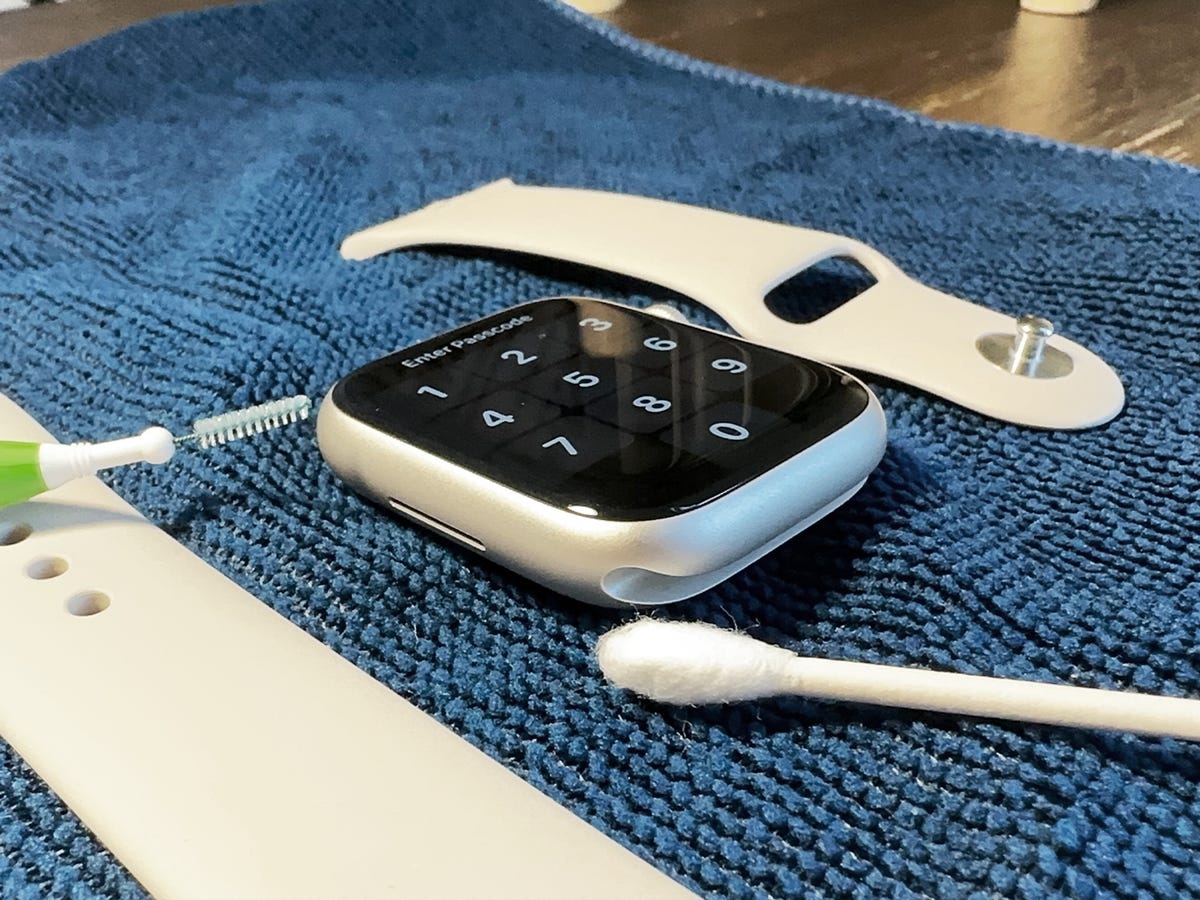
Wipe Watch and Charger with Lint-Free Cloth
Sweat, dirt, and lotion build up on the charging coil (back of watch) and metal contacts on the charger. Use a soft, lint-free cloth to gently clean both. Never use alcohol or household cleaners—they can damage protective coatings.
Use Distilled Water for Stubborn Residue
For stuck-on grime, lightly dampen the cloth with distilled water. Wipe the contacts, then dry thoroughly before charging. This simple fix resolves many “no charge” cases.
Avoid Metal Bands During Charging
Metal watch bands can interfere with magnetic alignment and conductivity. Remove the band or switch to silicone when charging. Some users report immediate success after removing metal links.
Reposition for Magnetic Alignment
Align Magnets Correctly
Place the watch so the magnets snap into place. The charging symbol should appear within seconds. If not, rotate the watch slightly or press it forward on the dock. Misalignment is a leading cause of failed charging.
Lay Charging Stand Flat
If using a MagSafe Duo or stand, place it flat on a surface. Angled positions weaken the magnetic connection. Ensure your charger supports 38mm or 42mm models.
Try a Different Charging Position
Some users find success by placing the watch on its side or adjusting the angle. If one position works, it confirms a connection issue—not battery failure.
Force Restart a Dead Apple Watch
How to Force Restart
Even if the screen is black, press and hold both the side button and Digital Crown for 10 seconds. Release when the Apple logo appears. This resets the processor and can clear software glitches that block charging.
Why It Works
A force restart resets the power management system. Many users report the watch suddenly charging after this step—especially after watchOS updates. Wait 2–5 minutes after restarting before placing it on the charger.
Perform a Deep Charge Cycle
Fully Drain the Battery
If software or battery calibration is off, do a complete drain:
1. Let the watch sit until it shows no response to button presses.
2. Speed up draining with 3–5 force restarts per day.
3. Once fully dead, connect to charger and leave for 8–10 hours.
Pro Tip: One user reported success after 3 days of draining—the watch showed a green lightning bolt and booted normally.
Leave It Charging Overnight
Don’t unplug or check progress. A deep charge lets the system recalibrate. If the watch powers on afterward, the issue was likely battery miscalibration or software conflict.
Update or Reset watchOS
Check for Software Updates
Open the Watch app on your iPhone. Go to General > Software Update. Install any available updates. Apple Watch Series 3 supports up to watchOS 8.5.3—no newer versions.
Warning: Some users report charging issues began immediately after watchOS 5.2. Apple never released a fix, and you cannot downgrade.
Unpair and Re-pair the Watch
Corrupted backups can cause charging loops. Fix it:
1. Open Watch app > My Watch > All Watches.
2. Tap your watch and select Unpair Apple Watch.
3. Back up data when prompted.
4. Set up as a new device—don’t restore from backup yet.
5. Test charging.
User Confirmed: One user’s issue returned only when restoring from an old backup. A clean setup fixed it.
Diagnose Battery Health Issues

Check Maximum Capacity
On your Apple Watch:
– Go to Settings > Battery > Battery Health.
– View Maximum Capacity.
If it’s below 80%, the battery is degraded. Apple recommends replacement at this point. Note: Battery Health requires watchOS 6.2 or later.
Signs of Failing Battery
- Dies within hours of charging.
- Shuts down at 20–30%.
- Won’t charge past 80%.
- Needs multiple daily charges.
Expert Insight: After 3–5 years, lithium-ion batteries degrade. Series 3 users are now in this window.
Storage-Related Battery Failure
Even “new” or refurbished units can have dead batteries if stored uncharged for months. One user reported a Series 6 out of the box wouldn’t charge—likely due to long-term storage.
Try the Pressure Re-Seat Method
Press on Display and Back
Loose internal connectors can stop charging. Try this:
1. Remove the watch from the band.
2. Press thumbs firmly into the center of the display for 3–5 seconds.
3. Flip and press the back, near the charging coil.
4. Recharge and force restart.
This may reseat flex cables or battery connections loosened by heat or drops.
When to Use This Fix
Best for watches that:
– Were dropped or exposed to temperature swings.
– Worked after a restart but stopped again.
– Show intermittent charging signs.
Avoid the Freezer Method (High Risk)
Why Users Try It
Some report temporary success by placing the watch in a sealed bag in the freezer for 20 minutes, then warming it up. Cold may contract components and restore contact.
Risks Outweigh Benefits
- Condensation can short internal circuits.
- No official support from Apple.
- May cause permanent damage.
Strong Advice: Skip this. It’s not worth risking your device.
When to Seek Professional Repair
Signs of Hardware Failure
Seek help if:
– No response after 10+ hours on charger.
– Battery health is below 80%.
– Charging starts but cuts off repeatedly.
– Case is swollen or back is cracked.
These point to internal failure—not user-fixable.
Apple Battery Replacement Options
Apple offers out-of-warranty battery service for a fee. They may:
– Replace just the battery.
– Offer a paid replacement instead (common for older models).
User Report: One Apple Watch Series 7 owner was offered only a full replacement—no battery swap.
Visit an Authorized Service Provider
Third-party Apple-certified shops can replace batteries. But Apple restricts parts for older models. Call ahead to confirm availability for Series 3.
Consider Upgrading
Apple Watch Series 3 is discontinued (2018). No software updates beyond watchOS 8.5.3. If repairs fail, consider upgrading to:
– Apple Watch SE (best value)
– Series 8 or 9 (latest features)
– Apple Watch Ultra (rugged, long battery)
Refurbished models from Apple come with warranty and full service history.
Frequently Asked Questions
Why is there a red lightning bolt but no charge?
The red lightning bolt means battery is too low to power on. It’s not charging yet. Wait. If the symbol doesn’t change to a red bolt in a ring, the connection is failing—clean contacts or try a new charger.
Does force restart work on a dead watch?
Yes. Even if the screen is black, hold side button + Digital Crown for 10 seconds. If the Apple logo appears, the watch is alive. Charge it immediately.
Can watchOS 5.2 break charging?
Yes. Multiple users report charging stops after 1 minute post-update. Apple never released a fix. Unpairing and setting up as new may help—but you can’t downgrade.
How long should an Apple Watch battery last?
Typical lifespan: 3–5 years with daily charging. After 5 years, capacity often drops below 80%. Series 3 users are now at or past this point.
What if the Watch app disappeared from my iPhone?
This can happen with pairing issues. Try:
– Restarting iPhone.
– Reinstalling Watch app from App Store.
– Unpairing and re-pairing the watch.
Can I replace the battery myself?
Not safely. The battery is glued in. DIY kits risk damaging the display or water seals. Apple uses proprietary tools. Professional service is recommended.
Is the Apple Watch 3 still supported?
No new software updates. watchOS 8.5.3 is the final version. Apple still offers battery service, but parts may be limited. Long-term, expect reduced support.
Recommended Charging Accessories
Apple Original Chargers
- Magnetic Charging Cable – Reliable, included with original purchase.
- Magnetic Charging Dock – Better alignment, stands upright.
- USB-C Fast Charging Cable – Faster charge, sold separately.
- MagSafe Duo Charger – Use only if compatible with 38mm/42mm.
Top Third-Party Options (MFi-Certified)
Anker MagGo 3-in-1 Dock Stand
- Charges Apple Watch, iPhone, AirPods.
- 15W fast charging.
- Adjustable angles.
- Full charge in 1 hour 13 minutes.
Anker MagGo Foldable 3-in-1 Pad
- Compact, travel-friendly.
- Works with metal bands.
- Folds flat.
Anker MagGo with ActiveShield 2.0
- Aluminum body for cooling.
- AI temperature control.
- Optimizes power delivery.
Pro Tip: Always use Apple-certified cables with third-party stands.
Final Note: The Apple Watch Series 3 not charging issue is common but rarely hopeless. Start with cleaning, force restart, and charger checks. Move to deep charge and unpairing if needed. If battery health is poor, seek professional replacement. Given its age, consider upgrading for long-term reliability. With the right steps, most watches can be revived—no replacement required.





