

Is your Apple Watch Activity app not working? You’re not alone. Thousands of users report issues like blank screens, inaccurate step counts, exercise rings that won’t fill, and workouts disappearing into a digital void — even after long walks with elevated heart rates. The problem often strikes after charging, restarts, or software updates and affects Apple Watch Series 5 through Series 8 across iOS 14 and later. The good news: most cases can be fixed without losing your hard-earned activity history. In this guide, you’ll learn proven troubleshooting steps — from quick resets to advanced fixes — based on real user experiences, Apple support documentation, and deep technical insights. Let’s get your rings closing again.
Restart Both Devices Immediately
A soft restart clears temporary glitches that freeze the Activity app or disrupt data syncing.
Force Restart Your Apple Watch
Press and hold the side button and the Digital Crown at the same time. Keep holding for 10–15 seconds until the Apple logo appears. This forces a full reboot, which often revives a frozen or blank Activity app.
Pro Tip: If you see only the time in the top-right corner and no rings or data, a force restart is your fastest fix.
Restart Your Paired iPhone
On iPhone:
– With Face ID: Press and hold the side button and a volume button until the power slider appears.
– With Home button: Press and hold the side (or top) button and Home button together.
Wait for the Apple logo, then release.
Why it matters: The Activity app depends on seamless communication between devices. Restarting both resets Bluetooth, Wi-Fi, and background sync processes — often resolving invisible glitches.
Enable Motion Calibration & Fitness Tracking
Missing permissions are a top cause of tracking failure. Even if everything looks fine, one disabled setting can stop your rings from filling.
Turn On Motion Calibration & Distance
- Open Settings on iPhone
- Go to Privacy & Security > Location Services > System Services
- Ensure Motion Calibration & Distance is ON
Note: This setting moved in iOS 14. On older versions, check under Privacy > Location Services > System Services.
Without this enabled, your Apple Watch can’t accurately detect steps or movement — especially indoors or without GPS.
Verify Fitness Tracking Permissions
In the Watch app on iPhone:
– Tap Privacy > Motion & Fitness
– Enable:
– Heart Rate
– Workout
– Fitness Tracking
On Apple Watch:
– Open Settings > Privacy & Security > Health > Heart Rate
– Confirm Heart Rate is enabled
Warning: Disabling any of these can cause the Activity app to show blank data or fail to credit workouts — even if you’ve been active all day.
Reset and Recalibrate Activity Data
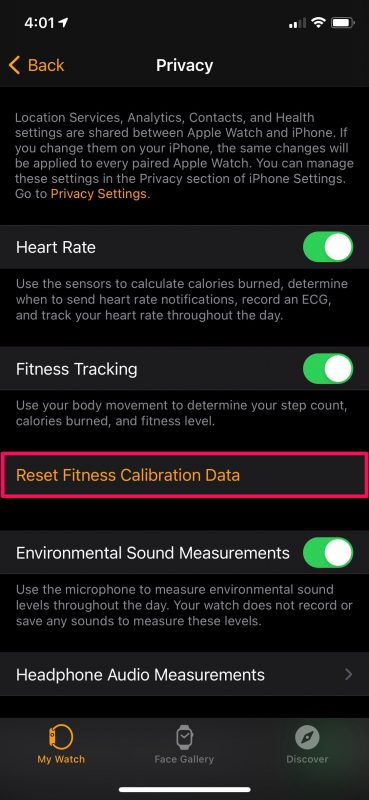
If your Exercise ring credits only 7 minutes after a 30-minute walk, your calibration data is likely outdated or corrupted.
Reset Fitness Calibration Data
- Open Watch app on iPhone
- Go to Privacy > Reset Fitness Calibration Data
- Confirm the reset
Fact: This does not delete your daily activity history. It only clears stride length, motion sensitivity, and GPS learning data.
Recalibrate with an Outdoor Walk
After resetting:
1. Go outside with your iPhone nearby
2. Open Workout app on Apple Watch
3. Start an Outdoor Walk
4. Walk steadily for at least 20 minutes
5. Avoid frequent stops or short bursts
Expected Result: Your Exercise ring should now reflect real effort — e.g., a 20-minute walk with brief pauses should credit 17–20 minutes.
Apple Official Guide: HT204516
Pro Tip: Walk on varied terrain (flat roads, hills, sidewalks) to help the system adapt faster and improve future accuracy.
Fix Sync Delays and Data Gaps
Slow or failed syncing causes outdated data, missing workouts, and logs that never update.
Reset Sync Data
- Open Watch app on iPhone
- Go to General > Reset > Reset Sync Data
- Confirm
This clears corrupted iCloud Health data caches and forces a full resync.
What to expect: Sync may take several minutes. Do not close the Health app during this time.
Leave the Health App Open During Sync
Users report that keeping the Health app open on iPhone helps maintain active iCloud sync. Closing it mid-sync can stall data transfer.
Real-World Test: One user saw 90% app instability drop to zero after leaving Health open during workouts and syncs.
Disable Screen Time Sharing
A surprising but verified fix: Screen Time > Share Across Devices can break the Activity app.
Turn Off Cross-Device Sharing
- On iPhone, go to Settings > Screen Time
- Tap Share Across Devices
- Turn it OFF
User Verified: Reddit user Serendip8185 confirmed this fixed Activity, Fitness, and Mail app issues. Screenshot evidence.
Why it works: Sharing settings across devices may create permission conflicts in Health data access, especially during syncing or background updates.
Re-pair Apple Watch Without Losing Data

If the Activity app remains broken, re-pairing resets the connection — and often fixes deep software conflicts.
Unpair and Restore from Backup
- Open Watch app on iPhone
- Tap My Watch > All Watches > (Your Watch)
- Select Unpair Apple Watch
- Confirm — iPhone creates an automatic backup
- Set up Apple Watch again
- Choose Restore from Backup
Outcome: Clears corrupted temporary files, re-indexes the file system, and re-establishes secure pairing.
No Data Loss: Your activity history, workouts, and health data remain intact in iCloud.
Support Links:
– Unpair and erase
– Set up Apple Watch
Nuclear Option: Factory Reset
Use this only if all else fails and tracking is critical.
Full Reset Steps
- Unpair Apple Watch
- Perform factory reset on the watch
- Set up as new device
- Optionally restore from unencrypted iTunes backup
Warning: If no backup exists, you may lose historical data.
Apple Support Note: Some engineers recommend iTunes backups over iCloud for full data integrity, especially after persistent syncing issues.
Test for Hardware Problems
If the green LED heart rate sensor never lights up during workouts, hardware may be damaged.
Check Sensor Function
- Open Heart Rate app on Apple Watch
- Cover the back sensor with your hand
- Watch for green lights — they should pulse
No Light? Possible sensor failure. Contact Apple Support.
Loose Fit Warning: Wearing the watch too loosely disrupts both heart rate and motion tracking. Wear it snug but comfortable, especially during exercise.
Reinstall the Fitness App If Missing
A common misconception: Activity data appears in the Fitness app, not the Health app.
Reinstall the Fitness App
- Open App Store on iPhone
- Search for Fitness
- Tap Get to reinstall
Instant Fix: If sync is working, your Activity rings and history reappear immediately.
Never delete: The Fitness app is the primary interface for daily goals, trends, and monthly summaries.
Update Software and Check Compatibility
Even with the latest updates, bugs persist — but outdated software can make things worse.
Update Both Devices
- iPhone: Settings > General > Software Update
- Apple Watch: Watch app > General > Software Update
Reality Check: Many users confirm the issue remains after updates, suggesting a deeper software bug in iCloud Health sync.
Affected Models
- Apple Watch Series 5 to Series 8
- iOS 14 and later
- No model-specific fix — problem spans generations
When to Contact Apple Support
If none of the above works, escalate.
Known Support Responses
- “The issue is being worked on; a fix will come in a future update.”
- Some users report 10+ calls with no resolution
- One received a replacement watch — issue persisted
Escalation Tips
- Ask to speak with a senior advisor
- Reference iCloud Health sync bugs
- Mention persistent post-charge failures
Hardware Repair: If sensor failure is confirmed, repairs may be free under AppleCare+ or warranty.
Prevent Future Activity App Failures
Keep your Activity app working long-term with these habits.
Wear Your Watch Snugly
Loose fit = poor sensor contact = missed data. Adjust the band so the back sensors stay in contact.
Avoid Mid-Workout Syncing
Wait until after your workout to sync. Interrupting data transfer can cause gaps in your logs.
Recalibrate Monthly
Even without issues, reset calibration every 4–6 weeks if you:
– Change walking style
– Wear different shoes
– Start running or hiking
The Apple Watch Activity app not working is a widespread but solvable problem. Start with restarts and permission checks, then move to calibration and re-pairing. Most users regain full functionality without losing data. If software fixes fail, consider hardware support — but always back up first. With the right steps, your rings will close again.





