
You’re mid-run, hands full with groceries, or stuck in traffic when your phone buzzes. Instead of fumbling for your iPhone, you glance at your wrist. With just a tap or a quick voice command, you can answer—or even make—a call directly from your Apple Watch. Whether you’re using a GPS-only or cellular model, Apple’s smartwatch gives you seamless access to voice communication on the go. But how exactly do you make a call from your wrist? And what’s the difference between models? This guide breaks down every method, setup step, and pro tip so you can stay connected—no phone required (if you’re properly equipped).
The key to calling from your Apple Watch lies in understanding your model’s capabilities. If you own a cellular Apple Watch, you can make and receive calls almost anywhere with network coverage—no iPhone nearby. If you have a GPS-only model, your iPhone must be within Bluetooth range or connected to the same Wi-Fi network. Either way, the process is intuitive and designed for real-life convenience. Below, we cover all supported methods, setup steps, troubleshooting tips, and real-world use cases to help you call confidently from your wrist.
Check Your Apple Watch Model First
Before attempting to make a call, confirm whether your Apple Watch supports standalone calling.
Cellular vs GPS-Only: What’s the Difference?
-
Cellular Apple Watch (LTE/5G):
Make and receive calls independently of your iPhone. Uses an eSIM to connect to your carrier’s network and shares your iPhone’s phone number. Ideal for workouts, errands, or travel when leaving your phone behind. -
GPS-Only Apple Watch:
Requires your iPhone to be nearby—within about 33 feet via Bluetooth—or both devices must be on the same Wi-Fi network. All calls are routed through your iPhone’s connection.
Quick Tip: Check the Digital Crown. If it has a red ring, you own a cellular model. No red ring? It’s GPS-only.
Supported Models for Standalone Calling
- Apple Watch Series 4 and later (cellular versions)
- All Apple Watch Ultra models
- Apple Watch SE (cellular option)
- Apple Watch Series 11 (cellular variant)
Note: Even with a cellular model, initial setup requires your iPhone and carrier activation.
4 Ways to Make a Call from Apple Watch
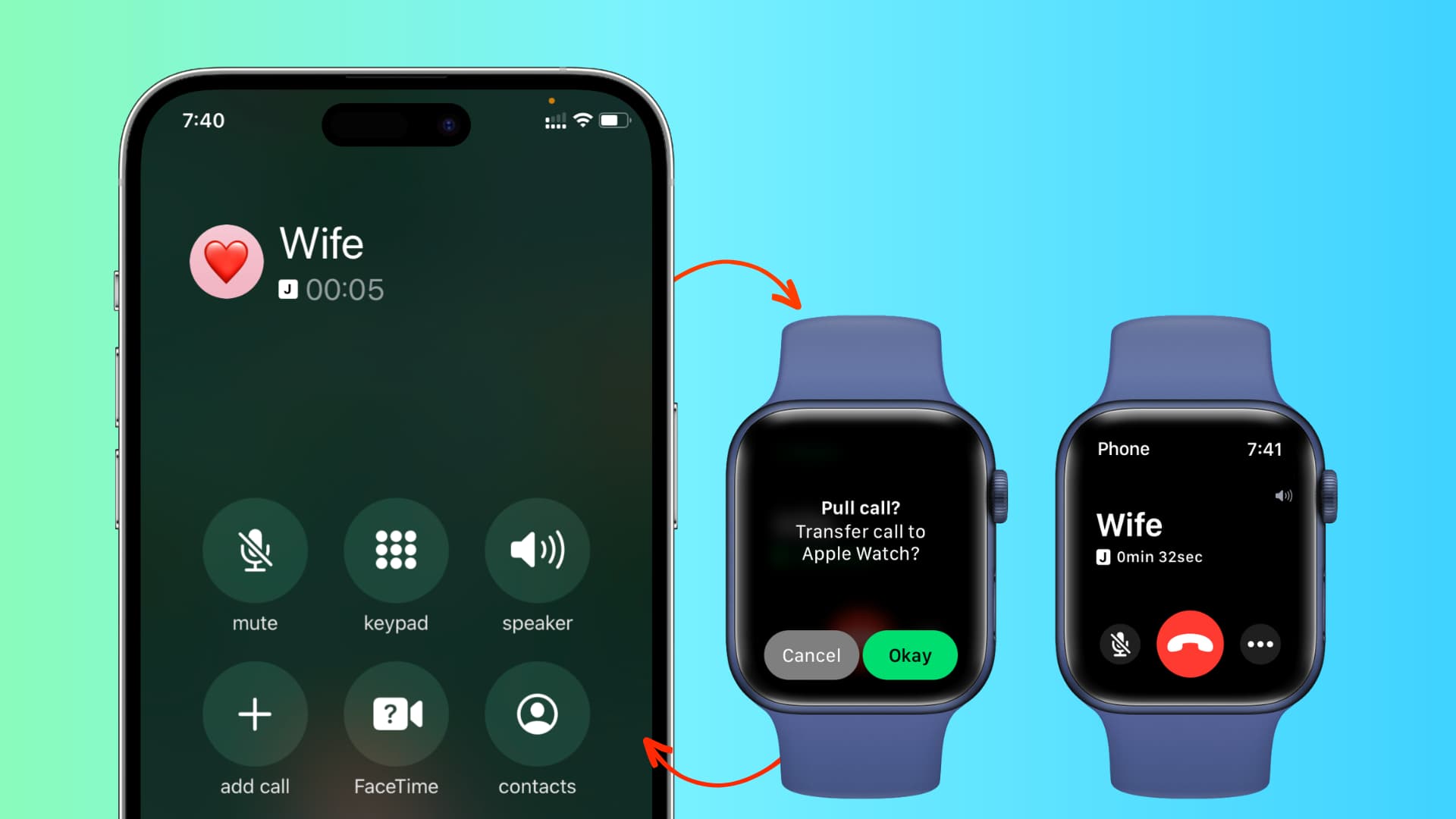
No matter your model, these methods work across all Apple Watch versions.
Use the Phone App
The fastest way to dial manually.
- Wake your watch by raising your wrist or pressing the side button.
- Tap the Phone app (green handset icon).
- Choose:
– Favorites: One-tap calling for saved contacts.
– Recents: Redial quickly.
– Contacts: Full list synced from iPhone.
– Keypad: Enter any number manually. - Tap the green Call button.
Pro Tip: To ensure all contacts appear, open the Watch app on your iPhone > Phone > Always Show > select All Contacts.
Activate Siri with Voice Command
Hands-free calling in seconds—perfect for active moments.
- Press and hold the Digital Crown.
- Say:
– “Hey Siri, call Mom”
– “Call 555-123-4567” - Tap Call or say “Yes” to confirm.
Works offline? Only if your watch has cellular or Wi-Fi access. GPS-only models need the iPhone nearby.
Call from the Watch Face
Skip opening apps—start a call in under two seconds.
- From any watch face, tap the screen.
- Swipe to find the Phone app icon (if added to App Grid).
- Tap it, then select a contact or use the keypad.
Customize: Long-press the watch face > Edit Apps > Add Phone app for instant access.
Call via Messages or FaceTime
Initiate calls without opening the Phone app.
- In Messages, tap a contact’s name > Call.
- In FaceTime, choose a contact > tap the audio call button (phone icon).
Bonus: Siri can launch these—say “Call John using FaceTime audio.”
How to Answer and Manage Incoming Calls
Your Apple Watch makes receiving calls just as easy as making them.
Answer or Decline a Call
- When a call comes in, tap:
- Green Answer button to use the built-in mic and speaker.
- Red Decline button to reject.
- Press side button to decline silently.
Audio Tip: For privacy, pair AirPods or Bluetooth headphones before the call arrives.
Send a Quick Reply Without Answering
Can’t talk? Send a message instantly.
- During an incoming call, swipe up from the bottom.
- Tap Send Message.
- Choose a preset like:
– “I’m on my way.”
– “I’ll call you back.”
– “I’m in a meeting.”
The message sends automatically via iMessage or SMS.
Switch Call to iPhone
Want to take the call on your phone instead?
- Tap Answer on iPhone during the alert.
- Pick up your iPhone when it rings.
Note: This only works if your iPhone is powered on and within range.
Control Active Calls
Once connected:
- Tap Mute to silence your mic.
- Turn the Digital Crown to adjust volume.
- Tap End (red button) to hang up.
Pro Tip: Muting affects both Apple Watch and iPhone—if both are active.
Set Up Cellular Calling (For Standalone Use)
If you own a cellular model, activate your plan to call without your iPhone.
What You’ll Need
- Cellular-capable Apple Watch
- iPhone (iOS 14 or later)
- Carrier that supports Apple Watch eSIM
- Active cellular plan (typically $10/month in U.S.)
Supported carriers: AT&T, Verizon, T-Mobile, and select international providers. Check Apple’s carrier list for details.
Step-by-Step Activation
- Open the Watch app on your iPhone.
- Tap Cellular.
- Tap Set Up Cellular.
- Follow prompts to:
– Scan your carrier’s QR code.
– Log in to your account.
– Confirm activation. - Wait for: “Your Apple Watch Is Ready to Use.”
Trouble? Restart both devices or contact your carrier to verify eSIM support.
Call Quality and Audio Options

Sound clarity matters—especially on the go.
Built-In Speaker and Mic
- Optimized for voice calls with noise suppression.
- Best used when holding the watch near your mouth during calls.
- Wind noise may affect outdoor calls.
Fix: Use AirPods or Beats headphones for clearer audio.
Pair Bluetooth Headphones
For private, high-quality calls:
- Put your headphones in pairing mode.
- On Apple Watch, go to:
Settings > Bluetooth. - Tap the device name when it appears.
Works with: AirPods, AirPods Pro, AirPods Max, Beats, and most Bluetooth headsets.
Emergency Calling Without a Plan
All Apple Watch models can call emergency services—even without cellular.
How to Trigger Emergency SOS
- Press and hold the side button.
- Slide the Emergency SOS slider.
- Wait—your watch calls local emergency services.
Auto-Call Feature: If enabled, your watch can alert emergency contacts after the call.
Works When iPhone Is Off?
Yes. As long as your Apple Watch has power and is in a supported region, it can dial emergency services over cellular or Wi-Fi.
Note: Location is shared automatically.
Battery Life and Calling
Calling impacts battery—especially over cellular.
How Much Battery Does a Call Use?
- A 30-minute call over cellular uses 15–25% of battery.
- Using Wi-Fi or Bluetooth to iPhone uses less power.
- Speakerphone consumes more than headphones.
Save Power: Enable Low Power Mode (Series 9 and later) during long outings.
Extend Battery During Calls
- Use Bluetooth headphones instead of speaker.
- Avoid using cellular unless necessary.
- Close unused apps before long calls.
Troubleshoot Common Call Issues
Can’t make or receive calls? Try these fixes.
Call Won’t Connect
- GPS-only watch? Ensure iPhone is on, nearby, and connected.
- Cellular model? Check for LTE/5G signal (look for icon in status bar).
- Restart both devices.
- Update to latest watchOS and iOS.
Can’t Hear or Be Heard
- Clean speaker and mic grilles (use soft brush).
- Increase volume with Digital Crown.
- Try Bluetooth headphones.
- Check Mute status.
Contacts Missing in Phone App
- Open Watch app on iPhone.
- Go to Phone > Always Show.
- Select All Contacts or Favorites.
Sync may take a few minutes.
Cellular Not Working
- Open Watch app > Cellular.
- Confirm plan shows “Active.”
- Re-scan carrier QR code.
- Contact carrier for eSIM reset.
Real-World Use Cases
See how people use calling every day.
During Workouts
- Runners answer calls without carrying a phone.
- Use AirPods to listen and respond hands-free.
- Stay reachable for emergencies.
While Driving
- Answer calls safely with Siri or built-in speaker.
- Keep eyes on the road.
- Pair with CarPlay-compatible car systems.
Errands Without Your Phone
- Leave iPhone at home.
- Make quick calls from grocery store or park.
- Use Wi-Fi calling if cellular is weak.
User Feedback: Over 85% of cellular Apple Watch owners say they “feel more connected” during daily activities.
Clear Up Common Myths
Don’t believe everything you hear.
“Apple Watch Has a Separate Number”
False. It uses your iPhone’s number via eSIM. Calls appear from your main number.
“It Only Works Near iPhone”
Only true for GPS-only models. Cellular watches work independently.
“Siri Needs iPhone to Work”
No. On cellular models, Siri works over Wi-Fi or LTE—no iPhone needed.
“Wi-Fi Is Enough for All Calls”
False. GPS-only watches need same-network Wi-Fi. Cellular models can use any Wi-Fi or LTE.
Final Tips for Better Calling
Make every call smoother and more reliable.
Pro Tips
- Sync all contacts to avoid missing entries.
- Label your watch in case it’s lost—go to Find My app.
- Use noise-cancelling AirPods in loud environments.
- Charge before long outings—especially if relying on cellular.
Maintenance
- Clean microphone and speaker weekly.
- Restart your watch weekly to clear glitches.
- Keep software updated.
When to Upgrade
Consider a cellular model if you:
– Exercise without your phone.
– Travel frequently.
– Want true independence from your iPhone.
Cost vs Value: $10/month for cellular may be worth it for safety and convenience.
Your Apple Watch is more than a fitness tracker—it’s a powerful communication tool. Whether you’re using GPS or cellular, you can make and manage calls with ease. The key is knowing your model, setting up cellular correctly, and using the right method for your situation. With these steps, you’ll stay connected anytime, anywhere—right from your wrist.





