
You’re settling into a quiet coffee shop, watching a quick video on your Apple Watch, when suddenly—BAM!—the audio blasts at full volume. Everyone turns. Awkward. If you’ve ever been caught off guard by a loud alert, music track, or Siri response, you’re not alone. The good news? Knowing how to lower volume on Apple Watch puts you back in control—before the next audio embarrassment happens.
Here’s what most users don’t realize: Apple Watch treats volume in three separate buckets—media (music, videos), system sounds (alerts, calls, alarms), and Siri’s voice. Each has its own adjustment method, and confusing them leads to frustration. Some controls work only during playback, others require diving into settings, and a few—like automatic volume—are exclusive to newer models.
This guide breaks down every way to lower volume on your Apple Watch, whether you’re adjusting media on the fly, muting alerts for a meeting, quieting Siri, or troubleshooting when the Digital Crown stops working. You’ll also learn model-specific features and pro tips to keep your audio experience smooth and silent when needed.
Let’s dive into the exact steps—no fluff, just what works.
Lower Media Volume Instantly During Playback
Media volume controls music, podcasts, audiobooks, and videos. This is the audio you hear through your headphones or the watch speaker during active playback.
Rotate the Digital Crown Counterclockwise
While audio is playing, turn the Digital Crown down (counterclockwise). A volume bar appears on-screen, shrinking as you rotate. This is the fastest, most reliable method.
✅ Works with Apple Music, Spotify, Podcasts, and most third-party apps.
💡 Pro Tip: Even if your iPhone is playing audio, the Apple Watch Digital Crown adjusts volume when you’re controlling playback from the watch.
If nothing happens, check that:
– The audio app is actively open on your watch.
– Your headphones or Bluetooth device is connected.
– The iPhone isn’t in silent mode (affects some remote playback).
Use the Control Center Volume Slider
- Swipe up from the watch face or press the side button to open Control Center.
- Tap the speaker icon.
- Drag the slider left to reduce volume.
This method is great for setting a baseline level before playback starts.
⚠️ The Control Center slider only affects media, not alerts, alarms, or Siri.
Adjust Alert and Ringtone Volume Separately

System sounds—like text alerts, calendar pings, alarms, and call ringtones—use a different volume setting than media. Lowering this prevents loud beeps during meetings or while sleeping.
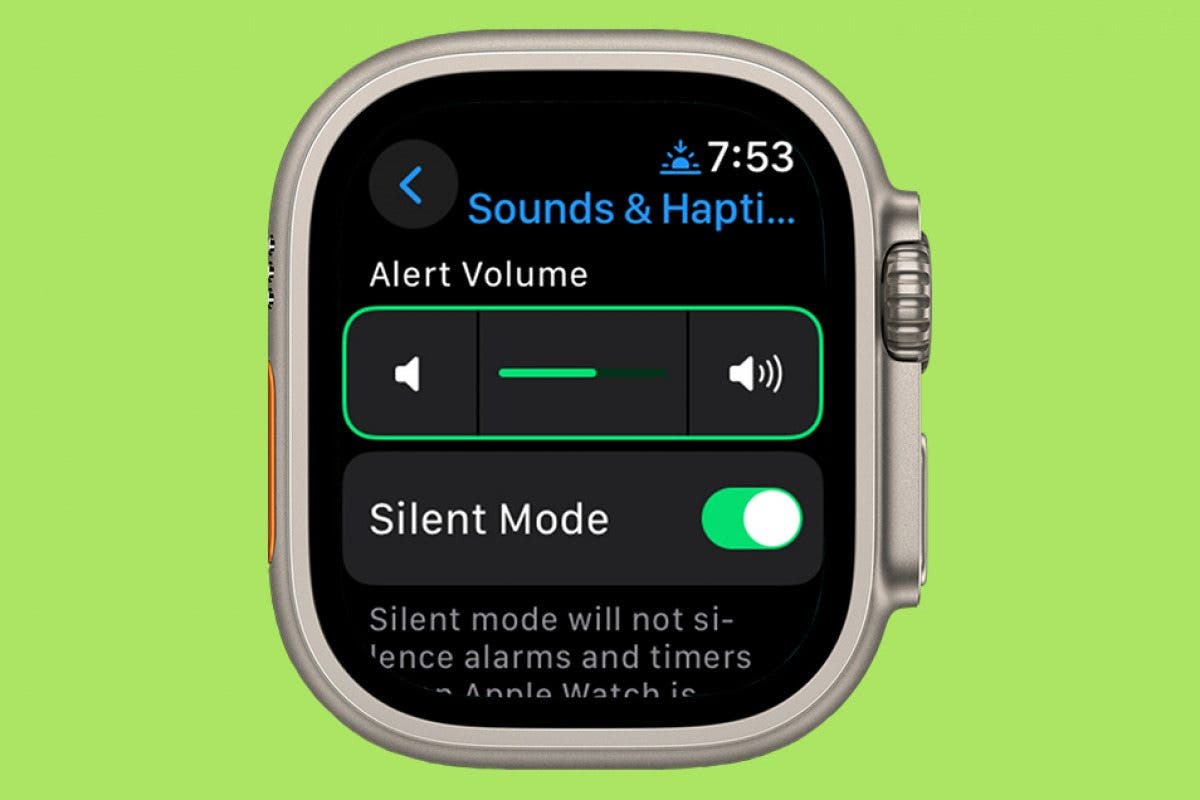
Change Alert Volume in Watch Settings
- Press the Digital Crown to return to the Home screen.
- Tap Settings.
- Go to Sounds & Haptics.
- Rotate the Digital Crown left to lower the Alert Volume slider.
You’ll hear a short test tone at the new level as you adjust—this helps you fine-tune without guesswork.
✅ This setting controls all non-media sounds: messages, phone calls, timers, and app notifications.
💡 Want quieter alarms but still hear them? Set the slider to about 50%—loud enough to wake you, soft enough not to startle.
Adjust from iPhone for Easier Control
- Open the Watch app on your iPhone.
- Tap My Watch > Sounds & Haptics.
- Drag the Alerts and Ringtone sliders down.
Changes sync instantly to your watch.
✅ Use this method if your watch is frozen, unresponsive, or you simply prefer using your iPhone’s larger screen.
Silence All Alerts with Haptics Only
Sometimes you don’t want to lower volume—you want zero sound. Silent Mode mutes all alerts but keeps haptic taps, so you still feel notifications.
Enable Silent Mode via Control Center
- Swipe up from the watch face.
- Tap the bell with a slash (Silent Mode).
– It turns red when active.
Now your watch vibrates instead of beeping—perfect for meetings, libraries, or late-night hours.
⚠️ Media playback is unaffected. Music and videos will still play at full volume.
💡 Combine Silent Mode with a lowered media volume for complete quiet.
Exit Silent Mode
Tap the red bell icon again. The slash disappears, and alert sounds return.
✅ On newer models (Series 6 and later), you can also press and hold the side button, then tap “Turn Off Silent Mode.”
Lower Siri’s Voice Volume for Discreet Responses
Siri speaks at its own volume level—separate from media and alerts. If she’s too loud in quiet rooms, you can manually reduce her voice or let the watch adjust it automatically.
Set Siri to a Lower Manual Volume
- On your Apple Watch, go to Settings > Siri > Siri Responses.
- Select Manually Adjust Volume.
- Drag the slider to 40% or lower.
Now Siri speaks softly every time.
✅ This setting applies to all voice feedback—navigation, timers, and answers.
Enable Automatic Volume for Quieter Siri
Available on Apple Watch SE (3rd gen), Series 9, and Ultra 2+:
- In Siri Responses, turn on Automatically Adjust Volume.
- Tap Level and choose Quieter.
Your watch uses its microphone to detect ambient noise and adjusts Siri’s voice accordingly—louder in busy streets, softer in quiet offices.
⚠️ This feature is not available on Series 8 or earlier.
Lower Siri’s Volume in Real Time
While Siri is speaking, rotate the Digital Crown down. The volume drops instantly—no need to dig into settings.
💡 This is the fastest way to quiet an unexpectedly loud response.
Automatically Adjust System Volume on Newer Models
If you own a Series 9, Ultra 2, or SE (3rd gen), your watch can automatically adjust system alert volume based on your surroundings—just like Siri.
Turn On Ambient-Aware Alerts
- Open Settings > Sounds & Haptics.
- Enable Automatically Adjust Volume.
- Tap Level and select:
– Default: Balanced adjustment.
– Louder: For noisy environments.
– Quieter: Keeps alerts subtle.
Now, your watch gets louder in a gym and quieter in a library—without manual tweaking.
✅ Especially useful for people who move between environments.
⚠️ Not supported on Series 8 and earlier.
Reduce Haptic Intensity for Softer Taps
If vibrations feel too strong, you can lower haptic strength—even if you can’t lower the volume of a tap.
Adjust Haptic Strength in Settings
- Go to Settings > Sounds & Haptics.
- Lower the Haptic Strength slider.
- (If available) Turn off Prominent Haptic for gentler feedback.
✅ Also adjustable in the Watch app on iPhone > Sounds & Haptics.
💡 Ideal for sensitive wrists or discreet notifications during presentations.
Use Siri to Lower Volume Hands-Free
Want to quiet things without touching your watch? You can use voice commands—but only for media.
Voice Commands That Work
Say:
– “Hey Siri, lower the volume.”
– “Hey Siri, turn down media.”
– “Hey Siri, set volume to 30%.”
Siri responds: “Okay. Media will play softer.”
✅ Works during music, podcast, or video playback.
⚠️ Does not work for alert or ringtone volume—only media.
💡 Make sure “Hey Siri” is enabled in Settings > Siri.
Fix: Digital Crown Won’t Lower Volume (Common After Updates)
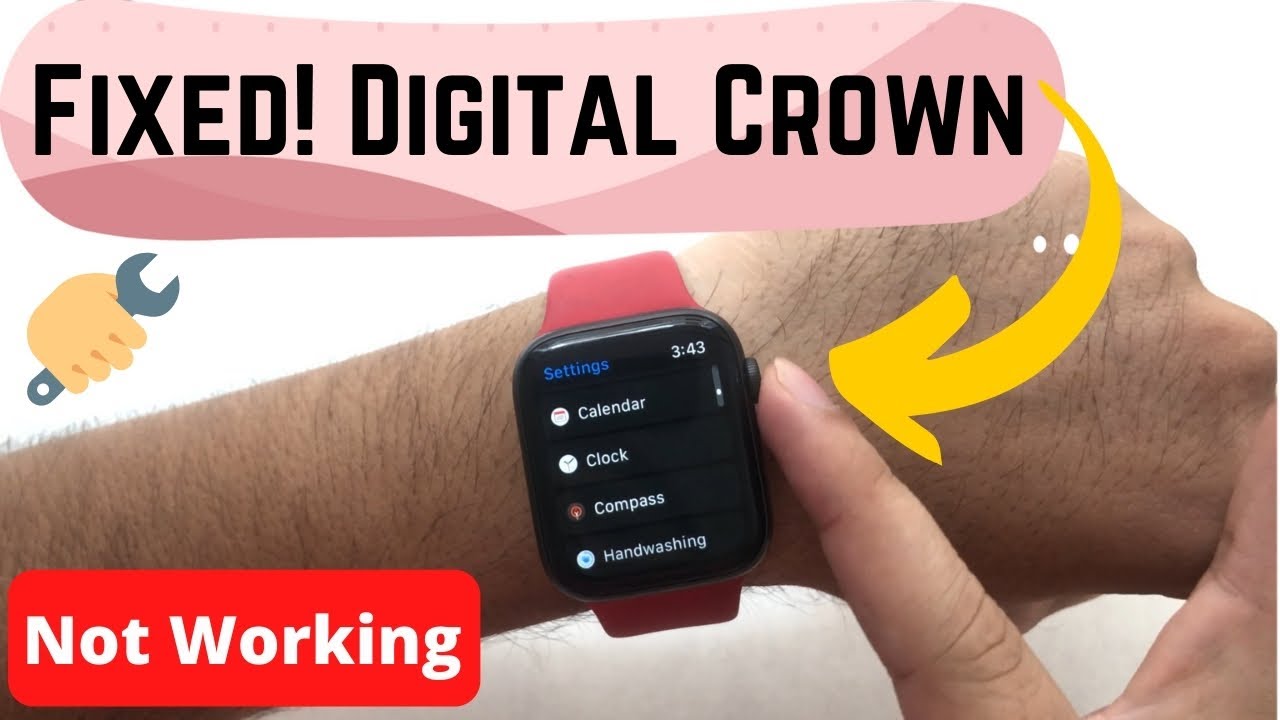
A widespread issue—especially after watchOS 9+ updates—is that the Digital Crown moves the volume slider but doesn’t change actual audio output when controlling iPhone playback.
Restart the Music or Spotify App
- Double-press the Digital Crown to open the app switcher.
- Swipe the Music or Spotify app upward to close it.
- Reopen and try adjusting volume.
✅ Fixes temporary app glitches. Works for many users post-update.
Restart Your Apple Watch
- Press and hold the side button.
- Slide to power off.
- Wait 10 seconds, then restart.
✅ Clears Bluetooth audio routing issues and resets system cache.
Re-select Audio Source in Now Playing
- Open Now Playing on your watch.
- Tap the < iPhone icon.
- Re-select iPhone.
This forces the watch to reconnect to the correct audio stream.
✅ Often restores volume control when syncing fails.
Use Spotify’s Device Selector (Spotify Users)
- In the Spotify app on your watch, tap the phone icon.
- Choose iPhone or Apple Watch as the playback device.
✅ Fixes misrouted audio that breaks volume control.
Unpair and Re-pair (Last Resort)
If volume fails repeatedly:
1. Open Watch app on iPhone.
2. Tap your watch > i icon > Unpair Apple Watch.
3. Re-pair and restore from backup.
⚠️ Time-consuming, but resolves deep software conflicts.
💡 Some users report this is a known bug—Apple may address it in future updates.
Compatibility at a Glance
| Feature | Supported Models |
|---|---|
| Digital Crown media control | All Apple Watch models |
| Alert volume slider | All models |
| Automatically adjust volume (Siri & system) | SE (3rd gen), Series 9, Ultra 2+ |
| Siri voice commands | All Siri-enabled models |
| Silent Mode toggle | All models |
| Haptic strength adjustment | Most models (varies by series) |
✅ Keep watchOS updated—Apple regularly fixes audio bugs in new releases.
Best Practices for Quiet, Confident Control
- Use Silent Mode in meetings, sleep, or quiet spaces.
- Lower alert volume manually if automatic adjustment feels too loud.
- Restart your watch weekly to prevent audio glitches.
- Prefer the Digital Crown for real-time media control—it’s the most responsive.
- Check the audio source if volume fails—especially when controlling iPhone playback.
- Set Siri to “Quieter” if you use voice responses often.
Final Note: Lowering volume on Apple Watch isn’t one-size-fits-all—different sounds use different controls. Media uses the Digital Crown or Control Center, alerts are set in Sounds & Haptics, and Siri has its own dedicated settings. With this guide, you can quickly reduce any audio, silence alerts when needed, and fix common issues that break volume control. Stay in control of your sound—quietly and confidently.




