
You’re mid-swim, and your Apple Watch starts launching random apps with every splash. Or you hand your watch to a friend to show a photo—only to realize your private messages are just one tap away. Knowing how to lock Apple Watch screen is essential for protecting your data, preventing accidental touches, and staying in control across every situation.
Unlike iPhones, the Apple Watch doesn’t have a dedicated lock button. Instead, it uses smart automation and context-aware features to secure your screen—whether you’re removing it, swimming, or simply stepping away. The good news? With the right settings, your watch locks automatically and securely. The bad news? Many users miss key features because the options aren’t always obvious.
This guide breaks down every method to lock your Apple Watch screen, from automatic wrist detection to Water Lock and manual Control Center locks. We’ll cover step-by-step instructions, troubleshooting tips, model compatibility, and best practices for security and convenience—so you can lock your watch confidently, no matter the scenario.
Enable Automatic Lock When Removed from Wrist
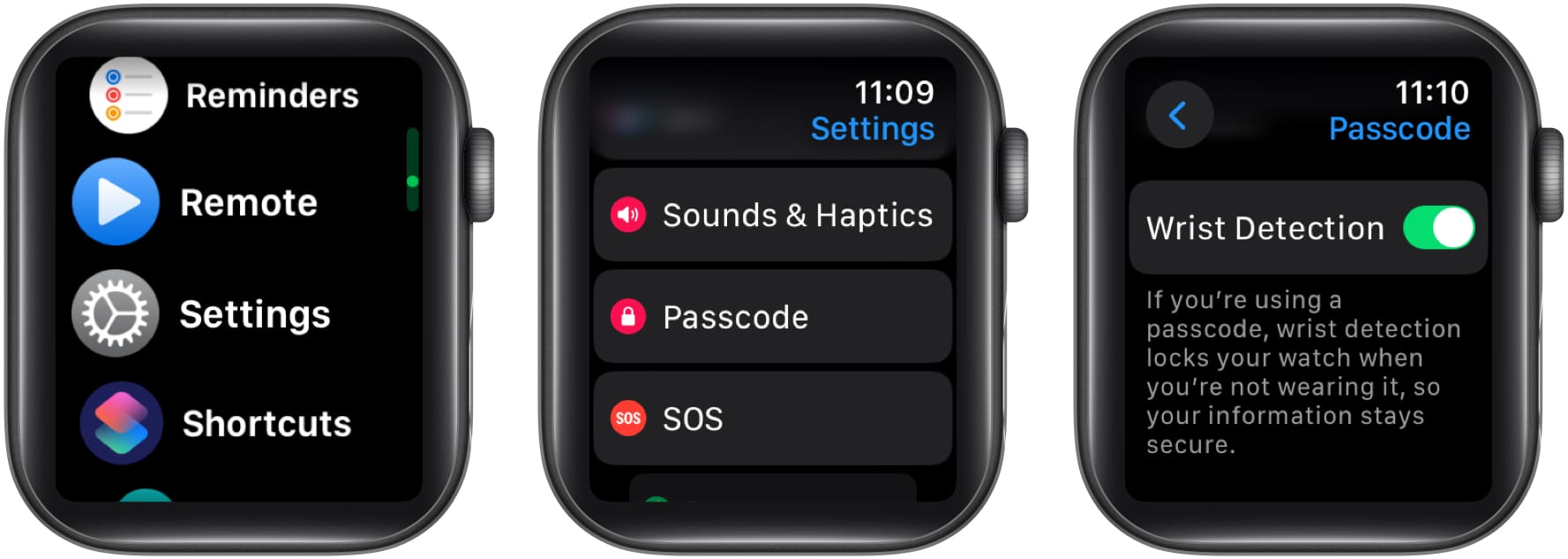
The most reliable way to lock your Apple Watch is by enabling automatic locking using Wrist Detection. This ensures your watch secures itself the moment you take it off—keeping your messages, health data, and Apple Pay safe.
Turn On Wrist Detection for Auto-Lock
Apple Watch uses infrared and optical sensors on the back crystal to detect when it’s no longer on your wrist. When activated, it locks instantly.
On Apple Watch:
1. Open Settings.
2. Tap Passcode.
3. Toggle Wrist Detection on.
On iPhone (Watch app):
1. Open the Watch app.
2. Go to My Watch > General > Wrist Detection.
3. Toggle on.
🔐 Critical Requirement: You must have a passcode enabled for Wrist Detection to work. Without it, your watch won’t lock—even if removed.
Once active:
– Screen turns off and requires your passcode when worn again.
– Apple Pay, Unlock Mac, and Health data remain protected.
– No manual action needed—locking happens automatically.
⚠️ If Wrist Detection is off, your watch stays unlocked when removed—great for workouts, risky for privacy.
Manually Lock Apple Watch Using Control Center
What if you need to lock your watch while still wearing it? Maybe you’re handing it to someone or placing it on a table. That’s where manual locking comes in—using the Control Center.
Access the Lock Option in Control Center
Steps:
1. Press the side button to open Control Center.
2. Look for the padlock icon 🔒.
3. Tap it to lock the screen immediately.
✅ After locking, the display turns off and requires your passcode to unlock.
💡 Important Limitation: The Lock icon only appears if Wrist Detection is turned off. Apple assumes automatic locking when Wrist Detection is on, so it hides the manual option.
Workaround: If you want manual control without disabling auto-lock, use Water Lock instead—available even with Wrist Detection active.
Use Water Lock to Prevent Accidental Touches
Need to lock your screen during a swim, shower, or intense workout? Water Lock is your best bet. While designed to prevent water interference, it also disables touch input—effectively locking the screen.
Activate Water Lock in Seconds
Steps:
1. Press the side button to open Control Center.
2. Scroll down and tap the water drop icon 💧.
3. Feel a haptic tap—your screen is now locked.
✅ Touch is disabled; screen won’t respond to taps or swipes.
🎧 Great for swimming, cycling with gloves, or wet hands.
Bonus Feature: When you unlock, Water Lock clears water from the speaker using sound vibrations.
Unlock After Water Exposure
- Press and hold the Digital Crown.
- Wait for the spinning animation and chime.
- Your watch unlocks and ejects water automatically.
🔄 No passcode required unless your watch was already locked via Wrist Detection.
🏊 Available on Apple Watch Series 2 and later—all water-resistant models.
Turn Off Screen Without Locking (Quick Fix, Not Secure)
Want to silence the display fast? Pressing the side button turns off the screen instantly—but this is not a true lock.
How It Works:
- Briefly press and hold the side button.
- Screen turns black.
❌ The watch remains unlocked.
– Anyone can wake it by tapping or raising your wrist.
– No passcode required.✅ Best for avoiding accidental taps during sleep, meetings, or workouts.
🔋 Also helps save battery by reducing screen-on time.💡 Think of this as “screen off,” not “device locked.”
Set a Passcode: The Foundation of Security
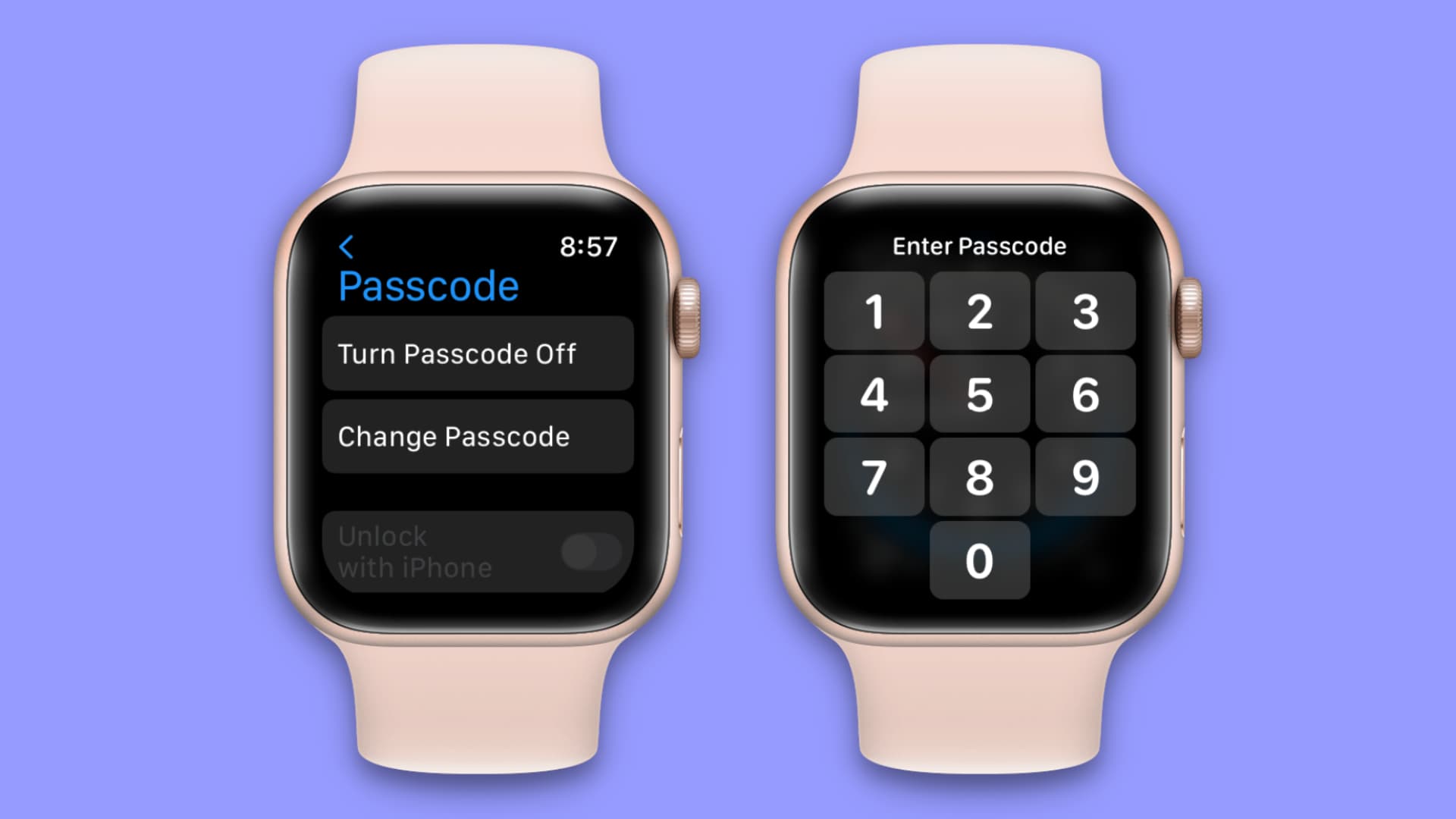
No locking method works without a passcode. It’s the key to Wrist Detection, Control Center lock, and data protection.
Enable Passcode Protection
On Apple Watch:
1. Open Settings > Passcode.
2. Tap Turn Passcode On.
3. Enter a 4-digit code and confirm.
On iPhone (Watch app):
1. Open Watch app > My Watch > Passcode.
2. Tap Turn Passcode On.
🔐 Once set:
– Watch locks when removed (with Wrist Detection).
– Required after restarts or failed unlocks.
– Enables Apple Pay, Unlock Mac, and secure features.
Use a Stronger Passcode
For better security:
1. In Settings > Passcode, toggle off Simple Passcode.
2. Create a longer numeric or alphanumeric code (e.g., 837102, P@ss42).
🛡️ Ideal for users storing sensitive health, payment, or work data.
Auto-Erase After 10 Failed Attempts
Protect your data if your watch is lost or stolen.
Enable Erase Data Feature
- On Apple Watch, go to Settings > Passcode.
- Turn on Erase Data.
🚨 After 10 failed passcode attempts, the watch erases all content.
⚠️ This cannot be undone. Always back up your watch before enabling.
💡 Highly recommended for maximum privacy.
Unlock Automatically With iPhone (Convenience Mode)
Skip entering your passcode every time—your Apple Watch can unlock automatically when your iPhone is nearby and unlocked.
Enable Unlock with iPhone
- On iPhone, open Watch app > My Watch > Passcode.
- Turn on Unlock with iPhone.
Requirements:
- iPhone and Apple Watch within 33 feet (10 meters).
- Bluetooth and Wi-Fi on.
- iPhone must be unlocked.
✅ Seamless experience—just raise your wrist.
❌ If iPhone is locked or out of range, enter passcode manually.
Disable Auto-Lock for Workouts and Desk Use
During long gym sessions, you don’t want your watch locking every time it shifts on your wrist.
Turn Off Wrist Detection Temporarily
- Open Settings > Passcode on Apple Watch.
- Toggle Wrist Detection off.
✅ Watch stays unlocked even when removed.
⚠️ Security trade-off: Anyone can access your data if left unattended.
To manually lock:
1. Open Control Center.
2. Tap the Lock icon.
3. Confirm with passcode.
💬 “I turn off Wrist Detection during CrossFit so my watch doesn’t lock mid-workout.” – Fitness User
Adjust Screen Wake Duration for Better Control
Control how long your screen stays on after interaction.
Set Wake Duration
On Apple Watch:
1. Open Settings > Display & Brightness > Wake Duration.
2. Choose:
– Short (15 seconds)
– Long (70 seconds)
✅ Short: Saves battery, reduces accidental taps.
🔐 Long: Useful for reading messages or maps.💡 Combine with Disable Always-On Display (Series 5+) to reduce visibility when locked.
Troubleshoot Common Locking Issues
Lock Icon Missing in Control Center?
Cause: Wrist Detection is on.
🔄 Apple hides the manual lock icon when auto-lock is active.
Fix: Use Water Lock instead, or temporarily disable Wrist Detection.
Watch Doesn’t Lock When Removed?
Check:
1. ✅ Passcode enabled
2. ✅ Wrist Detection on
3. ✅ Watch fits snugly
4. ✅ Back sensors clean
🟡 Dark skin tones or tight bands may interfere—adjust fit or re-enable detection.
Can’t Turn Off Passcode?
Likely due to organization-managed settings (MDM policy).
🔒 Contact your IT admin to modify restrictions.
Forgotten Passcode?
Option 1: Unpair from iPhone
1. Open Watch app > (i) > Unpair Apple Watch.
2. Erases watch and removes passcode.
Option 2: Erase Directly
1. Go to Settings > General > Reset > Erase All Content and Settings.
2. Enter passcode or wait for 10 failed attempts (if Erase Data is on).
Model-Specific Locking Features

| Model | Auto-Lock | Water Lock | Always-On | Notes |
|---|---|---|---|---|
| Series 2–4 | ✅ | ✅ | ❌ | Basic Water Lock |
| Series 5–8, SE | ✅ | ✅ | ✅ | Always-On increases visibility |
| Ultra 1–3 | ✅ | ✅ | ✅ | Enhanced for extreme conditions |
| Series 9, 11 | ✅ | ✅ | ✅ | Fastest detection, best sensors |
💡 On Series 5+, disable Always-On Display to reduce screen glow when locked.
Battery and Security Comparison
| Method | Battery Impact | Security Level | Best Use Case |
|---|---|---|---|
| Wrist Detection | Low | 🔒🔒🔒🔒🔒 | Daily security |
| Control Center Lock | None | 🔒🔒🔒🔒🔒 | Manual privacy |
| Water Lock | Minimal | 🔒🔒🔒 | Swimming, gloves |
| Side Button Off | Low | 🔒 | Avoid taps (not secure) |
| Disable Always-On | High savings | 🔒🔒 | Privacy + battery |
💡 Max Security Combo: Passcode + Wrist Detection + Erase Data
💡 Max Convenience Combo: Unlock with iPhone + Long Wake Duration
Final Tips for Every User
- ✅ For Security: Enable passcode, Wrist Detection, and Erase Data.
- ⚠️ For Workouts: Turn off Wrist Detection, manually lock when needed.
- 💧 For Swimming: Use Water Lock before entering water.
- 🔋 For Battery: Disable Always-On, set Wake Duration to Short.
Now you know how to lock Apple Watch screen in every scenario—automatically, manually, in water, or during workouts. With these methods, you stay in control of your privacy, performance, and peace of mind.





