

You glance at your wrist, raise your arm, but your Apple Watch stays dark—no time, no apps, nothing. Before you panic, take a breath. Opening an Apple Watch isn’t like turning on a phone with a simple power toggle. Instead, it uses smart sensors and intuitive gestures to wake the display only when you need it. Whether you’re using the latest Apple Watch Series 10 or an older SE model, knowing how to open Apple Watch correctly makes all the difference in daily use.
Unlike traditional devices, Apple Watch doesn’t have a dedicated “on” button that keeps the screen active. It sleeps and wakes based on motion, touch, and settings you control. This guide walks you through every step—from waking a sleeping screen to unlocking after a restart, customizing wake behavior, and troubleshooting when your watch won’t respond. You’ll also learn model-specific quirks, like why the Apple Watch SE (2nd generation) doesn’t support Always On display, and how to get back to your last app seamlessly.
By the end, you’ll know exactly how to wake your watch quickly, keep it responsive, and avoid common mistakes like confusing Theater Mode for a dead battery.
Wake the Display Instantly
Your Apple Watch is designed to wake with minimal effort. Here’s how to activate the screen in seconds.
Raise Your Wrist
The most natural way to open Apple Watch is by lifting your arm. When Wrist Raise is enabled, the motion sensor detects your movement and lights up the display.
- Works instantly on Series 1 and newer models
- Screen brightness adjusts automatically to ambient light
- Fails if wrist orientation is misconfigured or battery is dead
Pro Tip: If it doesn’t wake, check your wrist setting in the Apple Watch app under My Watch > General > Wrist Detection. Make sure it’s set to left or right correctly.
Tap the Screen
If raising your wrist feels too dramatic—say, during a meeting or while lying in bed—a simple tap on the glass wakes the display.
- Silent and discreet
- Ideal when wearing long sleeves or jackets
- Won’t work if the battery is fully drained or the screen is cracked
This method bypasses motion detection entirely, making it perfect for quiet environments where you don’t want accidental wake-ups.
Press or Turn the Digital Crown
Another fast way to wake and navigate is pressing or rotating the Digital Crown—the small knob on the side.
- Lights up the screen and opens the Home app
- Doubles as a scroll wheel in menus
- Useless if the watch is frozen or powered off
If the watch responds to Crown input but not wrist raise, consider disabling Wake on Crown Rotation to prevent pocket activations.
Turn On a Dead Apple Watch
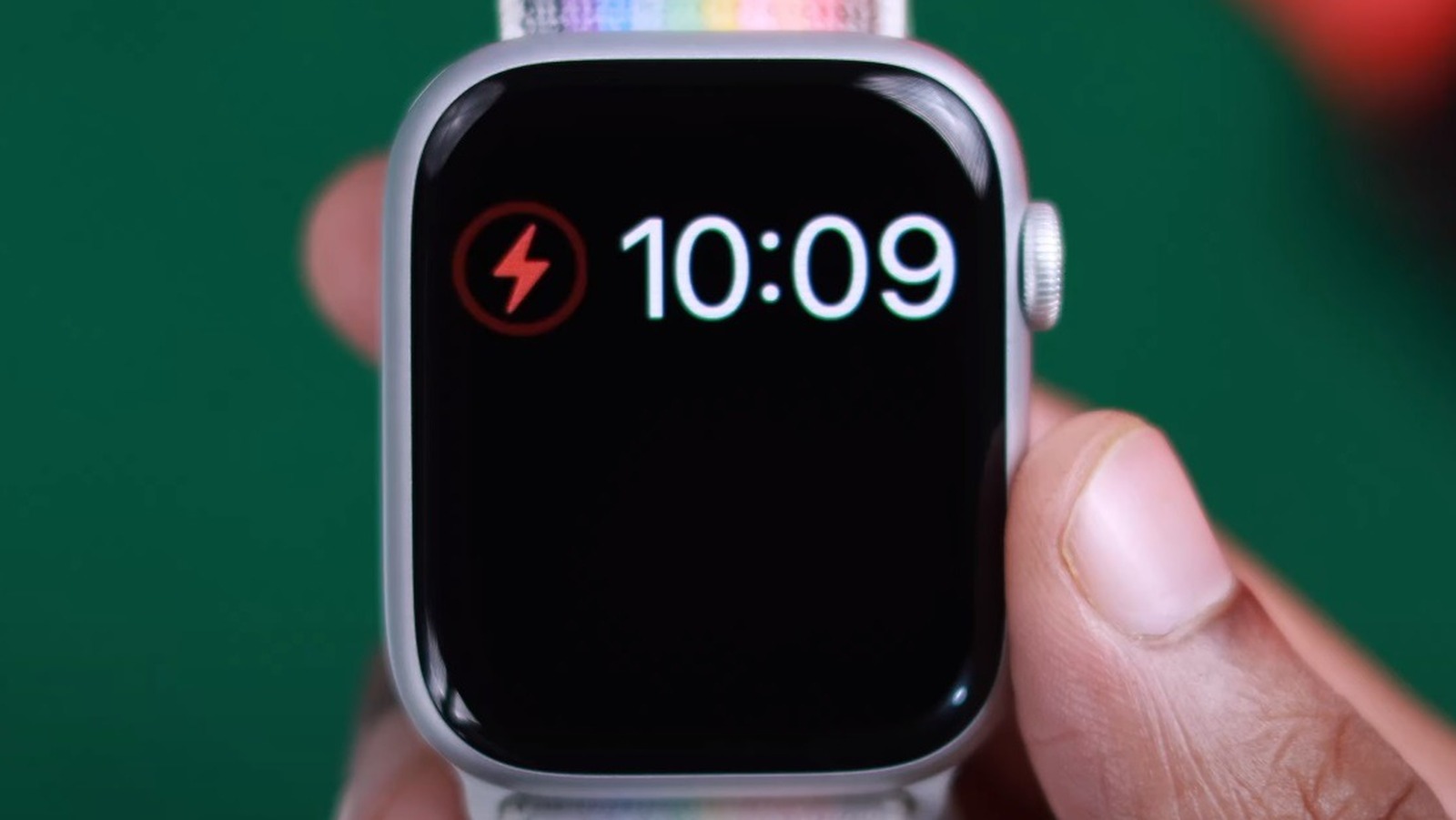
A black screen doesn’t always mean your watch is broken—it might just be off or out of battery.
Charge Before Turning On
A completely drained Apple Watch won’t power on until it has a charge.
- Attach the magnetic charger to the back of the watch
- Wait 1–2 minutes for the charging symbol (red lightning bolt or green circle)
- Once powered, proceed to turn it on
Warning: A deeply discharged battery may take up to 5 minutes before showing any sign of life.
Press and Hold the Side Button
To boot your watch:
- Press and hold the side button (below the Digital Crown)
- Keep holding until the Apple logo appears (about 10–15 seconds)
- Release—your watch face will load shortly
Don’t confuse this with a force restart. This is the standard power-on sequence for any Apple Watch.
Force Restart If Unresponsive
If your watch is frozen or stuck on a black screen despite charging:
- Press and hold both the side button and Digital Crown
- Hold for 10 seconds until the Apple logo flashes
- Release both buttons
Good to know: This does not erase data—it’s safe for regular troubleshooting.
Customize How Apple Watch Wakes
Make your watch work the way you do by adjusting wake settings.
Adjust Wake Duration
By default, the screen turns off after 70 seconds. You can shorten or extend this.
- Open Settings on Apple Watch
- Tap Display & Brightness > Wake Duration
- Choose:
– Wake for 70 Seconds (default)
– Wake for 15 Seconds (better for battery)
Ideal for quick glances during workouts or phone calls.
Disable Wrist Raise
Stop the screen from waking every time you move your arm.
- Go to Settings > Display & Brightness
- Turn off Wake on Wrist Raise
- Now, tap or press the Crown to wake
Best for sleep: Prevents accidental wake-ups at night.
Turn Off Crown Wake
Avoid triggering the screen while reaching into your pocket.
- In Settings > Display & Brightness
- Toggle off Wake on Crown Rotation
- Rotation now only works when the screen is already on
This small change reduces frustration during daily wear.
Enable Always On Display (If Supported)
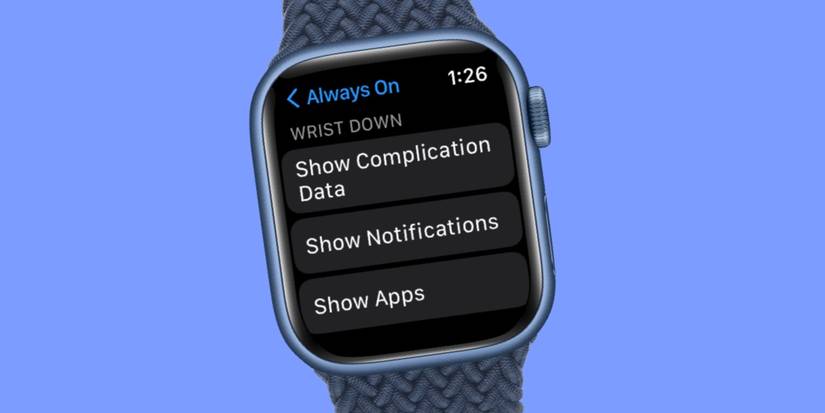
On compatible models, the watch face stays visible even when your wrist is down.
Available on: Series 5 and later (except Apple Watch SE 2nd gen)
Activate Always On
- Open Settings > Display & Brightness > Always On
- Toggle it on
Even when dimmed, you’ll see the time and complications like heart rate or calendar.
Configure Always On Behavior
Decide what shows when the screen is dim:
- Time and watch face (default)
- Complications (e.g., activity rings, weather)
- Background image (dimmed)
Battery Note: Uses slightly more power—turn off in Low Power Mode.
Unlock Apple Watch After Waking
After waking, you may need to unlock—especially after charging or restart.
Automatic Unlock with iPhone
If your iPhone is nearby and unlocked, your Apple Watch unlocks automatically.
- Wake the watch
- Look for the green shield icon
- Proceed without entering a passcode
Requirements:
– Bluetooth and Wi-Fi enabled
– Wrist Detection on
– iPhone unlocked and close by
This seamless handoff saves time and effort.
Enter Passcode Manually
If auto-unlock fails:
- Wake the watch
- Wait for the passcode prompt
- Turn the Digital Crown to select digits
- Press Enter when done
Tip: Clean fingers and screen for smoother input.
Return to Last Used App
Don’t lose your place mid-workout or podcast—set your watch to resume where you left off.
Enable App Resume Feature
- Open Settings > General > Return to Clock
- Scroll down and tap an app (e.g., Workout, Music)
- Turn on Return to App
Supported Apps: Audiobooks, Maps, Music, Podcasts, Timers, Voice Memos, Walkie-Talkie, and more.
Now, when you wake your watch, it reopens your active session.
Control When Watch Returns to Clock
Set how long apps stay open before reverting to the clock.
- In Settings > General > Return to Clock
- Choose global setting:
– Always
– After 2 minutes
– After 1 hour - Tap individual apps to customize
Example: Let Music stay open for an hour, but return to clock immediately after ending a timer.
Troubleshoot: Watch Won’t Wake or Open

When nothing happens, diagnose fast.
Check Battery Level
A dead battery looks like a broken screen.
- Place on charger
- Look for red lightning bolt or green charging ring
- Wait 2–3 minutes before retrying
No response? Try a different cable or power source.
Test Wrist Detection Settings
Misconfigured detection stops wrist raise from working.
- Open Apple Watch app on iPhone
- Tap My Watch > General > Wrist Detection
- Ensure it’s on
- Confirm correct wrist (left/right)
Incorrect setup = screen stays dark even when raised.
Disable Theater Mode
This mode blocks taps and wrist raises.
- Swipe up from watch face to open Control Center
- Tap the theater mask icon to disable
Theater Mode keeps screen dark unless you press a button—great for movies, annoying if left on by accident.
Reset or Repair If Frozen
If still unresponsive:
- Perform force restart: Hold side button + Digital Crown for 10 sec
- If no improvement, use iPhone’s Watch app to unpair and re-pair
- Contact Apple Support if issue persists
Always back up before unpairing.
Model-Specific Notes
Not all Apple Watches behave the same.
Apple Watch SE (2nd Gen) Limitations
- No Always On display
- Screen turns off when wrist is down
- Must raise or tap to wake
Expect more manual interaction compared to newer models.
Older Models (Series 1–4)
- Slightly slower wake response
- Lower screen brightness
- Still support tap, raise, and Crown wake
Performance improves with a watchOS update.
Final Tips for Smooth Operation
Keep your Apple Watch waking reliably.
Keep Software Updated
Outdated software causes glitches.
- On iPhone, open Watch app
- Tap General > Software Update
- Install latest version
Updates fix bugs in sensors and display timing.
Clean Sensors Regularly
Dirt on the back affects motion detection.
- Wipe with a soft, dry cloth
- Avoid alcohol or harsh cleaners
- Clean weekly, especially after sweating
Dirty sensors delay or prevent wake-up.
Avoid Extreme Temperatures
Cold or heat disrupts function.
- Below 32°F (0°C): Screen may freeze
- Above 95°F (35°C): Auto-shutdown possible
Let the watch return to room temperature before use.
Final Note: Knowing how to open Apple Watch isn’t about flipping a switch—it’s mastering the smart ways it wakes and responds. From raising your wrist to customizing wake duration and troubleshooting black screens, these steps ensure your watch stays responsive and intuitive. Whether you’re new to wearables or upgrading your habits, understanding wake settings, unlock methods, and model differences makes your Apple Watch feel like a seamless extension of your day.




