
You’re in the middle of a meeting, watching a movie, or finally drifting off to sleep—then your Apple Watch chimes loudly. The sudden noise breaks the quiet, draws attention, and disrupts the moment. If you’ve ever wondered how to mute Apple Watch quickly and effectively, you’re not alone. With watchOS 10, Apple changed the way muting works, removing the familiar swipe-up gesture and replacing it with a new method that’s caught many users off guard.
The good news? You still have full control over your watch’s sound and alerts. Whether you want total silence or just discreet vibrations, there are multiple ways to mute your Apple Watch—fast. From one-tap toggles in Control Center to voice commands with Siri, scheduled Focus modes, and deep settings in the Watch app, this guide covers every method available. You’ll also learn how to keep haptic feedback while disabling sound, fix missing vibrations, and adapt to the post-watchOS 10 changes that left some users scrambling.
By the end, you’ll know exactly how to silence your watch in any situation—without missing important alerts.
Access Control Center (watchOS 10+)

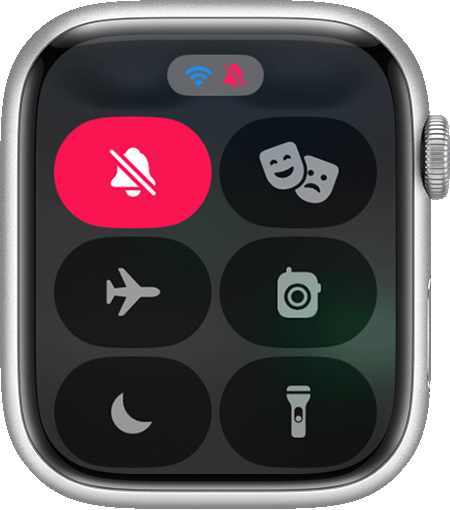
Since watchOS 10, Apple redesigned how you mute your Apple Watch. The old swipe-up shortcut from the watch face is gone. Now, you must press the side button to open Control Center, where mute options live.
Press Side Button Once
To begin:
– Tap and release the flat oval side button on the right edge of your Apple Watch.
– Do not hold it down, as that triggers Emergency SOS.
– The Control Center will appear, showing a grid of toggles at the bottom.
✅ What to look for: The bell icon (🔔) for mute and the theater mask (🎭) for Theater Mode should be visible. If they’re missing, see the troubleshooting section below.
Tap Bell Icon to Enable Silent Mode
- Tap the bell icon (🔔) to mute all sounds.
- A red slash appears over the bell—this means silent mode is active.
- All notification chimes, alert tones, and call rings are now disabled.
- Haptic feedback continues if enabled in settings.
This is ideal for quick silencing during meetings or quiet moments when you still want to feel incoming alerts.
Enable Theater Mode for Full Quiet
For deeper silence:
– Tap the theater mask icon (🎭) to turn on Theater Mode.
– This disables:
– All sound alerts
– Screen wake when raising your wrist
– Perfect for dark rooms, presentations, or bedtime.
⚠️ Pro tip: After enabling Theater Mode, tap “Lock” to freeze the screen and prevent accidental touches.
Use Siri Voice Commands
Need to mute instantly—without touching your watch? Siri is your fastest option.
Say “Hey Siri, Mute My Apple Watch”
- Activate Siri by saying “Hey Siri” or briefly pressing and releasing the side button.
- Give one of these commands:
- “Mute my Apple Watch”
- “Turn on silent mode”
- “Enable Theater Mode”
Siri responds immediately and applies the setting—usually within seconds.
Ensure Siri Is Enabled
If Siri doesn’t respond:
– Open the Watch app on your iPhone.
– Go to General > Siri.
– Turn on:
– “Hey Siri”
– “Listen for ‘Hey Siri’”
✅ Time saved: This method takes under 5 seconds and works even when your hands are full or the watch is covered.
Configure Sounds & Haptics via iPhone

For more precise control than quick toggles allow, use the Watch app on your iPhone.
Disable Sound, Keep Vibration
Want to receive calls silently? You can disable audio while keeping haptic alerts.
Steps:
- Open the Watch app on your iPhone.
- Tap Sounds & Haptics.
- Under Ringers and Alerts, turn off:
- Sound (for calls)
- Leave Haptic Alerts turned on.
Now, when someone calls, your watch will vibrate only—no ringtone, no chime.
Adjust Haptic Strength
If you’re missing alerts:
– In Sounds & Haptics, use the Haptic Strength slider.
– Drag right to increase intensity.
– Tap “Tap to Test” to feel the current strength.
💡 Expert note: Some users report weak haptics after watchOS updates. Boosting strength ensures you feel alerts even in noisy environments.
Activate Theater Mode for Full Silence
When you need complete quiet—like in a theater, meeting, or while sleeping—Theater Mode is your best tool.
Turn On Theater Mode
- Press the side button to open Control Center.
- Tap the 🎭 icon.
- Toggle “Turn Off Display Wake” to stop the screen from lighting up when you raise your wrist.
🎬 Use case: Ideal for dark environments where even a glowing screen is disruptive.
Lock Screen During Theater Mode
- After enabling Theater Mode, tap “Lock” to freeze the display.
- Prevents accidental taps, button presses, or app openings.
Disable Theater Mode
- Return to Control Center and tap the 🎭 icon again.
- Or go to Settings > Theater Mode on your Apple Watch.
✅ Quick exit: If the screen is locked, double-press the side button to unlock and disable Theater Mode.
Fix Missing Mute or Theater Icons
After updating to watchOS 10, some users found the mute and Theater Mode icons missing from Control Center.
Add Toggles Back to Control Center
Steps:
- Press the side button to open Control Center.
- Scroll to the bottom.
- Tap “Edit”.
- Find and add:
- Mute
- Theater Mode
- Reorder or remove other toggles as needed.
✅ Visual check: Both icons should now appear in Control Center.
Why They Disappear
- watchOS 10 reset Control Center layouts for some users.
- Third-party apps or glitches may have removed default toggles.
🔁 Reset tip: If edits don’t stick, restart your Apple Watch and re-add the controls.
Troubleshoot No Vibration When Muted
Muting shouldn’t mean losing all alerts—but sometimes vibrations stop too.
Check Haptic Alerts Setting
Problem: Watch stops vibrating after muting.
Cause: Haptics disabled in silent mode.
Fix:
- Open Watch app on iPhone.
- Go to Sounds & Haptics.
- Under Silent Mode Settings, ensure:
- Haptic Alerts is ON
- Increase Haptic Strength if needed.
✅ Test result: After saving, send a test notification (e.g., timer) to confirm vibration works.
Avoid Common Mistakes
- ❌ Don’t assume mute = no alerts. You can have silent + haptic.
- ❌ Don’t disable haptics globally—only adjust sound.
- ✅ Do test settings after changes.
Understand watchOS 10 Changes
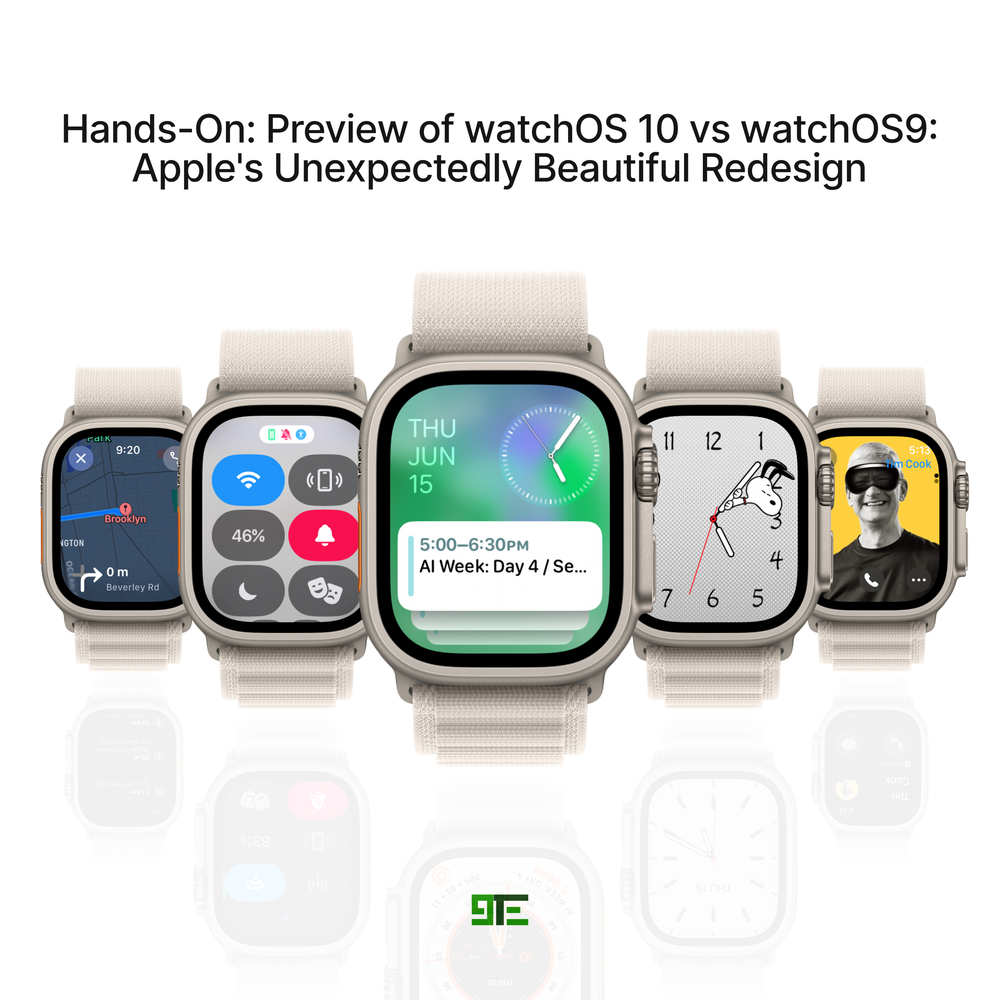
Apple changed how muting works—here’s what’s different.
Old Way (Pre-watchOS 10)
- Swipe up from any watch face.
- Tap bell or theater icon directly.
- Fast, intuitive, one-gesture access.
New Way (watchOS 10 and Later)
- Press side button → opens Control Center.
- Scroll down → tap mute or theater icon.
- Extra step, less immediate.
📢 User feedback: Many users dislike the change:
– “I miss the old swipe-up mute.”
– “Why make it harder?”
Adaptation Tips
- Re-add missing icons to Control Center.
- Use Siri for faster access.
- Practice the new gesture until it becomes muscle memory.
Use Focus Modes for Automatic Muting
Want your watch to mute itself at certain times?
Set Up Sleep or Work Focus
On iPhone:
- Open Health app → Sleep.
- Schedule bedtime.
- Enable Sleep Focus.
- It automatically silences notifications and enables Do Not Disturb.
Or:
– Open Settings > Focus.
– Create a Work or Personal Focus.
– Turn on Silence during specific hours.
🔄 These Foci sync to your Apple Watch automatically.
Customize Alert Behavior
- Choose which apps can notify during Focus.
- Allow repeated calls (for emergencies).
- Keep haptics enabled for priority alerts.
✅ Ideal for: Nightly muting, work hours, or digital detox.
Why iPhone Mute Doesn’t Sync to Watch
Flip the mute switch on your iPhone—why isn’t your watch silent?
No Native Sync Feature
- As of watchOS 10.1, Apple does not sync mute states between devices.
- Muting iPhone does not mute Apple Watch.
- This is a top user request but remains unsupported.
🗣️ Common complaint:
– “It would be great if my watch muted when I flip the mute switch on my phone.”
Workarounds
While no official solution exists:
– Use Siri: “Hey Siri, mute my Apple Watch” after muting iPhone.
– Create a Shortcuts automation (beta) to trigger actions when iPhone is muted.
⚠️ Reality check: True sync won’t happen until Apple enables it system-wide.
Best Muting Strategies by Scenario
In a Meeting
- Enable Theater Mode
- Silences sound
- Prevents screen wake
- Keep haptics on for discreet alerts
- Lock screen to avoid accidental input
⏱️ Time required: 3 seconds via Control Center
During Sleep
- Use Sleep Focus
- Automatically enables DND
- Silences non-essential alerts
- Pair with Theater Mode manually if desired
- Keep haptics low or off unless expecting urgent calls
🌙 Pro tip: Schedule Sleep Focus to start and end automatically.
Taking Calls Discreetly
- Open Watch app > Sounds & Haptics
- Turn off Sound for calls
- Keep Haptic Alerts on
- Set Haptic Strength to high
Now, calls vibrate silently—ideal for quiet offices or public spaces.
Quick Public Silence
- Say: “Hey Siri, mute my Apple Watch”
- Or: Press side button → tap bell icon
- Instantly stops all sounds
🚀 Fastest method: Siri (under 5 seconds)
Final Tips and Recommendations
- After watchOS 10 Update: Re-add Mute and Theater Mode to Control Center if missing.
- Keep Haptics Enabled: Always verify Haptic Alerts are ON in Silent Mode Settings.
- Use Siri for Speed: Fastest way to mute without touching your watch.
- Schedule Silence: Leverage Focus modes for automatic nighttime or work-hour muting.
- Boost Haptics: Increase Haptic Strength if you’re missing alerts.
- No iPhone Sync: Accept that flipping the mute switch on your phone won’t silence your watch—yet.
🔔 Bottom line: Muting your Apple Watch is still simple—just different than before. With the right setup, you can enjoy silent alerts, strong vibrations, and full control over when and how you’re notified.
Master these steps, and you’ll never be caught off guard by a loud ping again.





