Your Apple Watch Series 7 is dead. No response. No green lightning bolt. Maybe just a faint red flash—or nothing at all. You’ve placed it on the charger over and over, but it refuses to power up. If this is your reality right now, you’re not alone. “Apple Watch 7 won’t charge” is one of the most common complaints among users—and the good news is that in most cases, it’s fixable without replacing the device.
Whether your watch shows a red lightning bolt, heats up with no charging progress, or simply won’t turn on after hours on the charger, this guide walks you through every possible solution—organized from quick fixes to advanced troubleshooting. We’ll help you diagnose the real cause and get your Apple Watch charging again, fast.
Confirm Your Charging Equipment Works

Before assuming your watch is broken, rule out the simplest culprit: faulty or incompatible hardware.
Use Genuine Apple or MFi-Certified Chargers
The Apple Watch Series 7 requires the USB-C Magnetic Fast Charging Cable for optimal performance. Many third-party cables, even if they magnetically attach, fail to deliver consistent power due to poor build quality or lack of certification.
- Always start with the original charger that came with your watch.
- Avoid non-MFi-certified (Made for iPhone/iPad/iWatch) chargers—they can cause overheating, slow charging, or complete failure.
- If using a power bank or laptop USB port, switch to a 5W or higher wall adapter for more stable output.
Real User Fix: One customer found their brand-new USB-C cable defective. Switching back to an older USB-B magnetic charger restored charging instantly—proving the issue was the cable, not the watch.
Test the Power Source and Connection
Even the best charger won’t work with a weak or faulty power source.
- Plug the charger into a different wall outlet—avoid power strips or surge protectors temporarily.
- Try charging via a Mac or PC. Open Finder (macOS Catalina+) or iTunes (Windows) and see if your Apple Watch appears.
- If the watch charges on your laptop but not the wall, the issue may be the power adapter or outlet.
If the watch powers on only when connected to certain devices, the problem lies in your charging setup—not the watch itself.
Clean the Charging Contacts Thoroughly

Dirt, sweat, lint, or moisture can block electrical contact between your watch and charger.
How to Safely Clean Both Surfaces
- Remove the Apple Watch from its band.
- Use a dry, lint-free cloth to wipe the back of the watch—focus on the magnetic charging ring.
- For the charging puck, use a cotton swab to gently remove debris. Never use liquids or compressed air.
- Reconnect and wait for a green or yellow lightning bolt.
Pro Tip: Clean your charging contacts every 6 months. Many users report restored charging after removing years of grime buildup.
Check for Corrosion or Physical Damage
Inspect both the watch back and charger coil:
- Look for discoloration, pitting, or residue—signs of corrosion, often caused by moisture exposure during workouts or showers.
- Are the magnetic pins bent or the casing cracked? Replace the accessory immediately.
Even minor obstructions can prevent charging. A clean, flush connection is essential.
Reposition for Perfect Magnetic Alignment
Misalignment is a frequent cause of charging failure—especially with larger models (45mm, 49mm).
Center the Watch on the Charger
- Place the watch flat on the charging puck.
- Listen for a soft click—this confirms magnetic attachment.
- If no symbol appears, gently shift the watch until a yellow or green lightning bolt shows.
For Apple Watch Magnetic Charging Docks or MagSafe Duo Chargers, improper placement can block full contact. Always ensure the watch sits flush.
Remove the Band for Better Contact
Thick or metal bands can interfere with the magnetic field.
- Take off the band before charging.
- Place the bare watch directly on the charger.
- Wait 1–2 minutes for the charge indicator.
Apple Support Note: A user’s watch overheated because a charging dock blocked full magnetic contact. Removing the band solved the issue instantly.
Force Restart Your Apple Watch
A frozen system may prevent the watch from recognizing the charger—even if power is flowing.
How to Force Restart
- Press and hold both the Side Button and Digital Crown.
- Hold for at least 10 seconds.
- Release when the Apple logo appears.
Wait 2 minutes, then place it back on the charger.
User Success: A 6-day-old Series 7 stuck at 12% charged normally after a force restart—likely due to a software glitch caused by overheating.
This simple step resolves many software-related charging blocks.
Press Screen and Back to Reseat Internal Components
Internal flex cables can loosen over time, especially after drops or prolonged use.
How to Perform the Pressure Reset
- Hold the watch face-down.
- Press firmly on the center of the display for 30 seconds.
- Flip it over and press the back (charging area) for another 30 seconds.
- Follow with a force restart.
Community Insight: This unofficial trick has revived multiple unresponsive watches. It may reseat internal connectors that lost contact.
While not endorsed by Apple, many users report success—particularly after physical impact.
Leave It Charging for 8–10 Hours Undisturbed
A deeply drained battery may not show signs of life immediately.
What to Do
- Use the original charger.
- Place it on a flat, cool surface.
- Do not touch, restart, or unplug during this time.
- Wait 8 to 10 hours before checking.
Even with a blank screen, charging may be occurring slowly.
Real Example: A Series 6 rebooted on its own after 5 days off-wrist with only 13% battery—proof that lithium-ion batteries can recover from deep discharge.
If still unresponsive after 10 hours, move to advanced steps.
Fully Drain the Battery (Last Resort)
If the watch is stuck in a low-power limbo, a complete drain may reset the system.
How to Drain Safely
- Stop charging and leave the watch unused.
- Wait until there’s no response—no red bolt, no time display.
- This could take several days.
- Once fully dead, reconnect and charge for 8–10 hours.
Expert Hack: Speed up draining by performing 2–3 force restarts per day.
Caution: One user reported their watch never revived after a week-long drain. Use this only if all else fails.
Update or Restore watchOS
Software bugs—especially after updates—can disrupt charging.
Check for watchOS Updates
- Open the Watch app on your iPhone.
- Go to General > Software Update.
- Install any pending updates.
If the watch is unresponsive, you may need to restore via recovery.
Restore via iTunes or Finder
- Force restart the watch.
- When the Apple logo appears, connect to the charger and open Finder (Mac) or iTunes (PC).
- Select your watch and choose Restore.
- Set up as new or restore from backup.
Known Issue: A bug in watchOS 10.1 caused charging failures in some units. Updating may resolve it.
Test Battery Health
Degraded batteries lose the ability to accept or hold a charge.
How to Check Maximum Capacity
- On Apple Watch: Settings > Battery > Battery Health.
- View Maximum Capacity:
– Above 80%: Normal.
– Below 80%: Battery is degraded.
Apple considers batteries below 80% eligible for free replacement under warranty.
User Report: After four years of GPS workouts, one user’s battery dropped to 71%, causing frequent charging issues.
Note: If Optimized Battery Charging is enabled, the watch may pause at 80%. Disable it temporarily during troubleshooting.
Try the Refrigerator (Not Freezer) Trick
Cold temperatures can contract components and restore internal contact—safely.
Safe Cold Reset Method
- Remove the band.
- Place the watch in a sealed plastic bag.
- Put it in the refrigerator for 10–12 minutes.
- Remove, wait 5 minutes to warm up.
- Attempt a force restart, then charge.
Why It Works: Thermal contraction may reconnect loose circuits without risking condensation.
Never Use the Freezer: Moisture buildup can cause short circuits—especially in older or water-damaged watches.
This is experimental but low-risk if done carefully.
Avoid Incompatible Chargers
Apple Watch 7 models sold in China or Indonesia are WPT-compliant (Wireless Power Transfer), which blocks foreign chargers.
Watch for Compatibility Errors
If you see: “Unable to charge. This is a country-specific charger. It is incompatible with this Apple Watch.”
Solution:
– Use only chargers from the same region as your watch.
– Check your model number in Settings > General > About.
Even if it magnetically attaches, a mismatched charger will block charging.
Upgrade to High-Performance Charging Docks
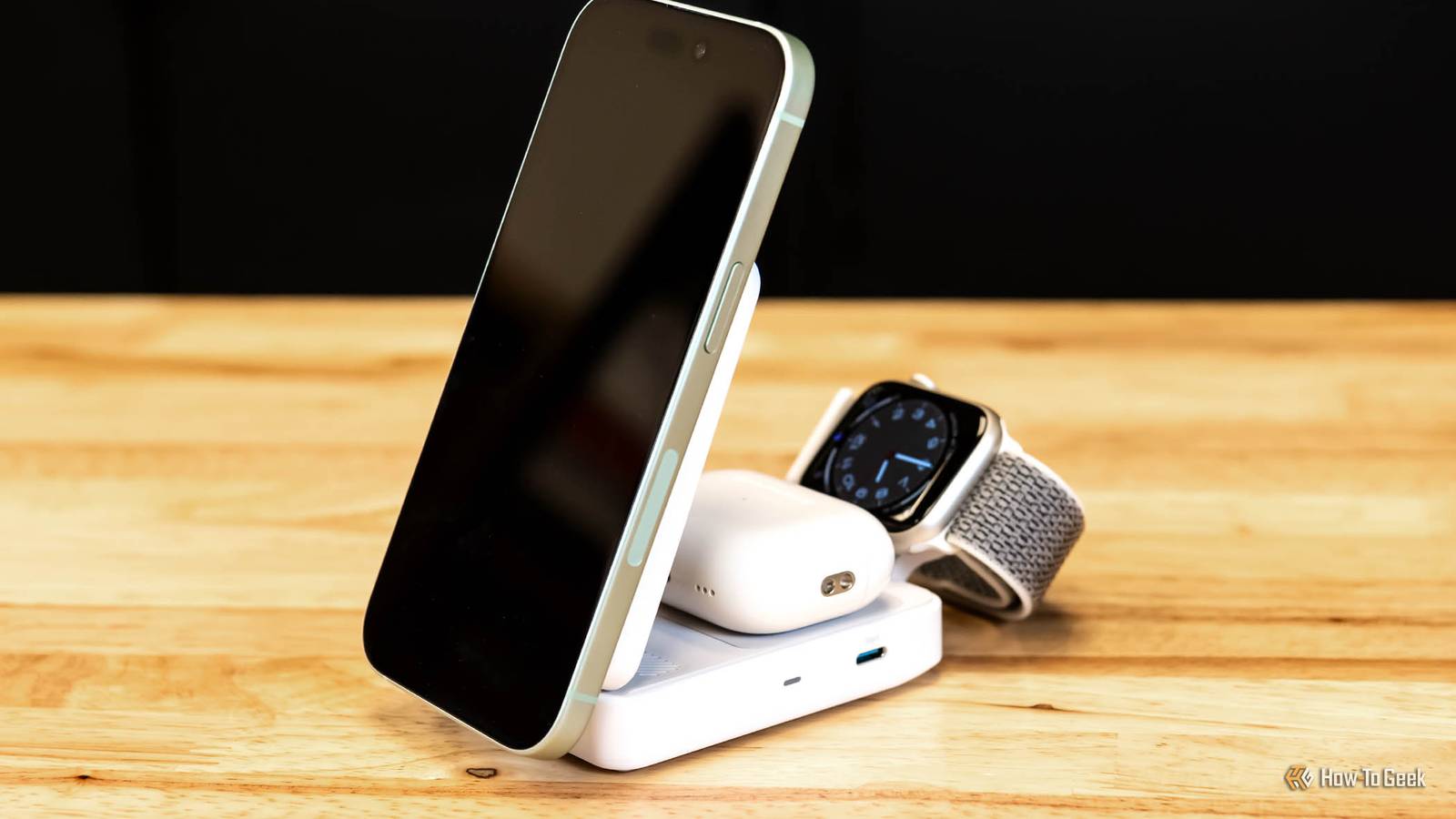
Standard chargers work—but advanced docks improve reliability.
Top MFi-Certified Options
Anker MagGo 3-in-1 Dock Stand
- Charges Apple Watch in 1 hour 13 minutes (50% faster).
- 15W MagSafe power.
- Adjustable angles for perfect alignment.
- Charges iPhone, AirPods, and Watch simultaneously.
Anker Foldable 3-in-1 with ActiveShield 2.0
- Aluminum body for faster heat dissipation.
- AI monitors temperature 3 million times/day.
- Prevents overheating during long charges.
Key Benefit: These docks prevent misalignment and reduce charging time—ideal for heavy users.
Only use MFi-certified accessories to avoid damage.
When to Seek Professional Help
If all else fails, the issue is likely hardware-related.
Signs You Need Service
- No response after 10+ hours of charging.
- Battery health below 80% with rapid drain.
- Visible water damage (red indicator inside).
- Watch was dropped or exposed to liquid.
- Brand new watch won’t power on after 7+ hours.
Apple Repair Options
- Visit an Apple Store or authorized service provider.
- Under warranty? Free battery replacement if capacity <80%.
- Out of warranty? Paid replacement only—Apple does not offer standalone battery swaps.
User Frustration: Some owners report being denied repair despite no physical damage—only offered costly replacements.
Special Cases: New or Stored Devices
Unused watches can develop charging issues.
Why New Watches Won’t Power On
- Devices stored over two years (e.g., old stock) may have permanently degraded batteries.
- Lithium-ion batteries degrade when stored fully discharged.
Expert Advice: Always store unused electronics at 50% charge in a cool, dry place.
What to Do
- If a new watch won’t start after 7+ hours, return it.
- Buy refurbished from Apple’s official store—tested, restored, and covered by warranty.
Avoid third-party “new old stock” unless battery health is verified.
Final Checklist: Quick Fixes Summary
Use this list to troubleshoot fast:
✅ Try the original USB-C magnetic charger
✅ Test a different outlet or computer USB port
✅ Clean watch back and charger with dry cloth
✅ Reposition watch for magnetic click
✅ Remove band for better contact
✅ Force restart (hold Side + Crown 10 sec)
✅ Press screen and back to reseat internals
✅ Leave charging 8–10 hours undisturbed
✅ Fully drain battery, then recharge
✅ Update watchOS or restore via Finder/iTunes
✅ Check Battery Health (<80% = needs service)
✅ Avoid WPT-incompatible chargers
✅ Consider Anker MagGo or MFi-certified dock
Key Takeaways
| Symptom | Likely Cause | Solution |
|---|---|---|
| No charging symbol | Deep discharge or cable fault | Charge 8–10 hrs; test with old cable |
| Red lightning bolt | Critically low battery | Wait for red ring; do not interrupt |
| Works with old cable only | Defective USB-C cable | Replace under warranty |
| Warm charger, no charge | Dirty contacts or alignment | Clean and reposition |
| Battery below 80% | Degraded cell | Seek Apple service |
| New watch won’t turn on | Long-term storage drain | Return or get refurbished |
| Software freeze | watchOS bug | Force restart or restore |
If your Apple Watch 7 won’t charge, start simple: clean, reposition, restart. Most issues resolve in minutes. Only after exhausting all steps should you consider professional repair. With the right approach, you can save time, money, and avoid unnecessary replacement.
Keep your charger clean, update regularly, and monitor battery health monthly. A little maintenance goes a long way in keeping your Apple Watch alive and charging fast.