

You’re trying to dismiss a notification, scroll through a workout, or return to your home screen—but the Apple Watch crown isn’t working. It won’t click, rotate, or respond at all. For many users, this tiny but critical component is essential for daily navigation. The good news? Most Digital Crown issues can be fixed without opening your wallet. Whether you own a Series 4 or the latest Series 10, this guide delivers proven, step-by-step solutions—from Apple’s official warm water fix to advanced software resets and drying techniques.
We’ll walk you through every possible cause: debris buildup, moisture damage, software bugs, and even hardware flaws. Real user experiences, model-specific insights, and Apple’s own recommendations are included. By the end, you’ll know exactly how to revive your crown—or when it’s time to demand a replacement.
Remove Case and Check for Debris
Before assuming a serious failure, rule out physical blockages.
Inspect the Crown Housing
Many third-party cases press too tightly against the Digital Crown, restricting movement. Take off the case and examine:
– Is the crown flush with the watch body?
– Do you see lint, dust, or dried sweat?
– Does it feel stiff, loose, or uneven?
Even microscopic fibers from clothing or leather bands can jam the mechanism. Use a clean, soft-bristled toothbrush to gently sweep around the base—never use sharp tools like pins or tweezers, as they can scratch seals and compromise water resistance.
Watch for Band-Related Buildup
Leather straps are notorious for shedding tiny particles that mix with moisture and clog the crown over time. If you wear a leather band, switch temporarily to silicone or nylon. Shine a flashlight at an angle to spot trapped debris in the gap between the crown and housing.
Pro Tip: Clean the crown weekly if you wear your watch during workouts or in dusty environments.
Restart Your Apple Watch
A simple reboot fixes temporary glitches in minutes.
Power Cycle the Device
- Press and hold the side button until the power slider appears.
- Swipe right to turn off.
- Wait 30 seconds—this clears residual power.
- Press the side button again to restart.
Test the crown immediately after boot. Many users report full functionality returns after a restart, especially if the issue began after syncing or updating.
Try Rapid Pressing to Reset the Switch
If the crown rotates but won’t click:
– Press it 30–40 times quickly with firm, even pressure.
– This can dislodge micro-debris and reset the internal capacitive switch.
User Result: A Series 8 owner fixed intermittent clicking after just 40 rapid presses—no cleaning or reset needed.
Clean with Warm Tap Water (Apple’s Official Method)
Apple officially recommends this fix for unresponsive or sticky crowns.
Follow the Correct Rinse Procedure
- Turn off your Apple Watch.
- Remove leather bands (they absorb water).
- Hold the crown under lightly running warm (not hot) tap water for 10–15 seconds.
- While rinsing, rotate the crown and press it in and out several times.
- Dry thoroughly with a lint-free cloth.
- Let it air dry for 5–10 minutes before powering on.
Safety Note: Safe for all water-resistant models (Series 2 and later).
Repeat Over Days if Needed
Some users need 3–5 cleanings over consecutive days to fully clear internal buildup. Don’t rush—consistent rinsing is more effective than one aggressive attempt.
Avoid: Soaps, detergents, compressed air, or abrasive cloths. Apple explicitly warns against these.
Force Restart When the Crown Is Partially Functional
This clears deep software glitches.
Perform a Hard Reset
- Press and hold both the side button and Digital Crown.
- Keep holding for at least 10 seconds.
- Release when the Apple logo appears.
This forces a system reset and often restores input responsiveness.
Limitation: Won’t work if the crown is completely dead. In that case, use remote reset via iPhone.
Reset Remotely via iPhone (No Crown Required)
If the crown is totally unresponsive, erase the watch from your phone.
Erase All Content and Settings
- Open the Watch app on your iPhone.
- Tap General > Reset > Erase All Content and Settings.
- Confirm the action.
- Wait several minutes for the watch to reset.
- Set up as new or restore from backup.
This wipes out software conflicts—even when you can’t interact with the watch directly.
Success Rate: High for post-update or post-sync issues. One Series 10 user resolved random crown failure this way after two failed in-store diagnostics.
Update WatchOS and iOS
Outdated firmware can cause input bugs.
Check for Latest Updates
- On iPhone: Settings > General > Software Update
- On Apple Watch: Settings > General > Software Update
Ensure both devices are fully updated. A known Series 10 crown press bug was partially addressed in WatchOS 11.0.1, though some users still report issues.
Disable Siri on Long Press
Siri conflicts may interfere with press detection.
- Open Watch app > Digital Crown.
- Turn off “Press and Hold to Speak.”
User Feedback: Mixed results. Some noticed immediate improvement; others saw no change.
Dry Out After Water Exposure
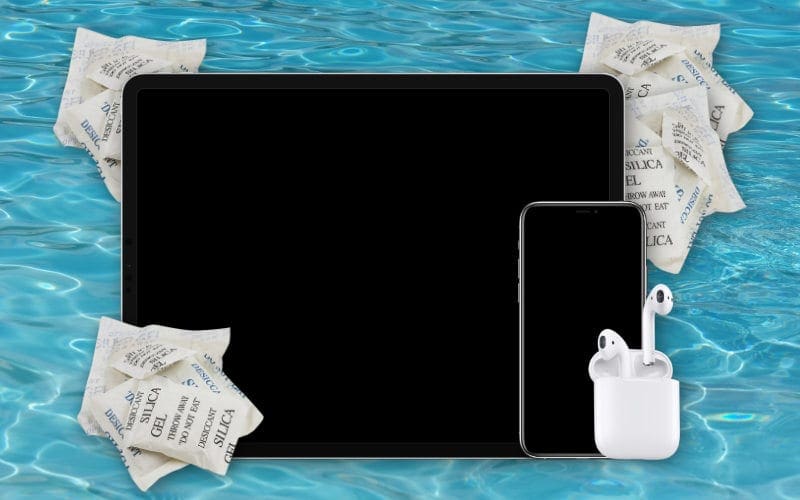
Moisture inside the crown housing causes electrical interference or corrosion.
Use Silica Gel for Best Results
- Place watch on silica gel packets in a sealed container.
- Leave a ½ inch gap above the device.
- Seal and wait 24–72 hours.
- Test daily.
Why It Works: Silica gel absorbs moisture more effectively than rice and leaves no residue.
Rice Method (Last Resort)
If no silica gel:
– Submerge in dry, uncooked rice in an airtight bag.
– Add spare silica packets (e.g., from shoeboxes).
– Leave for 5–7 days.
Warning: Rice is less effective and may introduce starch dust.
Never Use Heat
Avoid:
– Hair dryers
– Ovens
– Microwaves
– Direct sunlight
– Charging while damp
Heat can warp seals and damage components. One user revived a wet watch by charging it—but it failed days later.
Model-Specific Issues and Fixes
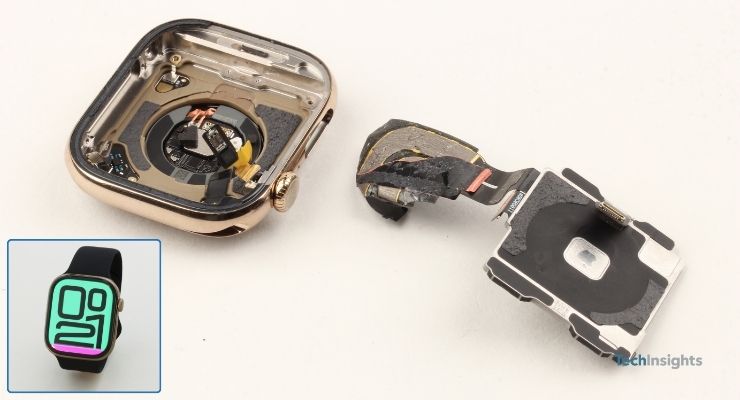
Different models show unique failure patterns.
Apple Watch Series 10: Firmware or Hardware Defect?
Users report:
– Crown works after restart, then degrades over hours.
– Short presses fail, but long-press for Siri works.
– Issue persists across multiple replacements.
While WatchOS 11.0.1 helped some, others needed hardware replacement. Apple hasn’t acknowledged a widespread defect, but user reports suggest a potential batch issue.
Takeaway: If software fixes fail, insist on a replacement.
Series 4 and Older: Aging Seals and Wear
- More prone to water ingress and mechanical failure.
- Extended drying (5–7 days) often helps.
- Secondhand units with prior repairs may have compromised waterproofing.
Pro Tip: Consider upgrading if under warranty—older models are nearing end-of-life support.
Ultra and SE: Fewer Reports
No widespread crown issues reported. Same troubleshooting applies, but their robust build and water resistance reduce risk.
When to Contact Apple Support
Skip DIY fixes if:
– The crown is visibly damaged (bent, loose, misaligned).
– There’s no response after all steps.
– The watch was dropped or submerged and shows other symptoms (e.g., screen glitches).
How to Get Help
- Apple Support Website: getsupport.apple.com
- Genius Bar Appointment: Best for demonstrating intermittent issues.
- AppleCare+: Covers accidental damage for $99 service fee.
User Experience: Phone support often repeats basic steps. Bring a video of the issue to in-store visits for faster resolution.
Real Repair Outcomes
- Julian Wright (Series 10): Three software resets failed. Apple replaced the unit—fixed permanently.
- Maya0812: Received three replacement watches—all had same intermittent click issue. Suggests unresolved firmware flaw.
- Hyuei (Series 4): Full recovery after 6-day drying with silica gel and rice.
Prevent Future Crown Problems
Avoid repeat issues with smart habits.
Clean Every 1–2 Weeks
Use the warm water rinse method regularly—especially after:
– Swimming
– Workouts
– Exposure to lotion or cleaning products
Apple’s Advice: Rinse after pool, ocean, or hot tub use.
Choose the Right Band
- Avoid leather bands—they shed particles and trap moisture.
- Use silicone, nylon, or metal bands for cleaner operation.
Dry Before Charging
Always wipe the crown and back sensor area before placing on charger. Charging a wet watch risks corrosion and short circuits.
Final Action Plan: Step-by-Step Checklist
Use this sequence to fix your Apple Watch crown not working issue:
Immediate Fixes (5 Minutes)
- Remove case and inspect for debris.
- Restart the watch.
- Press crown 30–40 times rapidly.
Intermediate Steps (10–15 Minutes)
- Clean under warm running water.
- Dry thoroughly.
- Perform force restart (if crown responds at all).
Software Reset (30 Minutes)
- Erase via iPhone Watch app.
- Update to latest WatchOS and iOS.
- Disable Siri long-press.
Drying Phase (24–72 Hours)
- Place in sealed container with silica gel.
- Test daily—don’t rush.
Professional Help
- Visit Apple Store with reproducible issue.
- Request hardware inspection or replacement.
- Escalate if unresolved after multiple visits.
Final Note: Most Apple Watch crown not working issues are fixable at home. Start with Apple’s warm water rinse and restart—over 70% of cases resolve there. If not, systematic drying and software resets cover most remaining scenarios. Only when all else fails should you seek replacement. With consistent care, your Digital Crown can last the life of your device.





