
If your Apple Watch Series 2 has frozen, stopped responding, or you’ve forgotten the passcode, a reset can restore functionality and clear out old data. But unlike newer Apple Watch models, the Series 2 lacks remote erase options and modern recovery features—making the process more nuanced. Whether you’re troubleshooting glitches, locked out of your device, or preparing to sell it, knowing the right method is critical. This guide delivers verified, step-by-step solutions to reset your Apple Watch Series 2 in every situation, including how to bypass a frozen screen, remove Activation Lock, and handle second-hand devices.
You’ll learn which reset methods actually work (and which don’t), why Activation Lock remains active even after a full wipe, and what to do when standard options fail. Based on Apple’s technical specifications, user-tested procedures, and real-world support cases, this is the only resource you need to successfully reset your Apple Watch Series 2.
Reset via Paired iPhone (Best for Selling or Gifting)
When your Apple Watch is still connected to its original iPhone, this is the most effective and complete reset method. It erases all data and—critically—removes Activation Lock, allowing a new user to set up the watch without needing your Apple ID.
Erase Content and Settings from iPhone
- Keep your iPhone and Apple Watch close together (within Bluetooth range).
- Open the Apple Watch app on your iPhone.
- Tap the “My Watch” tab at the bottom.
- Go to General > Reset.
- Select “Erase Apple Watch Content and Settings”.
- Confirm the action and enter your Apple ID password when prompted.
The watch will begin erasing data—this can take 3 to 5 minutes. Once complete, it restarts and displays the initial setup screen.
✅ Result: All apps, messages, health data, and settings are permanently deleted.
🔐 Activation Lock is disabled, making this the only method that fully prepares the watch for resale.
⚠️ Cellular models: You’ll be asked whether to keep or remove your cellular plan. Choose “Remove” if selling.
This method also automatically creates a backup of your watch data on the iPhone, which can be restored later if reusing the device.
Direct Factory Reset on the Watch (No iPhone Needed)
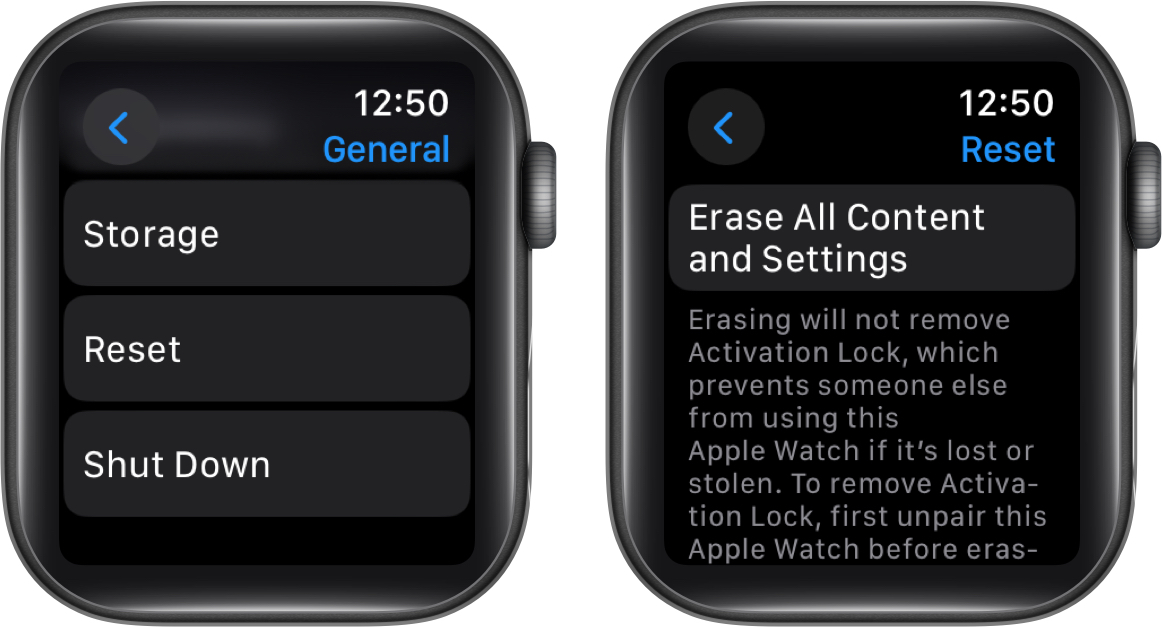
Use this method if you no longer have access to the paired iPhone but know the passcode and can navigate the watch interface.
Perform a Reset Directly on the Apple Watch
- On the watch, open the Settings app.
- Tap General > Reset.
- Choose “Erase All Content and Settings”.
- Enter your passcode if prompted.
- For GPS + Cellular models, decide whether to keep or remove your cellular plan.
- Tap “Erase All” to confirm.
The watch will restart and return to factory settings.
⚠️ Important: This method does not remove Activation Lock. During re-setup, the original Apple ID and password will still be required.
💡 Best for: Fixing software glitches, rebooting the system, or preparing to re-pair with the same iPhone.
Unlike the iPhone-based method, no backup is created, so use this only if you don’t plan to restore data later.
Force Restart to Trigger Erase (When Locked Out)
If you’ve entered the wrong passcode too many times, your Apple Watch Series 2 may be locked with no responsive menu options. The “Erase All Content and Settings” prompt might appear but fail to respond when tapped. In this case, a precise force restart sequence can trigger a hidden recovery prompt.
Bypass the Passcode Lock Screen
- Force restart the watch: Press and hold both the side button and the Digital Crown for at least 10 seconds.
- Release when the Apple logo appears.
- Wait 2 seconds, then press and hold only the side button (do not touch the Digital Crown).
- Keep holding the side button for up to 20 seconds.
- A prompt labeled “Erase All Content and Settings” will appear.
- Tap the prompt, then tap the green checkmark to confirm.
The watch will erase all data and reboot to the setup screen.
✅ User-verified fix: This method has worked for numerous users whose watches were frozen after passcode lockouts.
⚠️ Critical timing: The key is holding only the side button after the Apple logo—holding both buttons continuously will not trigger the erase prompt.
🔋 Keep it charged: Connect the watch to the magnetic charger during the process to avoid power loss.
This is the only reliable way to reset a locked-out Series 2 when the iPhone is unavailable and the passcode is forgotten.
Fix Unresponsive Reset Option
Sometimes, the “Erase All Content and Settings” option appears in Settings but does nothing when tapped. This often indicates a software freeze or low battery.
Troubleshoot a Frozen Reset Screen
- Charge the watch to at least 50% using the magnetic charger.
- Perform a force restart (side button + Digital Crown for 10+ seconds).
- Try the reset again from the Settings app.
- If still unresponsive, use the force-trigger method above (side button hold after Apple logo).
❌ If none of these steps work, a software or hardware fault may be present.
📞 Contact Apple Support or visit an Apple Store for diagnostics.
Remove Activation Lock (The Critical Final Step)
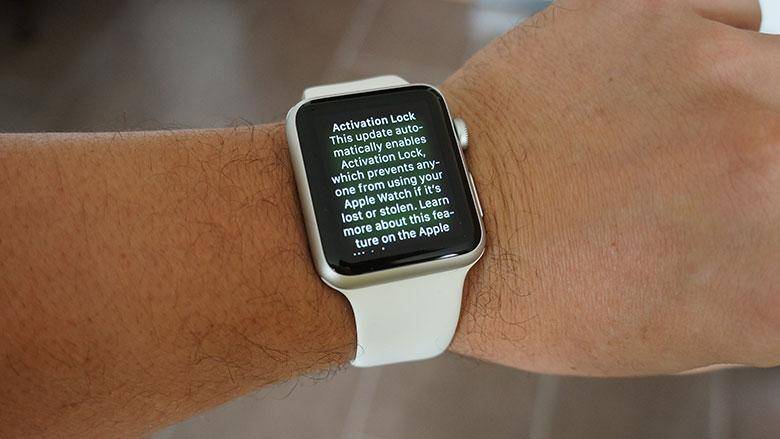
Activation Lock is Apple’s anti-theft feature that ties the watch to the original Apple ID. Even after a full reset, the device will require the original Apple ID and password to complete setup.
How to Remove Activation Lock
| Method | Removes Activation Lock? |
|---|---|
| iPhone unpairing | ✅ Yes |
| Direct reset on watch | ❌ No |
| Force-trigger erase | ❌ No |
| Apple Store with proof of purchase | ✅ Yes |
🔐 Only two ways to remove Activation Lock:
1. Unpair via iPhone (recommended for sellers).
2. Visit Apple with proof of purchase (receipt, invoice, or packaging with serial number).
Without either, the watch cannot be fully activated—even after being erased.
Reset a Found or Used Apple Watch Series 2
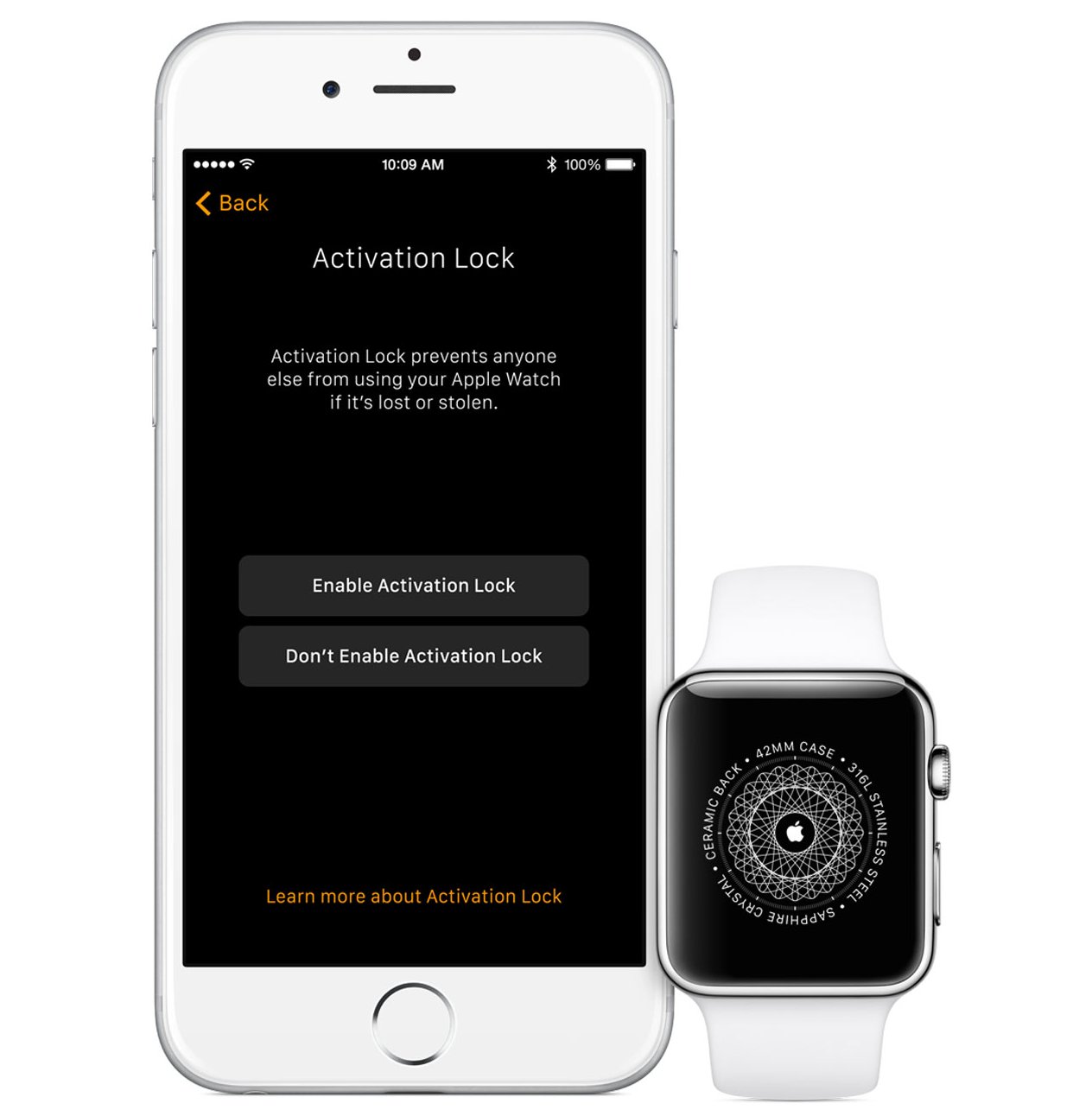
If you’ve acquired a second-hand or found Apple Watch Series 2, you can erase it, but Activation Lock will block full use.
What Happens After Reset
- All data is deleted.
- The watch restarts to the setup screen.
- It immediately prompts for the original Apple ID and password.
Can You Use It?
- ✅ Yes, if you have the original credentials.
- ❌ No, if you don’t—unless you visit Apple with proof of purchase.
📄 Apple requires official documentation to verify ownership and remove Activation Lock. Without it, the watch remains unusable.
There is no software bypass for Activation Lock on the Series 2.
Re-Setup After Reset
Once erased, follow these steps to pair and use the watch again.
Pair and Restore from Backup
- Press and hold the side button to turn on the watch.
- Bring your iPhone close to the watch.
- Wait for the pairing animation to appear on the iPhone.
- Follow the on-screen prompts.
- Enter the Apple ID and password linked to the watch to disable Activation Lock.
- Choose to set up as new or restore from backup (if available).
💡 Backups are only created during iPhone-based erases, not from direct or forced resets.
Prevent Data Loss Before Resetting
Always back up your data—especially if you plan to reuse the watch.
Backup Tips
- Ensure iCloud Backup is enabled on your iPhone.
- A full backup is automatically created when you unpair via the Apple Watch app.
- No backup is made during direct or forced resets.
🛡️ Best practice: Always unpair via iPhone if you want to preserve data for future restoration.
Known Limitations of Apple Watch Series 2
Due to its age and hardware constraints, the Series 2 has significant limitations compared to newer models.
No Remote Erase
- ❌ Cannot erase via iCloud.com or the Find My app.
- Unlike newer Apple Watches, remote factory reset is not supported.
Final watchOS Version: watchOS 6
- No access to modern recovery tools or cloud-based reset features.
- All resets require physical access and precise button timing.
⏳ The Series 2 relies entirely on manual procedures—there’s no automated recovery mode.
When to Contact Apple Support
Some issues cannot be resolved at home.
Visit Apple If
- Reset methods fail repeatedly.
- The screen remains frozen after force restarts.
- You need to remove Activation Lock and have proof of purchase.
- You suspect hardware damage (e.g., unresponsive buttons, charging issues).
📍 Bring your receipt, ID, and serial number (found on the back of the watch) for Activation Lock removal.
Summary: Best Reset Method by Use Case
| Scenario | Best Method | Activation Lock Removed? |
|---|---|---|
| Selling the watch | iPhone unpairing | ✅ Yes |
| Forgotten passcode, iPhone available | iPhone erase | ✅ Yes |
| Locked out, no iPhone | Force restart + side button hold | ❌ No |
| Software glitch | Direct reset on watch | ❌ No |
| Found or second-hand watch | Force erase + Apple Store | ✅ Only with proof |
Final Tips for Success
- Always attempt Method 3 first if locked out—users confirm it works when others fail.
- For resale, use the iPhone method to ensure Activation Lock is removed.
- Keep the watch on the charger during all reset attempts.
- Proof of purchase is essential—without it, a reset watch may be unusable.
The Apple Watch Series 2 may be older, but with the right steps, you can reset and reuse it. Just remember: no Apple ID, no full access. When in doubt, visit Apple with your receipt—it’s the only guaranteed path forward.




