
If your Apple Watch Series 3 is frozen, glitching, or you’re preparing to sell it, resetting the device is often the fastest way to restore performance or protect your privacy. But not all resets are the same—and using the wrong method could leave your data exposed or lock the next user out. The correct reset process depends on your situation: troubleshooting a minor issue, erasing personal information, or transferring ownership.
This comprehensive guide walks you through every way to reset your Apple Watch Series 3, including how to fully erase it, bypass a forgotten passcode, remove Activation Lock, and prepare it for resale. Whether your watch is stuck on the Apple logo, locked with an unknown passcode, or you just want a fresh start, you’ll find the exact steps—backed by Apple’s official support and real-world testing.
Unpair via iPhone to Fully Reset
This is the best and most secure method when selling, gifting, or retiring your Apple Watch Series 3. It completely erases the device, creates a backup, and removes Activation Lock—a critical step that other methods skip.
Why This Method Works Best
- Automatically backs up all data (including health and fitness)
- Deletes messages, apps, settings, and Apple ID association
- Disables Activation Lock permanently
- Ensures the new owner can activate the watch without issues
Steps to Unpair Your Apple Watch
- Open the Apple Watch app on your iPhone.
- Tap the “My Watch” tab.
- Tap “All Watches” in the top-left corner.
- Select your Series 3 by tapping the (i) info icon next to it.
- Scroll down and tap “Unpair Apple Watch”.
- Confirm the action and enter your Apple ID password.
- For GPS + Cellular models, choose:
– Keep Plan: If you plan to reuse the watch later
– Remove Plan: If selling—contact your carrier to cancel service
The iPhone will erase the watch and back up your data to iCloud in about 5–10 minutes.
✅ Result: Factory reset with no Activation Lock—ready for a new user.
💡 Pro Tip: Always unpair this way before selling. A locked Apple Watch can’t be activated and has no resale value.
Erase Data Directly on the Apple Watch
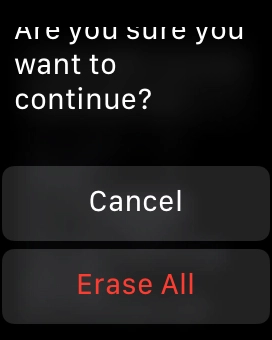
Use this method when your iPhone is lost, broken, or no longer paired, but you still want to wipe your Apple Watch Series 3.
When to Use This Method
- You’re troubleshooting software issues
- You plan to reuse the watch with the same Apple ID
- You don’t have access to your iPhone
⚠️ Limitation: This does not remove Activation Lock. You’ll still need the original Apple ID and password to set it up again.
How to Wipe the Watch On-Device
- On the Apple Watch, open Settings.
- Tap General > Reset.
- Select “Erase All Content and Settings”.
- Enter your passcode when prompted.
- For cellular models, choose Keep Plan or Remove Plan.
- Tap Erase All to confirm.
The watch will restart and show the Apple logo, followed by the setup screen.
✅ Result: All data is wiped, but the device remains tied to your Apple ID.
❗ Warning: No backup is created. If you haven’t synced recently, your health and app data will be permanently lost.
Force Restart a Frozen Apple Watch
If your screen is unresponsive, apps are crashing, or the watch is stuck in a loop, a force restart can fix it—without deleting any data.
Fix a Frozen Watch in Seconds
- Press and hold the side button and Digital Crown at the same time.
- Keep holding for 10–15 seconds.
- Release when the Apple logo appears.
The watch will reboot normally. All apps, settings, and health data remain intact.
✅ Result: Resolves freezes and crashes—no data loss.
❗ Note: Avoid force restarting while the watch is actively charging. Unplug it first for best results.
💡 Pro Tip: Try this before doing a full reset. It often fixes glitches without erasing your data.
Hard Reset Without Passcode: Bypass a Locked Apple Watch
Forgotten your passcode? After six failed attempts, your Apple Watch may become disabled. But you can still erase it using a hidden forced reset option.
Bypass Passcode Lock and Erase
- Connect the Apple Watch to its magnetic charger.
- Press and hold the side button until the Power Off slider appears.
- Instead of sliding, press and hold the slider firmly.
- After a few seconds, “Erase All Content and Settings” will appear.
- Tap it, then confirm with Reset > Reset.
The device begins erasing everything—no passcode required.
✅ Result: Full factory reset, even when locked out.
⚠️ Important: Activation Lock remains active. The new user must enter the original Apple ID and password to reactivate.
💡 Verified: This method works as of 2025 and is confirmed by Apple support and user testing.
Remove Activation Lock Completely
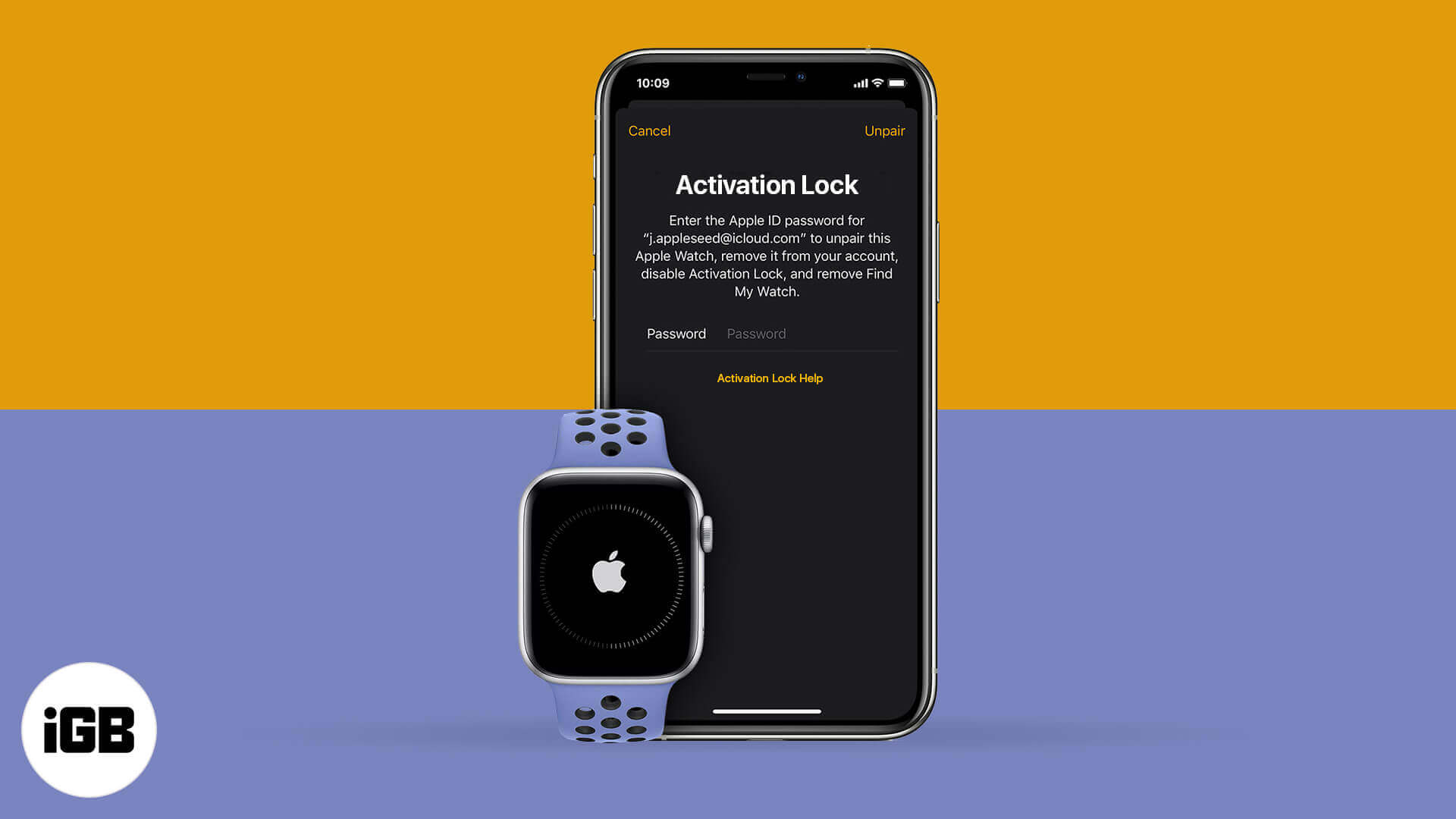
Activation Lock is Apple’s anti-theft feature. It prevents anyone from using your Apple Watch after a reset unless they have your Apple ID and password. But if you’re selling or gifting the device, you must remove it first.
What Is Activation Lock?
- Enabled automatically when Find My Apple Watch is on
- Requires your Apple ID and password to reactivate after a reset
- Stays active unless properly unpaired or removed via iCloud
How to Disable Activation Lock
1. Unpair via iPhone (Recommended)
Follow the Unpair Apple Watch steps above. This disables Activation Lock automatically.
2. Use iCloud.com (No iPhone Needed)
- Go to iCloud.com and sign in with your Apple ID.
- Open Find My.
- Click Devices, then select your Apple Watch.
- Click “Erase This Device” and confirm.
- After erasure, click “Remove from Account”.
✅ Result: Watch is wiped and free of Activation Lock.
⚠️ Warning: This permanently deletes all data. No recovery is possible.
Troubleshoot Failed Reset Attempts
Sometimes, the watch won’t respond, the Settings app is frozen, or you can’t access your iPhone. Here’s how to fix common issues.
Fix: Reset While Charging
If the watch is unresponsive:
1. Place it on the charger.
2. Press and hold side button + Digital Crown for 15 seconds.
3. Release when the Apple logo appears.
4. After restart, go to Settings > General > Reset and erase normally.
Fix: Trigger Erase via Power Slider
If the Settings app won’t open:
1. Hold the side button until the Power Off slider appears.
2. Tap and hold the slider (don’t slide).
3. Wait for “Erase All Content and Settings” to appear.
4. Tap and confirm.
✅ Confirmed working even when the watch is frozen or unpaired.
Last Resort: Contact Apple Support
If nothing works:
– Visit getsupport.apple.com
– Call (800) MY–APPLE (800–692–7753)
– Use the Apple Support app
Bring proof of ownership:
– Original receipt
– Serial number
– Packaging or invoice
Apple may help remove Activation Lock only if ownership is verified.
❗ No exceptions: Anti-theft protection prevents unauthorized removal.
Key Pre-Reset Checklist

Before resetting, follow these steps to avoid data loss or activation issues.
Backup Your Data
- Only unpairing via iPhone creates a backup
- Direct reset on watch does not back up
- Health and fitness data will be lost if not previously synced
Manage Cellular Plan (GPS + Cellular Models)
- Keep Plan: Saves your number for future use
- Remove Plan: Ends service—contact carrier to cancel
- After reset, you may need to reactivate cellular during setup
Charge the Watch
- Ensure at least 50% battery
- Some resets require charging, especially forced erase
Avoid Physical Damage
- Apple Watch Series 3 has no SIM slot or reset pinhole
- Small holes are for microphones, speakers, sensors
- Never insert tools—you could damage internal components
Set Up After Reset
Once erased, the Apple Watch starts fresh.
Pair with iPhone Again
- Turn on the watch—it shows the Apple logo, then setup screen.
- Bring your iPhone close to the watch.
- Open the Apple Watch app.
- Follow prompts to:
– Pair devices
– Restore from backup (if available)
– Set passcode and Apple ID
Activation Lock Still Active?
You’ll be prompted to enter the original Apple ID and password.
- If you own it: Enter the correct credentials
- If buying used: Ask the seller to unpair first or remove via iCloud
❌ No workaround: You cannot skip Activation Lock without credentials.
FAQs: Common Reset Questions
Can I reset without Apple ID?
- Yes, you can erase data without Apple ID
- But you cannot activate the watch without the original Apple ID and password
Can I sell after resetting?
- Only if Activation Lock is removed
- Use Unpair via iPhone or iCloud.com to fully unlock
- Locked watches are worthless to buyers
Is health data deleted?
- Yes, all health and fitness data is permanently erased
- If backed up, it can be restored during setup
Will reset fix software problems?
- Yes, a factory reset resolves:
- App crashes
- Slow performance
- Syncing issues
- Update failures
- Try force restart first for minor glitches
Best Reset Method by Scenario
| Situation | Recommended Action |
|---|---|
| Selling or gifting | Unpair via iPhone (removes Activation Lock) |
| Forgot passcode | Forced erase via Power slider |
| iPhone not available | iCloud.com > Find My > Erase Device |
| Frozen or slow watch | Force restart (side + crown) |
| Locked out, no access | Contact Apple Support with proof |
✅ Golden Rule: Always unpair via iPhone before transferring ownership.
❌ Never sell a locked watch—it’s unusable without the original Apple ID.
Final Summary: Reset Smart, Reset Safe
- Unpair via iPhone = Full reset + backup + Activation Lock removed
- Erase on watch = Wipes data but keeps Activation Lock
- Force restart = Fixes freezes, no data loss
- Forced erase (no passcode) = Wipes locked watch, lock remains
- iCloud erase = Remote wipe and unlock, no device access needed
- Apple Support = Last resort for Activation Lock removal
Always back up first, charge before resetting, and remove Activation Lock before selling. A properly reset Apple Watch Series 3 is ready for a new life—without compromising your security or the next user’s experience.




