

You’ve forgotten your Apple Watch passcode, lost your iPhone, or bought a secondhand device that won’t let you set it up. Now the watch sits idle, frozen on the lock screen with no way forward. The good news? You can reset an Apple Watch without the paired phone or password—right from the device itself. But there’s a major roadblock waiting after the reset: Activation Lock.
This security feature, designed to prevent theft, will stop you from using the watch unless you can verify ownership with the original Apple ID or provide proof of purchase. In this guide, you’ll learn how to factory reset any Apple Watch model—even when you don’t have the iPhone, passcode, or internet access—and what to do next to legally bypass Activation Lock. Whether you’re troubleshooting a frozen device, selling your watch, or trying to unlock a secondhand purchase, these steps will give you full control.
Reset Apple Watch Without iPhone or Passcode Using Built-In Recovery
If your Apple Watch is locked and unresponsive due to a forgotten passcode or lost iPhone, you don’t need external tools. Modern Apple Watches (Series 5 and later) include a hidden recovery mode that triggers a full factory reset with just a button combination.
Trigger Erase on Modern Apple Watches (Series 5–10, Ultra)
This method works on all Apple Watch models running WatchOS 26 or later, including the latest Series 10 and Ultra series. No passcode, iPhone, or internet is required.
Steps:
- Keep the watch on its charger—the process requires stable power.
- Press and hold the side button (below the Digital Crown) until the Power Off slider appears.
- Without releasing the side button, press and hold the Digital Crown.
- Hold both for 10–15 seconds. The screen will go black, then display “Erase All Content and Settings.”
- Tap Erase All and confirm.
The watch will begin erasing data, which can take 5–10 minutes. Do not remove it from the charger or interrupt the process.
✅ Works on: Apple Watch Series 5, 6, 7, 8, 9, 10, Ultra, and SE (2nd gen)
❌ Doesn’t work if: The watch is completely dead or damaged
This is the most reliable method for users who’ve forgotten their passcode or lost access to their iPhone. Once complete, the watch restarts to the initial setup screen—but don’t expect to use it yet. Activation Lock will still block full access.
Force Touch Reset for Older Models (Series 1–3)
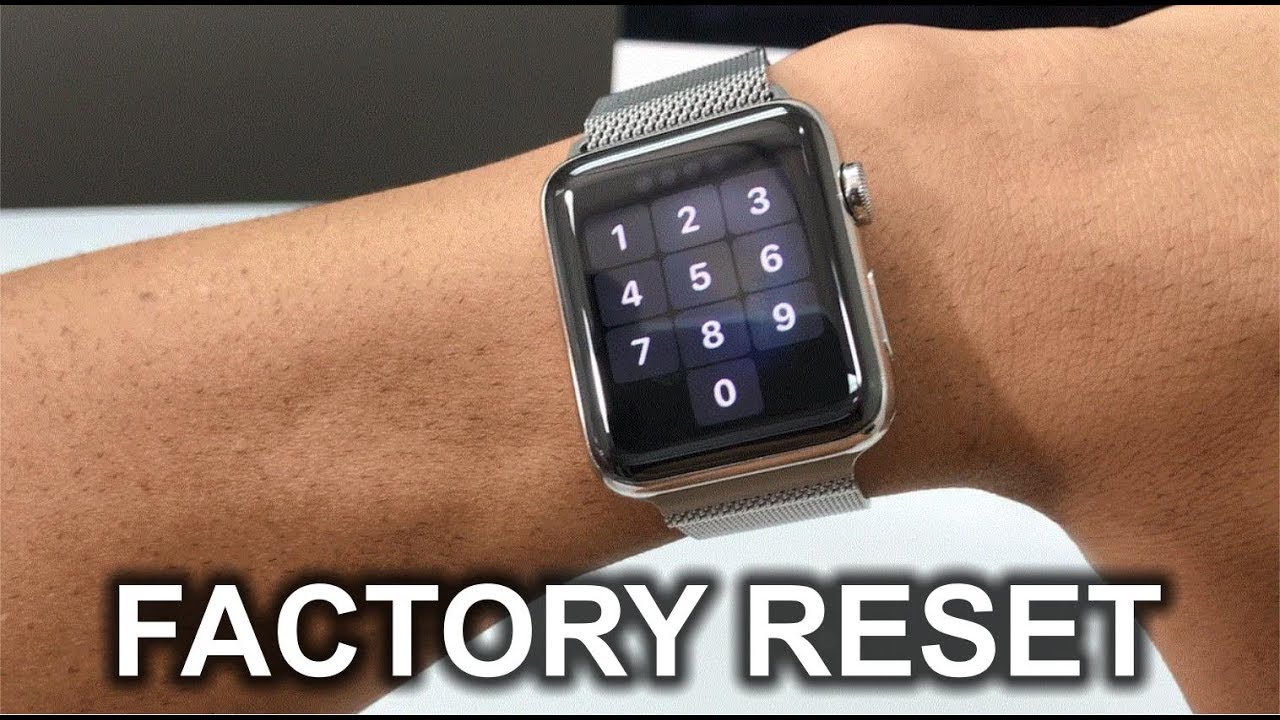
Older Apple Watch models (Series 1, 2, and 3) running WatchOS versions before 26 may not respond to the side button + Digital Crown method. Instead, use a screen-based trick that mimics a contextual menu.
Steps:
- Press and hold the side button until the Power Off slider appears.
- Tap and hold your finger on the screen (like a long press) while the slider is visible.
- After 1–2 seconds, lift your finger.
- The “Erase All Content and Settings” option should now appear.
- Tap it and confirm.
✅ Verified on Apple Watch Series 3 and earlier
🔧 This workaround exploits a legacy touch interaction—no buttons needed after the initial power menu
This method is essential for older watches that don’t support the newer recovery trigger. It’s particularly useful when the paired iPhone is gone and the passcode is unknown.
Erase Using Settings (If You Know the Passcode)
If you remember the passcode but don’t have the paired iPhone, you can reset the watch through its built-in Settings app. This is the cleanest method when you still have partial access.
Steps:
- Unlock the Apple Watch.
- Open Settings > General > Reset.
- Tap Erase All Content and Settings.
- Enter your passcode when prompted.
- For cellular models: Choose whether to keep or remove your cellular plan.
- Tap Erase All and wait for the process to finish.
The watch will reboot into setup mode. Like the other methods, this does not remove Activation Lock—you’ll still need the original Apple ID to proceed.
✅ Best for: Users who know the passcode but lost their iPhone
❗ Remember: Activation Lock remains active
Remote Erase via iCloud (No Physical Access Needed)
If your Apple Watch is lost, stolen, or you simply don’t have it in hand, you can erase it remotely using iCloud. This method requires access to the original Apple ID but no physical device.
Steps:
- Go to iCloud.com and sign in with the original Apple ID.
- Open Find iPhone (under your account name).
- Click All Devices and select your Apple Watch.
- Click Erase This Device and confirm.
🔄 The command executes the next time the watch connects to Wi-Fi or cellular.
After erasure:
– All personal data is wiped
– The device restarts into setup mode
– Activation Lock stays active
✅ Ideal for: Lost or stolen watches, remote preparation for sale
❌ Requires: Apple ID access and eventual internet connection on the watch
Activation Lock: Why You’re Still Stuck After Reset
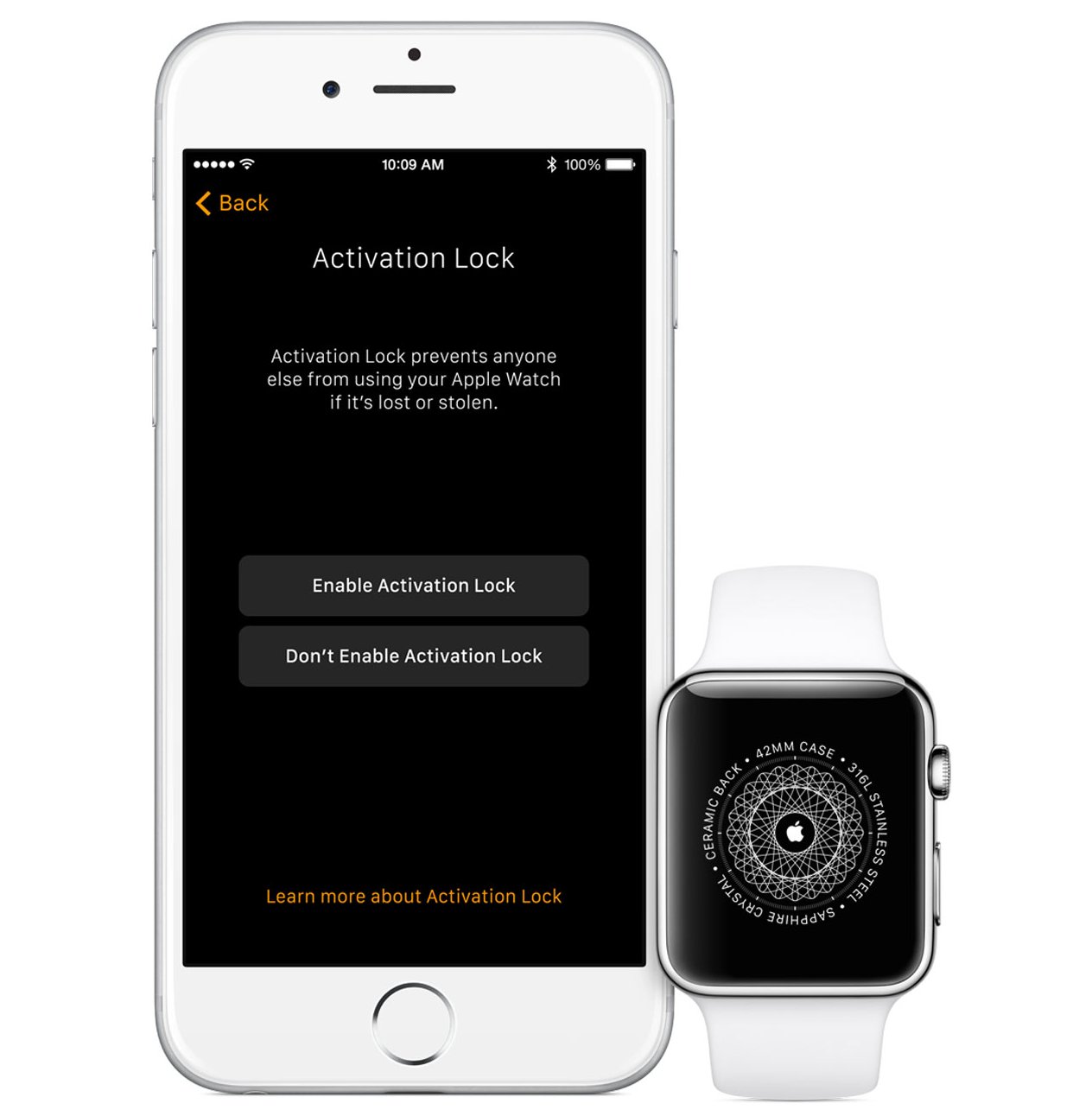
After a successful reset, your Apple Watch will show the Apple logo and begin setup. But when you reach the pairing screen, you’ll be stopped by a prompt asking for the original Apple ID and password.
This is Activation Lock, a security feature that activates automatically when Find My is enabled. It’s designed to prevent stolen devices from being reused.
What Activation Lock Does:
- Blocks setup after factory reset
- Requires original Apple ID and password
- Remains active even if the watch is erased
🚫 No bypass exists. Third-party tools, jailbreaking, or “unlock” software don’t work and may damage your device.
How to Remove Activation Lock Legally
You can only use the Apple Watch with a new account if Activation Lock is removed. Here are the only official ways to disable it.
Remove Device from iCloud (Before Selling)
If you’re the owner and can access the Apple ID:
- Go to iCloud.com
- Open Find iPhone > All Devices
- Select the Apple Watch
- Click Remove This Device
✅ Result: Activation Lock is disabled. The watch can now be set up with any Apple ID.
💡 Pro tip: Always do this before resetting or selling.
Submit Activation Lock Removal Request to Apple
If you’re the legitimate owner but don’t have the Apple ID (e.g., inherited device, forgotten account):
- Visit: https://al-support.apple.com
- Fill in:
– Serial number
– Purchase date
– Proof of purchase (receipt, invoice)
– Ownership explanation - Submit and wait 1–5 business days for review.
✅ Apple may approve removal with valid proof
📄 Required: Original receipt showing serial number and purchase date
Visit an Apple Store
Bring:
– The Apple Watch
– Proof of purchase (digital or printed)
– Government-issued ID (if name differs from receipt)
Apple Support may verify ownership and remove Activation Lock.
❌ No proof = no unlock. Apple cannot bypass security without documentation.
Troubleshooting Common Reset Issues
“Erase All” Option Doesn’t Appear
- Fix: Try the Force Touch method (hold finger on screen during Power Off)
- Alternative: Update watch via iPhone first (if possible)
Watch Stuck on Apple Logo After Reset
- Fix: Leave on charger for 30+ minutes
- If still stuck: Contact Apple Support
Cellular Plan Still Active After Reset
- Solution: Reset with “Remove Cellular Plan” selected, or contact your carrier
Can You Use a Secondhand Locked Apple Watch?
Only if Activation Lock is removed.
A locked Apple Watch is essentially a paperweight unless the original owner removes it from their account.
How to Check Before Buying:
- Ask seller to unpair and remove from Find My
- Verify via Apple Support using serial number
- Test setup before payment
✅ Safe purchase: Watch reaches “Hello” screen without Apple ID prompt
❌ Red flag: Stuck on “Enter Apple ID” after reset
Forgot Your Apple ID or Password?
If you own the watch but can’t remember login details:
- Go to iforgot.apple.com
- Recover Apple ID using email, phone, or security questions
- Reset password via trusted device or Account Recovery
📞 Contact Apple Support if automatic recovery fails
Final Tips and Best Practices
If You Own the Watch:
- Unpair first via iPhone’s Watch app—this removes Activation Lock automatically
- Erase via iCloud if iPhone is gone
- Keep your receipt forever—it’s your unlock key
If Selling or Gifting:
- Unpair in Watch app
- Remove from iCloud
- Reset and deliver clean
✅ Ideal flow: Unpair → Remove from iCloud → Reset → Deliver
If You Bought It Secondhand:
- Ask seller to remove from iCloud
- Submit Activation Lock request with receipt
- Without proof, the watch may be unusable
Official Apple Resources
- Forgot Apple Watch passcode?
- Unpair and erase Apple Watch
- About Activation Lock
- Set up Apple Watch
- Find My (iCloud)
- Activation Lock removal request
Bottom Line: You can reset an Apple Watch without the paired phone or password using built-in recovery options. But Activation Lock is the final gate. Without the original Apple ID, iCloud removal, or proof of purchase, the device remains locked. Always unpair properly before transferring ownership—and keep your receipt. With the right steps, your Apple Watch can be securely reset, unlocked, and reused.





