

If your Apple Watch alarm failed to go off after a software update—especially on watchOS 26, 26.0.2, or later—you’re not imagining things. Thousands of users across Apple Watch Series 7, 8, SE, Ultra 2, and Series 10 have reported missing alarms, silent vibrations, or even their iPhone flashlight blinking unexpectedly at wake-up time. Some woke up 30+ minutes late, only to find their watch displayed a hidden setup screen post-update.
The root cause? Software updates can silently reset alarm routing, disable haptics, trigger Focus modes, or block alerts behind unacknowledged prompts—especially when installed overnight. This guide delivers proven fixes, uncovers hidden settings, and reveals Apple support-tested solutions to ensure your alarm works—every single morning.
Fix Overnight Update Alarm Blocks

Accept Post-Update Prompts Immediately
One of the most dangerous issues: automatic overnight updates that stop alarms from triggering. After watchOS 26.0.2, many users found their alarms blocked by a silent EULA (End User License Agreement) or login screen requiring manual interaction.
- The watch may show a gray screen, passcode prompt, or setup carousel after updating.
- Until you wake the watch and sign in, alarms won’t trigger, even if set.
- This creates real risk: you could oversleep without warning.
✅ Solution:
Avoid automatic updates during sleep. Instead:
1. Open the Watch app on iPhone > General > Software Update
2. Install updates during the day
3. After updating, unlock your watch, enter your passcode, and test an alarm🔔 Pro Tip: If an update is pending, set a temporary phone alarm 10 minutes after bedtime to catch any post-update prompts.
Set Alarms Directly on Apple Watch
Avoid iPhone Clock App Triggers
Where you set the alarm determines how it behaves. If you use the iPhone Clock app, the system may treat it as a phone alert, causing:
– iPhone sound
– Flashlight blinking
– No watch haptic
After updates, this can suddenly change—even if your alarm worked silently for years.
✅ Fix:
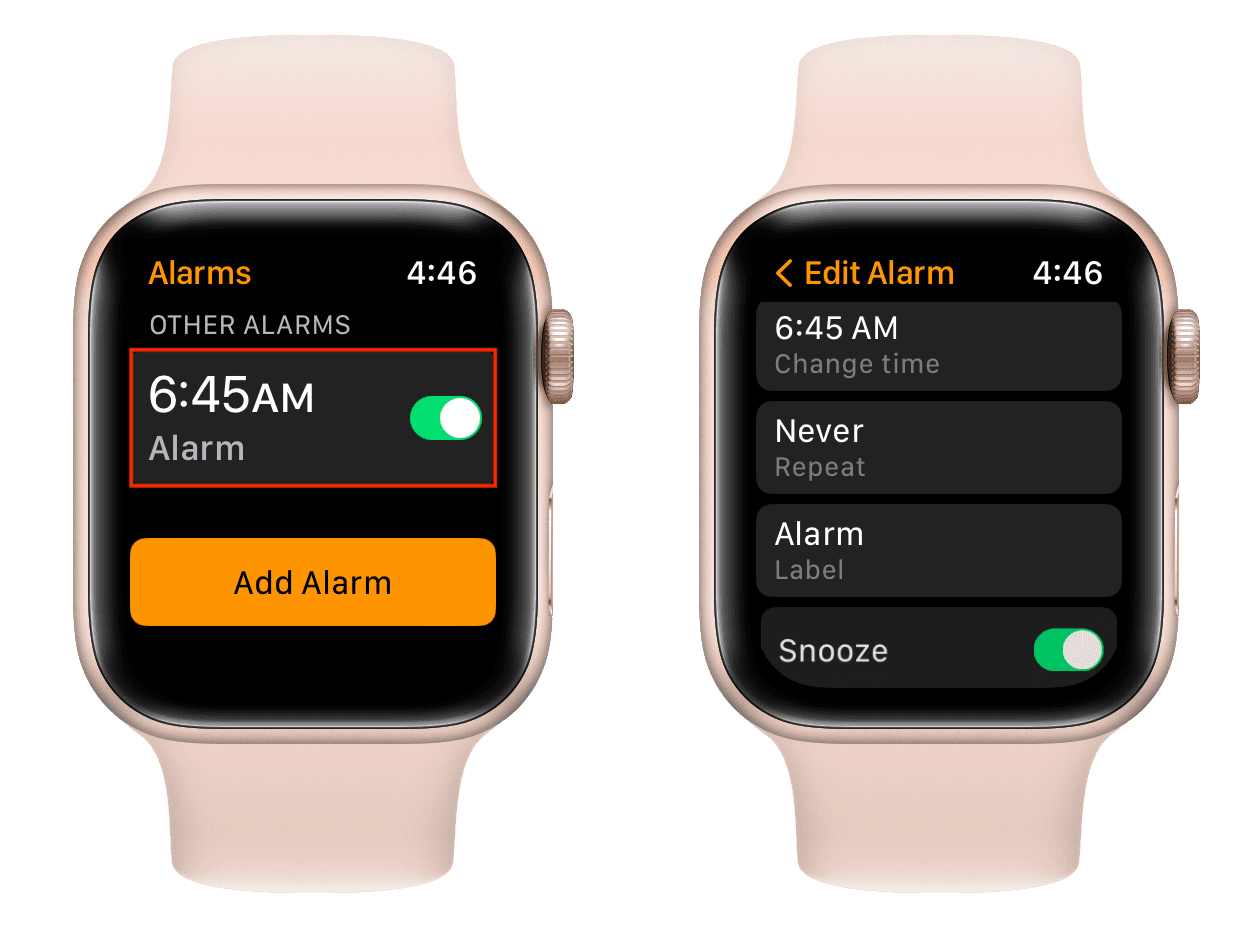
1. Open the Clock app on your Apple Watch
2. Tap Alarm > +
3. Set time, enable vibration, and save
4. Delete the same alarm from iPhone Clock app
This ensures the alarm is native to the watch, not mirrored from the phone.
⚠️ Critical: Never set the same alarm in both apps—conflicting signals can cancel each other out.
Disable iPhone Flash for Alerts

Stop Flashlight from Blinking at Night
Even with alarms set on the watch, users report their iPhone flashlight blinks upon trigger. This is caused by accessibility settings now applied universally in iOS 16+.
Why It Happens
- LED Flash for Alerts = On
- Flash in Silent Mode = On
These settings, found in Accessibility, override device-specific behavior.
✅ Turn Off:
1. On iPhone: Settings > Accessibility > Audio & Visual
2. Disable:
– LED Flash for Alerts
– Flash in Silent Mode🛑 Note: These were ignored for alarms in the past—but iOS 16+ now applies them to all alerts, including watch-set alarms.
💡 Why it matters: Disabling these stops unwanted light but preserves haptics on the watch.
Reset Haptics and Sound Settings
Restore Missing Vibration and Sound
No haptic? No sound? Check these critical settings—often reset after updates.
Enable Haptic Alerts
- On Apple Watch: Settings > Sounds & Haptics
- Ensure:
– Haptic Alerts = On
– Prominent Haptic = On (for stronger tap)
– Haptic Strength = Max (test first, then adjust)
Disable Silent and Theater Mode
- Silent Mode: Press side button—no orange bell icon
- Theater Mode: Swipe up Control Center—tap mask icon to disable
🔍 Visual Check:
After setting an alarm, tap it—does it show “Vibration: Ringtone”? If yes, it’s not using haptics. Edit and choose “Vibration Only”.
Fix Focus Mode Interference
Stop Personal and Sleep Focus from Blocking Alarms
Multiple users confirmed alarms fail when Focus modes are active, even if alarms were previously allowed.
Test by Disabling All Focuses
- On iPhone: Settings > Focus
- Turn off:
– Personal
– Sleep
– Do Not Disturb - Set a test alarm—see if it triggers
If it works, re-enable one by one to find the culprit.
Allow Alarms in Focus Exceptions
For each active Focus:
1. Tap to edit
2. Go to “Allow Notifications From”
3. Add Clock or Alarms
4. Ensure “Time Sensitive” and “Immediate Delivery” are on
🔄 User Success:
“Had Personal Focus on—turned it off, alarm worked. Turned it back on, still works. Must’ve reset the bug.”
Verify Push Alerts from iPhone
Ensure Proper Alarm Sync
Even if you set alarms on the watch, this setting affects background communication.
Check Sync Status
- On iPhone: Watch app > My Watch > Clock
- Confirm:
Push Alerts from iPhone = On
🔄 Why it matters: This allows the iPhone to send alarm data to the watch. Even watch-set alarms rely on this for Sleep Schedule sync.
❗ Bug Note: Some users report this setting is ignored post-update—making re-pairing necessary.
Test Charging and On-Wrist Behavior
Alarms Failing When Not Worn?
One user reported alarms only work when wearing the watch, failing when charging overnight.
Possible Causes
- Battery optimization in new watchOS versions
- Haptic engine suspended when off-wrist
- Motion detection disabled during charge
Diagnostic Test
- Set alarm while wearing watch
- Set second alarm while charging and off-wrist
- Compare results
✅ Fix Attempt:
– Keep watch charged but wear it loosely while sleeping
– Or use Sleep Schedule in Health app (more reliable than standalone alarms)🔋 Battery Tip: If battery drains fast post-update, unpair and re-pair may resolve power management bugs.
Force Restart Both Devices
Clear Software Glitches
A hard reset clears temporary firmware errors that block alarms.
Restart Apple Watch
- Press and hold Side Button + Digital Crown
- Hold for 10 seconds
- Release when Apple logo appears
Restart iPhone (iPhone 16 Pro)
- Press and release Volume Up
- Press and release Volume Down
- Press and hold Side Button until Apple logo appears
⏱️ Time Required: ~60 seconds
✅ When to Use: After any failed alarm, or post-update📈 Success Rate: Mixed—works for some, not all. Combine with other fixes.
Reset All Alarms
Eliminate Corrupted Alarm Data
Alarms can become corrupted or misrouted after updates.
Full Reset Process
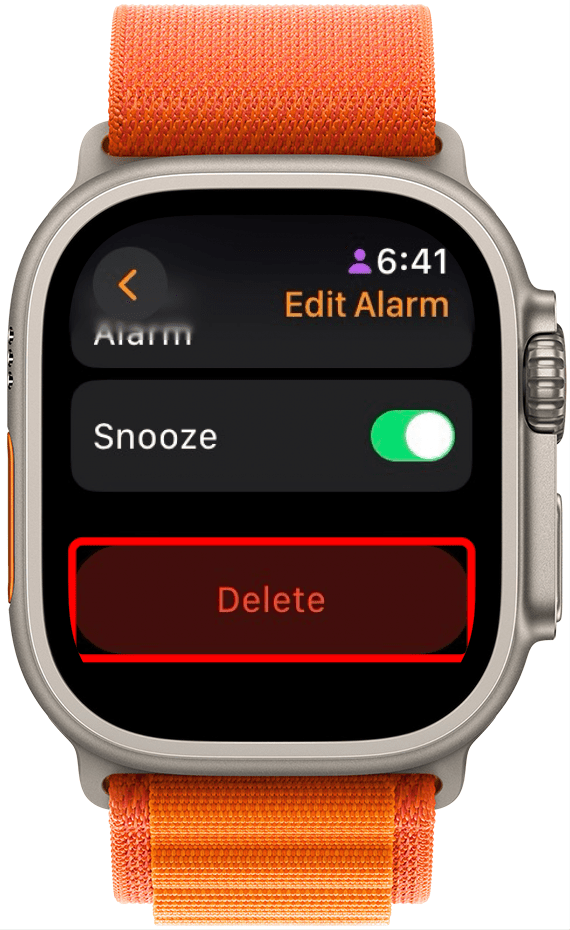
- On iPhone Clock app: Delete all alarms
- On Apple Watch Clock app: Delete all alarms
- Reboot both devices
- Re-create alarms on Apple Watch only
- Test immediately with a 2-minute alarm
✅ User Confirmed:
“Resetting all alarms fixed it. Had 5 duplicates from sync errors.”🔄 Repeat if needed: Do this monthly if issues return.
Update to Latest iOS and watchOS
Apply Apple’s Official Patches
Some fixes arrive in subsequent updates.
Check for Updates
- iPhone: Settings > General > Software Update
- Apple Watch: Watch app > General > Software Update
🔄 Example:
watchOS 26.0.2 introduced alarm blocks—watchOS 26.1 partially resolved it for some.📅 Best Practice: Wait 1–2 weeks after major release to avoid early bugs.
Unpair and Re-pair Apple Watch
Nuclear Option for Persistent Failures
If nothing works, re-pairing clears deep software corruption.
Steps
- Back up watch: Watch app > My Watch > Apple Watch > Back Up
- Unpair: Tap “Unpair Apple Watch” (erases device)
- Set up as new or restore from backup
- Re-pair and reconfigure alarms
⏳ Time Required: 30–60 minutes
💡 Tip: Use this only if alarms fail daily and affect safety or work.🛡️ Benefit: Resolves sync, haptic, and Focus bugs that survive reboots.
Use Sleep Schedule for Reliable Wake-Ups
Replace Standalone Alarms
The Health app Sleep Schedule is more stable than Clock app alarms.
Set Up Sleep Schedule
- Open Health app > Sleep > Full Schedule & Options
- Set bedtime and wake-up time
- Enable “Turn On During This Schedule”
- Tap “Sounds & Haptics” and choose strong haptic
✅ Why It’s Better:
– Automatically activates Sleep Focus
– Less prone to sync errors
– Resumes after minor glitches🔄 Sync Check: Ensure Sleep > Clock app shows the alarm. If missing, re-enable schedule.
Summary: Critical Settings Checklist
| Setting | Location | Must Be |
|---|---|---|
| Alarm Source | Apple Watch Clock app | Set here |
| Haptic Alerts | Watch > Sounds & Haptics | On |
| Prominent Haptic | Same | On |
| Silent Mode | Side button | Off (no orange) |
| LED Flash for Alerts | iPhone Settings > Accessibility | Off |
| Flash in Silent Mode | Same | Off |
| Push Alerts from iPhone | iPhone Watch app > Clock | On |
| Focus Modes | iPhone Settings > Focus | Allow Clock alerts |
| Software | General > Software Update | Latest version |
Final Note: Prevent Future Alarm Failures
To avoid this issue after future updates:
- Set alarms directly on the Apple Watch
- Disable iPhone visual flash alerts
- Avoid overnight automatic updates
- Test alarm within 1 hour of any update
- Use Sleep Schedule instead of standalone alarms
- Keep a backup alarm (e.g., physical clock) if punctuality is critical
Apple has not yet issued an official statement on the post-update alarm failure trend, but user reports confirm it’s tied to watchOS 26+ changes in alert routing and Focus logic. Until a permanent fix arrives, manual alarm testing and setting hygiene are your best defense.
Stay alert—literally.




