
You can’t take an on-demand body temperature reading with your Apple Watch like you would with a traditional thermometer. But if you own an Apple Watch Series 8 or later, you can track wrist temperature overnight to detect subtle health changes over time. This feature isn’t for checking fevers during the day—it’s designed to reveal long-term trends linked to sleep, hormones, illness onset, and recovery.
The Apple Watch uses its built-in temperature sensor to measure skin temperature while you sleep, then compares nightly readings to your personal baseline. After just a few nights of consistent wear, you’ll start seeing meaningful data in the Health app that may help predict ovulation, catch illnesses early, or monitor recovery from intense workouts. While it’s not a medical device, this passive tracking offers unique wellness insights—especially when combined with heart rate, HRV, and sleep data.
Here’s exactly how to set up, view, and interpret temperature readings on your Apple Watch—step by step.
Enable Sleep Tracking for Nightly Temperature Readings
Before your Apple Watch can collect temperature data, you must enable sleep tracking. Without it, the temperature sensor remains inactive.
Turn On Sleep with Your Apple Watch
- Open the Apple Watch app on your iPhone.
- Tap My Watch, then go to Sleep.
- Toggle on Track Sleep with Apple Watch.
- Set a regular sleep schedule (optional but helpful for consistency).
This setting tells your watch to begin monitoring biometrics—including wrist temperature—during rest. The sensor activates only when sleep tracking is enabled and Sleep Focus is active.
Activate Sleep Focus Every Night
Your Apple Watch only records temperature when Sleep Focus is turned on.
- Go to Settings > Focus > Sleep on your watch.
- Ensure Sleep Focus is enabled.
- Schedule it to turn on automatically at bedtime.
💡 Pro Tip: If Sleep Focus is off—even once—no temperature data will be recorded that night. Make this a nightly habit to ensure continuous data collection.
Confirm Device Compatibility and Software Requirements

Not all Apple Watches support temperature sensing. Only specific models and software versions can track wrist temperature.
Supported Apple Watch Models
- Apple Watch Series 8
- Apple Watch Series 9
- Apple Watch Series 10
- Apple Watch Ultra (1st and 2nd generation)
❗ Important: Apple Watch Series 7 and earlier models do not have a temperature sensor and cannot support this feature.
Required Software Versions
- watchOS 9 or later (on your Apple Watch)
- iOS 16 or later (on your paired iPhone)
To check:
– On iPhone: Settings > General > Software Update
– On Apple Watch: Settings > General > Software Update
If your devices aren’t updated, install the latest versions to unlock full functionality.
Wear Your Apple Watch to Bed Consistently
Accurate temperature tracking depends on consistent nighttime wear. The sensor takes frequent low-power readings throughout the night and calculates an average near wake-up time.
Best Practices for Nighttime Wear
- Wear your Apple Watch snugly but comfortably to maintain skin contact.
- Keep the battery above 30% before going to bed.
- Avoid removing the watch, even briefly.
- Stay within Bluetooth range (10 meters / 30 feet) of your iPhone.
The watch needs at least 4 hours of continuous wear per night. For best results, aim for 5–7 consecutive nights of sleep tracking to establish your personal baseline.
⚠️ Charging your watch overnight or removing it mid-sleep breaks the data chain and delays baseline creation.
View Wrist Temperature Trends in the Health App

After 5–7 nights, you can access your wrist temperature data in the iPhone Health app.
See Nightly Temperature Deviations
- Open the Health app.
- Tap Browse > Body Measurements.
- Select Wrist Temperature.
- View the graph showing changes from your baseline (e.g., “+0.4°C”).
This display highlights fluctuations caused by hormonal shifts, illness, or stress. You won’t see a flat “normal” line—instead, you’ll notice trends that reveal health patterns over time.
Access Exact Temperature Values
By default, only deviations are shown. To see absolute temperatures:
- In the Wrist Temperature section, tap Options (top right).
- Choose Show All Data.
- Tap any recorded point (usually around 6–7 AM).
- View the exact temperature (e.g., 36.42°C or 97.56°F).
These values reflect skin temperature at the wrist, which runs slightly cooler than core body temperature and varies more with environment.
Use the Vitals App on Apple Watch (watchOS 11+)
With watchOS 11, Apple introduced the Vitals app, which consolidates key overnight health metrics.
Access Wrist Temperature on Your Watch
- Open the Vitals app on your Apple Watch.
- Scroll to Wrist Temperature.
- See your deviation from baseline for the current night.
The app flags unusual trends, such as a sustained rise in temperature, which could signal early illness. It also combines data with heart rate, respiratory rate, and sleep duration for a holistic wellness snapshot.
📌 Note: Blood oxygen (SpO2) readings are unavailable in the U.S. due to legal restrictions, which limits full Vitals functionality.
Explore Third-Party Apps for Advanced Insights
Several third-party apps pull Apple Watch temperature data from HealthKit for deeper analysis and visualization.
Top Apps for Enhanced Tracking
- Gentler Streak: Detects illness patterns and flare-ups (popular with autoimmune patients)
- AutoSleep: Combines sleep stages with temperature trends
- Chronicle: Logs health events alongside biometrics
- Oura Ring app: Syncs Apple Watch data for cross-device insights
These tools often provide:
– Hourly temperature graphs
– Correlation with HRV and resting heart rate
– Alerts for abnormal spikes
💡 Example: Athletes use Gentler Streak to spot recovery issues; women use AutoSleep to refine ovulation predictions by syncing temperature with sleep quality.
Understand Your Baseline and Temperature Variance
Your Apple Watch doesn’t show a single “normal” temperature. Instead, it tracks changes relative to your personal average.
How the Baseline Is Calculated
- Automatically created after 5–7 nights of consistent sleep data.
- Represents your typical wrist skin temperature under normal conditions.
- Not visible as a standalone number—but serves as the reference point.
A deviation of +0.3°C or more over several nights may indicate:
– Early infection
– Hormonal shift (post-ovulation)
– Overtraining
– Inflammatory flare-up
Absolute vs. Relative Readings
| Type | What It Shows | Best For |
|---|---|---|
| Deviation | Change from baseline (e.g., “+0.5°C”) | Trend spotting, early illness detection |
| Absolute Value | Exact temperature (e.g., 36.8°C) | Manual logging, comparison with other devices |
Remember: Wrist temperature is not the same as oral or core temperature and can be influenced by room heat, blankets, or alcohol.
Troubleshoot Missing or Incomplete Temperature Data
No readings after a week? Common issues can usually be fixed quickly.
Fix No Data Issues
Sleep Focus Is Off
- Go to Settings > Focus > Sleep on your watch.
- Turn on Sleep Focus and schedule it.
iPhone Not Nearby
- Keep your iPhone within 10 meters (30 feet) while sleeping.
- Both devices need to sync overnight via Bluetooth.
Watch Removed or Charged at Night
- Don’t charge your Apple Watch mid-sleep.
- Wear it continuously for at least 4 hours.
Software Glitch
Try this reset:
1. Restart your Apple Watch.
2. Toggle Sleep Tracking off and back on in the Watch app.
3. Re-enable Sleep Focus.
If problems persist, check Settings > Privacy & Security > Health > Wrist Temperature to ensure access is allowed.
Apply Temperature Data to Real Health Goals
While not medical-grade, wrist temperature trends offer real-world benefits across several areas.
Track Ovulation and Menstrual Cycles
The Cycle Tracking app uses wrist temperature to:
– Estimate ovulation day
– Improve period prediction accuracy
– Detect luteal phase length changes
A typical post-ovulation rise is +0.3°C to +0.5°C, lasting until your next period.
✅ Best results when combined with manual period entry and cervical mucus logging.
Detect Early Illness
Users report spotting colds or flu 1–2 days before symptoms appear, thanks to rising temperature trends.
When paired with elevated heart rate and lower HRV, a sudden spike may prompt earlier rest, hydration, or testing.
📌 Not a diagnosis tool—but a powerful early warning system.
Monitor Fitness Recovery
Athletes watch for:
– Persistently elevated nighttime temps → sign of overtraining
– Slower return to baseline → incomplete recovery
– Unusual dips or spikes → hormonal imbalance
Use this data to adjust training intensity and avoid burnout.
Sync External Thermometers for Daytime Readings
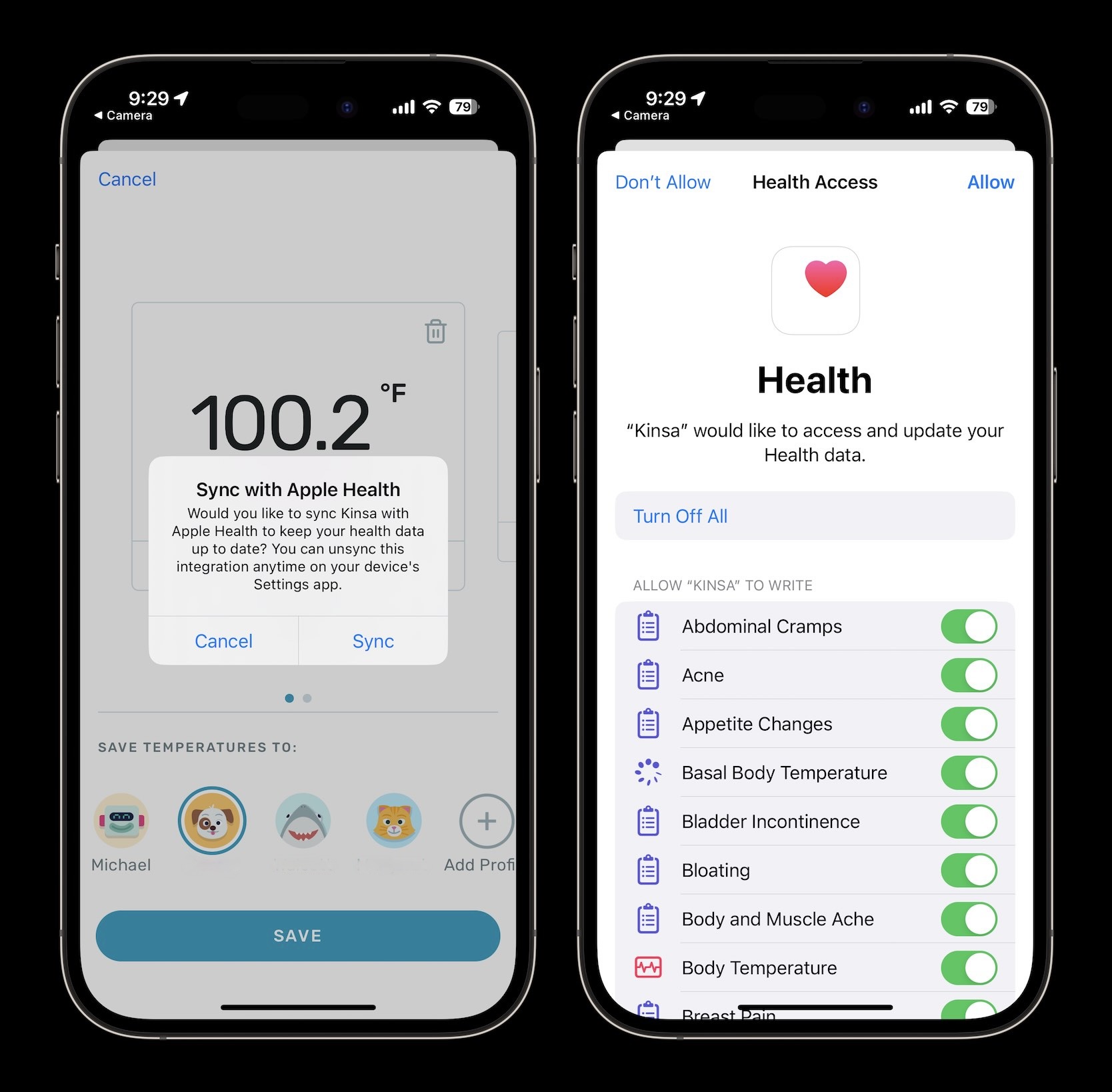
Want real-time temperature checks? Pair a smart thermometer with the Health app.
Compatible Devices
- Kinsa Smart Thermometer
- Withings Thermo
- Other Apple Health–connected thermometers
Add Manual Readings
- Take a temperature with your digital thermometer.
- Open the Health app.
- Tap Browse > Vitals > Body Temperature.
- Tap Add Data or allow auto-sync via the thermometer’s app.
Now you’ll see both:
– Nightly wrist temp (from Apple Watch)
– Daytime core temp (from thermometer)
This hybrid approach gives a fuller picture of your health.
Know the Limitations of Apple Watch Temperature Tracking
It’s crucial to understand what the Apple Watch cannot do.
What It Doesn’t Do
- ❌ Measure core body temperature
- ❌ Provide real-time or on-demand checks
- ❌ Replace a fever thermometer
- ❌ Work on Series 7 or older
- ❌ Function without Sleep Focus enabled
Environmental factors like room heat, blankets, alcohol, or exercise before bed can also skew results.
🚫 Never rely on the Apple Watch to diagnose fever or manage illness.
Optimize Accuracy for Reliable Trends
For trustworthy data, control variables that affect skin temperature.
Best Practices
- Sleep in a cool, consistent room (18–21°C / 65–70°F)
- Use light to medium bedding
- Wear the watch snug but not tight
- Avoid alcohol or intense workouts 2–3 hours before bed
- Keep your arm uncovered (not under pillow)
The more consistent your routine, the clearer your trends will be.
The Apple Watch doesn’t let you “take” a temperature like a thermometer—but it does offer one of the most advanced ways to track subtle health changes overnight. By enabling sleep tracking, wearing your watch to bed, and reviewing data in the Health or Vitals app, you gain insights into ovulation, illness onset, and recovery. While not medical-grade, this passive monitoring adds valuable context to your overall wellness journey. For real-time checks, keep using a digital thermometer—but for long-term trends, your Apple Watch is already working for you while you sleep.




