
You’ve probably seen smartwatches that claim to monitor body temperature and wondered: Can I check my body temperature on my Apple Watch right now? The short answer is no—you can’t take an instant, on-demand reading like with a thermometer. But here’s the good news: If you own a compatible model, your Apple Watch passively tracks wrist temperature overnight to help detect health trends, from early illness to ovulation patterns.
This isn’t about replacing your medical thermometer—it’s about gaining insight into your body’s rhythms over time. In this guide, you’ll learn exactly how Apple Watch wrist temperature tracking works, which models support it, how to set it up, where to find your data, and why you’re not seeing real-time readings. Whether you’re tracking fertility, watching for signs of illness, or simply curious about your nightly health trends, this is everything you need to make the most of this powerful—but often misunderstood—feature.
Which Apple Watches Can Track Temperature?
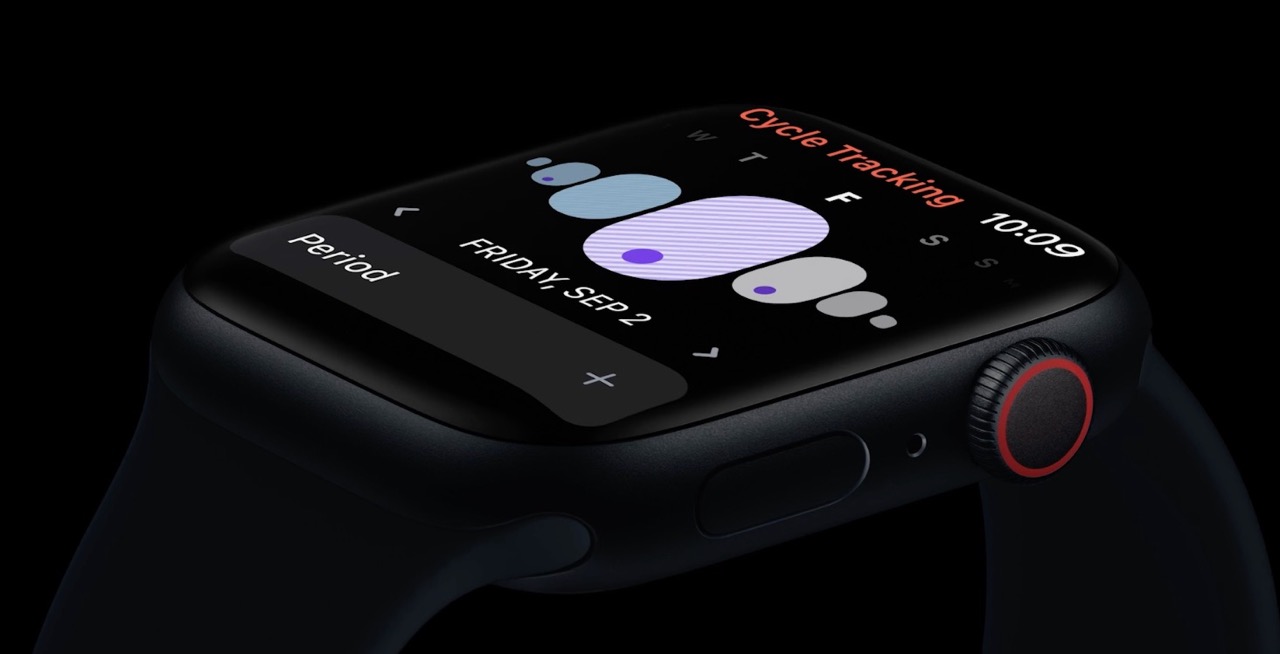
Not all Apple Watches are created equal when it comes to temperature sensing. Only models with the dual-sensor system can measure wrist temperature during sleep.
Supported Models
✅ Apple Watch Series 8
✅ Apple Watch Series 9
✅ Apple Watch Series 10
✅ All Apple Watch Ultra models
✅ Apple Watch SE (3rd generation)
These watches include two temperature sensors: one on the back crystal in contact with your skin and another beneath the display. This dual setup helps the watch distinguish your actual skin heat from ambient warmth, improving accuracy by reducing false readings caused by room temperature or bedding.
❌ Older models (Series 7 and earlier) do not have the necessary hardware and cannot track wrist temperature—even with the latest software updates.
How Apple Watch Tracks Temperature (It’s Not Real-Time)

Forget pressing a button to see your current body temp. The Apple Watch doesn’t work like a clinical thermometer. Instead, it uses passive, overnight monitoring to build long-term health insights.
Nightly Measurements, Not Instant Readings
- Your watch takes a reading every 5 seconds while you sleep
- Data is only collected when Sleep Focus is active for at least 4 hours
- A single average temperature is calculated per night
- Changes are shown relative to your personal baseline, not as standalone values
This system is designed for trend detection, not real-time diagnosis.
Establishing Your Personal Baseline
To understand what’s “normal” for you, Apple Watch needs time:
– You must complete 5 consecutive nights of sleep tracking
– During this period, the Health app shows “Needs More Data”
– After day 5, deviations appear (e.g., “+0.4°C” or “–0.2°F”)
– If you switch to a new watch, the process starts over
🔍 Note: Your baseline temperature is not displayed numerically. It’s an internal reference point used to highlight changes.
How to Set Up Wrist Temperature Tracking
Before you see any data, several conditions must be met—both in settings and in behavior.
Enable Sleep Tracking
- Open the Watch app on your iPhone
- Tap Sleep > Full Setup
- Set consistent bedtime and wake-up times
- Turn on Sleep Schedule
This tells your watch when you’re likely asleep so it knows when to start collecting data.
Activate Sleep Focus
- Go to Settings > Focus > Sleep on your iPhone
- Link it to your bedtime schedule
- Ensure both iPhone and Apple Watch enter Sleep Mode automatically
⚠️ If Sleep Focus runs for less than 4 hours, no temperature data is recorded—even if you wore the watch all night.
Wear the Watch Correctly at Night
- Keep it snug but comfortable
- Avoid removing it during sleep (e.g., for charging)
- A loose fit = poor sensor contact = missing data
🔄 Pro Tip: Charge your Apple Watch before bed so you can wear it the entire night.
Where to Find Your Wrist Temperature Data

Your temperature readings appear first in the Health app on iPhone—not directly on the watch screen in real time.
Step-by-Step: Access Data on iPhone
- Open the Health app
- Tap Browse (bottom right)
- Scroll to Body Measurements or search “Wrist Temperature”
- Tap Wrist Temperature > Show on Dashboard
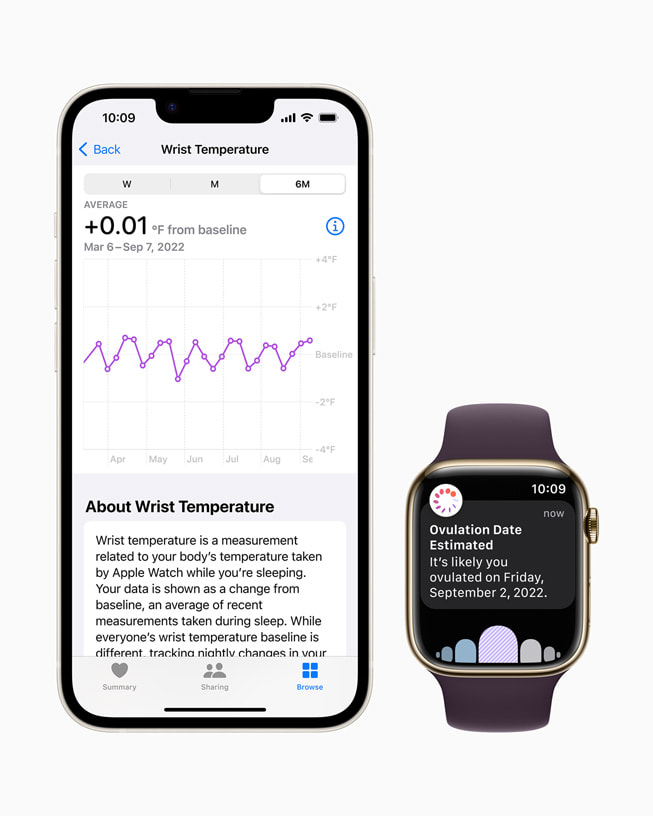
You’ll now see a trend graph showing nightly deviations from your baseline.
View Actual Temperature Values
By default, only changes from baseline are shown (e.g., “+0.3°C”). To see exact numbers:
1. Tap Options > Show All Data
2. Select a date
3. View the calculated overnight average (e.g., 36.41°C / 97.54°F)
💡 These are not real-time readings—they represent the average wrist temperature during your sleep session.
Can You See Temperature on Apple Watch?
Yes—but not instantly or in real time.
How to Check on Your Watch
- Open Settings on Apple Watch
- Scroll to Health
- Tap Health Data > Body Measurements > Wrist Temperature
- Browse your recorded nightly averages
🕒 Note: Data may take several minutes to sync after waking and unlocking your iPhone.
Understanding What the Numbers Mean
Relative vs. Absolute Readings
- Default view: Deviations like “+0.3°C” or “–0.2°F”
- Detailed view: Actual temps via “Show All Data” in Health app
- No display of your personal baseline number
Trends matter more than single data points.
What Causes Temperature Shifts?
| Change | Possible Cause |
|---|---|
| Higher than baseline | Illness onset, ovulation, warm room |
| Lower than baseline | Pre-ovulation phase, cooler environment |
| Sustained spike (2+ nights) | Early sign of infection (before symptoms) |
📈 Real-world insight: Many users report catching colds 1–2 days early by spotting consistent upward trends in wrist temperature, heart rate, and sleep disruption.
Sync With Cycle Tracking for Fertility Insights
Wrist temperature data integrates automatically with Apple’s Cycle Tracking app.
How It Helps
- Used to estimate ovulation date retrospectively
- Confirms ovulation occurred (post-ovulation temps stay elevated for 10–16 days)
- Improves period prediction accuracy
- Supports natural family planning when combined with other signs
✅ Myth Busting: You don’t need to use Cycle Tracking for temperature data to be collected. It runs independently.
View Trends in Vitals (watchOS 11+)
On newer software, wrist temperature appears in a broader health snapshot.
What Is the Vitals Feature?
Available in Fitness app > Vitals on iPhone:
– Aggregates key metrics including wrist temperature
– Shows “higher than usual”, “lower than usual”, or “within range” status
– Designed to spot early illness patterns using multiple signals
Metrics Included
- Heart rate
- Respiratory rate
- Wrist temperature
- Blood oxygen (not in U.S.)
- Sleep duration
🎯 Use Case: A “higher than usual” alert across multiple vitals may suggest you’re getting sick—even before feeling symptoms.
Troubleshooting Missing Temperature Data
If your readings aren’t showing up, here’s what to check.
“Needs More Data”?
Wait until you’ve completed 5 full nights of sleep tracking with Sleep Focus.
No Readings After 5 Nights?
Check these common issues:
Sleep Focus Isn’t Running
- Ensure it activates automatically each night
- Confirm both devices enter Sleep Mode
- Check Focus settings and Do Not Disturb
Poor Fit or Removal at Night
- Watch too loose? Sensor loses contact
- Removed during sleep? No data collected
- Try wearing it slightly tighter at night
Software or Sync Problems
- Update to latest iOS and watchOS
- Restart both iPhone and Apple Watch
- Reset sync:
Watch app > General > Reset > Reset All Settings
💬 User Tip: Some find that disabling and re-enabling Wrist Temperature under Privacy settings forces a refresh.
Why You Can’t Check Temp On-Demand
No Real-Time Measurement
Despite what some third-party apps claim, you cannot check body temperature instantly on Apple Watch.
Key limitations:
– ❌ No live temperature display
– ❌ Cannot measure while awake
– ❌ Not designed for fever checking
🚫 Important: Do not rely on Apple Watch to diagnose fever or illness. Use a medical-grade thermometer instead.
Designed for Prevention, Not Diagnosis
Apple’s approach is longitudinal, not reactive:
– Detect subtle shifts before symptoms appear
– Support reproductive health tracking
– Provide wellness context over time
Think of it as a preventive health tracker, not a clinical tool.
Alternatives for Real-Time Temperature Checks
Need to take your temp right now? Try these tools.
Smart Thermometers That Sync to Apple Watch
| Device | Type | Key Features |
|---|---|---|
| Kinsa Smart Thermometer | Oral/ear | Real-time fever alerts, illness tracking |
| Withings Thermo | Tympanic | Fast scans, connects to Health app |
| TempTraq | Wearable patch | Continuous monitoring for kids/hospital use |
These give accurate, on-demand readings and can appear on your Apple Watch via the Health app.
Third-Party Apps for Enhanced Analysis
Boost insights with:
– Pillow: Advanced sleep stages + temp graphs
– Gentler Streak: Ovulation prediction using thermal trends
– AutoSleep: Automatic sleep and recovery scoring
💬 Many users combine Apple Watch data with these apps for richer health dashboards.
Key Facts at a Glance
| Requirement | Status |
|---|---|
| Real-time temp check | ❌ Not supported |
| On-demand measurement | ❌ Not available |
| Nighttime wrist temp | ✅ Series 8+, Ultra, SE 3 |
| Minimum setup | 5 nights of sleep tracking |
| Needed features | Sleep Tracking + Sleep Focus |
| Data location | Health app > Body Measurements |
| Absolute temp visible? | ✅ Yes (via “Show All Data”) |
| Medical accuracy? | ❌ No – for trends only |
| Age requirement | ≥14 years old |
| Works with Cycle Tracking | ✅ Yes |
| Appears in Vitals? | ✅ As deviation status |
Final Tips for Best Results
Maximize Accuracy
- Wear your watch every night
- Keep Sleep Focus active for 4+ hours
- Maintain a consistent sleep schedule
- Avoid alcohol or intense workouts before bed
Focus on Trends
- A one-night spike may be due to room heat
- Look for sustained changes over 2–3 nights
- Combine with heart rate and symptoms for better insight
Combine Tools for Complete Coverage
- Use Apple Watch for long-term trend spotting
- Use a smart thermometer for fever confirmation
- Sync both to Health app for unified tracking
🧠 Pro Insight: Many users catch infections early by noticing rising wrist temperature, elevated heart rate, and reduced sleep quality—all before feeling sick.
Apple Watch doesn’t let you check body temperature like a thermometer, but it offers something more powerful: continuous, passive insight into your health patterns. By understanding its capabilities—and using it alongside other tools—you can stay ahead of illness, optimize fertility, and gain deeper awareness of your body’s rhythms. Just remember: it’s a wellness companion, not a medical device.




