
You plug in your Apple Watch and wait. No chime. No screen glow. Nothing. Is it charging—or is something broken? This moment of uncertainty is familiar to many owners, especially after leaving the watch unused for days or weeks. The good news: your Apple Watch is likely charging even if it shows no signs at first. Knowing the real indicators—like the red lightning bolt, charger LED colors, or a faint chime—can save you from panic and unnecessary service visits.
In this guide, you’ll learn exactly how to confirm your Apple Watch is charging across all models, including Series 9, Ultra 2, and SE. We’ll cover every visual, sound-based, and app-driven clue, plus what to do when nothing seems to be working. Whether your watch is at 1% or completely dead, you’ll know within minutes if power is flowing—and how to fix it if it isn’t.
Look for the Red Lightning Bolt on Screen
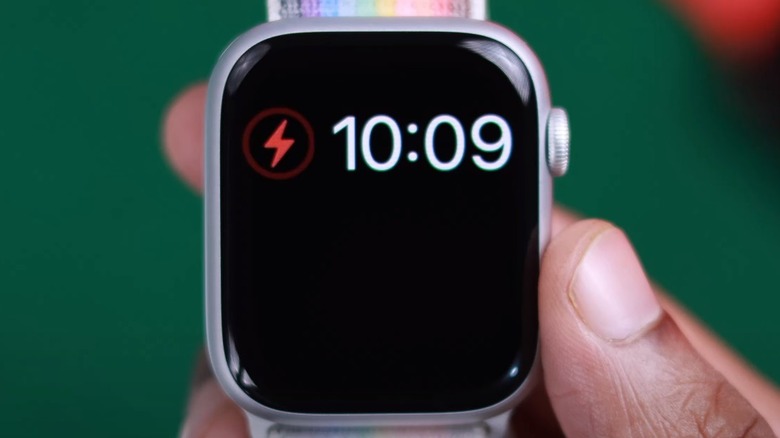
Red Lightning in a Red Circle Means Charging
When your Apple Watch battery is very low (usually below 10%), plugging it in may display a red lightning bolt inside a red circle. This is a clear sign: your watch is actively charging. Don’t be alarmed by the red color—it doesn’t mean danger. It’s simply Apple’s way of saying, “Power is coming in.”
Be careful not to confuse this with a solid red lightning bolt without a circle, which appears when the battery is critically low and not currently charging. That usually means the connection is faulty or the charger isn’t delivering power.
Yellow Charging Symbol Indicates Low Power Mode
If you’ve enabled Low Power Mode, the charging symbol may appear yellow instead of white or green. This doesn’t slow down charging—it just means background activity is reduced to conserve energy. Once the battery reaches a higher level, the symbol often turns back to white.
Watch the Charger’s LED Light for Instant Feedback
Amber or Green Light Confirms Power Delivery
The LED light on your Apple Watch charger is one of the most reliable ways to check charging status—especially when the screen is black. Here’s what the colors mean:
- Amber (yellow): Charging is in progress, battery is below 100%.
- Green: Battery is fully charged or nearly full—may blink during charging.
- No light: No power is being delivered.
Even if your watch is completely drained and the screen stays off, an amber glow means it’s receiving power. Wait 5–10 minutes—many users see results after this short delay.
No Light? Test the Power Source Immediately
If the LED doesn’t light up:
– Try a different wall outlet.
– Plug into a MacBook or iPad Pro USB-C port.
– Swap in a 20W or higher USB-C adapter.
A missing or dim LED often points to a weak power source, not a broken watch. Many users successfully revive “dead” watches by switching to a MacBook charger (60W or 96W), which delivers more stable power than standard phone adapters.
Listen for the Charging Chime
A Single Chime Means Connection Is Successful
When you attach the charger and the magnetic connection is secure, your Apple Watch typically plays a soft chime within seconds. This sound is a strong confirmation that charging has started—even if the screen stays dark.
Why You Might Not Hear the Chime
Several reasons could silence the chime:
– Silent Mode or Do Not Disturb is on.
– The watch is completely dead—no power to play sound.
– The speaker is blocked by sweat, dust, or moisture.
– The charger is not fully connected—loose magnets prevent contact.
If you hear the chime, trust that charging is working. Even a blank screen is normal during the first few minutes.
Check Battery Status on Your iPhone
Use the Apple Watch App to Monitor Charging
If your watch has enough power to stay paired:
1. Open the Apple Watch app on your iPhone.
2. Tap My Watch > Battery.
3. Look for:
– The current battery percentage.
– A lightning bolt icon next to the number—this confirms active charging.
This method is useful for quick checks, especially when the watch display is hard to read.
Limitations of iPhone Monitoring
This only works if your Apple Watch is awake and connected via Bluetooth. If the battery is fully drained, the watch can’t communicate with your phone. So don’t assume a problem if the app shows no data—your watch might just need more time to charge before it reconnects.
What to Do When Your Apple Watch Won’t Turn On
Wait 3–5 Minutes Before Taking Action
A completely dead Apple Watch won’t respond immediately. It needs 3–5 minutes of charging before showing any sign of life. During this time:
– The screen may stay black.
– No chime may play.
– No data appears on your iPhone.
Plug it in, wait, and check the charger’s LED light. If it’s amber or green, charging is happening. Patience is key—especially if the watch hasn’t been used in weeks.
Press the Side Button to Wake It Up
After 3–5 minutes, press and hold the side button to wake the watch. If charging worked, you should see:
– The Apple logo (indicating boot-up).
– The charging screen.
– Or your normal watch face.
If nothing appears, keep it plugged in for another 10–30 minutes. Some users report success only after overnight charging, particularly with long-dormant devices.
Use the Right Charger and Power Adapter
Stick to Apple or MFi-Certified Equipment
Only use:
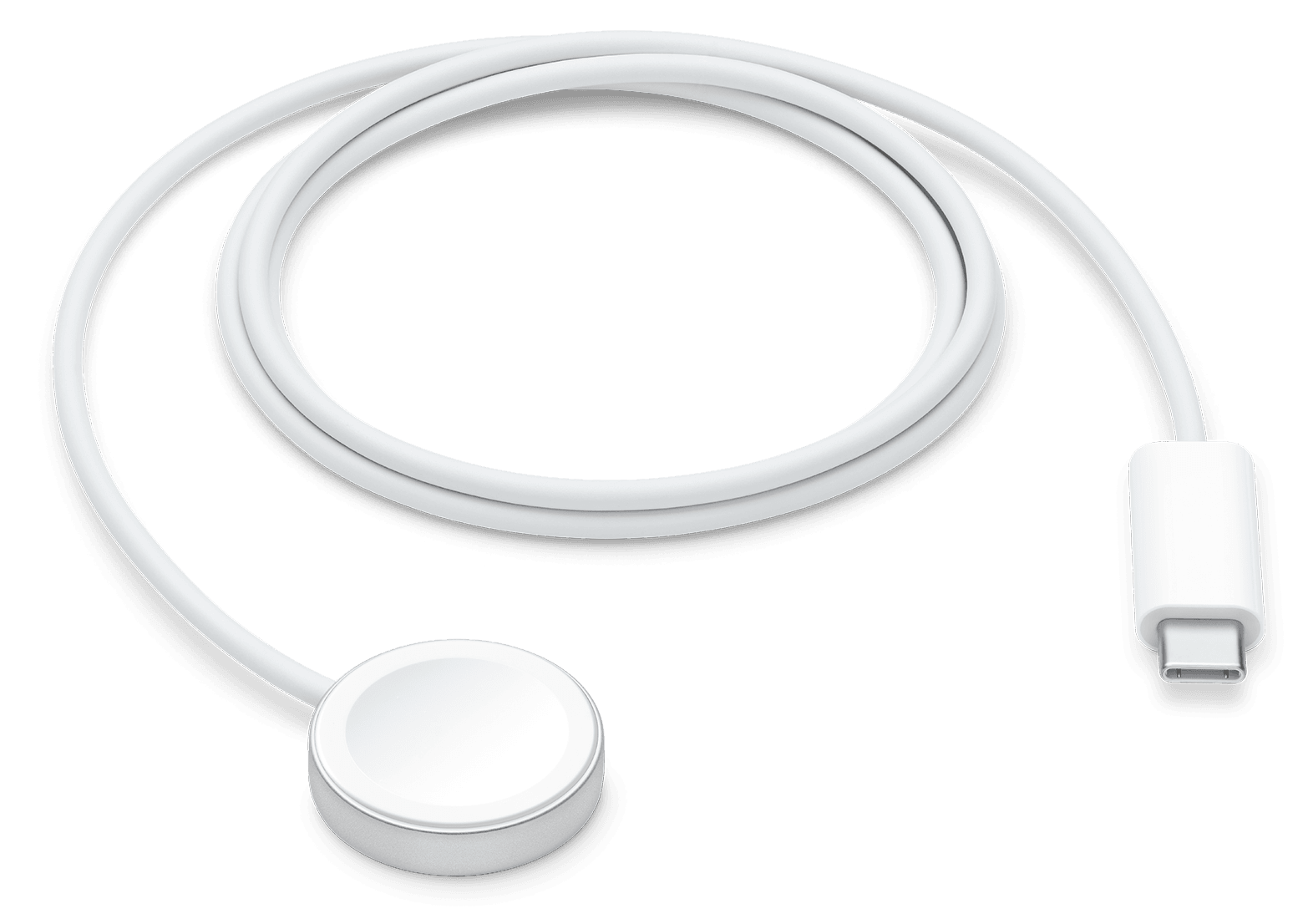
– Apple Magnetic Charging Cable
– USB-C Magnetic Fast Charging Cable (Series 7 and newer)
– MFi-certified third-party chargers
Non-certified cables often fail due to poor magnet alignment or low power output. They may connect magnetically but not deliver enough current to charge.
Choose a 20W+ USB-C Adapter for Best Results
For reliable and fast charging:
– Use a 20W or higher USB-C power adapter.
– Avoid 5W phone chargers—they’re too slow and may not work at all.
– For best performance, plug into a MacBook charger (60W or 96W).
Many users report that switching to a MacBook charger revived a watch that wouldn’t charge with a phone adapter.
Ensure Proper Magnetic Alignment
The Charger Must Snap Flush to the Back
The magnetic charger must attach securely to the back of the watch. Even a slight misalignment can block charging.
Fix Common Attachment Issues
- Make sure the concave side of the charger faces the curved back of the watch.
- For Apple Watch Ultra or 45mm/49mm models, lay the watch flat on a surface for better contact.
- Remove thick or metal bands—they can push the charger out of alignment.
Pro Tip: If charging fails repeatedly, remove the band entirely. This ensures full metal-to-metal contact and often resolves connection issues.
Understand Optimized Battery Charging Behavior
It May Stop at 80% on Purpose
If Optimized Battery Charging is enabled, your Apple Watch may pause charging at 80% until you typically unplug it. This feature uses machine learning to learn your routine and reduce battery wear.
How to Check the Setting
On your Apple Watch:
1. Open Settings > Battery > Battery Health
2. Look for Optimized Battery Charging or Optimized Charge Limit
If the battery stalls at 80%, don’t panic—it’s likely working as designed.
Know If Fast Charging Is Active
Only Works on Newer Models with Right Equipment
Fast charging is supported on:
– Apple Watch Series 7 and later
– SE (2nd generation)
– Ultra and Ultra 2
It requires:
– USB-C Magnetic Fast Charging Cable
– 18W+ power adapter
With fast charging, you can reach 80% in about 45 minutes. But if you use an old cable or low-wattage adapter, fast charging won’t activate—even if your model supports it.
Clean the Charging Contacts Regularly

Dirt and Sweat Can Block Charging
Over time, sweat, dust, or lint builds up on:
– The back of the watch
– The charger’s magnetic pins
This can prevent electrical contact—even with a strong magnetic snap.
Safe Cleaning Steps
- Unplug both devices.
- Use a dry, lint-free cloth (microfiber is best).
- Gently wipe the back of the watch and charger pins.
- For stubborn grime, lightly dampen the cloth with 70% isopropyl alcohol.
- Let everything dry completely before reconnecting.
Avoid: Compressed air (can push debris deeper), metal tools, or wet cloths.
Troubleshoot When Nothing Works
Step 1: Check the Charger’s LED
No light? No power. Try:
– A different outlet
– A MacBook USB-C port
– A 20W+ Apple adapter
An amber or green light means power is flowing.
Step 2: Test with a Different Charger
Borrow an Apple-branded charger. If the watch charges with it, your original cable is likely faulty.
Step 3: Try Overnight Charging
If the battery has been dead for weeks:
– Plug in for 8+ hours
– Use a high-wattage adapter
– Keep it in a cool, dry place
Many “dead” watches come back to life after a full night.
Step 4: Restart the Watch
If software is stuck:
1. Press and hold the side button until the power slider appears.
2. Slide to power off.
3. Wait 10 seconds, then press and hold to restart.
This can fix silent charging issues.
Step 5: Check for Overheating
If the watch feels hot:
– Unplug immediately
– Let it cool for 30 minutes
– Try again in a cooler environment
Apple Watch stops charging when too hot to protect the battery.
Avoid Charging in Extreme Conditions
Heat Damages the Battery
Never charge in:
– Direct sunlight
– A hot car
– Under a pillow or blanket
High temperatures cause long-term wear and can temporarily stop charging.
Keep It Cool and Ventilated
Always charge in a well-ventilated area. Don’t cover the watch or charger. If it heats up, stop and let it cool.
Know When to Replace the Battery
Battery Degrades After 3–5 Years
Apple Watch batteries last about 500 full charge cycles before dropping below 80% capacity. If your watch won’t hold a charge, check Battery Health:
1. Go to Settings > Battery > Battery Health
2. View Maximum Capacity
If it’s below 80%, consider a battery service ($69–$99).
Final Note: Most Apple Watch charging issues are simple to fix. Start by checking the charger’s LED light—amber or green means power is flowing. If the screen is black, wait 3–5 minutes. Look for the Apple logo or red charging symbol. Use your iPhone to check battery status if possible. And always use Apple-approved chargers with a 20W+ adapter. With these steps, you’ll know for sure if your Apple Watch is charging—and how to fix it if it’s not.





