
You plug in your Apple Watch, but the screen stays dark. No chime, no animation—just silence. Is it charging? You’re not alone. Many users face this uncertainty, especially when the battery is completely drained. The good news: Apple has built multiple visual and digital cues to confirm charging status. Knowing what to look for can save you time, frustration, and unnecessary service visits.
The primary sign your Apple Watch is charging is the green charging screen—a bold, circular ring with a glowing time display and lightning bolt. But if your watch is dead, it might instead show a red lightning bolt, indicating it’s drawing power but can’t boot yet. Other reliable clues include a green battery percentage, a lightning icon on your iPhone, or a solid green or white LED on the charger itself. Together, these signals give you real-time feedback—no guesswork needed.
In this guide, you’ll learn exactly how to confirm your Apple Watch is charging across all models, what each indicator means, how to troubleshoot silent failures, and when to seek help. Whether you’re using an older Series 3 or the latest Apple Watch Ultra, these tips apply universally.
Charging Screen: Green Time and Ring
When your Apple Watch connects to power, the most obvious confirmation is the charging screen. This is your first and most reliable signal.
What the Charging Screen Shows
- Green digital time in the center
- A circular progress ring that fills clockwise as the battery charges
- A lightning bolt icon inside the ring
- The current battery percentage (e.g., 25%, 50%)
This interface appears within seconds of a proper magnetic connection. Even if the watch was powered off, the animation will display as soon as power flows.
Pro Tip: If the screen stays black, wait 10–15 seconds. A deeply drained battery may need a moment to respond. Don’t panic—this is normal.
Red Lightning Bolt: Charging from a Dead Battery

If your Apple Watch battery is fully depleted:
– It may show a red lightning bolt inside a circular battery outline
– Or display a magnetic charger graphic with a red bolt
– This means the watch has no power to turn on—but can still charge
Once charging begins:
– The red bolt becomes encircled, then shifts to green
– A full boot may take 30 minutes to 4 hours, especially on newer models like Series 6 and above
Warning: If the red bolt flashes or disappears intermittently, the connection is unstable. Realign the charger or clean the contacts.
Green Battery Percentage on Watch Face
When you connect your Apple Watch, any visible battery percentage turns green instantly.
How to Use This Indicator
- If your watch face shows battery level, it changes from gray to green when charging starts
- The green color remains until you unplug
- Works even in Nightstand mode or when the screen is dim
This is a quick, glanceable confirmation—no need to wake the screen.
Note: Some watch faces hide the battery. Add a battery complication (a small icon) for constant visibility. Press and hold the watch face, tap “Edit,” and choose a battery widget.
iPhone Battery Widget Confirmation
You don’t need to look at your wrist. Your paired iPhone can tell you the charging status.
Set Up iPhone Battery Widget
- On your iPhone, swipe down from the top to open Today View
- Scroll down and tap Edit
- Find Battery and tap the green +
- Choose Medium or Large size
- Tap Done
Now, the widget shows:
– Apple Watch battery percentage
– Lightning bolt icon when charging
Why this matters: Useful if your watch is face-down, in a drawer, or unresponsive. You can check charging status from across the room.
Charger LED Light Status

Your charging accessory gives visual feedback too.
What the LED Colors Mean
| Light Color | Meaning |
|---|---|
| Green/White | Charging normally |
| Off | No power or connection |
| Flickering | Unstable connection or faulty cable |
- Located on the magnetic charger puck or dock
- Stays on during charging, turns off at 100%
- May appear white on newer models (Series 7+)
Check this first: If the LED is off, the issue is likely with the power source or cable—not the watch.
Nightstand Mode While Charging
When charging, your Apple Watch often enters Nightstand mode.
What You’ll See
- Large digital clock (like an alarm clock)
- Charging ring on the right
- Battery percentage at the bottom
- Date and alarm indicators (if set)
This mode confirms the watch is powered and receiving charge—even if you didn’t see the initial animation.
Pro Tip: Tap the screen to wake it. If it shows the clock and charge ring, you’re good.
Control Center Battery Check
Need a detailed view? Use the Control Center.
Steps to Check
- Press the side button to wake the watch
- Swipe up from the watch face to open Control Center
- Look at the battery percentage at the top
- Tap it to expand and see:
– Larger charging ring
– Low Power Mode toggle
If the ring is filling and green, charging is active.
Expert Note: This method is most accurate when the watch is already on. If the screen is black, try waking it first.
Battery Settings App: Real-Time Monitoring
For the most detailed view, open the Battery app on your watch.
How to Access It
- Press the Digital Crown
- Tap the Settings app
- Select Battery
- View:
– Current charge level
– Status: “Charging” or “Not Charging”
– Graph of recent usage and charging cycles
The graph updates in real time—ideal for tracking progress over hours.
Bonus: Enable Optimized Battery Charging here to extend battery lifespan. It learns your routine and delays full charge to reduce wear.
Troubleshoot: Watch Not Charging
Even with the right charger, problems happen. Here’s how to fix them.
Verify Magnetic Connection
- Listen for the snap when the charger attaches
- Ensure the magnets align with the back of the watch
- For Apple Watch Ultra or larger models:
- Try removing the band for better contact
- Lay the charging dock flat on a table
User Fix: “Took the band off and it charged immediately.”
Clean Charging Contacts
Dirt, sweat, or pocket lint can block charging.
Steps to Clean
- Unplug the charger
- Use a dry, lint-free cloth (microfiber works best)
- Gently wipe:
– The metal pins on the back of the watch
– The contact points on the charger - Avoid liquids or compressed air
Warning: Never use alcohol or cleaners—they can damage coatings.
Test Charger and Power Source
Not all USB ports deliver enough power.
Best Power Sources (in order)
- Apple 20W USB-C adapter (fastest)
- MacBook USB-C port
- Wall outlet with 5W+ adapter
- Powered USB hub
Avoid:
– Keyboard USB ports
– Old iPhone chargers (slower)
– Unbranded or damaged cables
User Experience: “Switched to my iPad charger—started charging in seconds.”
Check for Overheating
Apple Watch stops charging if it gets too hot.
Signs of Overheating
- Watch feels warm to touch
- Red lightning bolt won’t turn green
- Charging pauses or restarts
Prevent It
- Don’t charge in direct sunlight
- Avoid car dashboards or under blankets
- Remove thick cases if overheating occurs
Safety Note: If the watch shuts down due to heat, let it cool before resuming charge.
Common Charging Issues and Fixes
Even with perfect setup, issues pop up. Here’s how to handle them.
Watch Shows Symbol But Won’t Turn On
- Symptom: Red or green lightning bolt, but no Apple logo
- Cause: Battery too low to boot
- Fix:
- Leave it charging for 3–8 hours
- Try overnight charging (especially for Series 6+)
User Report: “After 6 hours, it finally turned on.”
Boot Looping During Charge
- Symptom: Repeated Apple logo, then shuts down
- Cause: Software glitch or unstable charge
- Fix:
1. Disconnect charger
2. Press and hold side button + Digital Crown for 10+ seconds
3. Release when Apple logo appears
4. Reconnect charger
Note: This forces a restart and often resolves boot loops.
Still Not Charging After 24 Hours?
If nothing works:
– Try a different Apple-certified charger
– Reset the watch (force restart as above)
– Contact Apple Support—possible hardware issue
When to Worry: Persistent red bolt after 8+ hours usually means battery or charging coil failure.
Model-Specific Tips
Some behaviors vary by model. Here’s what to expect.
Apple Watch Ultra and 45mm/49mm Models
- May need perfect alignment on docks
- Band thickness can interfere with magnetic contact
- Removal tip: Take off the band for more reliable charging
China and Indonesia (WPT Chargers)
- WPT-compliant chargers are region-locked
- If used elsewhere, you’ll see:
“Unable to charge. This is a country-specific charger.”
- Use universal or region-matched chargers
Older Models and Long Storage
- Watches stored for months may have degraded batteries
- May not charge at all—or only partially
- Solution: Visit Apple Store for battery service
Fact: Lithium-ion batteries degrade even when unused.
Best Practices for Reliable Charging
Follow these habits to avoid issues.
Use Apple-Recommended Accessories
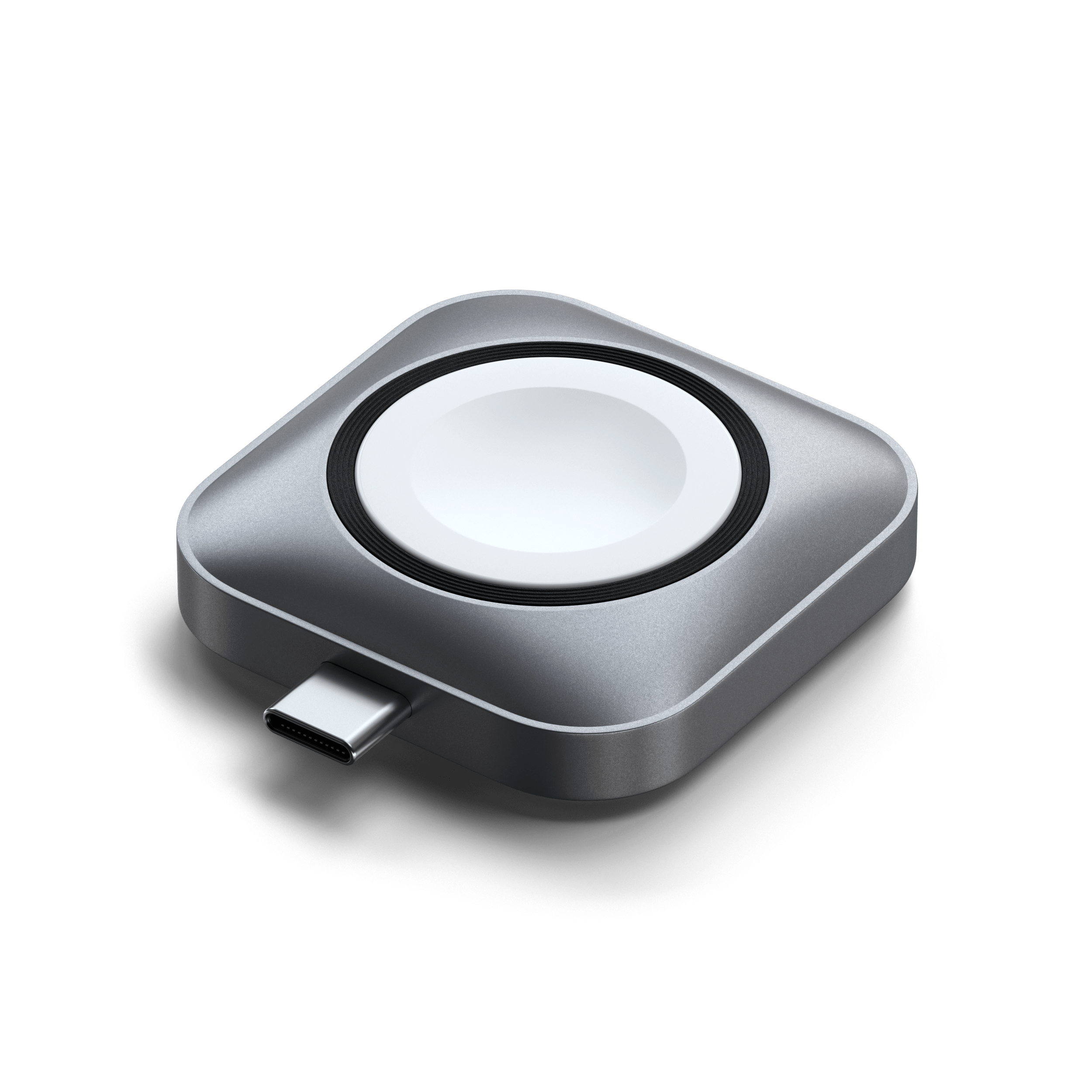
- Official Magnetic Charging Cable
- USB-C Fast Charging Cable (Series 7+)
- Magnetic Charging Dock
Avoid cheap knockoffs—they often lack proper power delivery.
Enable Optimized Battery Charging
- On Apple Watch: Open Settings
- Tap Battery > Battery Health
- Turn on Optimized Battery Charging
It learns your routine and delays full charge to reduce wear.
Monitor Charging Remotely
Use the iPhone Battery widget to check status without touching your watch.
Pro Move: Place your watch face-down at night—check charge from your phone in the morning.
Summary: 8 Ways to Know Apple Watch Is Charging
| Method | What to Look For |
|---|---|
| Charging Screen | Green time, ring, lightning bolt |
| Red Lightning Bolt | Encircled red bolt = charging from zero |
| Green Battery % | Turns green on watch face |
| iPhone Widget | Lightning icon next to watch battery |
| Charger LED | Solid green/white light |
| Nightstand Mode | Clock + charge ring |
| Control Center | Green battery percentage |
| Battery Settings | “Charging” status and live graph |
Final Note: If your Apple Watch shows no signs of charging after trying multiple cables, power sources, and cleaning, the issue may be hardware-related. Visit apple.com/support to schedule a service appointment. Most charging problems are fixable—but early detection makes all the difference.





