
You’re ready to sell your Apple Watch, gift it to a friend, or reset it for a fresh start—only to realize the new user hits a wall during setup: an Apple ID and password prompt they can’t access. That’s Activation Lock in action. If you don’t know how to turn off Activation Lock on Apple Watch, your device remains unusable to anyone else, no matter how many times it’s erased.
Activation Lock is a built-in security feature tied to Find My on your Apple Watch. It activates automatically when Find My is enabled, linking the device to your Apple ID. This means even a factory reset won’t free the watch from your account. The only way to disable Activation Lock is through authorized removal—either by unpairing via your iPhone or remotely removing the device through iCloud.
In this guide, you’ll learn the only two official methods to turn off Activation Lock, why common shortcuts don’t work, how to avoid buying a locked device, and what to do if you’ve lost access to your Apple ID. Whether you’re upgrading, selling, or troubleshooting, these steps ensure your Apple Watch transitions smoothly—and securely.
Unpair via Paired iPhone: The Only Reliable Way to Remove Activation Lock

If you still have access to the iPhone your Apple Watch is paired with, unpairing through the Apple Watch app is the fastest, most secure way to disable Activation Lock.
This method doesn’t just erase the watch—it deauthorizes it from your Apple ID, removes it from Find My, and permanently disables Activation Lock. It’s the only process Apple recognizes as complete deactivation.
What You Need Before Starting
- Your paired iPhone nearby
- The Apple ID password linked to the watch
- The Apple Watch passcode (if set)
- Both devices charged and connected to Wi-Fi or cellular
Step-by-Step: How to Unpair and Disable Activation Lock
- Open the Apple Watch app on your iPhone.
- Tap the My Watch tab at the bottom.
- Tap All Watches in the top-left corner.
- Find your Apple Watch and tap the (i) info icon next to it.
- Scroll down and tap Unpair Apple Watch.
- Confirm by tapping Unpair [Watch Name].
For cellular models, you’ll be asked whether to Keep or Remove Cellular Plan.
Choose Remove Cellular Plan if transferring ownership.
- Enter your Apple ID password when prompted.
- Wait while your iPhone erases the watch and removes it from your account. This can take several minutes.
Once complete:
– The Apple Watch resets to factory settings.
– It’s removed from your Find My device list.
– Activation Lock is permanently disabled.
– A new user can set it up without restrictions.
✅ Pro Tip: After unpairing, open Find My on your iPhone and confirm the Apple Watch no longer appears. This verifies successful removal.
Remove from iCloud.com: Remote Unlock When iPhone Is Unavailable
Lost your iPhone? It’s broken or no longer paired? You can still disable Activation Lock remotely using iCloud—no physical device access required.
This method is essential if you’re selling an old Apple Watch but no longer have the original iPhone, or if your phone was stolen along with the watch.
Requirements for Remote Removal
- A computer, tablet, or phone with internet access
- Your Apple ID and password
- Two-factor authentication access (trusted device or phone number)
How to Wipe and Remove Apple Watch via iCloud
- Go to iCloud.com/find in any web browser.
- Sign in with your Apple ID.
- Click Find My from the app launcher.
- Select All Devices at the top of the screen.
- Click your Apple Watch from the list.
- Click Erase Apple Watch.
- Confirm with your password.
- Optionally, enter a phone number so the finder can contact you.
- Click Erase again to confirm.
If the watch is offline, the command will execute the next time it connects to Wi-Fi or cellular.
After erasure:
10. Once the device is wiped, click Remove from Account.
11. Confirm with Continue.
✅ The Apple Watch is now free of Activation Lock and can be activated by a new user.
⚠️ Warning: Skipping the Remove from Account step leaves the device linked to your Apple ID. The lock remains active.
Erasing Apple Watch Directly: Why It Doesn’t Turn Off Activation Lock
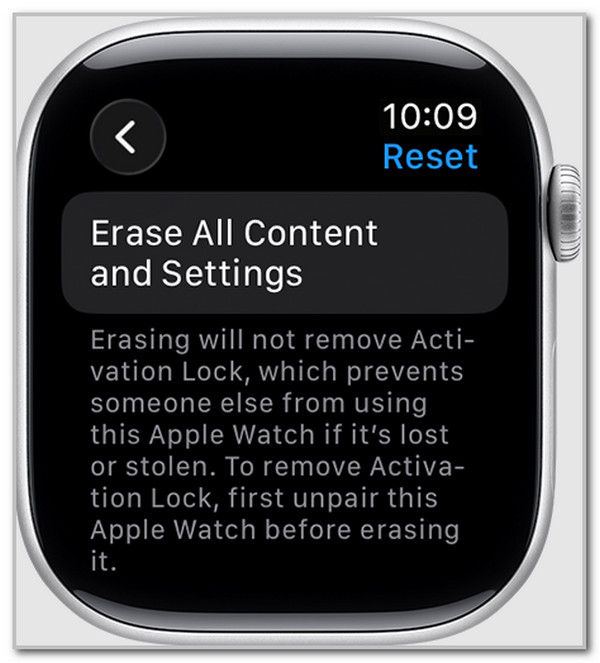
You might think wiping the watch from its own settings would disable Activation Lock. But it doesn’t—and this is where most people go wrong.
What Happens When You Erase on the Watch
- On Apple Watch, go to Settings > General > Reset.
- Tap Erase All Content and Settings.
- Enter your passcode.
- Confirm with Erase All.
The watch will:
– Delete all apps, data, and settings
– Reset to factory defaults
– Appear blank and unused
But during setup, it will still ask for the original Apple ID and password.
❌ Activation Lock remains active—the device is still tied to your account.
This method is only safe if you plan to reuse the watch. Never use it before selling or gifting.
Selling or Giving Away Your Apple Watch: Critical Pre-Transfer Checklist
Before handing over your Apple Watch, follow this checklist to ensure it’s truly ready for a new owner.
✅ Do This Before Transferring Ownership
- [ ] Unpair via iPhone (best method) or remove via iCloud
- [ ] Confirm the watch no longer appears in Find My
- [ ] For cellular models: Remove cellular plan in settings
- [ ] Contact your carrier to cancel subscription (if not reusing)
- [ ] Power off the watch and package it securely
🛑 Never skip unpairing. A “reset” watch with active Activation Lock is essentially unusable.
Buyers often report being unable to activate a secondhand watch because the seller only erased it. Always verify removal through Find My.
Buying a Used Apple Watch? Test for Activation Lock First
Purchasing a used Apple Watch? Never pay until you’ve verified it’s unlocked.
How to Check Activation Lock Status
- Power on the Apple Watch.
- Start setup by tapping Set Up for Yourself.
- Do not connect to Wi-Fi yet.
- Watch for the next screen:
– If it asks for an Apple ID and password → Locked
– If it proceeds to language or region selection → Unlocked
🛑 Never buy a locked Apple Watch. You cannot bypass Activation Lock without the original owner’s credentials.
If the seller says, “I forgot to unpair,” ask them to do it remotely via iCloud. If they refuse or can’t, walk away—the watch may be stolen.
Forgotten Apple ID or Password? Recover Access First
If you’re the rightful owner but can’t sign in, you must recover your Apple ID before disabling Activation Lock.
How to Regain Access
- Visit iforgot.apple.com.
- Enter your email or phone number.
- Choose Reset Password or Find Apple ID.
- Follow the verification steps (email, SMS, or trusted device).
- If using two-factor authentication, complete it on a trusted device.
⏳ Account recovery can take 24 hours to several days if you can’t verify instantly.
Once recovered:
– Use your iPhone or iCloud to unpair or remove the watch.
– Activation Lock will deactivate.
🔐 Apple Support cannot remove Activation Lock—not even with proof of purchase. Only the Apple ID holder can do it.
Lost or Stolen Apple Watch? Lock It with Find My
If your Apple Watch goes missing, Activation Lock becomes your best defense.
Use Find My to Protect Your Device
- Open Find My on your iPhone or go to iCloud.com.
- Select your Apple Watch.
- Choose one of these actions:
– Play Sound: Locate it nearby
– Lost Mode: Lock it with a custom message (e.g., “Reward if found”)
– Erase All Data: Wipe remotely
After erasing:
– The watch is wiped but still locked to your Apple ID.
– Thieves can’t reactivate it.
– You can later remove it from your account to allow resale or replacement use.
📍 Report theft to police and provide the serial number (found in Apple Watch app or original box).
You Cannot Bypass Activation Lock—No Exceptions
Despite what shady websites claim, there is no legal or technical way to bypass Activation Lock without the original Apple ID and password.
Why “Unlock Tools” Are Scams
- Third-party apps or services promising to “remove” Activation Lock are fake.
- They may steal your Apple ID, install malware, or permanently damage the device.
- Apple’s lock is firmware-level—it survives all resets, updates, and jailbreaks.
🔐 Activation Lock is designed to be unbreakable. That’s the whole point.
If you bought a locked watch, contact the seller. If they can’t remove it, demand a refund.
Technical Facts You Need to Know
Understanding how Activation Lock works helps prevent mistakes.
- No SIM slot: Apple Watch uses eSIM for cellular—no physical SIM to remove.
- No hardware reset button: All resets are software-based.
- No jailbreak bypass: Even modified firmware cannot disable the lock.
- Persistent after updates: Activation Lock survives all software changes.
This ensures stolen watches have zero resale value—protecting users.
Summary: The Right Way to Disable Activation Lock
| Scenario | Correct Method | Result |
|---|---|---|
| Selling or resetting | Unpair via iPhone | Lock removed, device usable |
| No iPhone access | Remove via iCloud.com | Remote wipe and unlock |
| Erased on watch only | Still locked | Requires original Apple ID |
| Forgotten password | Use iforgot.apple.com | Regain access, then unpair |
| Buying used | Test setup first | Avoid locked devices |
Final Tips for a Smooth, Secure Transition
- ✅ Always unpair before selling, gifting, or repairing.
- ✅ Verify removal in Find My after unpairing.
- ✅ Remove cellular plan to avoid billing surprises.
- ❌ Never use third-party unlock tools—they’re scams.
- 🔐 Activation Lock is security, not a bug—respect it.
Turning off Activation Lock isn’t optional—it’s essential. By following the right steps, you protect your data, ensure your device stays usable, and make the transfer process seamless. Whether you’re upgrading, replacing, or helping someone else, proper deactivation is the key to a hassle-free experience.




