
You’ve probably never had to turn off your Apple Watch since you first set it up—and that’s by design. Apple builds its smartwatches to run nearly 24/7, with most users simply charging them nightly and letting them stay on. But there are legitimate reasons you might need to power it down: troubleshooting glitches, traveling through secure zones, or even digital detox. The good news? Turning off your Apple Watch is quick and consistent across all models—from the Series 3 to the latest Ultra 2.
In this guide, you’ll learn the standard shutdown method, how to force restart when your watch freezes, and smart alternatives that simulate a powered-off look without fully shutting down. We’ll also cover common issues like unresponsive sliders, automatic reboots, and what to do when your watch won’t turn back on. By the end, you’ll have full control over your device’s power state—no guesswork needed.
Power Down Using the Side Button
Press and Hold Until Power Slider Appears
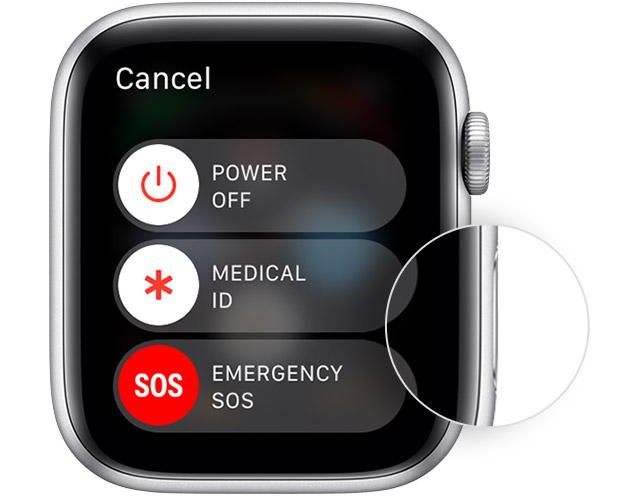
To begin shutting off your Apple Watch, press and hold the side button—the one on the right edge of the case. Keep holding it for 3–5 seconds. Soon, you’ll see the Power Off slider appear on screen, along with options for Emergency SOS and Medical ID.
Don’t let go too early. Wait until the red power icon shows up at the bottom of the screen. This confirms the shutdown sequence has started.
Slide to Complete Shutdown
Once the Power Off option is visible, tap it. Then, drag the slider from left to right across the display. After sliding, the screen will dim and eventually go completely black. Your Apple Watch is now fully powered off—no background apps, no notifications, and no response to taps or wrist raises.
Note: This is a complete shutdown. The watch won’t perform any functions until manually turned back on.
How to Turn Your Apple Watch Back On
Hold Side Button Until Apple Logo Shows
To power your watch back on, press and hold the side button again. Keep holding it for 10–30 seconds. You’ll know it’s working when the Apple logo appears on a black background.
Once the logo shows, release the button. The watch will boot up and, if your iPhone is nearby and Bluetooth is active, automatically reconnect.
Pro Tip: If nothing happens after holding the button, the battery may be dead. Plug your Apple Watch into its magnetic charger and wait 15 minutes before trying again.
Force Restart When Your Watch Is Frozen
Use Hard Reset for Unresponsive Devices
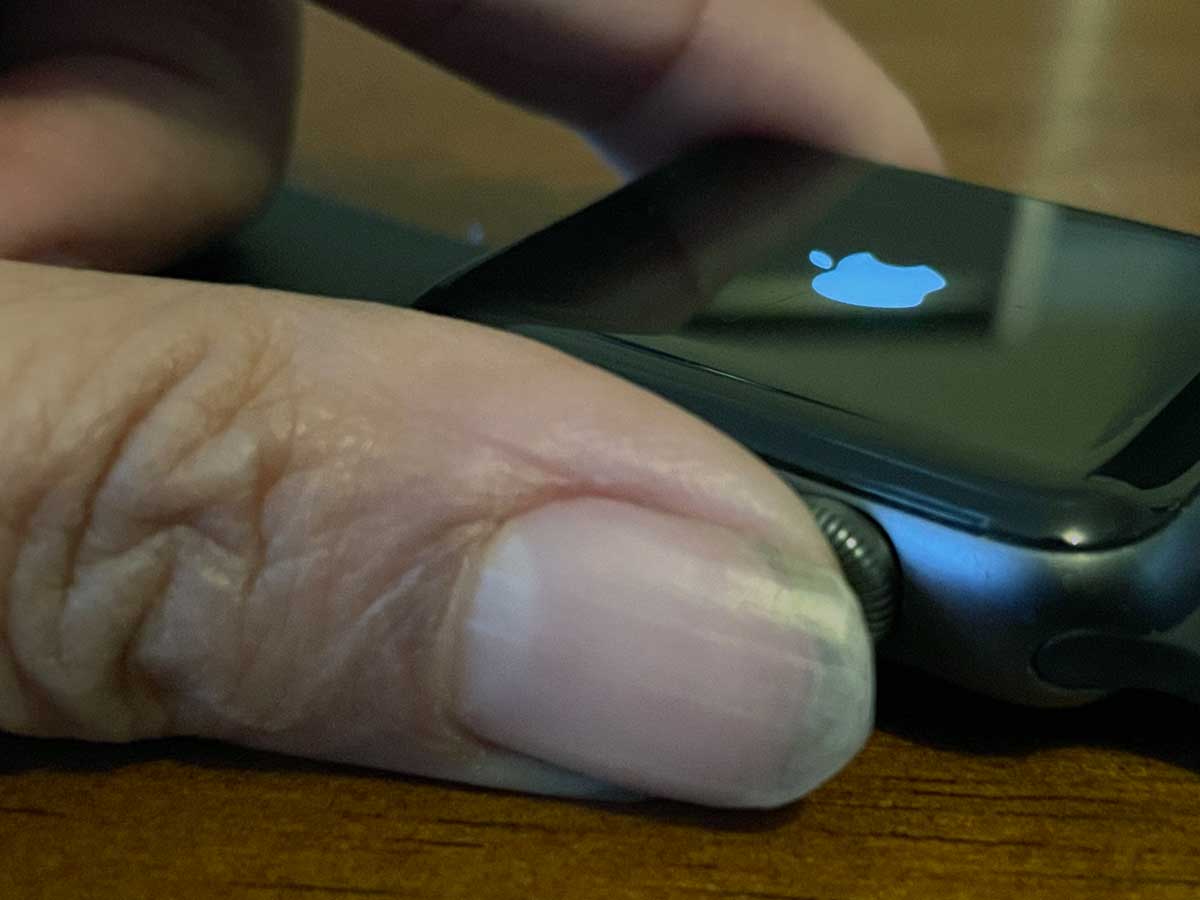
If your Apple Watch is frozen, stuck on a spinning wheel, or won’t respond to touch, a force restart can get it working again. This is a safe procedure that doesn’t erase data—think of it as rebooting a computer.
Simultaneously Press Side Button and Digital Crown
- Press and hold both the side button and the Digital Crown at the same time.
- Keep holding for at least 10 seconds—don’t let go even if the screen flickers.
- Release when you see the Apple logo appear.
Your watch will restart normally. This method works on all Apple Watch models, including Series 3, SE, and Ultra.
Warning: Only use this when the standard shutdown fails. Frequent force restarts can indicate deeper software issues.
Simulate “Off” Without Shutting Down
Sometimes you don’t need to power off—just silence the screen and prevent accidental taps. These settings keep your watch running while mimicking a dark, inactive display.
Activate Theater Mode to Silence the Screen
Theater Mode keeps your Apple Watch on but stops the screen from waking when you raise your wrist or tap it.
Turn It On via Control Center
- Swipe up from the watch face to open Control Center.
- Tap the theater mask icon (a face with a mask).
- The screen will stay dark unless manually woken.
Or Enable It in Settings
Go to Settings > Theater Mode and toggle it on. You can also enable Wrist Detection to ensure the display stays off until you intentionally wake it.
Best For: Meetings, bedtime, or watching movies—anytime you want privacy without losing connectivity.
Cover Screen to Turn Off Display
If you have Always On Display (available on Series 5 and later), covering the screen with your palm for about one second will instantly dim it.
- Place your hand over the display.
- After a second, the screen blacks out.
- Tap the screen or press the side button to wake it.
This doesn’t turn off the watch—it just hides the display temporarily.
Disable Always On Display for Full Darkness
For a completely dark screen when inactive:
- Open Settings on your Apple Watch.
- Go to Display & Brightness > Always On.
- Toggle Always On off.
Now, the screen stays off until you tap it or press a button. This also helps conserve battery.
Bonus: Combine this with Theater Mode for maximum screen control.
Shut Down via Settings (No Buttons Needed)
Use the On-Watch Menu for Button-Free Shutdown
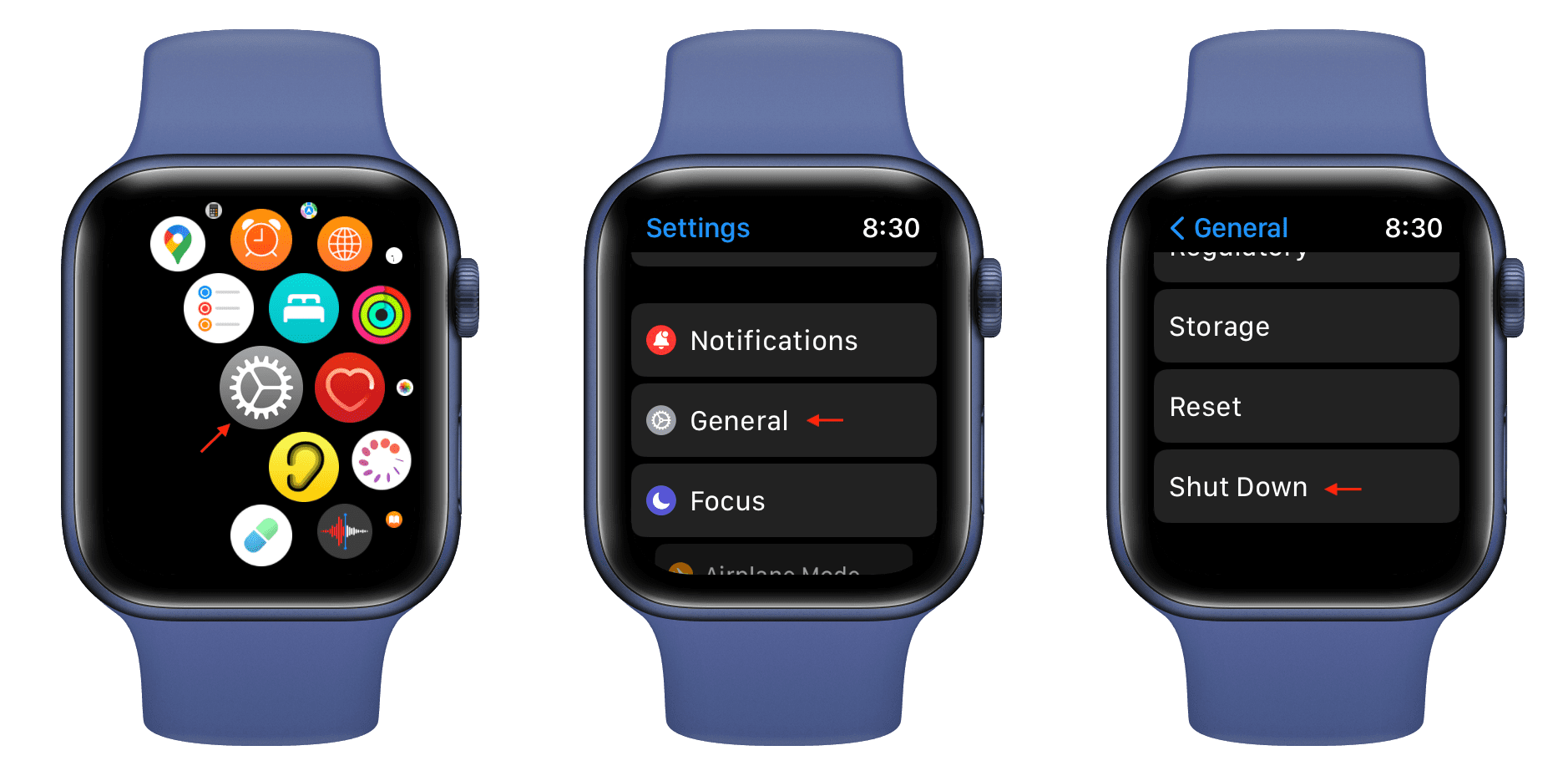
If the side button is damaged, sticky, or hard to press, you can turn off your Apple Watch through the Settings app.
Step-by-Step Shutdown via Software
- Open Settings on your Apple Watch.
- Tap General > Shut Down.
- Tap the red power icon, then slide the toggle to power off.
This method works exactly like the physical button method and is ideal for users with accessibility needs or hardware concerns.
Pro Tip: This is also useful when demonstrating the device or using a screen protector that affects touch sensitivity.
Troubleshooting: What to Do When Shutdown Fails
Power Slider Won’t Respond to Swipes
If you see the Power Off slider but dragging it does nothing, the issue might be touch-related.
Common Causes:
– Moisture or sweat on the screen
– A glitchy app running in the background
– Temporary software freeze
Solutions:
– Dry the screen thoroughly with a soft cloth.
– Close any open apps by swiping up and swiping them away.
– Try a force restart (side button + Digital Crown for 10 seconds).
– Test if other apps respond—if not, the touch screen may need service.
Expert Insight: If touch fails across multiple apps, consider a factory reset after backing up your data.
Watch Turns Back On After Being Off
Why This Happens (and How to Stop It)
Even after powering down, your Apple Watch may automatically turn back on when it detects your paired iPhone nearby via Bluetooth.
This is intentional—it helps maintain sync and readiness.
How to Prevent Auto-Wake
- Turn off Bluetooth on your iPhone before shutting down the watch.
- Store the watch in a Faraday bag or metal container to block wireless signals.
- Keep it at least 6–10 feet away from your phone or other Bluetooth devices.
Use Case: Essential for privacy, digital detox, or passing through secure facilities.
Watch Won’t Turn On After Shutdown
No Response When Pressing Side Button
If nothing happens when you press the side button, the battery is likely drained.
Check for Low Battery Indicator
- Connect the Apple Watch to its magnetic charger.
- Wait 15–30 minutes.
- Look for a red lightning bolt or “Z”-shaped symbol—this means the battery is too low to start and needs charging first.
Charging Tips
- Clean the back of the watch and charging cable contacts with a dry cloth.
- Try a different USB port or power adapter.
- Ensure the charger magnetically snaps into place securely.
Fact: Even a powered-off Apple Watch loses charge over time. Recharge every few days if stored off.
When Should You Actually Turn Off Your Apple Watch?
Rarely Needed in Daily Use
Most users never turn off their Apple Watch. With 18-hour battery life, nightly charging keeps it fresh and ready.
Recommended Times to Power Down
- After a watchOS update that requires a reboot
- To fix Bluetooth pairing issues
- During air travel (if required by airline policy)
- For troubleshooting crashes or freezes
- When storing long-term (e.g., backup device)
Apple’s Design Philosophy: The watch is built for continuous operation. Frequent shutdowns are unnecessary and not recommended.
Best Practices for Power Management
Keep watchOS Updated
Outdated software can cause unresponsiveness or failed shutdowns.
How to Update
- Open the Apple Watch app on your iPhone.
- Go to My Watch > General > Software Update.
- Download and install the latest version.
Updates often fix bugs related to power controls and system stability.
Charge Before Restarting
A low battery can interfere with shutdown or startup.
Ideal Battery Level
- Ensure at least 20–30% charge before restarting.
- If the watch dies mid-shutdown, it may not reboot until charged.
Warning: Avoid letting the battery drop to 0% regularly—it can degrade long-term battery health.
Re-pair if Problems Persist
If your Apple Watch consistently fails to turn off or on:
- Open the Apple Watch app on iPhone.
- Tap your watch > Unpair Apple Watch.
- On the watch, go to Settings > General > Reset > Erase All Content and Settings.
- Re-pair the watch to restore factory settings.
This clears deep software issues that interfere with power functions.
Works on All Apple Watch Models
Consistent Controls Across Generations
The methods in this guide apply to:
- Apple Watch Series 3, 4, 5, 6, 7, 8, 9
- Apple Watch SE (1st and 2nd gen)
- Apple Watch Ultra and Ultra 2
All models use the side button and Digital Crown for force restarts and standard shutdown.
Key Insight: Apple has kept the power interface consistent for user familiarity—no need to relearn between models.
Quick Reference: Power Actions at a Glance
| Action | Steps |
|---|---|
| Turn Off Normally | Press side button → Tap Power Off → Slide to shut down |
| Turn On | Hold side button until Apple logo appears |
| Force Restart | Hold side + Digital Crown for 10+ seconds |
| Simulate Off (Theater Mode) | Swipe up → Tap theater mask |
| Disable Always On | Settings > Display & Brightness > Always On → Off |
| Shut Down via Menu | Settings > General > Shut Down → Slide |
Final Tips from Long-Term Users
- No Daily Shutdown Needed: The Apple Watch is optimized for constant use. Just charge nightly.
- Battery Health: Avoid full discharges. Charge before it hits 10%.
- Privacy Hack: For complete signal isolation, shut down the watch and turn off iPhone Bluetooth.
- User Reality: Verified long-term users report only restarting after updates or rare software hiccups.
Turning off your Apple Watch is simple when you know the steps. Whether you’re troubleshooting, traveling, or just want a dark screen, this guide gives you full control—without frustration.
Now you’re ready to power down confidently, no matter your model or situation.




