
You’ve just finished a long day, or you’re packing for a flight and want to power down your Apple Watch 10. Maybe it’s acting sluggish or freezing up. Whatever the reason, knowing how to turn off Apple Watch 10 is essential for troubleshooting, travel, or preserving battery during storage. Unlike older devices that shut down automatically when the battery dies, the Apple Watch 10 requires a deliberate action to power off—ensuring you don’t accidentally lose access to your health data or notifications. In this guide, you’ll learn the exact steps to shut down, restart, and troubleshoot your Apple Watch 10, along with expert tips for battery care, accessibility, and long-term use.
Power Off Using Side Button
The standard way to turn off your Apple Watch 10 uses the physical side button and an on-screen swipe. This method works on all models, including GPS-only, Cellular, and both aluminum and stainless steel variants.
Press and Hold Side Button
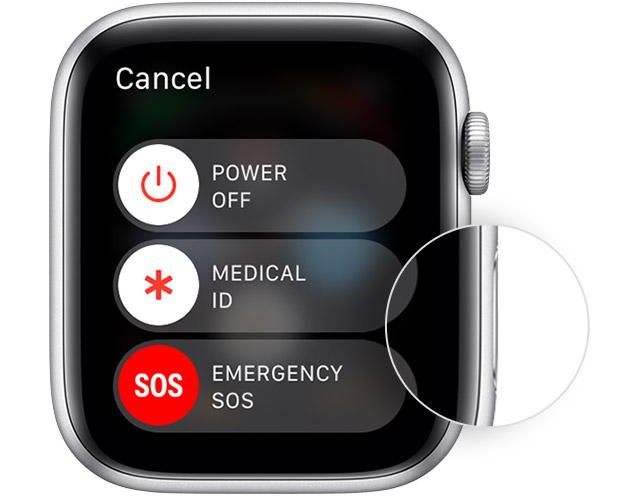
Locate the side button—the flat button just below the Digital Crown on the right edge of the watch. Press and hold it for 2–3 seconds. After a brief moment, you’ll feel a light tap from the Taptic Engine, and the Power Off slider will appear on-screen with the red text “Slide to Power Off.”
Pro Tip: If VoiceOver is enabled, the watch will announce “Power Off slider” aloud, making it easier for visually impaired users to proceed.
Swipe to Power Off
Once the red slider appears, use your finger to swipe from left to right across the screen. The watch will immediately begin shutting down. The display will fade to black, and the device will stop responding—this means it’s fully powered off.
Note: There’s no confirmation dialog. Swiping the slider initiates shutdown instantly, so make sure you’re ready.
Turn On Apple Watch 10 After Shutdown
Turning your Apple Watch 10 back on is just as simple as powering it down.
Hold Side Button to Restart
After shutdown, press and hold the side button again. Keep holding it until the Apple logo appears on the black screen. This usually takes 10–20 seconds, depending on battery level and system condition.
Don’t let go too soon—if you release the button before the logo appears, the watch may not boot. Wait until you see the logo to confirm the startup process has begun.
Expect Normal Boot Sequence
Once the Apple logo shows, the watchOS will load in the background. It may take 30–60 seconds for the watch to fully boot, reconnect to your iPhone (if paired), and restore your apps and complications. If it doesn’t respond after a full minute, ensure the battery isn’t completely drained.
Force Restart When Watch Is Frozen
If your Apple Watch 10 is frozen, unresponsive, or won’t show the Power Off slider, a force restart can help reset the system.
Press Side Button and Digital Crown
Simultaneously press and hold the side button and the Digital Crown (the rotating knob on top). Keep holding both for at least 10 seconds—don’t release early.
Release at Apple Logo
When you see the Apple logo appear on the screen, let go. Your watch will reboot normally. This doesn’t fully power off the device; it’s a hard reset used to recover from crashes, app freezes, or touch unresponsiveness.
Warning: A force restart is not the same as shutting down. Use it only when the watch won’t respond to taps or the side button.
Troubleshoot Missing Power Off Slider
Sometimes, the Power Off slider doesn’t show up even after holding the side button. This can be frustrating—but it’s usually fixable.
Why Slider Doesn’t Appear
Common reasons include:
– A frozen interface preventing the menu from loading
– A software glitch in watchOS
– Critically low battery—the watch may shut down before the slider appears
Fix: Try Force Restart First
If the slider won’t appear, perform a force restart (side button + Digital Crown for 10+ seconds). Once the Apple logo shows, try the normal shutdown process again.
If the watch shuts down without showing the slider, it likely died due to low power. Plug it in and charge before attempting to use it again.
Unexpected Shutdowns: Causes and Fixes

If your Apple Watch 10 turns off on its own, especially at 20% or higher battery, something’s wrong.
Check Battery Health
Open the Watch app on your iPhone, go to My Watch > General > Usage > Battery Health. Look for:
– Maximum Capacity below 80%
– A warning that says “Service Recommended”
Degraded batteries can’t hold charge properly and may trigger sudden shutdowns.
Update watchOS
Outdated software can cause instability. To check for updates:
– Open Watch app > General > Software Update
– Install any available updates
Make sure your iPhone is nearby and both devices are charged above 50% during the update.
Avoid Extreme Temperatures
The Apple Watch 10 automatically shuts down if exposed to:
– Below 0°C (32°F) – like in a freezing car
– Above 35°C (95°F) – such as direct sunlight or near a heater
Keep your watch in a moderate climate to prevent thermal shutdowns.
Charge Apple Watch 10 While Powered Off

Yes, you can charge your Apple Watch 10 while it’s turned off—and it’s actually more efficient.
Connect Magnetic Charger
Attach the magnetic charger to the back of the watch. If there’s any residual power, the charging symbol (a lightning bolt inside a battery) will appear on-screen.
If the screen stays black, don’t panic—charging may still be happening. Check the connection and wait 1–2 minutes.
Faster Charging When Off
With no apps running or display active, the watch charges slightly faster when powered off. This is ideal for quick top-ups before travel or storage.
Warning: If the watch won’t respond after being fully drained, hold the side button for 15 seconds to force a boot once connected to power.
Long-Term Storage Tips
Storing your Apple Watch 10 for weeks or months? Follow Apple’s guidelines to protect the battery.
Charge to 50% Before Shutting Down
Never store the watch at 0% or 100%. Charge it to about 50% before powering off. This prevents deep discharge damage during inactivity.
Store in Cool, Dry Place
Keep it away from:
– Direct sunlight
– Humidity
– Heat sources
Avoid sealing it in airtight plastic unless using anti-static packaging.
Recharge Every Few Months
Even in storage, the battery slowly drains. Power it on and recharge every 2–3 months to maintain health and prevent permanent damage.
Accessibility: VoiceOver and Shortcut Support
Apple Watch 10 remains accessible even during shutdown.
VoiceOver Announces Power Off Slider
With VoiceOver enabled, the watch will speak “Power Off slider” when you press the side button. Use standard VoiceOver gestures to activate the slider and confirm shutdown.
Customize Side Button Shortcut
Triple-clicking the side button can be set to launch:
– VoiceOver
– Magnifier
– Emergency SOS
– Hearing Aid controls
To set this up:
– Open Watch app > Accessibility > Side Button
– Choose your preferred shortcut
This function works even when the watch is nearly powered down.
No Automatic or Scheduled Shutdown
Unlike some iPhones, the Apple Watch 10 does not support scheduled shutdowns.
Manual Process Only
There’s no setting in watchOS to automatically turn off at a specific time. All shutdowns must be done manually using the side button.
No Third-Party Automation
Due to watchOS security policies, no apps, shortcuts (even from the iPhone Shortcuts app), or smart home automations can remotely power off your Apple Watch 10. All power actions happen directly on the device.
Model and Compatibility Notes
The shutdown method is identical across all recent Apple Watch models.
Works Across All Variants
Whether you have:
– Apple Watch 10 (Aluminum or Stainless Steel)
– GPS-only or GPS + Cellular
– Running watchOS 10 or later
…the process is exactly the same.
Same Steps for Series 9 and Ultra 2
Users upgrading from Series 9 or Ultra 2 will find the power-off process unchanged. Apple maintains consistency so you don’t have to relearn basic functions.
Prevent Common Power Issues
Avoid future problems with these simple habits.
Restart Weekly for Best Performance
While full shutdown isn’t needed daily, restart your Apple Watch 10 every few weeks to clear memory and refresh system processes.
Don’t Let Battery Drain Completely
Frequent 0% discharges wear out the battery faster. Plug in when it drops below 20%.
Use Genuine Apple Charger
Third-party chargers may deliver unstable power, leading to boot issues or charging failures. Stick with Apple’s magnetic charger for reliability.
When to Contact Apple Support
If your Apple Watch 10 won’t turn off, won’t turn on, or shuts down repeatedly, it may need professional help.
Signs of Hardware Failure
- Powers off randomly with 50%+ battery
- Force restart doesn’t trigger Apple logo
- Fails to charge when powered off
Warranty and Repair Options
- One-year limited warranty covers manufacturing defects
- AppleCare+ covers accidental damage (drops, liquid)
- Unauthorized repairs void the warranty
Visit apple.com/support or an Apple Store for diagnostics.
Summary: Apple Watch 10 Power Commands
| Action | Steps |
|---|---|
| Turn Off | Hold side button > Swipe red Power Off slider |
| Turn On | Hold side button until Apple logo appears |
| Force Restart | Hold side button + Digital Crown for 10+ seconds |
| Charge When Off | Connect magnetic charger; charging starts automatically |
Use this table as a quick-reference guide for all essential power functions.
Turning off your Apple Watch 10 is a simple, secure process designed to protect your data and prevent accidental shutdowns. Whether you’re troubleshooting, traveling, or storing the device, following the correct steps ensures reliability and longevity. Keep your watch updated, avoid extreme conditions, and perform occasional restarts to maintain smooth operation. With the right care, your Apple Watch 10 will stay responsive and ready whenever you need it.




