
Your Apple Watch is designed to respond to every twist and press of the Digital Crown—but what happens when it activates on its own? If your screen keeps waking, the Smart Stack pops up unexpectedly, or the haptic “click” distracts during quiet moments, you’re not imagining things. The Digital Crown, while essential for navigation, is highly sensitive and prone to accidental triggers—especially during workouts, sleep, or when wearing gloves or tight clothing.
Here’s the reality: Apple does not offer a setting to fully “turn off” the Digital Crown. It’s a core navigation tool, and disabling it entirely would break basic functionality like returning to the Home Screen or scrolling through messages. But you can minimize unwanted behavior using built-in settings, smart wear habits, and clever workarounds. This guide will show you exactly how to stop accidental activations, silence haptics, and regain control—without sacrificing usability.
Disable Wake on Crown Rotation
The most direct way to stop accidental wake-ups is by turning off Wake on Crown Rotation.
What It Stops
When enabled, rotating the Digital Crown—even slightly—can wake your Apple Watch from sleep. This is especially problematic if you rest your hand on a desk, wear tight sleeves, or move your wrist during sleep.
How to Turn It Off
- On your Apple Watch, open Settings.
- Tap Display & Brightness.
- Select Wake on Crown Rotation.
- Toggle it Off.
✅ Result: The screen will no longer light up from crown rotation when the display is off.
⚠️ Note: This does not stop scrolling actions once the screen is already active.
This single setting solves the majority of accidental wake issues. Users like green_mojo report immediate relief: “Now the watch won’t wake if you aren’t looking at it and you turn the crown.”
Stop Accidental Smart Stack Activation
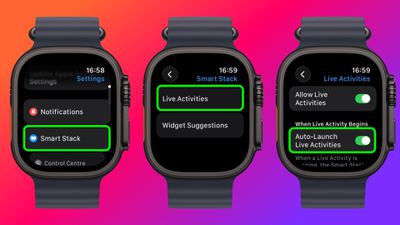
One of the most common complaints? Rotating the crown from the watch face opens the Smart Stack, a vertical list of widgets like weather, calendar, and activity rings.
Why It Happens
Even with Wake on Crown Rotation off, if the screen is already on (from wrist raise or a tap), a slight twist of the crown will scroll into the Smart Stack. There’s no setting to disable this action.
User Reports:
- exvidious: “It’s not the watch face—it’s the Smart Stack triggered by crown scroll.”
- Richje: “Just roll the crown clockwise from the watch face.”
Workarounds:
- Keep Wake on Crown Rotation disabled to reduce screen activation.
- Wear the watch tighter or looser—a band that’s too tight may pull skin against the crown.
- Use a rigid screen protector to add a physical barrier.
- Avoid resting your hand on surfaces where the crown could rotate.
Apple has not provided a way to disable Smart Stack access via the crown—only prevention is possible.
Turn Off Crown Haptic Feedback
If the tactile “click” of the Digital Crown annoys you during scrolling, you can eliminate it.
How to Disable Crown Haptics
On Apple Watch:
- Open Settings.
- Go to Sounds & Haptics.
- Toggle Crown Haptics to Off.
Or via iPhone:
- Open the Watch app.
- Tap My Watch > Sounds & Haptics.
- Turn off Crown Haptics.
✅ Effect: No more vibration with each scroll step.
💡 Bonus: Slight battery savings from reduced Taptic Engine use.
Should You Disable System Haptics Too?
- System Haptics controls all non-alert vibrations (e.g., timer end, confirmation taps).
- Turning it off silences useful feedback—use cautiously.
- Best for users who want minimal sensory input.
The Taptic Engine, present in all Apple Watch models since Series 4, delivers precise taps. While helpful, its sensitivity can be overkill in quiet environments.
Digital Crown Lock: What It Actually Does

Despite the name, Digital Crown Lock doesn’t lock the crown’s rotation or press.
Real Function
- Prevents accidental inputs after a period of inactivity.
- When enabled, you may need to tap the screen to resume interaction.
How to Turn It Off
- Open the Watch app on iPhone.
- Go to General > Digital Crown Lock.
- Toggle it Off.
🔁 Effect: Keeps the crown fully responsive at all times.
Important Warning:
- Turning this off may increase accidental inputs, especially during physical activity.
- Best left on if you wear gloves or tight sleeves.
On older watchOS versions, this setting is under Accessibility > Digital Crown Lock.
Fix Common Accidental Activation Issues
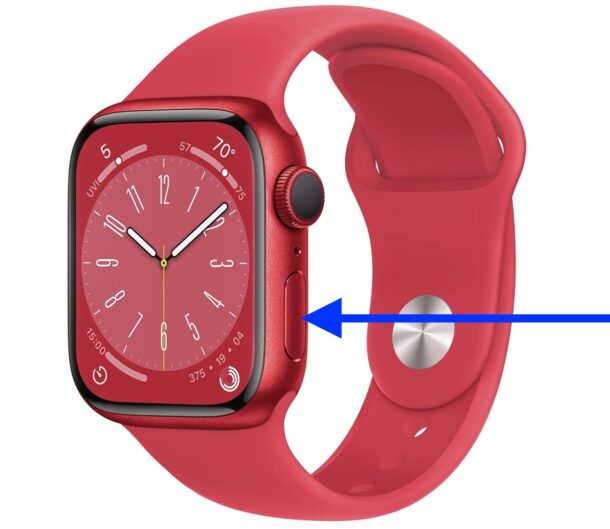
“Control Center Keeps Popping Up”
Especially common when wearing the crown on the left side (inward-facing).
Why It Happens:
- Looking at the time rotates your wrist, which can turn the crown.
- Triggers Control Center or Smart Stack.
Solution:
- Wear the watch upside down—crown facing your pinky.
- Apple supports this—interface automatically rotates.
- Eliminates pressure on the back of the wrist.
🏍️ Popular among motorcyclists and cyclists whose gloves press the controls.
“Clothing or Gloves Trigger the Crown”
Fabric, gloves, or tight sleeves can rotate the crown slightly—enough to wake the screen.
Fixes:
- Loosen the band one notch – flustershy: “Too tight causes rolling.”
- Enable Theater Mode – prevents wake-on-wrist-raise and disables sound.
- Apply a snap-on screen protector – suiseki63: “Reduces accidental activations.”
“Crown Feels Too Sensitive”
Some users report activation after just ¼ turn.
Possible Causes:
- Factory sensitivity varies.
- Software glitch or debris in crown mechanism.
Try:
- Clean the Digital Crown area gently with a soft brush.
- Restart your Apple Watch.
- If persistent, contact Apple Support—may indicate hardware issue.
Workarounds to Minimize Crown Use
Since you can’t fully disable the Digital Crown, these strategies help reduce unwanted interaction.
Wear Watch Upside Down
Flip the watch so the Digital Crown faces your pinky.
Benefits:
- Avoids crown digging into wrist.
- Reduces accidental presses from gloves or resting hands.
- Supported by Apple—interface rotates automatically.
✅ Ideal for left-handed users, cyclists, and motorcyclists.
Enable Theater Mode
Blocks automatic screen wake and disables sound—perfect for workouts or travel.
How to Activate:
- Swipe up from watch face → tap two hands icon (Theater Mode).
- Or say: “Hey Siri, turn on Theater Mode.”
Effect:
- Screen stays dark unless tapped.
- Prevents wake from wrist raise or crown rotation.
- Automatically disables Raise to Wake.
🕶️ Use during yoga, running, or anytime you want zero accidental triggers.
Adjust Band Tightness
A band that’s too tight can cause skin to pull against the crown when you rotate your wrist.
Tip:
- Loosen by one notch—maintains security without friction.
- Use a sport loop or ventilated band to reduce grip.
Use a Rigid Screen Protector
Some screen protectors add a raised edge that acts as a physical barrier.
Benefits:
- Limits direct contact with Digital Crown.
- Reduces accidental scrolls from brushing or pressure.
- Also protects against scratches.
Choose a full-coverage, snap-on model for best results.
What You Can’t Do (Yet)
Despite user demand, Apple does not allow:
❌ Disable Digital Crown Rotation Entirely
- No setting to fully turn off scroll or press functions.
- Core navigation depends on it—Apple won’t remove it.
❌ Adjust Rotation Sensitivity
- Cannot increase the turn threshold needed to activate.
- Users wish for a “less sensitive” mode.
❌ Disable Smart Stack via Crown
- Cannot selectively block widget access.
- Only workaround is disabling wake-on-rotation.
❌ Lock Crown During Workouts
- No automation to disable crown during specific activities.
- No third-party app workaround available.
💬 User Frustration: “This is a design flaw. Apple refuses to fix it.” – Friendly_Swim1236
Summary of Available Controls
| Setting | Location | What It Does | Recommended? |
|---|---|---|---|
| Wake on Crown Rotation | Watch: Display & Brightness | Stops screen from waking on turn | ✅ Yes |
| Crown Haptics | Watch: Sounds & Haptics | Removes scroll vibration | ✅ Yes |
| System Haptics | Watch: Sounds & Haptics | Disables all non-alert taps | ⚠️ Use cautiously |
| Digital Crown Lock | iPhone: Watch app > General | Keeps crown active after idle | ❌ Turn off only if needed |
| Theater Mode | Control Center or Siri | Blocks wake and sound | ✅ During workouts |
Best Action Plan to “Turn Off” the Digital Crown
Since full deactivation isn’t possible, combine these steps to minimize unwanted use:
Step-by-Step:
-
Disable Wake on Crown Rotation
→ Stops screen from waking on accidental turns. -
Turn Off Crown Haptics
→ Removes distracting click feedback. -
Wear Watch Upside Down (Optional)
→ Reduces skin and clothing contact. -
Enable Theater Mode During Activities
→ Blocks all automatic wake triggers. -
Loosen Band Slightly
→ Prevents skin pull during wrist rotation. -
Add a Rigid Screen Protector
→ Acts as a physical shield.
🛠️ These steps won’t disable the crown—but together, they reduce accidental use to near zero.
Final Tips and Recommendations
- No software setting fully turns off the Digital Crown—it’s essential to Apple Watch navigation.
- Focus on preventing accidental activation, not complete disablement.
- Use Theater Mode + Wake off for maximum control during exercise.
- Apple may add sensitivity settings in future watchOS updates—watch for announcements.
- If the crown feels overly sensitive, clean it gently or visit Apple Support.
While the Digital Crown is powerful, its sensitivity can be a nuisance. By adjusting settings and using smart wear habits, you can keep its benefits while eliminating the frustration. Until Apple adds granular control, this combination of fixes is your best defense against unintended scrolls, pops, and wake-ups.




