
You’re stumbling in the dark, trying to unlock your front door with numb fingers, or waking up in the middle of the night and need just enough light to find your way—your Apple Watch can help. The flashlight on Apple Watch is more than a gimmick; it’s a practical, instantly accessible tool built right into your wrist. Whether you own an entry-level Series 3 or the rugged Apple Watch Ultra, turning on the flashlight takes seconds and can be done without even looking at the screen. No fumbling for your phone or hunting for a flashlight in a drawer—just a tap, a voice command, or even a dedicated button press.
In this guide, you’ll learn how to turn on flashlight on Apple Watch using every available method: Control Center, Siri voice commands, the Action button (exclusive to Ultra), and even custom shortcuts. We’ll cover how to switch between light modes—including red light for night vision—adjust brightness, and turn it off silently with a gesture. You’ll also discover pro tips to make activation faster, especially if you use it often during nighttime routines or outdoor adventures.
Let’s get you lighting up—quickly, quietly, and with zero hassle.
Access Flashlight via Control Center
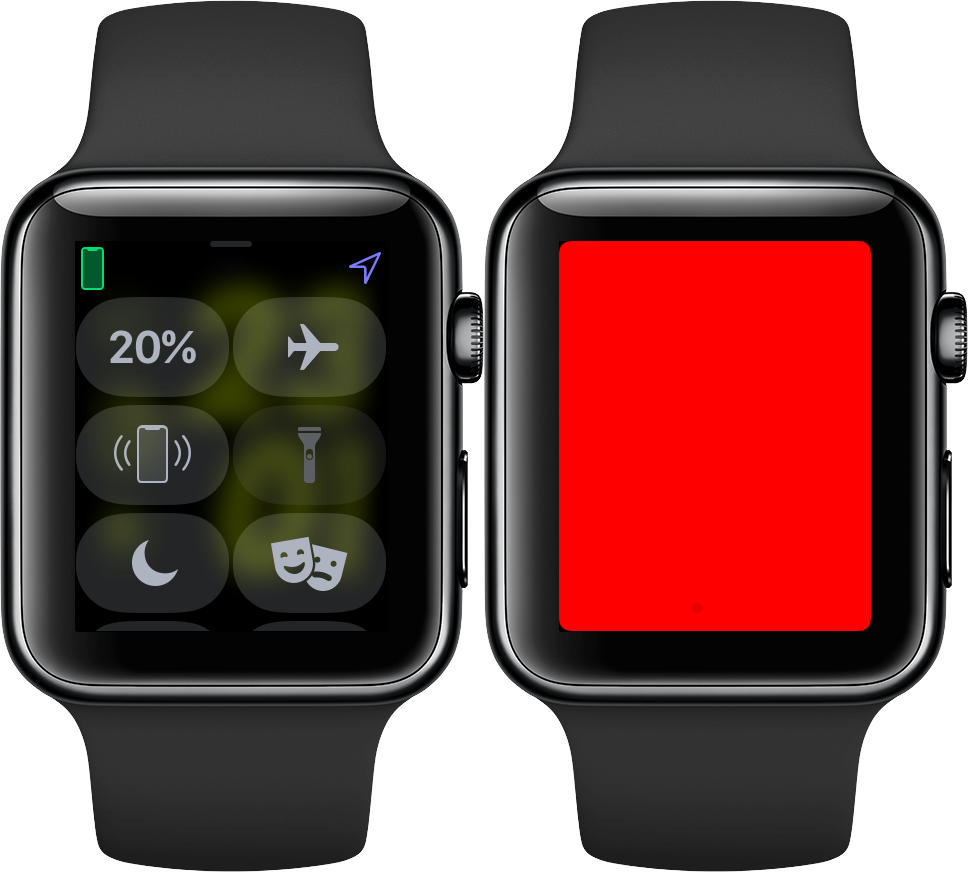
The fastest and most universal way to activate the flashlight works across all Apple Watch models: the Control Center. This method doesn’t require voice or setup—just a few taps.
Open Control Center to Activate
- Press and hold the side button on your Apple Watch until the Control Center appears.
- Tap the flashlight icon, which looks like a glowing lightbulb.
- The flashlight turns on immediately in steady white mode.
Once active:
– Swipe left or right to switch between:
– Steady white (bright, continuous light)
– Flashing white (intermittent pulse—great for visibility)
– Steady red (low-intensity red light to preserve night vision)
– Rotate the Digital Crown to adjust brightness up or down.
To turn it off:
– Press the Digital Crown.
– Or swipe down from the top of the screen to close Control Center.
Pro Tip: Speed up access by moving the flashlight icon to the top row in Control Center:
1. Open Control Center.
2. Tap Edit.
3. Drag the flashlight icon to the first row.
4. Tap Done.
This small change saves precious seconds when you’re groggy or in pitch darkness.
Use Siri Voice Commands
Hands full? Can’t see the screen? Siri lets you turn on the flashlight without touching your watch—perfect for real-world situations.
Activate With “Lumos” and Voice
- Wake Siri by saying “Hey Siri” or holding the side button.
- Say any of these:
- “Lumos” – turns on flashlight at default brightness
- “Lumos Maxima” – activates full brightness
- “Turn on flashlight” – standard command
- “Nox” – turns it off instantly
Fun Fact: “Lumos” and “Nox” are Harry Potter spells—Lumos means “light,” and Nox means “dark.” Apple embedded these playful commands for fans and ease of use.
This method is ideal if:
– You’re carrying groceries, a pet, or a baby
– You wear reading glasses and struggle to see the screen
– You’re over 60 or have limited dexterity
No setup required—just speak and light up.
Assign Flashlight to Action Button (Ultra Only)
If you own an Apple Watch Ultra, you can assign the flashlight to the Action button—a rugged, customizable physical button located below the Digital Crown.
Set Up One-Touch Flashlight
- Open the Settings app on your watch.
- Go to Digital Crown & Side Button > Action Button.
- Select Flashlight.
Now:
– Press and hold the Action button → flashlight turns on instantly
– While active:
– Turn the Digital Crown to adjust brightness
– Cover screen with palm to turn off silently (gesture supported)
Why It’s Better: No swiping, no voice, no unlocking. Just press and go. Ideal for runners, hikers, or anyone needing fast access in total darkness.
This is the fastest physical activation method on any Apple Watch.
Switch Between Light Modes
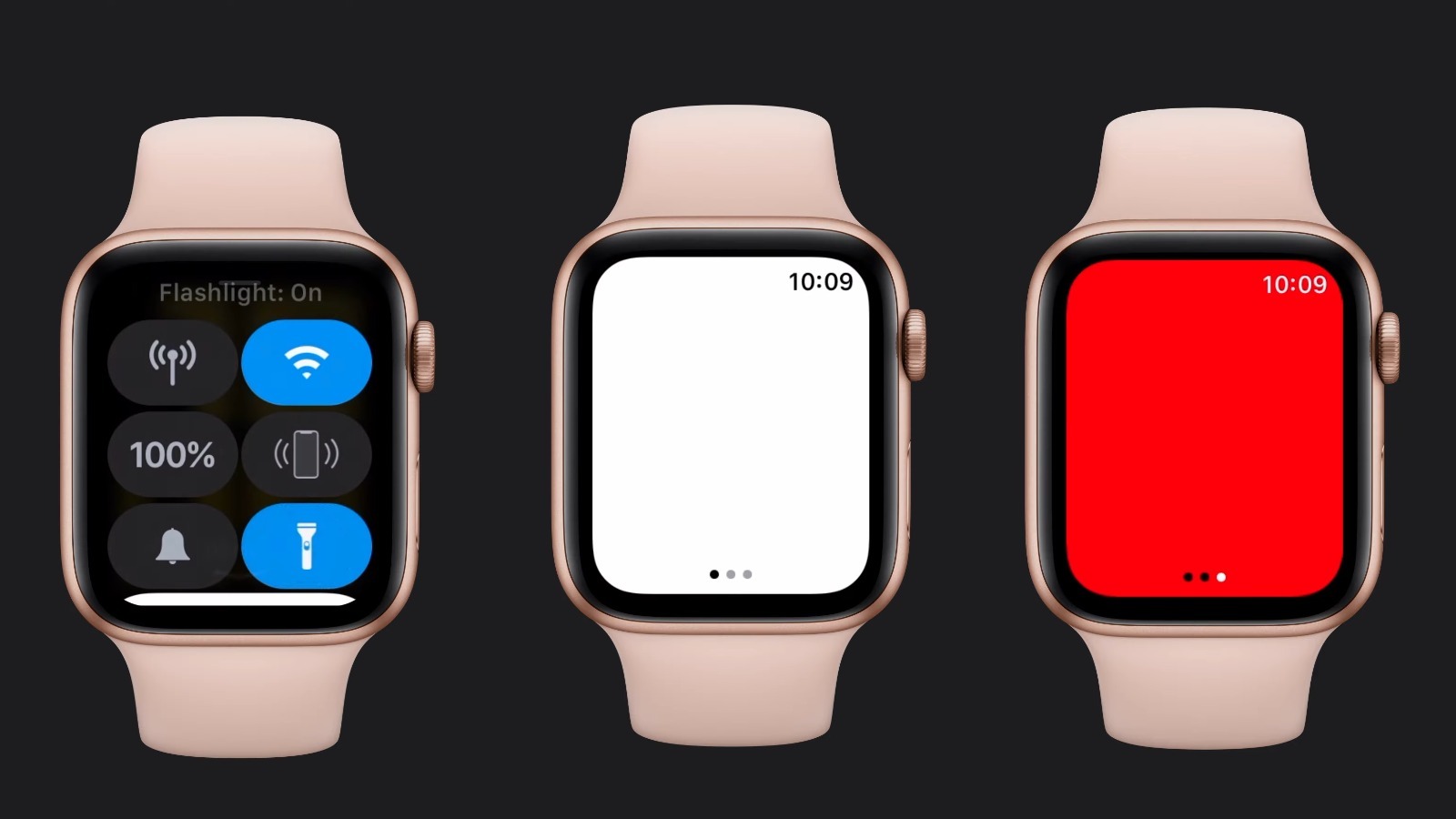
The flashlight isn’t just one beam—it offers three distinct modes to suit different scenarios.
Choose the Right Mode
Steady White Light
- Best for: General tasks like unlocking doors, finding keys, or reading labels
- Bright, constant output
- Rotate Digital Crown to fine-tune brightness
Flashing White Light
- Best for: Increasing visibility during evening walks or runs
- Attracts attention—helpful when jogging near traffic
- Activate by swiping left once in flashlight mode
Steady Red Light
- Best for: Nighttime bathroom trips or reading in bed
- Preserves melatonin and avoids disrupting sleep
- Swipe left twice to activate
Expert Note: Use red light with Theater Mode for stealth lighting—dim screen, no notifications, and a gentle red glow that won’t wake others.
Adjust Brightness Easily
Controlling brightness is simple but often overlooked.
Control With Digital Crown
- Once flashlight is on, rotate the Digital Crown:
- Clockwise = brighter
- Counterclockwise = dimmer
- Works in all modes (white and red)
There’s no automatic timeout—you must manually turn it off via:
– Pressing Digital Crown
– Closing Control Center
– Saying “Nox” to Siri
– Covering the screen with your palm
Warning: Leaving the flashlight on keeps the display active. Always turn it off to conserve battery and avoid screen burn-in.
Turn Off Flashlight With Palm Cover
Want a silent, intuitive way to turn off the light?
Use Gesture-Based Off
- Cover the screen with your palm for 1–2 seconds
- Flashlight turns off instantly
- Works on all models with ambient light sensor
This is perfect for:
– Nighttime use when silence matters (e.g., baby’s room)
– Situations where tapping or speaking isn’t practical
No settings needed—it just works.
Optimize for Nighttime Use
If you use the flashlight often at night, tweak these settings for a better experience.
Enable Theater Mode
- Swipe up from watch face to open Control Center.
- Tap the theater mask icon.
- Now:
– Screen stays dark
– Notifications won’t light up
– Flashlight still works
Then:
– Swipe left twice → red light mode
– Use palm cover to turn off silently
This combo prevents accidental wake-ups and preserves sleep quality.
Create Custom Shortcuts (Advanced)
Tech-savvy users can automate flashlight activation using the Shortcuts app.
Build a Flashlight Shortcut
- On iPhone, open Shortcuts app.
- Tap + to create new automation.
- Add action: “Turn On Flashlight” (under Accessibility).
- Save and sync to Apple Watch.
Now:
– Run shortcut from Watch face or App Grid
– Assign to Back Tap (on iPhone): Tap back of phone twice to trigger
Note: Back Tap requires iPhone 8 or later and iOS 14+. Shortcut must be enabled on iPhone first.
This method lets you trigger the flashlight without touching your watch—ideal for accessibility or niche use cases.
Integrate With Smart Home Lights
Sometimes you need more than a watch beam—like lighting up an entire hallway.
Use Siri for Room Lighting
Pair Apple Watch with HomeKit devices:
– Say: “Hey Siri, turn on the bathroom light”
– Or: “Turn on hallway lights”
Requirements:
– HomePod or iPhone as home hub
– Compatible smart bulbs or switches
Limitation: Depends on Wi-Fi and device availability. But for full-room lighting, it’s far more practical than the watch beam.
Use the watch flashlight for close-up tasks, and smart lights for ambient illumination.
Ideal Use Cases by Scenario
Night Bathroom Trips
- Best method: Siri “Lumos” or Action button (Ultra)
- Use red light to avoid sleep disruption
- Turn off with palm cover for silence
Evening Walks or Runs
- Best method: Flashing white light
- Increases visibility to drivers and cyclists
- Activate via Control Center before heading out
Camping or Outdoor Adventures
- Best method: Action button + red light
- Preserves night vision
- Instant access without screen interaction
Emergency Signaling
- Best method: Flashing white light
- Wave watch to attract attention
- Combine with SOS mode if needed
Each scenario benefits from a different mode or activation path—choose wisely.
User Profiles and Best Methods
Older Adults (65+)
- Recommended: Siri voice commands (“Lumos”, “Nox”)
- Easy to remember, no tapping required
- Works even with shaky hands or poor vision
Outdoor Enthusiasts
- Recommended: Action button on Apple Watch Ultra
- Glove-friendly, rugged, one-touch
- Brightness control via Crown is smooth and precise
Tech-Savvy Users
- Recommended: Shortcuts + Back Tap
- Automate lighting with gestures
- Sync across devices for seamless control
Match the method to your lifestyle for maximum benefit.
Battery Impact and Efficiency
Good news: the flashlight uses minimal power.
- It relies on the display backlight, not a separate LED
- Even 10 minutes of use has negligible impact
- Red light mode uses slightly less energy due to lower brightness
Myth Busting: Unlike phones, the Apple Watch doesn’t have a dedicated flashlight LED. It brightens the screen to act as one—so it’s efficient by design.
No need to worry about battery drain. Just use it when needed.
Troubleshooting Common Issues
Flashlight Won’t Turn On
- Check: Is Low Power Mode active? Some functions may be limited.
- Fix: Disable Low Power Mode in Settings > Battery
- Also: Restart watch if unresponsive
Siri Doesn’t Respond to “Lumos”
- Check: Is Siri enabled? Go to Settings > Siri
- Ensure mic isn’t blocked or muted
- Try again in quiet environment
Action Button Not Working (Ultra)
- Verify: Flashlight is assigned in Action Button settings
- Reset: Reassign function or restart watch
If issues persist, update watchOS to latest version.
Final Tips for Faster Access
Maximize convenience with these pro strategies:
- Move flashlight icon to top row in Control Center
- Use “Lumos” and “Nox” daily—they’re fast and fun
- Assign to Action button if you have Apple Watch Ultra
- Pair with red light + Theater Mode for bedtime use
- Try Back Tap shortcut for iPhone users who want hands-free trigger
These tweaks turn a basic feature into a seamless part of your routine.
Final Note: The flashlight on Apple Watch is more versatile than most users realize. From magical voice commands to rugged one-touch access on the Ultra, it’s designed for real-world utility. Whether you use it nightly or just occasionally, knowing how to turn on flashlight on Apple Watch—and how to optimize it—makes all the difference in convenience, safety, and comfort. Use the right method for your model and lifestyle, and you’ll never fumble in the dark again.





