
You check your Apple Watch for a live heart rate reading—only to realize the data hasn’t updated in minutes. Despite its reputation as a health powerhouse, the Apple Watch does not offer true always-on heart rate monitoring outside of workouts. For fitness enthusiasts, cardiac patients, or biohackers tracking every beat, this gap in data can be more than frustrating—it can be limiting.
While Apple touts continuous heart rate during exercise, the reality is that at rest, your watch samples your pulse only every 5–10 minutes. That means over a 24-hour period, you’re getting fewer than 300 data points—compared to over 10,000 from devices like Fitbit that truly monitor around the clock. If you need real-time, 24/7 heart rate tracking, Apple’s native system won’t cut it.
But there’s good news: with the right tools, you can achieve near-continuous monitoring. This guide reveals how to bypass Apple’s limitations using third-party apps, silent workout tricks, and medical-grade external sensors—so you can get the cardiovascular insights you need without switching devices.
How Apple Watch Heart Rate Sampling Really Works
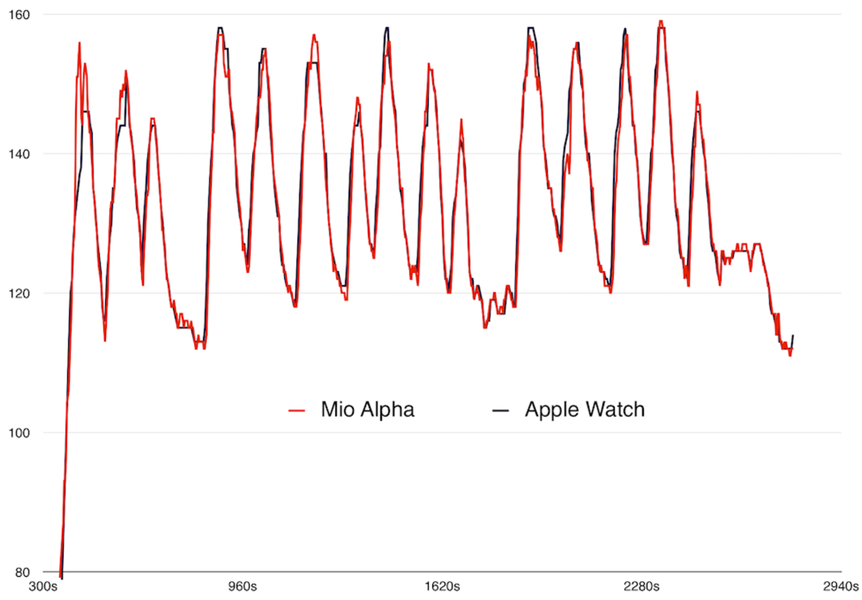
Apple Watch uses adaptive heart rate monitoring, not constant sensing. The frequency of readings depends on your activity level and whether a workout is active.
Background Monitoring vs. Continuous Tracking
- At rest: Measures heart rate approximately every 10 minutes.
- During movement or walking: Increases to every 1–3 minutes.
- During workouts: Switches to true continuous mode, updating every few seconds.
This means that while you’re sitting at your desk or sleeping, your data has long gaps. If your heart rate spikes due to stress, anxiety, or an arrhythmia between readings, it won’t be captured.
🔍 What You See Isn’t Real-Time: The heart rate on your watch face only refreshes when a new background reading is taken. If the last sample was at 9:00 AM and it’s now 9:08 AM, you’re seeing outdated data.
Why Apple Doesn’t Offer True Always-On HR
Two primary reasons:
1. Battery life: Continuous optical sensing drains power quickly.
2. Skin comfort and safety: Prolonged LED use can heat the sensor and irritate the skin.
Apple prioritizes general wellness trends over clinical precision, making the Watch ideal for casual users—but insufficient for those needing granular, real-time data.
When Apple Watch Does Track Continuously
Though not always on, the Watch delivers true continuous heart rate tracking in specific scenarios.
Workout Mode = Full-Time Optical Sensing
Starting any workout—whether “Running,” “Cycling,” or even “Other”—activates real-time heart rate monitoring:
– Updates every few seconds.
– Streams data directly to the Health app.
– Tracks recovery rate post-exercise.
This applies to all third-party fitness apps that use HealthKit, meaning you can trigger continuous mode even with non-Apple apps.
💡 Pro Tip: Many users create a 24-hour “All-Day Tracking” workout in apps like Intervals Pro to simulate always-on monitoring. Just be ready to charge twice a day.
ECG App Provides High-Fidelity Snapshots
On Apple Watch Series 4 and later:
– Open the ECG app.
– Touch the Digital Crown with your finger.
– Get a 1-second electrical reading in 30 seconds.
Unlike optical sensors, ECG measures actual electrical activity of the heart, making it far more accurate for detecting conditions like atrial fibrillation (AFib).
⚠️ Limitation: ECG is on-demand only, not continuous. Also, unavailable on Apple Watch SE.
Enable All Native Heart Rate Features First
Before turning to workarounds, ensure Apple’s built-in tools are fully activated.
Turn On Heart Rate Monitoring
If disabled:
1. On iPhone:
Watch app > My Watch > Privacy > Health > Heart Rate → Toggle On.
2. On Apple Watch:
Settings > Privacy & Security > Health > Heart Rate → Enable.
Add Heart Rate to Your Watch Face
See near-real-time BPM at a glance:
1. Long-press your watch face → Edit.
2. Tap to add or modify a complication.
3. Select Heart Rate.
4. Choose display style (number, graph, etc.).
🔄 Note: This updates only when a new reading is taken—not in real time unless during a workout.
Set Up High/Low Heart Rate Alerts
Get notified if your BPM stays outside safe zones:
– iPhone: Watch app > Heart > Heart Rate Notifications.
– Set high (e.g., 120 BPM) and low (e.g., 50 BPM) thresholds.
– Alert triggers after 10 minutes of sustained abnormal rate at rest.
Useful for spotting tachycardia or bradycardia—but only if you’re still when it happens.
Third-Party Apps That Simulate Always-On Monitoring
Since Apple restricts native 24/7 sensing, developers use clever hacks to keep the sensor active.
Use Intervals Pro to Fake a Workout
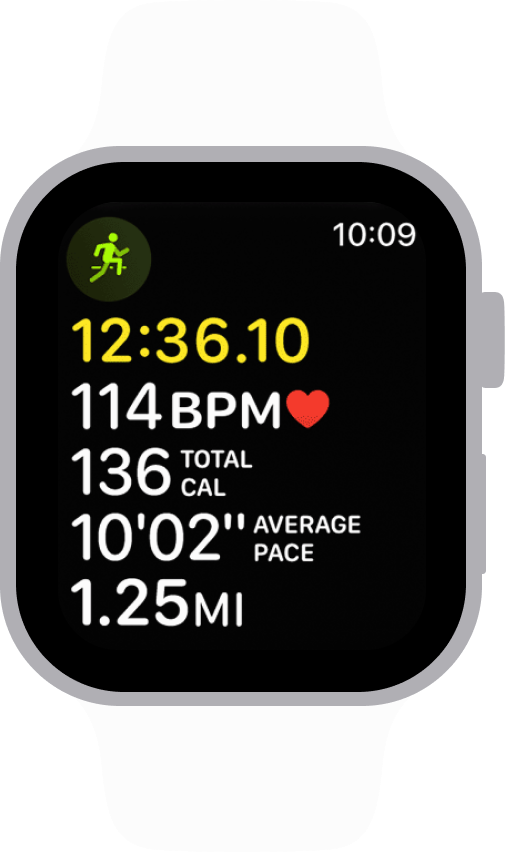
This timer app tricks the Watch into thinking you’re in a workout—keeping heart rate on continuously.
Setup Steps
- Install Intervals Pro on iPhone and Watch.
- Create a 24-hour timer:
– Set intervals to 1 hour x 24 times.
– Disable all audio and haptic alerts. - On Watch:
Settings > General > Return to Clock → Find Intervals Pro → Set to “Never”. - Start the timer → heart rate updates live.
🔋 Battery Impact: Expect 50% faster drain—possibly needing midday charging.
✅ Result: Real-time BPM on complication, continuous Health app logging.
Try Cardiogram for 24/7 Tracking Mode
Cardiogram offers a dedicated continuous monitoring mode:
– Enables frequent background readings.
– Adds live heart rate complication.
– Tracks HRV, stress, and sleep apnea risk.
Limitations
- Some users report inconsistent background operation.
- Requires Background App Refresh enabled.
- Not truly every-second sampling, but far more frequent than Apple’s default.
HeartWatch for Enhanced Real-Time Display
HeartWatch by Tantsissa provides:
– Top-right complication showing current BPM.
– On-demand readings with a tap.
– More aggressive sampling than native mode.
While not continuous in the strictest sense, it closes the gap between Apple’s defaults and true all-day tracking.
Beat Watcher for Custom Alerts
Ideal if you need threshold-based notifications:
– Alerts when HR exceeds or drops below set levels.
– Works in background during workouts or active sessions.
– Great for post-surgery monitoring or anxiety tracking.
Why Apple Doesn’t Allow True Always-On HR
Despite user demand, Apple has no plans to enable native 24/7 optical monitoring—and for good reasons.
Battery Life Trade-Off
Continuous LED use can reduce battery life from 36 hours to under 18. For a device meant to be worn all day, that’s unacceptable for most users.
📊 Real-World Impact: Users running Intervals Pro report charging every 12–18 hours.
Sensor Heat and Skin Irritation
Prolonged LED activation can:
– Overheat the sensor.
– Cause skin discomfort or rashes.
– Trigger false readings due to thermal noise.
Apple’s intermittent design prevents these issues—sacrificing data density for comfort and safety.
Data Gaps Are Intentional
Unlike Fitbit or Garmin, Apple does not interpolate missing readings. If a measurement fails due to motion or poor contact, no data point is recorded.
This ensures accuracy but creates discontinuous timelines—problematic for detecting rapid HR changes.
External Devices for True Continuous Accuracy
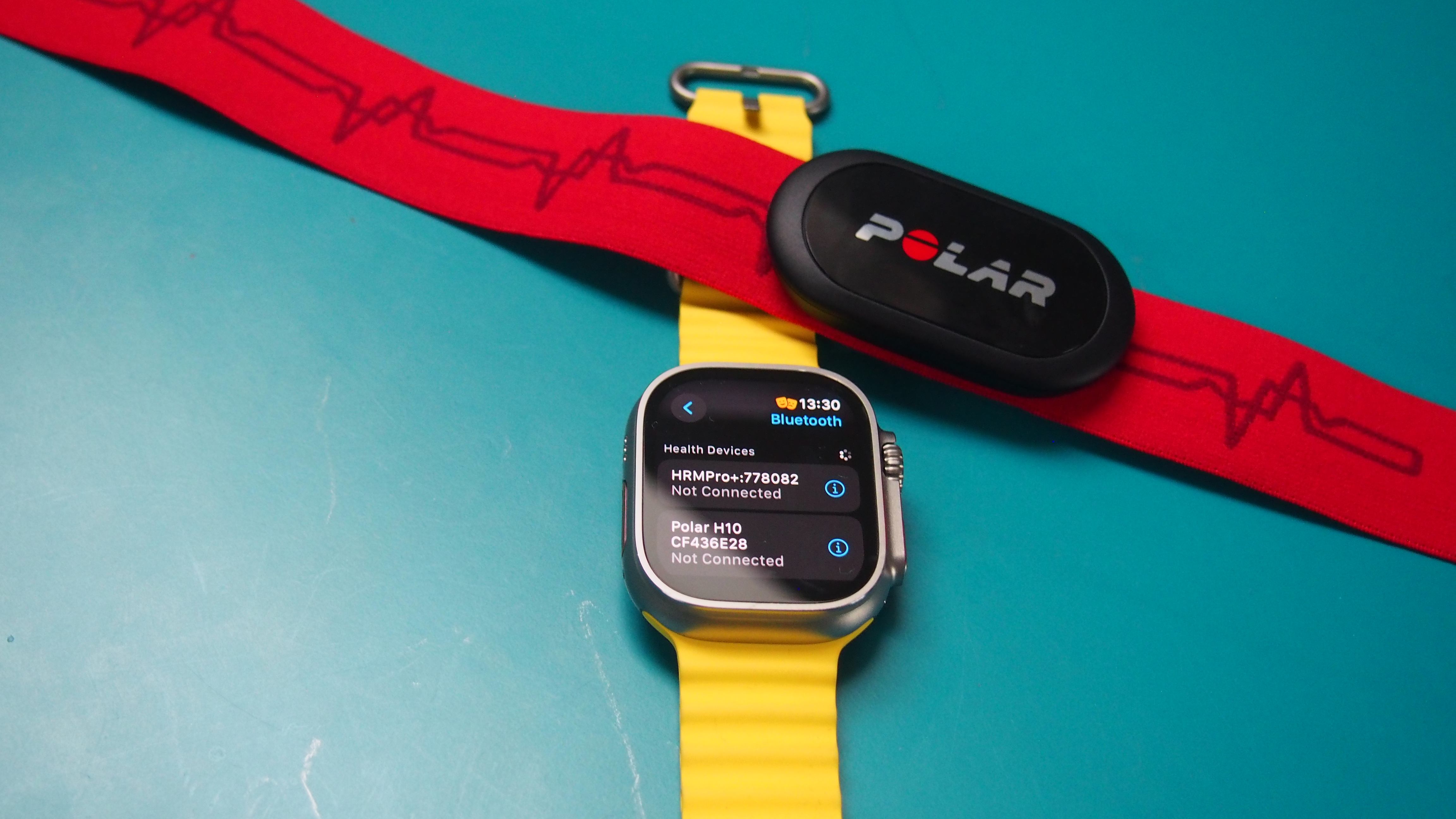
For reliable, medical-grade 24/7 heart rate, wrist-based optics aren’t enough. External sensors deliver superior performance.
Polar H10 Chest Strap: Gold Standard
- ECG-level accuracy via chest-worn electrode.
- Pairs with Apple Watch via Bluetooth.
- Immune to wrist motion, sweat, or vasoconstriction.
- Tracks HRV, recovery, and training load.
💬 User Verdict: “My Apple Watch showed 60 BPM during a sprint. Polar H10 showed 172. I trust the strap.”
Setup with Apple Watch
- Open a third-party app (e.g., Strava, Zwift, Intervals Pro).
- Start workout → tap Heart Rate Monitor → select Polar H10.
- Watch displays real-time BPM from chest sensor.
Result: Accurate, continuous data—even during high-motion activities.
Wahoo TICKR and Garmin HRM-Pro
- Similar accuracy to Polar H10.
- Compatible with Zwift, TrainerRoad, Apple Fitness+.
- Some models include running dynamics (TICKR Run).
✅ Best For: Cyclists, runners, triathletes who need uninterrupted, motion-resistant HR data.
Fitbit vs. Apple Watch: Who Does 24/7 HR Better?
If your priority is continuous heart rate, Fitbit outperforms Apple Watch.
Fitbit’s All-Day Advantage
- Samples every 1–5 seconds—true continuous tracking.
- No gaps in data.
- Superior sleep staging (light, deep, REM, awake).
- Lower motion artifact during exercise.
🔄 “Fitbit is a fitness tracker pretending to be a smartwatch. Apple Watch is a smartwatch pretending to be a fitness tracker.”
Apple Watch Strengths
- Better smart features: Calls, apps, Siri.
- ECG and AFib detection.
- Seamless iPhone integration.
- Workout-first continuous tracking.
🎯 Choose Fitbit if: You want true 24/7 HR and detailed sleep analysis.
🎯 Choose Apple Watch if: You want smart features + decent HR, with workaround options for continuous data.
Final Verdict: Can You Get Always-On HR on Apple Watch?
Yes—but not natively. The Apple Watch does not support true 24/7 heart rate monitoring out of the box. It samples intermittently to save battery, creating gaps in your data.
But with the right tools, you can achieve near-continuous tracking:
– Intervals Pro or Cardiogram to simulate workout mode.
– Polar H10 or Wahoo TICKR for medical-grade accuracy.
– Heart Rate complication for live BPM on your wrist.
The trade-off? Battery life. Continuous monitoring can halve your charge time.
For most users, Apple’s default settings are sufficient. But if you’re an athlete, patient, or data-driven biohacker, supplementing your Apple Watch with external tools is the only way to get real, reliable, always-on heart rate data.
Apple may one day enable native continuous mode—but until then, these workarounds are your best path to 24/7 cardiovascular insight.





