
You’ve just unboxed your new Apple Watch and are eager to personalize it with your favorite apps—but you’re not seeing them show up. Don’t worry: adding apps to Apple Watch is simple once you know the right method. Whether you’re installing from your iPhone or directly on the watch, this guide walks you through every step, including how to enable auto-sync, troubleshoot missing apps, and manage storage efficiently.
The key thing to remember? Only apps built specifically for watchOS can run on your Apple Watch. That means popular apps like TikTok, YouTube, and Instagram don’t have standalone versions for the watch, which is why they won’t appear no matter how hard you search. Plus, your Apple Watch must be paired with an iPhone and signed in with the same Apple ID to install most apps.
In this guide, you’ll learn how to:
– Install apps quickly from your iPhone
– Download apps directly on your Apple Watch
– Enable automatic app syncing
– Fix common issues like failed downloads or missing icons
– Manage storage and keep apps updated
Let’s get your Apple Watch fully loaded with the tools you use every day.
Install Apps from iPhone Using the Watch App
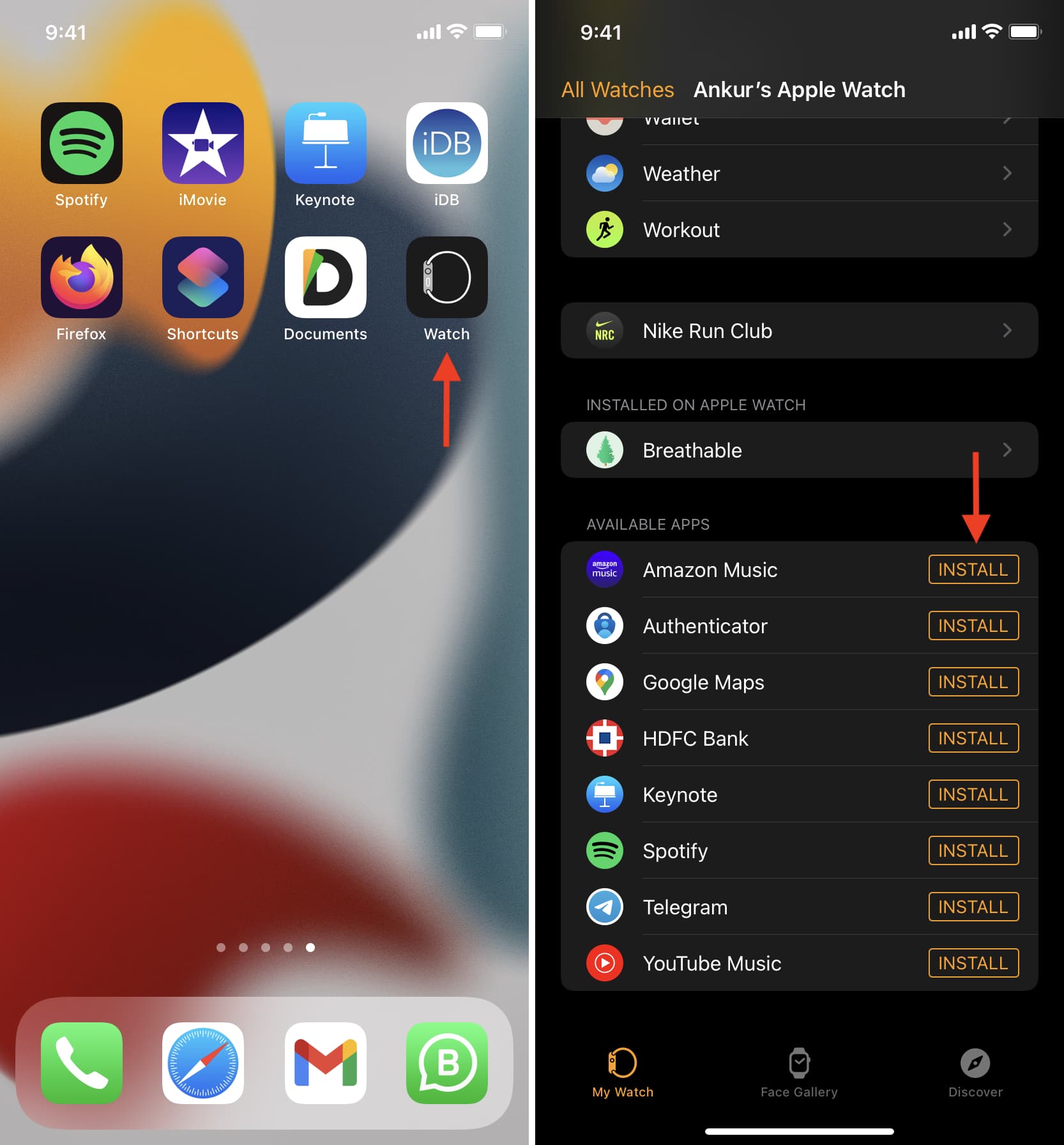
The fastest, most reliable way to add apps is through the Watch app on your iPhone. This method gives you full control, faster downloads, and detailed app information before installation.
Open the Watch App and Find Available Apps
- On your iPhone, open the Watch app (it looks like a watch face icon).
- Tap the “My Watch” tab at the bottom.
- Scroll down to Available Apps—this section lists all iPhone apps that support Apple Watch but aren’t yet installed on your wrist.
✅ Only apps with native watchOS versions appear here. If an app like TikTok or Facebook doesn’t show up, it’s because it doesn’t offer dedicated watch functionality.
Install Any Compatible App in Seconds
- Browse the list or use the search bar at the top to find a specific app.
- Tap “Install” next to the app name.
- Wait 10–30 seconds while the app syncs over Bluetooth or Wi-Fi.
Once installed, the app will appear as a colorful icon on your Apple Watch Home screen. No extra steps needed.
💡 Pro Tip: Keep your iPhone and Apple Watch close, charged, and connected to the same Wi-Fi network for the smoothest syncing experience.
Why This Is the Best Method
- Faster downloads: Uses your iPhone’s stronger internet connection.
- Better visibility: View app descriptions, ratings, and screenshots before installing.
- Bulk management: Install multiple apps at once without touching your watch.
If you’re setting up your Apple Watch for the first time or adding several apps, always start with the iPhone method.
Download Apps Directly on Apple Watch via App Store
No iPhone nearby? You can still install apps right from your wrist, especially useful if you own a cellular-enabled Apple Watch and want full independence.
Access the App Store on Your Watch
- Press the Digital Crown to go to the Home screen.
- Tap the blue App Store icon (an “A” with a star).
- Browse or search using:
– Search tab: Write with Scribble, speak with Dictation, or use the onscreen keyboard.
– Today tab: Discover featured health, fitness, and productivity apps.
– Categories: Scroll through Games, Utilities, Health, and more.
Install an App from the Watch
- Tap any app to view its description, screenshots, and user reviews.
- Tap Get (or the price if it’s paid).
- Double-click the side button (below the Digital Crown) to confirm.
⚠️ Passcode required: If you haven’t set a passcode, go to Settings > Passcode > Turn Passcode On before installing any app.
After confirmation, a progress ring appears. Once complete, the app launches automatically or appears on your Home screen.
When to Use This Method
- Your iPhone is off, out of range, or dead
- You’re using a cellular Apple Watch and want to stay independent
- Installing standalone watch apps like water trackers, meditation timers, or offline calculators
📱 Note: Direct downloads are slower and use more battery due to limited bandwidth.
Enable Automatic App Installation for Seamless Syncing
Tired of manually installing every app? Turn on Automatic App Install so compatible apps sync to your Apple Watch as soon as they’re downloaded on your iPhone.
Turn On Auto-Sync in Two Ways
Option 1: Through the Watch App
- Open the Watch app on your iPhone.
- Go to My Watch > General > Automatic App Install.
- Toggle the switch to On.
Option 2: Through iPhone Settings
- On iPhone, go to Settings > General > Automatic App Install.
- Toggle Automatic App Install on.
✅ From now on, apps like Spotify, Strava, or Todoist will install automatically on your watch—no action needed.
Requirements for Auto-Install to Work
- Apple Watch must be charged and nearby.
- Both devices signed in with the same Apple ID.
- Stable Wi-Fi or Bluetooth connection.
- Sufficient storage space on Apple Watch.
❗ If an app doesn’t auto-install, check if it actually supports watchOS.
Fix Common App Installation Issues

Even when following the correct steps, app installs sometimes fail. Here’s how to resolve the most frequent problems.
App Not Showing in Available Apps
Why it happens:
– The app has no watchOS version.
– It’s region-locked or not available in your country.
– You haven’t installed the iPhone app first (required for some).
Solutions:
– Install the iPhone app first, then check Available Apps again.
– Search the App Store on Apple Watch directly.
– Check the developer’s website to confirm Apple Watch support.
App Installed But Doesn’t Appear on Watch
Wait 1–2 minutes—syncing can take time. If it still doesn’t show:
- Restart both iPhone and Apple Watch.
- Ensure Bluetooth is on and devices are close.
- Open the Watch app and check if the app shows under My Watch.
🔄 Force refresh: Close the Watch app completely and reopen it.
“Install on iPhone” Error Message
This means the app must be installed on your paired iPhone first. But if it fails:
Common causes:
– Apple ID mismatch: The watch is paired to someone else’s iPhone.
– Ask to Buy is enabled: A family organizer must approve the download.
– App not purchased under your Apple ID.
Fix it:
– Confirm the app is downloaded on the same Apple ID used for the watch.
– If Ask to Buy is on, ask the purchaser to approve it.
– For full control, pair the watch with your own iPhone.
Manage App Storage and Keep Apps Updated
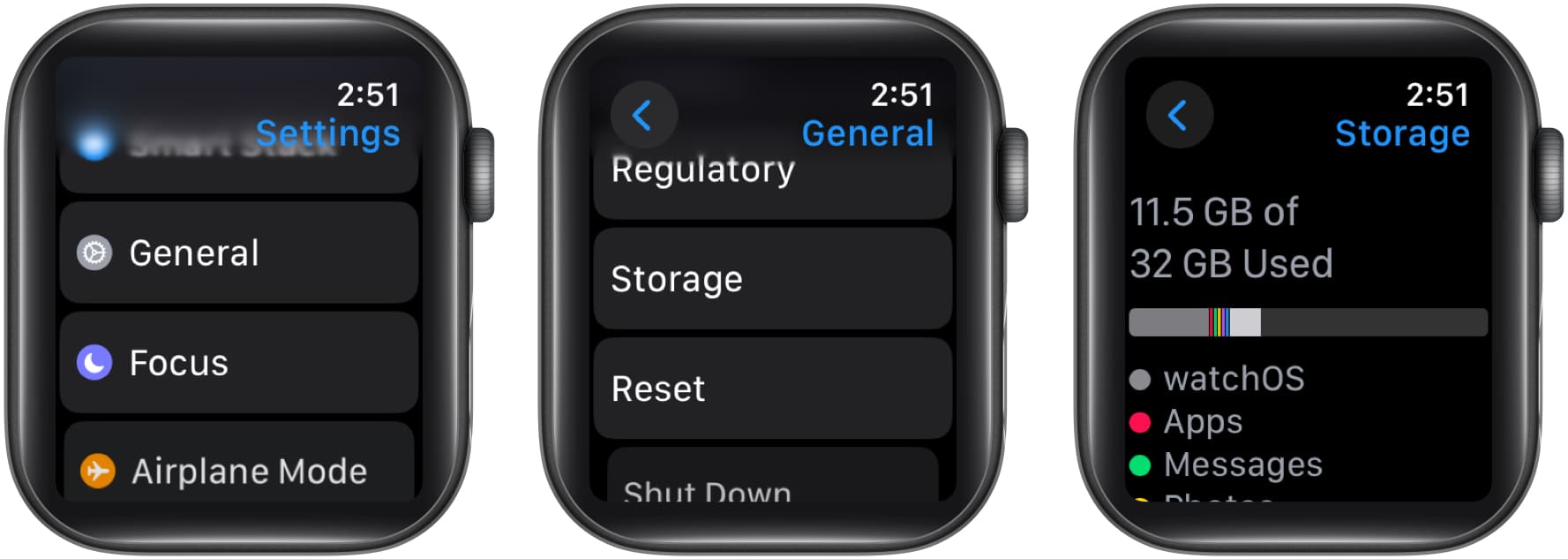
Your Apple Watch has limited storage—typically 32GB to 64GB, but only about 20–50GB available for apps and media. Managing space ensures smooth performance.
Check Available Storage
- On Apple Watch, open Settings.
- Tap General > Usage > Storage.
- See how much space is used and by which apps.
🟨 Warning: If storage drops below 1GB, new app installations may fail.
Free Up Space by Deleting Unused Apps
- On Apple Watch, long-press any app icon until icons jiggle.
- Tap the X in the corner.
- Confirm deletion.
💡 You can re-download deleted apps anytime for free if previously purchased.
Keep Apps Updated Automatically
By default, apps update when:
– Apple Watch is charging
– Connected to Wi-Fi
– In range of iPhone
To verify:
1. On iPhone, go to Settings > App Store.
2. Ensure App Updates is toggled on.
Or update manually:
1. Open App Store on Apple Watch.
2. Scroll to Updates.
3. Tap Update All or individual apps.
Understand Which Apps Work on Apple Watch
Not every iPhone app works on your wrist. Only those with native watchOS versions can be installed.
What Makes an App Watch-Compatible?
- Built using WatchKit framework by developers.
- Designed for quick glances and short interactions.
- Often displays glanceable data like heart rate, calendar events, or timers.
Popular App Categories with Watch Support
| Category | Examples |
|---|---|
| Fitness & Health | Strava, MyFitnessPal, Water Reminder |
| Communication | WhatsApp, Slack, Discord |
| Productivity | Todoist, Things, Fantastical |
| Navigation | Citymapper, Google Maps |
| Music & Audio | Spotify, Audible, Overcast |
❌ No Watch App? Apps like TikTok, YouTube, and Instagram do not have native watch versions. You can’t install or use them directly on the watch.
Best Practices for App Management
Get the most from your Apple Watch with these expert tips.
Use iPhone for Most Installs
- Faster: Downloads happen over iPhone’s stronger Wi-Fi.
- Easier: Full app details, reviews, and screenshots.
- More control: Manage notifications, complications, and permissions.
✅ Recommended for setup or installing multiple apps.
Reserve Direct Watch Installation for Specific Uses
- When iPhone isn’t available
- For standalone health or utility apps
- If you use cellular Apple Watch frequently away from phone
Optimize Performance
- Keep iOS and watchOS updated.
- Enable Automatic App Install for consistency.
- Remove apps you don’t use monthly.
- Restart your watch weekly to clear cache.
Key Requirements Before Installing Apps
| Requirement | Details |
|---|---|
| Apple ID | Same account on iPhone and Apple Watch |
| Software | watchOS 6.0+, iOS 13+ (recommended) |
| Connectivity | Bluetooth or Wi-Fi for syncing |
| Passcode | Required for direct watch installs |
| Storage | At least 500MB free for large apps |
📶 Cellular models can download apps over data—but large downloads may use significant data.
Special Scenarios
Using Apple Watch with Cellular
- Download apps without iPhone nearby.
- Use cellular data for App Store downloads.
- Watch for data limits: large apps (e.g., Spotify) can use 50–100MB.
🔋 Tip: Connect to Wi-Fi when possible to save battery and data.
Shared or Family-Set-Up Watches
If your Apple Watch is paired to another person’s iPhone (e.g., child using parent’s phone):
- App installation may be blocked or delayed.
- Requires approval via Ask to Buy.
- Some apps fail due to Apple ID restrictions.
🛑 Apple recommends each user pair their watch with their own iPhone for full access.
Final Note: The easiest way to add apps to Apple Watch is through your iPhone’s Watch app. Enable automatic installation for a seamless experience, and use the watch’s App Store only when needed. Stick to apps built for watchOS, keep your software updated, and manage storage regularly. With these steps, you’ll have a fully personalized smartwatch ready for fitness, focus, and everyday convenience.




