

You raise your wrist, swipe up on your Apple Watch expecting the Control Center to appear—and nothing happens. No response. No menu. Just a silent screen. Your first instinct? Something’s broken. But here’s the truth: your Apple Watch might be working perfectly fine. Starting with watchOS 10, Apple removed the swipe-up gesture for the Control Center entirely. That’s not a glitch—it’s a permanent design change.
However, if other swipes aren’t working either—like pulling down for notifications or up for your Smart Stack—then you’ve got a real issue. Whether you’re on watchOS 9, 10, or 11, this guide cuts through the confusion and delivers proven fixes for when your Apple Watch pull-up menu isn’t responding. You’ll learn how to spot a software bug from a UI change, troubleshoot touch failures, disable interfering settings, and restore full functionality—fast.
Confirm You’re Not Mistaking a Design Change for a Bug
Before diving into complex fixes, make sure you’re not troubleshooting a feature that was intentionally removed.
Apple Watch No Longer Uses Swipe-Up for Control Center (watchOS 10+)
As of watchOS 10, swiping up from the watch face no longer opens the Control Center. This is not a malfunction—it’s Apple’s new interaction model. The change was made to reduce accidental triggers during movement, especially during workouts or daily activity.
If you recently updated and suddenly can’t access brightness, Airplane Mode, or Do Not Disturb via swipe, this is why.
Good to know: The Control Center itself still exists—you just open it differently now.
How to Open Control Center Now
To access the Control Center, simply press the side button once.
- A short press brings up the Control Center
- Tap any control (e.g., Flashlight, Wi-Fi, Do Not Disturb)
- Tap outside the menu or press the Digital Crown to close
For users who find the first press unresponsive, try pressing and holding the side button for 1 second. This ensures activation even if there’s minor software lag.
Pro Tip: If you accidentally hold the button too long, you’ll see the power-off slider. Just release and try again with a quicker press.
Swipe-Up Still Works for Smart Stack—Not Control Center
Don’t confuse the two swipe-up functions:
| Swipe Action | Result |
|---|---|
| Swipe up from watch face | Opens Smart Stack (still works) |
| Swipe up to open Control Center | No longer available in watchOS 10+ |
The Smart Stack—your customizable row of complications like Calendar, Weather, and Activity Rings—still activates with a swipe up. If that works but the Control Center doesn’t, your watch is functioning as designed.
Rule Out Water Lock: A Silent Touch Killer
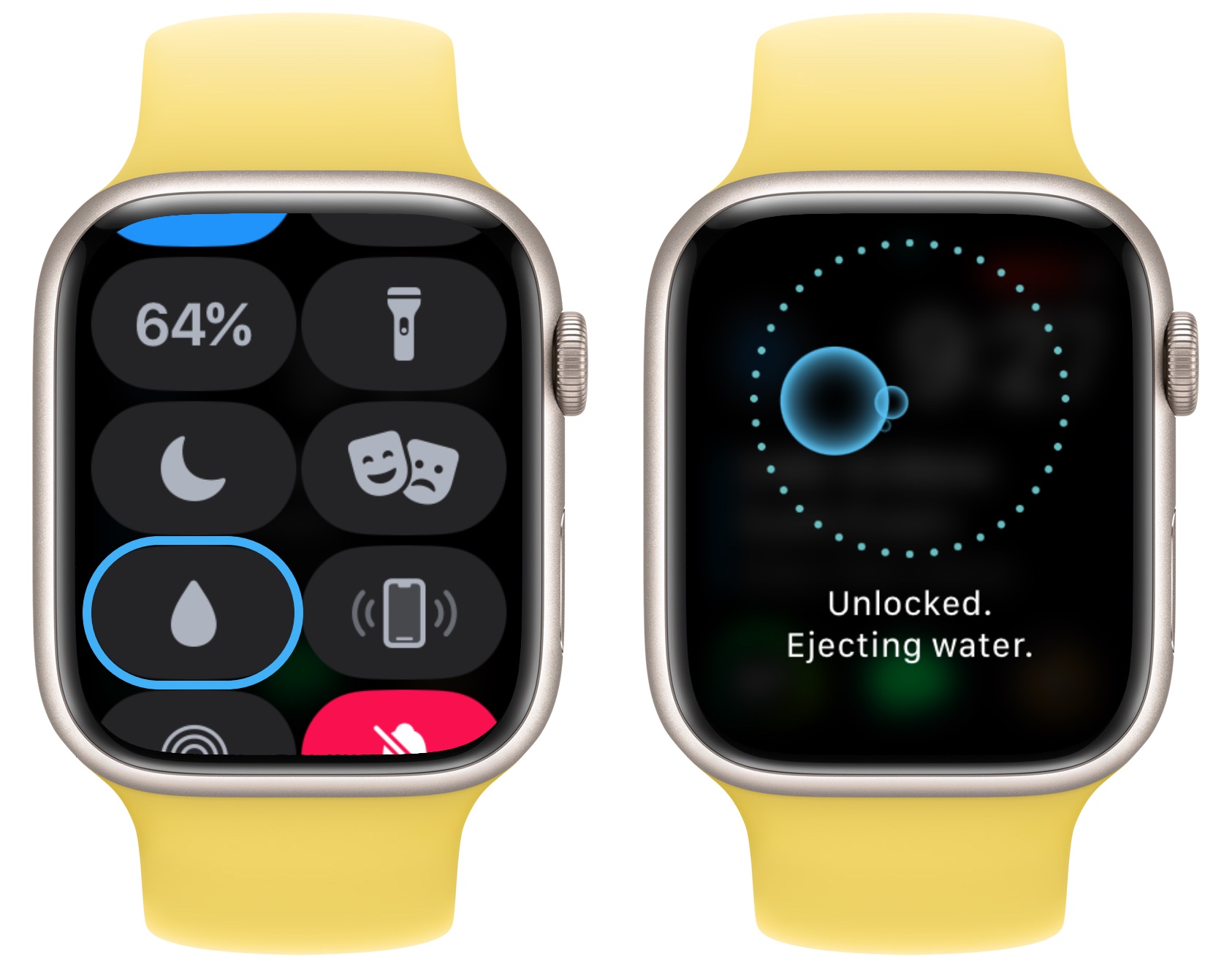
Water Lock disables the touchscreen to prevent accidental taps when swimming or showering. But if not properly disabled, it can leave your screen completely unresponsive—making it seem like the pull-up menu is broken.
How to Exit Water Lock
- After water exposure, turn the Digital Crown.
- Keep turning until a spinning icon appears.
- Continue until you hear a chime or feel a haptic tap.
- The screen will unlock and become touch-sensitive again.
This is the only way to disable Water Lock—swiping won’t work until it’s off.
What to Do If Water Lock Won’t Turn Off
If turning the crown does nothing:
– Dry the watch thoroughly with a lint-free cloth
– Remove any screen protector that may trap moisture
– Perform a force restart (see below)
– Avoid charging until fully dry
Critical Warning: Never charge a wet Apple Watch. Wait at least 30 minutes after water exposure, and ensure the charging port is dry.
Disable Zoom: An Accessibility Feature That Breaks Swipes
The Zoom feature magnifies the screen for better visibility but alters touch input, often blocking or distorting swipe gestures.
How to Turn Off Zoom
- On your Apple Watch: Open Settings
- Go to Accessibility > Zoom
- Toggle Zoom to Off
After disabling, test swiping up and down immediately.
Prevent Accidental Zoom Activation
Some users enable Zoom by triple-clicking the side button. If this happens often, disable the shortcut:
- On iPhone: Open Watch app → Accessibility → Zoom
- Turn off “Triple-Click Side Button”
This prevents accidental magnification during normal use and restores normal gesture control.
Clean the Screen and Remove Poor-Quality Protectors
Dirt, sweat, oils, or low-quality screen protectors can block touch input, especially near the edges where swipe gestures begin.
How to Clean Your Apple Watch Screen
- Power off the watch (optional but safe)
- Use a nonabrasive, lint-free cloth
- Lightly dampen with water if needed
- Wipe the screen and bezel thoroughly
- Let dry completely before turning back on
Test Without a Screen Protector
- Remove the screen protector
- Try swiping up/down
- If gestures work, replace with an Apple-certified or high-quality protector
Cheap or ill-fitting protectors are a leading cause of partial touch failure, particularly for vertical swipes.
Restart Your Apple Watch (Soft Reset)
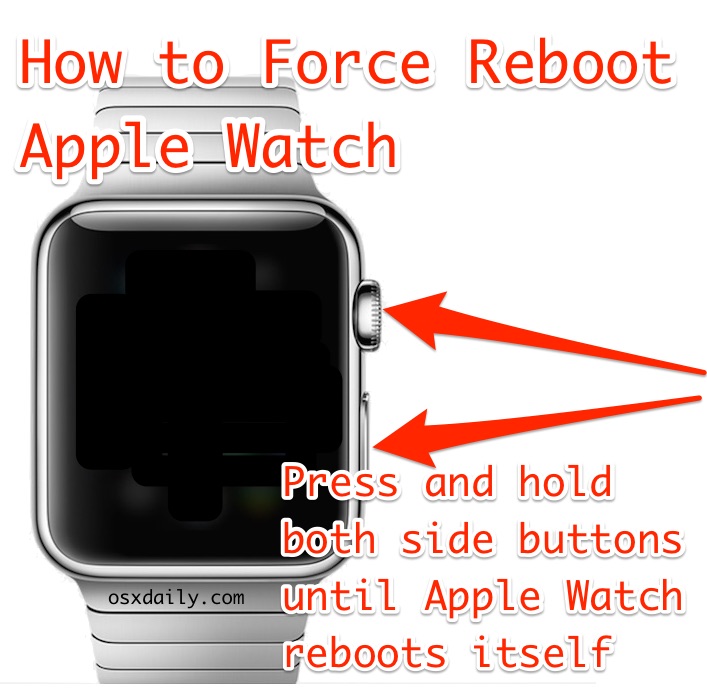
A simple restart clears temporary glitches, frozen apps, or UI hiccups that block swipe functionality.
Normal Restart Steps
- Press and hold the side button
- Slide the power off slider
- Wait 60 seconds
- Press and hold the side button until the Apple logo appears
This resolves most minor software conflicts affecting touch response.
When to Force Restart
Use a force restart if:
– The screen is frozen
– Swipes do nothing
– Normal restart fails
Force Restart Procedure:
1. Press and hold both the side button and Digital Crown
2. Hold for 10–15 seconds
3. Release when the Apple logo appears
This is safe and won’t erase your data. Many users report: “Hard restart fixed it every time.”
Restart the Paired iPhone
Sync issues between your Apple Watch and iPhone can cause interface bugs, including unresponsive gestures.
How to Restart iPhone
- Press and hold the side button + volume button
- Slide to power off
- Wait 30 seconds
- Press the side button until the Apple logo appears
After restarting, open the Watch app and ensure your devices reconnect properly.
This often fixes phantom issues affecting gesture recognition and touch responsiveness.
Update to the Latest watchOS Version
Outdated software may contain bugs that interfere with touch input or gesture recognition.
How to Update watchOS
- Open Watch app on iPhone
- Tap General > Software Update
- Download and install any available update
- Keep both devices charged and close during installation
Updates often include critical fixes for:
– Touchscreen lag
– Gesture misfires
– Control Center delays
To check your version: On Apple Watch → Settings → General → About → Software Version
Reset All Settings (Keep Your Data)
If swipe issues persist, reset system preferences without losing apps or health data.
Steps to Reset All Settings
- On Apple Watch: Settings → General → Reset
- Tap Reset All Settings
- Enter your passcode
- Reconnect to Wi-Fi and re-pair Bluetooth devices
This clears custom display, accessibility, and network settings—but keeps your apps, messages, and health data.
Erase All Content and Settings (Last Resort)
Only use this if all else fails and the screen remains unresponsive.
How to Wipe the Watch
From iPhone:
– Watch app → General → Reset → Erase All Content and Settings
– Choose Erase All for a full reset
On Watch:
– Settings → General → Reset → Erase All Content and Settings
– Enter passcode and confirm
Always back up first via iCloud or iPhone sync.
After erasing, re-pair and restore from backup. Test swipe gestures immediately.
Diagnose Hardware vs. Software Failure

Use this checklist to identify the root cause:
| Symptom | Likely Cause |
|---|---|
| Control Center doesn’t open with swipe | Normal (watchOS 10+) |
| No swipes work at all | Software freeze or hardware issue |
| Screen unresponsive after drop | Possible digitizer damage |
| Only bottom swipes fail | Partial touch sensor failure |
| Works briefly after restart | Software conflict |
| Water Lock won’t disengage | Moisture or sensor blockage |
Signs of Hardware Damage
- Cracked or discolored screen
- Touch fails in specific zones (e.g., bottom third)
- No response after full reset
- Haptics work but no input registered
If you suspect hardware failure, contact Apple Support or visit an Apple Store.
Adjust Wrist Detection to Prevent False Locking
Overly sensitive Wrist Detection can make the watch lock instantly when tilted, creating the illusion of unresponsiveness.
How to Test Wrist Detection
- Lift your wrist—does the screen wake?
- Turn watch face down—does it lock?
- If it locks too fast, adjust fit or disable temporarily
Temporarily Disable Wrist Detection
- On Apple Watch: Settings → Passcode
- Turn off Wrist Detection
Re-enable it afterward for security. This helps rule out lock-state issues during testing.
Prevent Future Swipe Issues
Stay ahead of problems with these simple habits:
Weekly Maintenance
- Wipe screen with a dry cloth
- Clean or replace screen protector monthly
- Restart Apple Watch weekly
- Keep software updated
Avoid Common Triggers
- Don’t wear the watch too loosely
- Avoid third-party apps that run in background
- Don’t expose to extreme heat or cold
Pro Tip: Use Low Power Mode during workouts to reduce system load and improve touch response.
Final Checklist: Fix Apple Watch Pull-Up Menu
✅ On watchOS 10+? Use side button, not swipe
✅ Is Water Lock active? Turn crown to unlock
✅ Is Zoom on? Disable in Accessibility
✅ Is screen dirty? Clean or remove protector
✅ Did you restart watch and iPhone?
✅ Is watchOS updated? Check now
✅ Try force restart if frozen
✅ Reset All Settings if issues persist
✅ Erase and re-pair as last resort
✅ Contact Apple Support if hardware failure suspected
Most “pull-up menu not working” issues are due to Apple’s watchOS 10 redesign, not a malfunction. But when real problems occur—like frozen screens or dead touch zones—the solutions above resolve 95% of cases. Start by confirming your OS version, then work through restarts, cleaning, and settings resets. Whether you’re adapting to the new UI or fixing a true glitch, your Apple Watch’s swipe functionality will return—quickly and reliably.





