
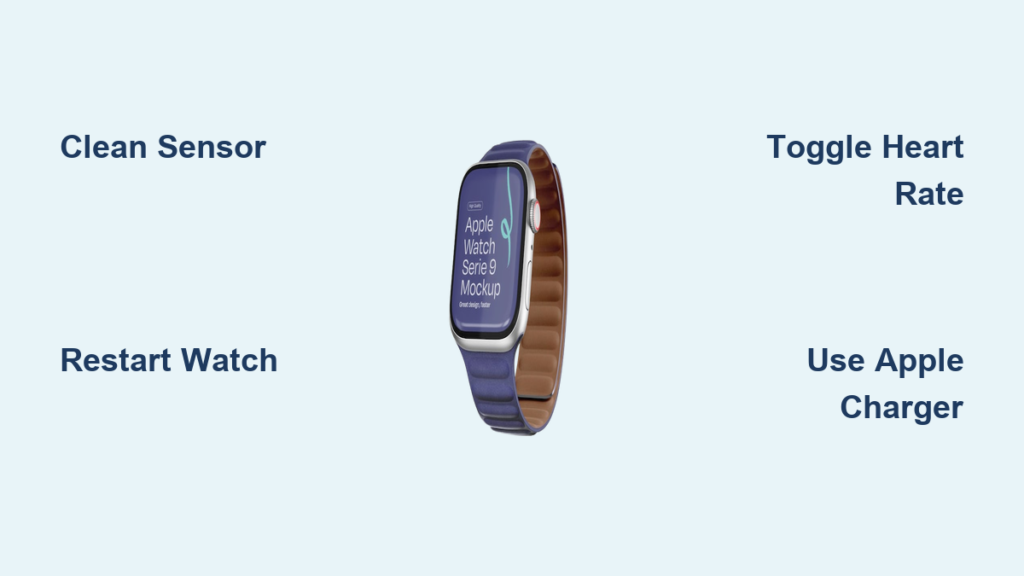
You’re halfway through a morning run, relying on your Apple Watch to track your heart rate, but the screen just says “Measuring…” — and never delivers a reading. Your active calories show zero. Sleep data isn’t syncing. The green lights on the back of your watch won’t turn on. If this sounds familiar, you’re not alone. Thousands of Apple Watch users — including owners of the Ultra 2, Ultra 3, Series 9, Series 7, and SE (2nd and 3rd gen) — are reporting heart rate sensor failure, especially after updating to watchOS 10, 26.0.1, or 26.2.
This isn’t a rare hardware defect — it’s a widespread software bug that mimics a broken sensor. The good news? The hardware is likely fine. If your ECG app still works, that’s proof: the same physical sensor module powers both ECG and optical heart rate, but they use different software pathways. The real issue lies in the watchOS logic, particularly around charging states and background monitoring. Fortunately, there are proven fixes — from simple restarts to clever workarounds — that can restore your heart rate tracking fast.
Clean the Sensor Thoroughly

Remove Sweat, Lotion, and Dirt Blocking Readings
Even a thin layer of sweat, lotion, or grime can block the green LED sensors on the back of your Apple Watch, preventing accurate heart rate detection. If the sensor can’t make proper optical contact with your skin, it won’t activate.
How to clean effectively:
– Use a soft, lint-free microfiber cloth.
– Dampen slightly with water or 70% isopropyl alcohol if needed.
– Gently wipe the entire sensor array — the cluster of round lenses on the back.
– Avoid abrasive cleaners, compressed air, or submerging the watch.
Visual test: After cleaning, cover the screen and open the Heart Rate app. You should see the green lights pulse during measurement.
Pro tip: Clean your watch weekly if you sweat heavily during workouts. Moisture buildup under the band can also interfere with readings.
Wear the Watch Snugly in the Right Position

Optimize Skin Contact Without Restricting Blood Flow
If your Apple Watch is too loose, the sensor loses consistent contact with your skin. But if it’s too tight, you may restrict blood flow, leading to inaccurate or missing data.
Best placement:
– Wear the watch 1–2 finger widths above the wrist bone.
– Use the non-dominant hand for more stable, consistent tracking.
– Choose a breathable band like the Nike Sport Band to reduce sweat buildup.
Test it: Start a workout. If heart rate kicks in after a few minutes, poor fit was likely the culprit.
Restart Your Apple Watch Immediately
Clear Temporary Software Freezes
A simple restart fixes many glitches, including those that disable the heart rate sensor.
Steps:
1. Press and hold the side button.
2. Slide to Power Off.
3. Wait 30 seconds.
4. Press the side button again to turn it back on.
Time required: Less than 2 minutes.
Success rate: High for temporary freezes.
User report: Many users see the green lights return after a restart — but the fix may only last until the next charge.
Force Restart Both Apple Watch and iPhone
Reset Deep System Glitches
When a normal restart fails, a force restart clears deeper software lockups that may be blocking sensor access.
On Apple Watch:
– Press and hold the side button + Digital Crown for 10+ seconds.
– Release when the Apple logo appears.
On iPhone:
– Quickly press volume up, then volume down, then hold the side button.
– Release when the Apple logo shows.
Why do both? The watch and iPhone share health data. Sync issues can prevent sensor reactivation.
User confirmation: One user reported the green lights returned immediately after this dual reset.
Toggle Heart Rate Monitoring Off and On
Reset Sensor Access Permissions
A fix discovered by users: turning heart rate monitoring off and on again forces the system to re-enable the sensor.
Steps on Apple Watch:
1. Open Settings.
2. Go to Privacy & Security > Health > Heart Rate.
3. Toggle Heart Rate off.
4. Wait 5 seconds.
5. Toggle it back on.
6. Restart the watch.
User result (alamantia87): “Fixed the issue completely.”
Verify Heart Rate Settings on iPhone
Ensure Full Permissions Are Enabled
Even if settings look correct on the watch, the iPhone’s Watch app controls core permissions.
Steps:
1. On iPhone, open the Watch app.
2. Tap My Watch > Privacy > Heart Rate → ensure ON.
3. Go to Fitness Tracking → ensure ON.
4. Open iPhone Settings > Privacy > Motion & Fitness → verify Fitness Tracking is enabled.
Pro tip: Toggle both off and on to refresh the connection.
Turn Off Low Power Mode

Restore Background Heart Rate Monitoring
Low Power Mode disables heart rate tracking outside workouts. If it’s stuck on, your watch won’t record resting HR or HRV.
Steps:
1. On Apple Watch: Settings > Battery > Low Power Mode → turn off.
2. On iPhone: Watch app > My Watch > Battery → confirm setting.
Note: Low Power Mode may activate automatically after charging — check after every charge.
Use Only Apple-Certified Chargers
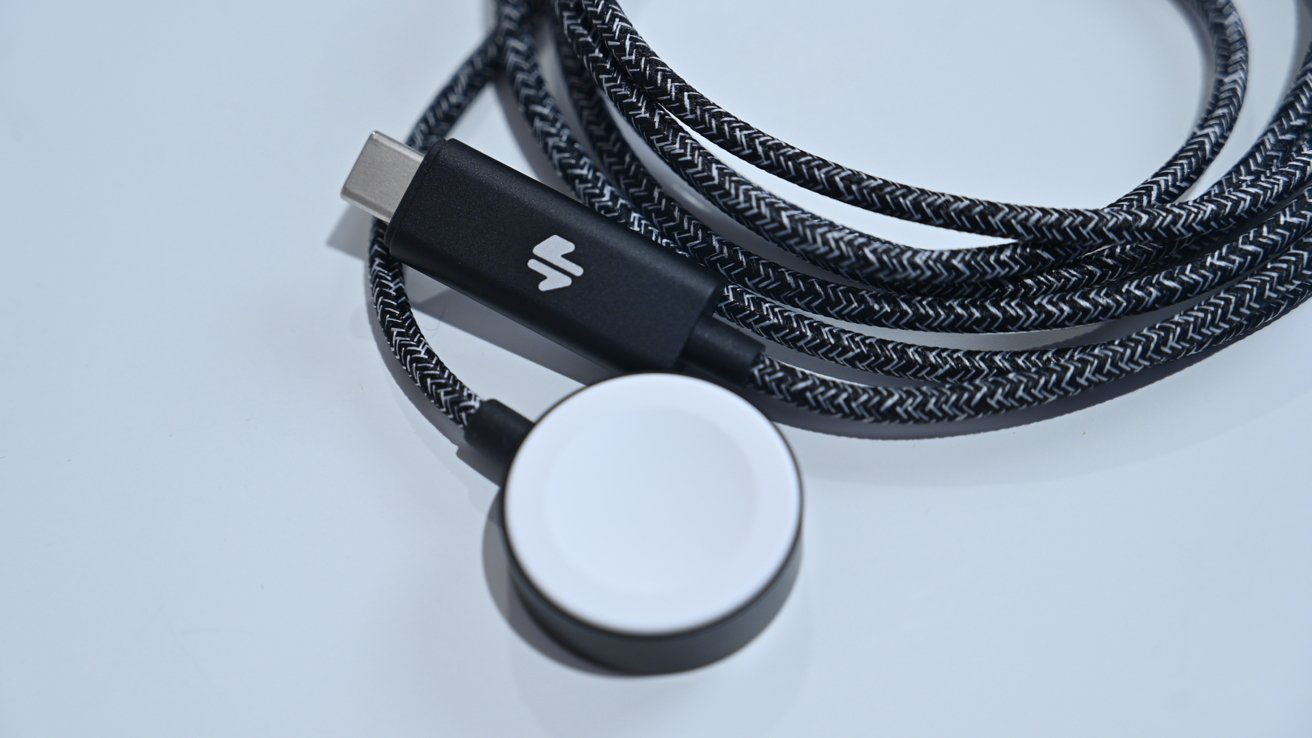
Avoid Charging-State Software Bugs
Users report that non-Apple chargers may trigger a software bug where the watch stays in a “logical charging state” even after removal.
In this state:
– Heart rate settings are grayed out.
– Sensors stay disabled.
– Recovery can take 15–20 minutes.
Solution:
– Use original Apple or MFi-certified charging accessories.
– Avoid third-party magnetic pucks or car chargers.
User insight (Cool-Design-7414): Switching back to the Apple charger resolved recurring HR issues.
Reconnect to Charger Briefly to Reset State
Trick the System into Exiting Charging Mode
If the sensor fails after charging, the watch may still think it’s charging — blocking sensor access.
Quick fix:
1. Place the watch on the charger for 5–10 seconds.
2. Remove it.
3. Immediately open the ECG app (it may time out — that’s okay).
4. Wait 3–5 minutes.
Why it works: This resets the internal charging state flag, allowing the heart rate sensor to reactivate.
User-tested: One Reddit user found HR returned within 3 minutes using this method.
Run the ECG App to Force Sensor Activation
Bypass the Optical HR Software Lock
The ECG app uses the same hardware as the heart rate sensor but follows a different software path. Running it can force the sensor to wake up.
Steps:
1. Open the ECG app.
2. Place your finger on the Digital Crown.
3. Wait 30 seconds for reading (even if it fails).
4. Exit and check the Heart Rate app.
Note: ECG uses electrical signals, not optical scanning — but the sensor activation often restores optical HR as a side effect.
Calibrate Using a Second Apple Watch
Trigger System Sync and Reset
One user reported fixing their Ultra 2 by using a second Apple Watch (Series 7) to start a workout.
Steps:
1. Start a 5-minute workout on a second Apple Watch.
2. Switch back to the malfunctioning watch.
3. Open the Workout app — heart rate may now work.
Possible reason: This may trigger a calibration sync or reset background health services.
Update or Wait for a watchOS Patch
Address the Root Software Bug
Many users report the issue started after updating to watchOS 26.0.1 or 26.2. While updates can fix bugs, they can also introduce them.
Current status:
– Apple has not officially acknowledged the bug.
– No patch has been released as of watchOS 26.2.
What to do:
– Check for updates: Go to Settings > General > Software Update.
– Avoid beta versions — OS26 beta users report higher failure rates.
– Submit feedback to Apple using the Feedback app — more reports increase chances of a fix.
User experience (Living_Cap_1246): Issue lasted 45 days, then resolved — likely due to a silent OS update.
Unpair and Re-pair Your Apple Watch
Clear Deep Sync Errors
If software tweaks fail, re-pairing can resolve connection glitches — especially after iPhone upgrades.
Steps:
1. On iPhone: Watch app > My Watch > [Watch Name] > Unpair Apple Watch.
2. Wait for backup to complete.
3. Set up as new or restore from backup.
4. Reinstall apps and reconfigure.
Warning: This takes 20–30 minutes. Back up first.
Set Up as New Without Restoring
Eliminate Corrupted Backup Data
If restoring from backup brings back the problem, try setting up without a backup.
Steps:
1. Unpair and erase.
2. Pair again, but don’t restore.
3. Set up as new.
4. Manually re-enable health features.
User test (rocket4time): Tried and failed — suggests the bug may persist even on clean setups.
Factory Reset and Check for Hardware Damage
Rule Out Physical Failure
If nothing works, the issue may be hardware-related.
Steps:
1. On Apple Watch: Settings > General > Reset > Erase All Content and Settings.
2. If the sensor still fails, contact Apple.
Possible hardware issues:
– Damaged sensor module.
– Internal water exposure.
– Cracked back crystal.
User report (katebushstanaccount): Factory reset didn’t fix it — watch became unusable for Peloton.
Visit Apple Support for Professional Repair
Get Diagnostics and Warranty Service
If all else fails, Apple can run diagnostics and repair or replace your watch.
Options:
– Genius Bar appointment — fastest for hands-on testing.
– Mail-in service — available in some regions.
– Warranty repair — free if under coverage.
What to tell them:
– “Heart rate sensor not working — green lights don’t turn on.”
– “ECG works, but optical HR fails.”
– “Issue persists after restarts and resets.”
User result (rocket4time): Received a repaired unit — no details, but it worked.
Prevent Future Sensor Issues
Maintain Reliable Heart Rate Tracking
Once fixed, avoid recurrence with these habits:
Clean Sensors Weekly
- Use a dry cloth after workouts.
- Deep clean monthly with alcohol.
Use Only Apple Chargers
- Stick to Apple-certified accessories.
Monitor After Software Updates
- Wait a few days before updating.
- Check forums for bug reports.
Disable Low Power Mode After Charging
- It often activates automatically.
Use ECG as a Reset Tool
- Run it if HR stops working — it may kickstart the sensor.
Summary: Top Fixes in Order
| Step | Action | Likelihood of Success |
|---|---|---|
| 1 | Force restart both watch and iPhone | High |
| 2 | Toggle Heart Rate in Privacy settings | High |
| 3 | Clean sensor and check fit | Medium |
| 4 | Disable Low Power Mode | Medium |
| 5 | Reconnect to charger briefly, then remove | High for charging-related bugs |
| 6 | Run ECG app to trigger sensor | Medium |
| 7 | Update watchOS or wait for patch | Long-term fix |
| 8 | Contact Apple Support | For persistent cases |
Final Note: The Apple Watch sensor not working issue is largely software-driven, not hardware failure. While frustrating, most users regain function using settings toggles, restarts, or charging workarounds. The real fix will come from Apple in a future watchOS update — so keep submitting feedback to speed up the patch. Until then, use these proven steps to get your heart rate tracking back — fast.





