Every morning, thousands of Apple Watch users start their day with a gentle tap on the wrist. Whether it’s a standard alarm jolting you awake or a Sleep schedule nudge, your Apple Watch plays a key role in keeping you on track. But what if you need to change an alarm on Apple Watch—adjust the time, switch the sound, or disable snooze to avoid oversleeping? Knowing how to manage alarms efficiently ensures you wake up when you need to, not when you hit snooze one too many times.
This guide walks you through every method: editing standard alarms, updating Sleep schedule wake-ups, using Siri for voice control, customizing haptics and sounds, and troubleshooting common issues. All steps are verified across Apple Watch Series 1 to Ultra 2 and up-to-date with the latest watchOS features.
Open the Alarms App
Start by accessing your alarms directly from your wrist.
Launch From Home Screen
- Press the Digital Crown to return to the app grid.
- Tap the Alarms app (clock icon with a bell).
- You’ll see a list of all active alarms.
⚠️ Note: The top card labeled “Sleep | Wake Up” is part of your Sleep schedule and cannot be edited in this app. Use the Sleep app to modify it.
Navigate Alarm List
- Scroll vertically to view all alarms.
- Enabled alarms show a green toggle; gray means the alarm is off.
- Tap any alarm to edit its settings.
✅ Pro Tip: If you don’t see the Alarms app, it may have been removed. Reinstall it via the Apple Watch app on iPhone: My Watch > Available Apps > Alarms.
Edit a Standard Alarm
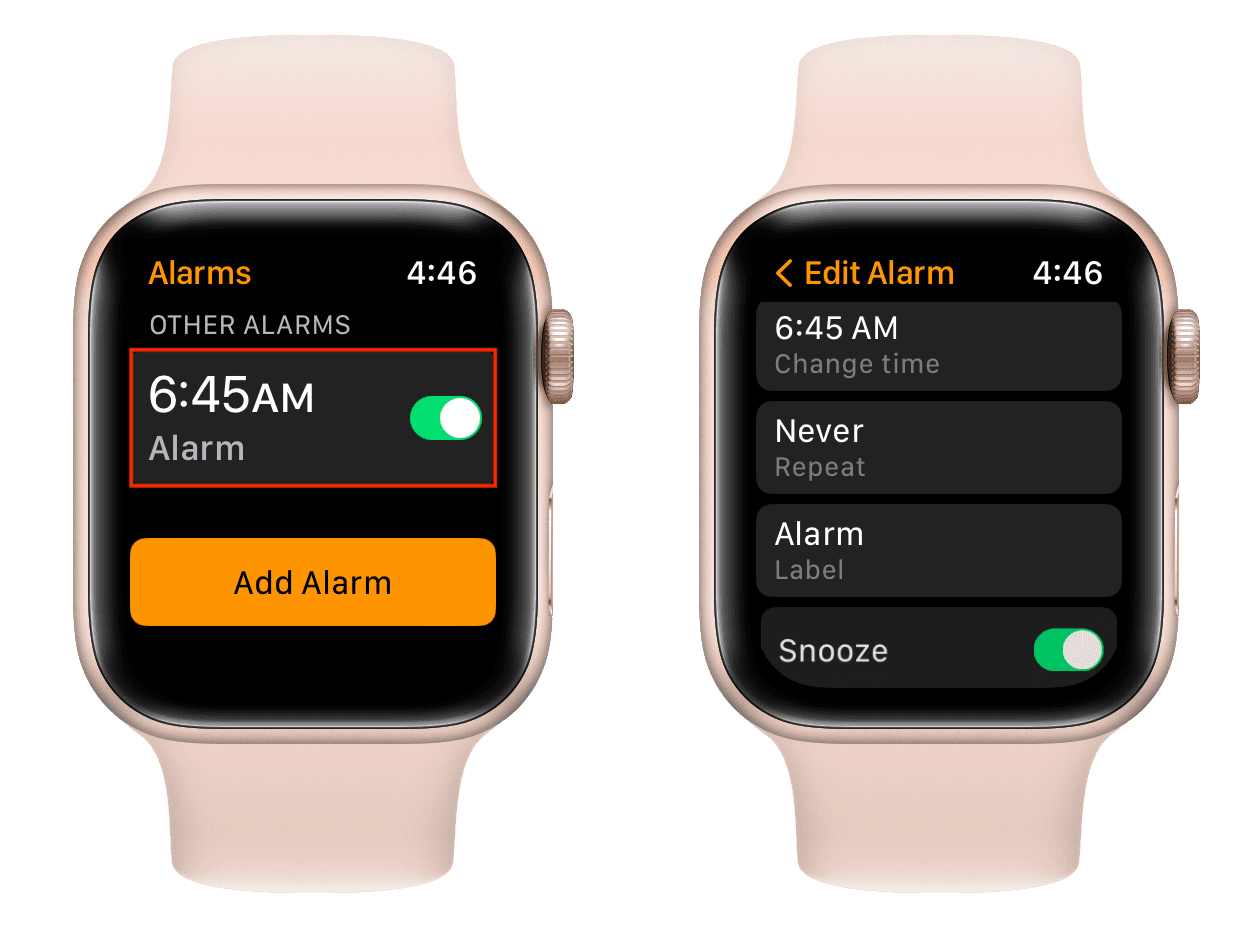
Customize time, days, label, sound, and more for any regular alarm.
Change Time and AM/PM
- Tap the alarm you want to change.
- Rotate the Digital Crown to adjust minutes.
- Tap the time field to switch focus to hours.
- Tap AM/PM to toggle as needed.
🕒 Alarms can be set in 1-minute increments from 12:00 a.m. to 11:59 p.m.
Set Repeat Days
Choose when your alarm repeats:
– Daily
– Weekdays (Mon–Fri)
– Weekends (Sat–Sun)
– Custom (e.g., Mon, Wed, Fri)
To set custom days:
1. Tap Repeat.
2. Select each day you need.
3. Tap Back to save.
✅ Best for recurring tasks like workouts, medication, or meetings.
Add or Change Label
Identify your alarm at a glance:
1. Tap Label.
2. Use the keyboard, scribble, or dictation to name it.
– Examples: “Gym,” “Call Mom,” “Medication”
3. Tap Done.
📝 Labels are limited (~20 characters). Shorter names display better on screen.
Choose Alarm Sound
Make sure your alarm breaks through sleep:
1. Tap Sound.
2. Pick from built-in tones:
– Radar
– Sirene
– Alarm
– Chimes
– Bell
– Beep Beep
– Wake Up
- Tap the play button to preview.
- Tap Back to confirm.
🔊 Sound only plays if Break Through Silent Mode is enabled.
Enable or Disable Snooze
Control whether you can snooze:
1. Toggle Snooze on or off.
2. Tap Save.
⚠️ If snooze is off, pressing the Digital Crown will stop the alarm permanently. No second chance until next scheduled time.
Update Sleep Wake-Up Alarm
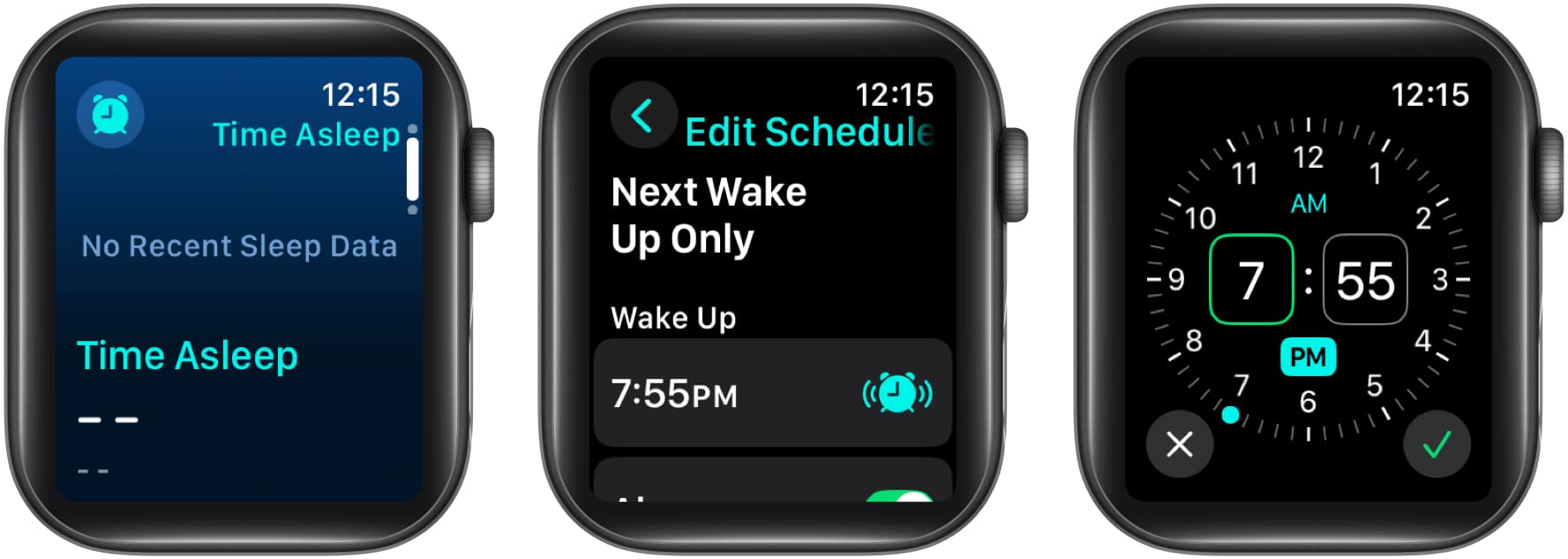
The “Sleep | Wake Up” alarm is tied to your Sleep schedule and can’t be edited in the Alarms app.
Change Wake Time on Apple Watch
- Open the Sleep app.
- Swipe to Next Schedule.
- Tap Wake Up.
- Turn the Digital Crown to adjust time.
- Tap Back to save.
🔄 Changes apply immediately and sync to the iPhone Health app.
Full Edit on iPhone (Recommended)
For full control:
1. Open Health app on iPhone.
2. Tap Browse > Sleep.
3. Tap Full Schedule & Options.
4. Tap Wake Up Time.
5. Adjust:
– Time
– Repeat days
– Sound
– Haptic intensity
- Tap Back to save.
🛌 This updates your Sleep | Wake Up alarm across devices.
Use Siri to Change Alarms
Change alarms hands-free with voice commands.
Edit Existing Alarm
Say:
– “Hey Siri, change my 7 a.m. alarm to 6:30.”
– “Hey Siri, set my weekday alarm to 8:15 a.m.”
✅ Works in watchOS 9 and later. Must have Siri enabled.
Create New Alarm
Say:
– “Hey Siri, set an alarm for 3 p.m.”
– “Set a wake-up call for 6:45 tomorrow.”
Siri creates a standard alarm unless you say “sleep” or “bedtime.”
Delete Alarms by Voice
Say:
– “Delete my 6 a.m. alarm.”
– “Turn off all alarms.” → Siri asks for confirmation.
🎯 Ideal for quick changes while cooking, driving, or wearing gloves.
Customize Advanced Alarm Settings
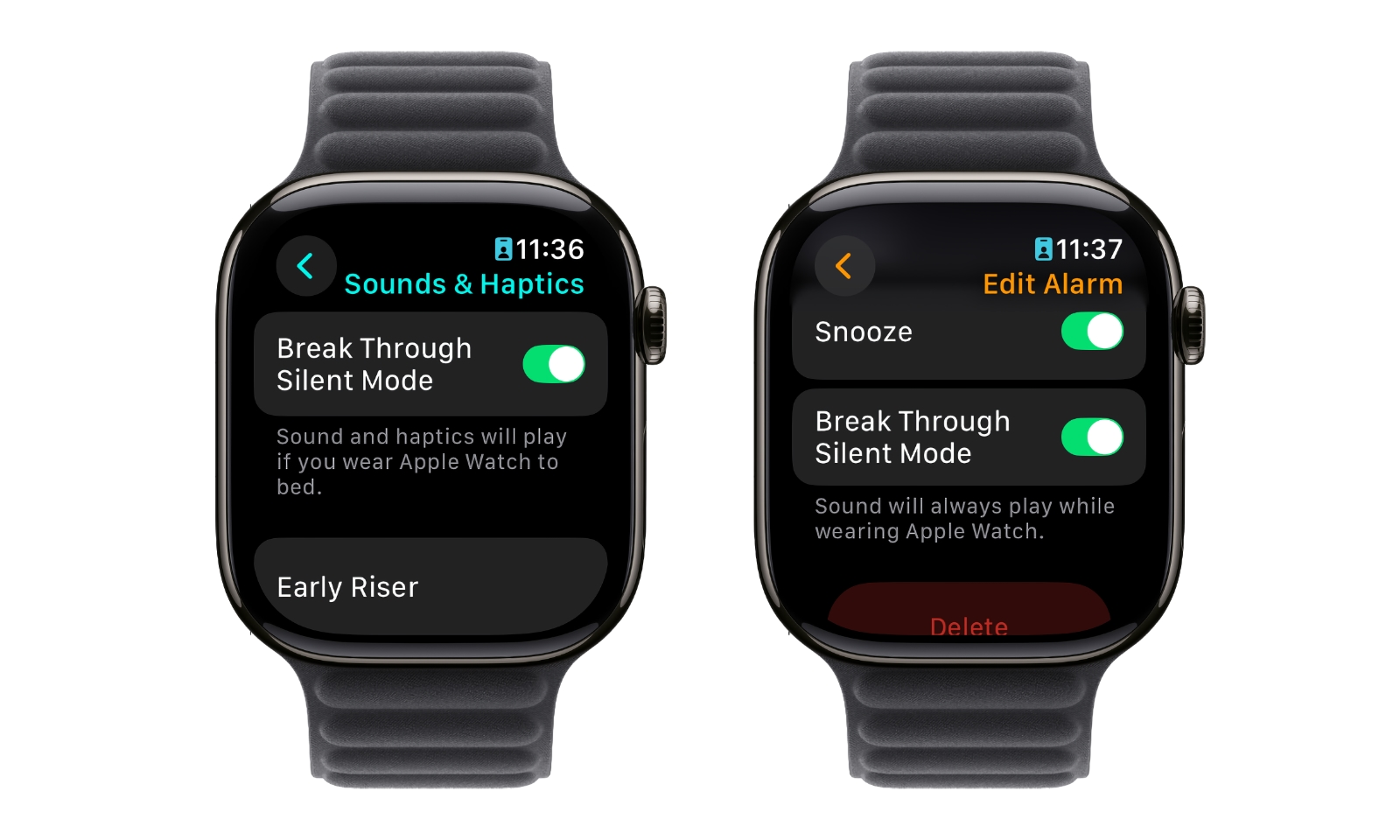
Fine-tune how your alarm behaves for reliability and comfort.
Allow Alarm to Break Through Silent Mode
Available in watchOS 11.4+ (April 2025):
1. Edit any alarm.
2. Toggle on Break Through Silent Mode.
🔊 Now your alarm will play sound even when Silent Mode is on. Before this update, alarms only vibrated in Silent Mode.
Adjust Haptic Strength
Make vibrations stronger:
1. Open Settings on Apple Watch.
2. Tap Sounds & Haptics > Haptics.
3. Choose:
– Off – no taps
– Default – standard pulse
– Prominent – two strong taps (best for deep sleepers)
💡 For silent-only alarms: Turn off sound and use Prominent haptics.
Set Snooze Duration (Future Feature)
As of now, snooze is fixed at 9 minutes.
Expected in watchOS 26 (2025):
– Custom snooze from 1 to 15 minutes
– Configurable per alarm or globally
📅 Beta testers confirm this feature is under development.
Use Bedside Mode With Alarm
Turn your Apple Watch into a nightstand clock.
Enable Bedside Mode
- Open Settings on Apple Watch.
- Tap General > Bedside Mode.
- Toggle it on.
When charging:
– Shows time, date, battery level, and next alarm.
– Tap to wake screen.
– Alarm sounds with unique tone and haptics.
🕯️ Perfect for bedside use without wearing the watch overnight.
Stop or Snooze During Alarm
When alarm rings:
– Tap Stop on screen to end.
– Press Digital Crown to snooze (if enabled).
– Press side button to silence immediately.
❗ Pressing the side button always stops the alarm—no snooze.
Sync Alarms Between Devices
Understand how alarms work across iPhone and Apple Watch.
Do Watch Alarms Appear on iPhone?
❌ No. Alarms set on Apple Watch do not sync to iPhone.
To see alarms on both:
– Set them in the iPhone Clock app instead.
Receive iPhone Alarms on Apple Watch
Yes—via push alerts:
1. Open Apple Watch app on iPhone.
2. Tap My Watch > Clock.
3. Turn on Push Alerts from iPhone.
Now iPhone alarms will notify on your wrist.
🔄 One-way sync only: iPhone → Watch. Not vice versa.
Avoid Duplicate Alarms
If both devices ring:
– Disable Push Alerts from iPhone, or
– Delete the matching alarm in iPhone’s Clock app.
✅ Best practice: Pick one device to manage daily alarms.
Delete an Alarm
Remove unwanted alarms in seconds.
From Apple Watch
- Open Alarms app.
- Swipe left on the alarm.
- Tap Delete.
🗑️ No confirmation—deletion is instant.
From iPhone (for iPhone-set alarms)
- Open Clock app.
- Go to Alarm tab.
- Tap Edit > Delete (red circle).
Turn Off Sleep Wake-Up Alarm
To disable:
1. Open Sleep app on Apple Watch.
2. Tap Wake Up.
3. Tap Off.
To delete completely:
1. On iPhone, open Health app.
2. Go to Sleep > Full Schedule & Options.
3. Tap Wake Up Time > None.
Troubleshoot Alarm Issues
Fix common problems fast.
Alarm Doesn’t Sound
Check these:
– ✅ Alarm is enabled (green toggle)
– ✅ Break Through Silent Mode is on (if Silent Mode active)
– ✅ Haptics are not set to Off
– ✅ Watch has battery above 10%
– ✅ Watch is powered on
🛠️ Test: Set a 2-minute test alarm to verify.
Only Vibrates, No Sound
Cause: Silent Mode is on and Break Through Silent Mode is off.
Fix:
1. Edit the alarm.
2. Turn on Break Through Silent Mode.
🔊 Now sound will play even when muted.
Accidentally Snoozed Instead of Stopping
Common mistake: Pressing Digital Crown always snoozes.
To stop:
– Tap Stop on the alarm screen.
– Or press side button.
Prevent it:
– Edit alarm → turn off Snooze.
✅ Pro tip: Disable snooze if you tend to hit it in your sleep.
Alarm Not Showing on iPhone
Expected behavior: Apple Watch alarms don’t appear on iPhone.
Workarounds:
– Set alarms on iPhone instead.
– Use Siri: “Show my alarms” → lists iPhone-only alarms.
Watch Doesn’t Wake Me Up
Solutions:
– Use Prominent Haptics (Settings > Sounds & Haptics > Haptics)
– Wear watch snugly on wrist
– Try Sleep | Wake Up alarm (gradual haptics)
– Increase sound volume in alarm settings
🌙 Deep sleepers: Combine Wake-Up Alarm + Prominent Haptics + loud tone.
Final Note: Changing an alarm on Apple Watch is quick once you know where to look. Standard alarms are edited in the Alarms app, while Sleep | Wake Up alarms require the Sleep or Health app. Use Siri for speed, enable Break Through Silent Mode for reliability, and consider Bedside Mode for nighttime visibility. With these tips, you’ll never miss a beat—or an alarm—again.
Leave a Reply