
For over a decade, Apple Watch users were stuck with a single default ringtone—no customization, no variety, just the familiar “Pebbles” chime for every call. But with watchOS 11, Apple finally delivered one of the most requested features: the ability to change Apple Watch ringtone. Now, you can personalize how your wearable alerts you, choosing from a selection of distinct tones for calls and notifications directly on your wrist or through your iPhone.
This update marks a major leap in usability and personalization. While you still can’t assign ringtones to individual contacts or upload custom MP3s, the new options give you meaningful control over your audio experience. In this guide, you’ll learn how to change Apple Watch ringtone for calls and alerts, adjust volume and haptics, silence interruptions quickly, and work within the current limitations—so you can tailor your device to match your lifestyle.
Change Call Ringtone on Apple Watch
The main ringtone plays whenever you receive a phone call routed to your Apple Watch. With watchOS 11, you’re no longer locked into “Pebbles”—you can now choose a tone that suits your style.
Choose Ringtone Directly on Watch
You can change your ringtone entirely from your wrist in just a few taps:
- Unlock your Apple Watch.
- Open the Settings app.
- Scroll down and tap Sounds & Haptics.
- Tap Ringtone.
- Preview and select from the available tones:
– Pebbles
– Focus
– Jingle
– Nighthawk
– Transmit
– Twirl
– Windup
– Wonder
Each tone plays instantly when you tap it, letting you hear the full sound before confirming. Once selected, it applies automatically to all incoming calls—no extra steps needed.
Pro Tip: If you’re in a quiet environment like a meeting or library, use headphones or slightly increase the volume with the Digital Crown to better hear the preview.
Set Ringtone Using iPhone
For easier navigation and a larger screen, you can manage your ringtone from your paired iPhone:
- Open the Watch app.
- Go to the My Watch tab.
- Tap Sounds & Haptics.
- Tap Ringtone.
- Pick your preferred sound from the list.
Changes sync automatically and appear on your Apple Watch within seconds. This method is ideal if you want a more comfortable browsing experience or are helping someone else customize their device.
Customize Notification Alert Sounds

Beyond calls, watchOS 11 lets you assign unique sounds to different system alerts—helping you distinguish at a glance (or tap) whether it’s a text, email, calendar event, or reminder.
Available Alert Categories
You can now customize tones for:
– Text Tone
– New Mail
– Calendar Alerts
– Reminder Alerts
– Default Alerts (used by third-party apps)
This auditory differentiation helps you react appropriately—even before looking at your watch.
Change Alert Sound on Apple Watch
- Open Settings.
- Tap Sounds & Haptics.
- Scroll to the alert type you want to change (e.g., Text Tone).
- Tap it and choose a sound:
– Resonate
– Brilliant
– Cheer
– Flutter
– Globe
– Moment
– Scoop
– Timekeeper
– Tinker
– None
Selecting None disables sound for that category—perfect for muting non-urgent notifications like texts while keeping calls audible.
Use iPhone to Manage Alerts
You can also handle this from your iPhone:
- Open the Watch app.
- Go to My Watch > Sounds & Haptics.
- Tap any alert type (e.g., Calendar Alerts).
- Choose a tone from the list.
Sync is seamless, and you’ll hear a preview instantly. Some users report seeing Foundry as an option—this may be a new or region-specific tone not yet widely documented.
Adjust Ringtone Volume and Settings

Even the best ringtone won’t help if it’s too quiet. Control how loudly your Apple Watch alerts you—and whether volume adjusts automatically based on your environment.
Set Manual Volume Level
- On Apple Watch, go to Settings > Sounds & Haptics.
- Tap Level.
- Choose:
– Louder
– Default
– Quieter
This sets a fixed output level for all ringtones and alerts.
Disable Auto-Adjust Volume
By default, your Apple Watch uses ambient light and noise sensors to adjust alert volume. To disable this:
- In Sounds & Haptics, turn off Automatically Adjust Volume.
- Use the volume slider (accessible via Control Center or Digital Crown) to set a consistent level.
Why do this? Prevents sudden volume spikes in quiet rooms or drops in noisy environments—ideal for predictable alert behavior.
Control Haptic Feedback Intensity
Sound isn’t the only way your Apple Watch gets your attention. Haptics deliver subtle taps to your wrist, and you can now fine-tune their strength.
Choose Haptic Strength
- Open Settings > Sounds & Haptics > Haptics.
- Select one of three modes:
– Off – No vibration alerts.
– Default – Standard tap pattern.
– Prominent – Adds a pre-alert tap for emphasis.
Best for: Users who wear jackets, long sleeves, or loose watches and might miss subtle vibrations.
Ensure Skin Contact for Reliable Haptics
For haptics to work properly:
– Wear the watch snugly on your wrist.
– Keep the back sensor clean and unobstructed.
– Avoid wearing too loosely—gaps reduce haptic effectiveness.
If haptics fail despite proper fit, consider a service check.
Enable or Disable Crown Haptics
Apple Watch Series 4 and later models offer tactile feedback when scrolling the Digital Crown.
Toggle Crown Haptics
- Go to Settings > Sounds & Haptics.
- Tap Crown Haptics.
- Turn On or Off.
When enabled, you’ll feel small taps as you rotate the crown—great for precise scrolling during workouts or navigation without looking.
Use Taptic Chimes to Track Time Audibly
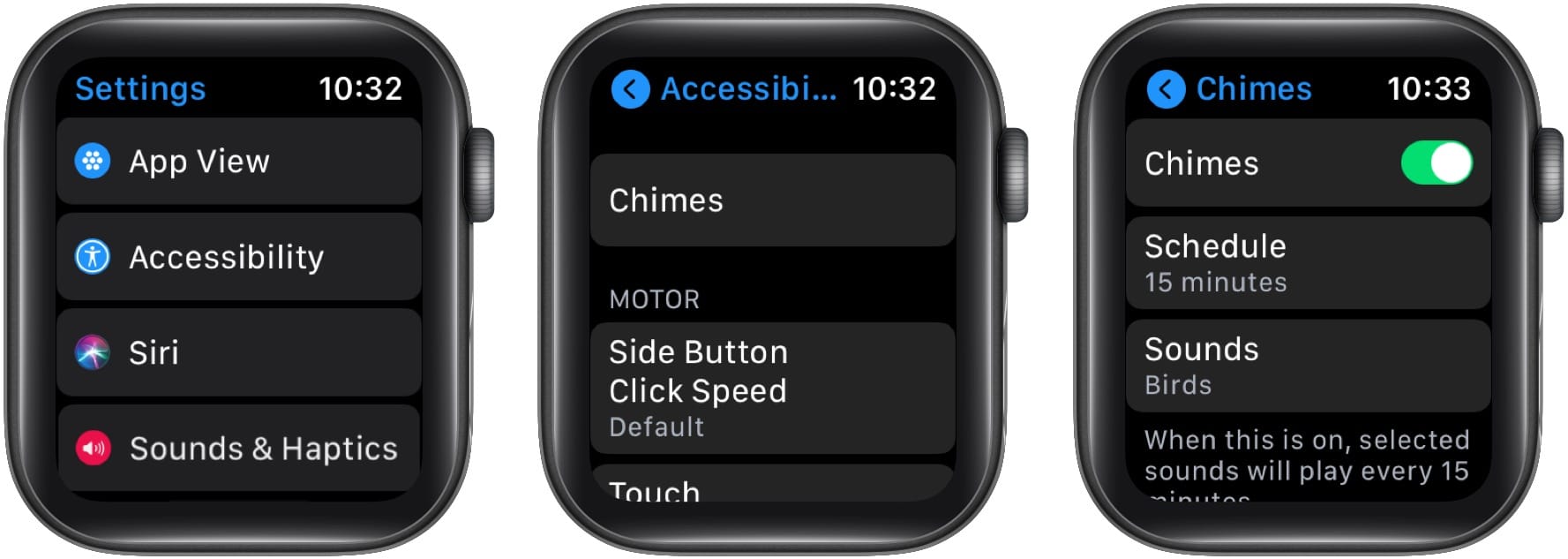
Taptic Chimes let your watch gently chime at intervals, helping you stay aware of time without checking the screen.
Set Up Chimes on Apple Watch
- Open Settings.
- Go to Accessibility > Chimes.
- Turn on Chimes.
- Choose frequency:
– Hourly
– Every 30 minutes
– Every 15 minutes - Pick a sound:
– Birds
– Bells
Use case: Ideal for focus sessions, meditation, or managing time during meetings.
Manage Chimes from iPhone
- Open Watch app.
- Go to My Watch > Accessibility > Chimes.
- Adjust settings as needed.
Silence Incoming Alerts Quickly
Sometimes you need to mute an alert immediately—without fumbling through menus.
Use Cover to Mute Gesture
Silence a ringing call or alert:
1. Place your palm over the Apple Watch display.
2. Hold for 3 seconds until you feel a confirming tap.
Requirement: Must have Cover to Mute enabled in Settings > Gestures.
Exception: Wake-up alarms cannot be silenced this way—prevents accidental dismissal during sleep tracking.
Activate Silent Mode
- Press the side button to open Control Center.
- Tap the Silent Mode icon (bell with slash).
- Your watch will stop making sounds but continue haptic alerts.
To exit, repeat the process or use the iPhone’s Watch app.
Schedule Do Not Disturb to Block Ringtones
Prevent interruptions during sleep, meetings, or downtime.
Turn On Do Not Disturb
- Swipe up from the watch face to open Control Center.
- Tap the Do Not Disturb button (crescent moon).
- Choose duration:
– Until turned off
– For 1 hour
– Until this evening
– Until tomorrow morning
Effect: Calls and notifications won’t ring or light up the screen—though alarms still trigger.
Pro tip: Pair with Sleep Mode in the Sleep app for automatic nighttime silencing.
Control Media Playback Volume Separately
Media (music, podcasts, audiobooks) uses a separate audio channel from ringtones.
Adjust Media Volume on Watch
- Press the side button to open Control Center.
- Tap the volume icon.
- Turn the Digital Crown to raise or lower volume.
Alternatively, open the Now Playing app and use the volume slider.
Note: This does not affect ringtone or alert levels—only media output.
Understand Current Limitations
Despite the new flexibility, some expected features are still missing.
No Per-Contact Ringtones
You cannot assign unique ringtones to specific contacts. All calls use the same ringtone, regardless of who’s calling.
Workaround: Rely on visual cues (name/photo on screen) or haptic patterns if using Prominent alerts.
No Custom Audio Uploads
You cannot use personal audio files (MP3s, voice memos, etc.) as ringtones or alerts.
All tones are preloaded by Apple. No support for creating ringtones from songs in your library.
Third-Party Apps Use Default Alert
Only system-level apps (Messages, Mail, Calendar, Reminders) support custom tones. All other apps—including WhatsApp, Slack, and fitness trackers—use the Default Alerts sound.
Future hope: Users expect Apple to expand this in future watchOS updates.
Summary of Available Tones
| Category | Available Options |
|---|---|
| Call Ringtones | Pebbles, Focus, Jingle, Nighthawk, Transmit, Twirl, Windup, Wonder |
| Alert Tones | Resonate, Brilliant, Cheer, Flutter, Globe, Moment, Scoop, Timekeeper, Tinker, None |
| Chime Sounds | Birds, Bells |
| Special Tones | Foundry (limited reports; may be upcoming or internal) |
All selections are previewable before applying.
Final Tips for Best Experience
- Sync Across Devices: Any sound change made on iPhone or Apple Watch syncs automatically—no manual refresh needed.
- Test in Real Conditions: Preview tones in environments where you typically receive alerts (e.g., office, gym).
- Balance Sound and Haptics: In noisy places, rely more on Prominent haptics; in quiet spaces, lower volume and use subtle tones.
- Update Regularly: Apple may expand ringtone options in future watchOS updates—keep your device updated.
The ability to change Apple Watch ringtone is a long-overdue feature that significantly improves usability and personalization. While it doesn’t yet match the iPhone’s full customization, watchOS 11 delivers meaningful control over how your wearable alerts you. By following these steps, you can tailor your audio experience, reduce distractions, and make your Apple Watch truly yours.




