
If you’ve ever found yourself double-checking whether it’s 2:30 AM or PM on your Apple Watch, you’re not alone. For professionals in healthcare, aviation, the military, or anyone who values precision, switching to military time (24-hour format) can eliminate confusion and streamline daily routines. The good news? You can set your Apple Watch to display time from 00:00 to 23:59—even while keeping your iPhone in the standard 12-hour AM/PM format. Unlike some smartwatches that mirror phone settings, the Apple Watch allows independent time formatting, giving you full control over how time appears on your wrist.
This guide walks you through every step to enable military time, recommends the best watch faces for clear 24-hour display, explains why your iPhone won’t change, and provides troubleshooting tips when the setting doesn’t take. Whether you’re a night-shift nurse, a pilot, or just prefer a more accurate time format, this step-by-step tutorial ensures you get it right the first time.
Enable 24-Hour Time via Apple Watch App on iPhone
You can’t change the time format directly on the Apple Watch. Instead, the only way to switch to military time is through the Apple Watch app on your paired iPhone. This often-overlooked detail trips up many users who assume the setting lives on the watch itself.
Open the Apple Watch App and Navigate to Clock Settings
- On your iPhone, locate and open the Apple Watch app—it looks like a small watch face icon.
- Tap the “My Watch” tab at the bottom.
- Scroll down and select Clock from the list of settings.
✅ Pro Tip: Make sure your Apple Watch is nearby and connected via Bluetooth. A stable connection ensures the setting syncs instantly.
Toggle On 24-Hour Time
Inside the Clock menu, find the 24-Hour Time option and slide the switch to ON. Once enabled, your Apple Watch should update within seconds.
⏱️ Wait Time: Allow up to 60 seconds for the change to reflect. If your watch still shows 3:00 PM instead of 15:00, don’t panic—proceed to troubleshooting.
This setting only affects how time is displayed on your watch face. It does not alter alarms, calendar alerts, or system time tracking, which continue to use actual local time.
Best Watch Faces for Clear 24-Hour Display
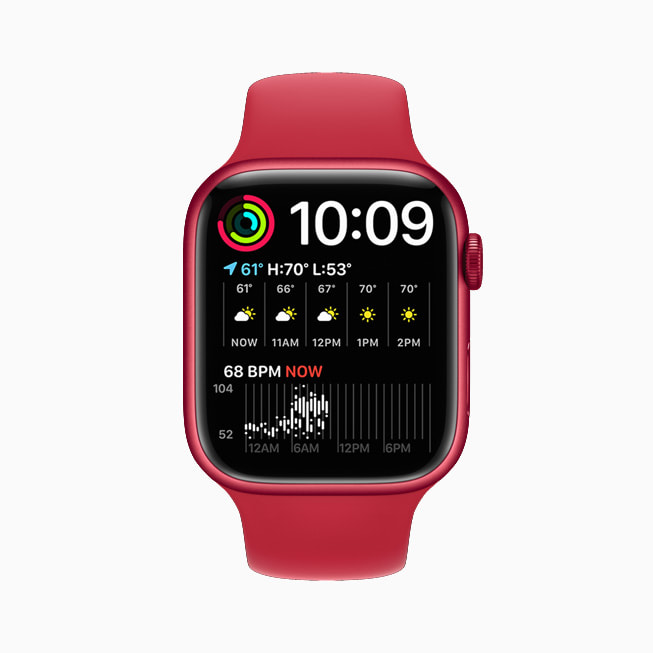
Not all Apple Watch faces are created equal when it comes to showing military time. While the 24-hour toggle applies system-wide, analog faces like Infograph or California may still display time using 12-hour clock hands, making it hard to read 14:30 at a glance.
Recommended Digital Watch Faces
For a clear, unambiguous 24-hour display, use these digital or hybrid digital-analog faces:
– Modular
– Motion
– Solar
– Timelapse
– Astronomy
– Simple
– Numerals
– Digital Legacy
✅ Why It Matters: Even with 24-hour mode enabled, an analog face may still show “3:00” instead of “15:00.” Switching to a digital face ensures you see the full benefit of military time.
How to Add a Digital Watch Face
- Open the Apple Watch app on your iPhone.
- Tap Face Gallery.
- Choose a digital-style face (e.g., Modular).
- Tap Add to install it.
- Press the Digital Crown on your Apple Watch to cycle through faces and select the new one.
🔍 Visual Confirmation: After switching, check your watch between 1 PM and 11 PM. If set correctly, 3 PM should appear as 15:00, not 3:00 PM.
Keep iPhone in 12-Hour Mode—No Changes Needed
One of the most misunderstood aspects of Apple Watch time settings is that your iPhone’s time format and your Apple Watch’s format are independent. You do not need to change your iPhone to 24-hour mode to use military time on your wrist.
iPhone vs. Apple Watch Time Settings
| Device | Setting Path | Controls |
|---|---|---|
| iPhone | Settings > General > Date & Time > 24-Hour Time | Only affects iPhone display |
| Apple Watch | Watch app > My Watch > Clock > 24-Hour Time | Only affects Apple Watch |
✅ Real-World Use Case: Nurses, EMTs, and shift workers often keep their phones in 12-hour mode for personal use but rely on 24-hour time on their Apple Watch for professional accuracy—no compromise needed.
Why the Confusion?
Many users assume the Apple Watch mirrors the iPhone’s settings. It doesn’t. This misconception leads people to toggle the iPhone’s 24-hour switch—unnecessarily changing their phone’s display. Only the Apple Watch app controls the watch’s time format.
💬 Verified User Feedback: “I was worried my texts would show weird times, but nope—only the watch changed. Perfect for my night shifts.” – Apple Watch Series 8 user
Troubleshoot: Watch Still Shows 12-Hour Time?

If your Apple Watch still displays AM/PM after enabling 24-hour mode, follow these steps to resolve the issue.
Verify the Correct Setting Location
Ensure you’re adjusting:
– ✅ Watch app > My Watch > Clock > 24-Hour Time
– ❌ Not iPhone Settings > General > Date & Time
The iPhone setting affects only the phone—not the watch.
Check iPhone Region Settings
Your region setting can override time preferences. If your iPhone is set to a country where 24-hour time is standard (e.g., Germany, France, Sweden), the system may enforce it across both devices.
- Go to Settings > General > Language & Region.
- Tap Region.
- Select your actual region (e.g., United States, Canada, Australia).
⚠️ Warning: An incorrect region may force 24-hour time or interfere with expected behavior. Choose a region that matches your preference.
Restart Both Devices
A soft reboot clears temporary glitches.
- Restart Apple Watch:
- Press and hold the side button until the Power Off slider appears.
- Swipe to power off, wait 30 seconds, then press the side button to restart.
- Restart iPhone:
- Press and hold the side button + volume down (or home button on older models).
- Swipe to power off, then restart.
After rebooting, check your watch face again.
Force Sync Through the Watch App
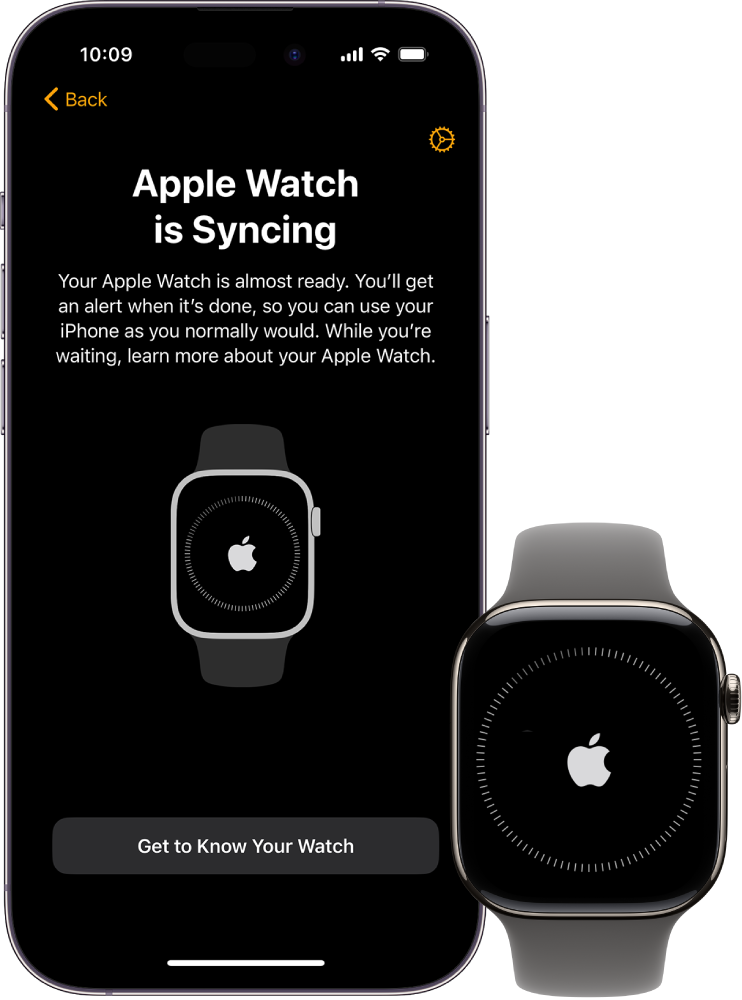
- Open the Apple Watch app.
- Tap My Watch.
- Wait 1–2 minutes after enabling 24-Hour Time.
- Confirm your watch shows a connected status (no red exclamation mark).
🔄 Sync Delay: Some users report delays up to 2 minutes. Be patient before assuming the setting failed.
Unpair and Re-Pair (Last Resort)
If all else fails:
1. Open the Watch app.
2. Tap My Watch > All Watches.
3. Tap the “i” icon next to your watch.
4. Select Unpair Apple Watch.
5. Confirm—your data will back up automatically.
6. Re-pair the watch and re-enable 24-Hour Time in Clock settings.
💡 This resets all sync parameters and often resolves stubborn configuration issues.
Customize Time Display: Make Your Watch Appear Ahead
Need to stay punctual? You can set your Apple Watch to display time slightly ahead of actual time—helpful for avoiding tardiness.
Steps to Set Time Offset
- On your Apple Watch, open Settings.
- Tap Clock.
- Tap +0 min.
- Turn the Digital Crown to set an offset (e.g., +5, +10, or +15 minutes).
- Tap Done.
🔔 Important: This only changes the visual display. Alarms, calendar alerts, and timers still trigger based on real time.
🕒 Example: Set +10 minutes, and your watch shows 9:10 when it’s actually 9:00. Great for staying on schedule—but don’t rely on it for precise timekeeping.
Software & Compatibility Requirements
For reliable 24-hour time functionality, ensure both devices are up to date.
Minimum Requirements
- iPhone: iOS 10 or later (latest version recommended)
- Apple Watch: watchOS 3 or later (latest version recommended)
Outdated software can prevent settings from syncing properly.
Update iPhone and Apple Watch
- iPhone: Settings > General > Software Update
- Apple Watch: Settings > General > Software Update (ensure watch is charged)
⚠️ Sync Tip: After major updates, recheck the 24-Hour Time setting—it may reset.
User Tips & Common Mistakes
Real-world feedback reveals common pitfalls and smart solutions.
Mistake: Using the Wrong Setting
Many users toggle the iPhone’s 24-hour switch, thinking it affects the watch. It doesn’t. Always use the Watch app > Clock menu.
Tip: Test at 1 PM
After enabling, check your watch at 1 PM. If working, it should show 13:00—the quickest success test.
Professional Feedback
- “As a paramedic, I can’t afford AM/PM confusion. Having military time on my Apple Watch while my phone stays normal is a game-changer.”
- “Switched to Modular face—finally see 20:00 instead of squinting at 8:00 PM.”
🌍 International Note: In many countries, 24-hour time is standard. Users from Europe often find the term “military time” unusual—it’s just “time” to them.
System Behavior Explained
| Component | Controlled By | Affected by 24-Hour Toggle? |
|---|---|---|
| Watch Face Time | Watch app Clock setting | ✅ Yes |
| iPhone Status Bar | iPhone Settings | ❌ No |
| Calendar Alerts | System time (network-based) | ❌ No |
| Alarms | Actual local time | ❌ No |
| Stopwatch/Timer | Independent function | ❌ No |
✅ Key Takeaway: The 24-hour toggle only changes how time is displayed—not how the system tracks it.
Quick Summary: Key Facts
| Feature | Detail |
|---|---|
| Can Apple Watch show military time? | ✅ Yes |
| Where to enable it? | Watch app > My Watch > Clock > 24-Hour Time |
| Does iPhone time change too? | ❌ No |
| Best watch faces for 24-hour? | Modular, Motion, Solar, Timelapse |
| Region setting important? | ✅ Yes |
| Software updates required? | ✅ Recommended |
| Can you fake the time? | ✅ Yes—+5 to +15 min offset (visual only) |
Final Recommendations
- Always use the Apple Watch app—not iPhone Settings—to change time format.
- Switch to a digital watch face for clear 24-hour display.
- Don’t worry about your iPhone—it stays in 12-hour mode unless you change it.
- If the change doesn’t appear:
– Wait 60 seconds
– Restart both devices
– Check region settings
– Update software
– Try unpairing if all else fails - For professionals, military time eliminates AM/PM errors during night shifts or critical tasks.
✅ Pro Tip: After enabling, check your watch at 8 PM—it should read 20:00. If it does, you’ve successfully switched to military time.
With this guide, you now have full control over how time appears on your wrist—clear, accurate, and tailored to your needs.





